Flow Builder Blocks Explained
What every block in the WhatChimp Flow Builder does, how to add and join blocks, and which blocks need something in front of them.
Updated 24 September 2026
The Flow Builder is where you build chatbots in WhatChimp. The left panel holds every block you can use, in five groups. This page explains what each block does, and which blocks can be joined to each other.
For a step-by-step build that uses most of these blocks, see How to Create a Keyword-Based WhatsApp Chatbot.
How Blocks Work
Every block is added the same way:
- Drag it from the left panel onto the canvas.
- Join it to the block before it: drag from a dot on the right of one block to the dot on the left of the next.
- Double-click it to open its settings, fill them in, and click Save Changes.
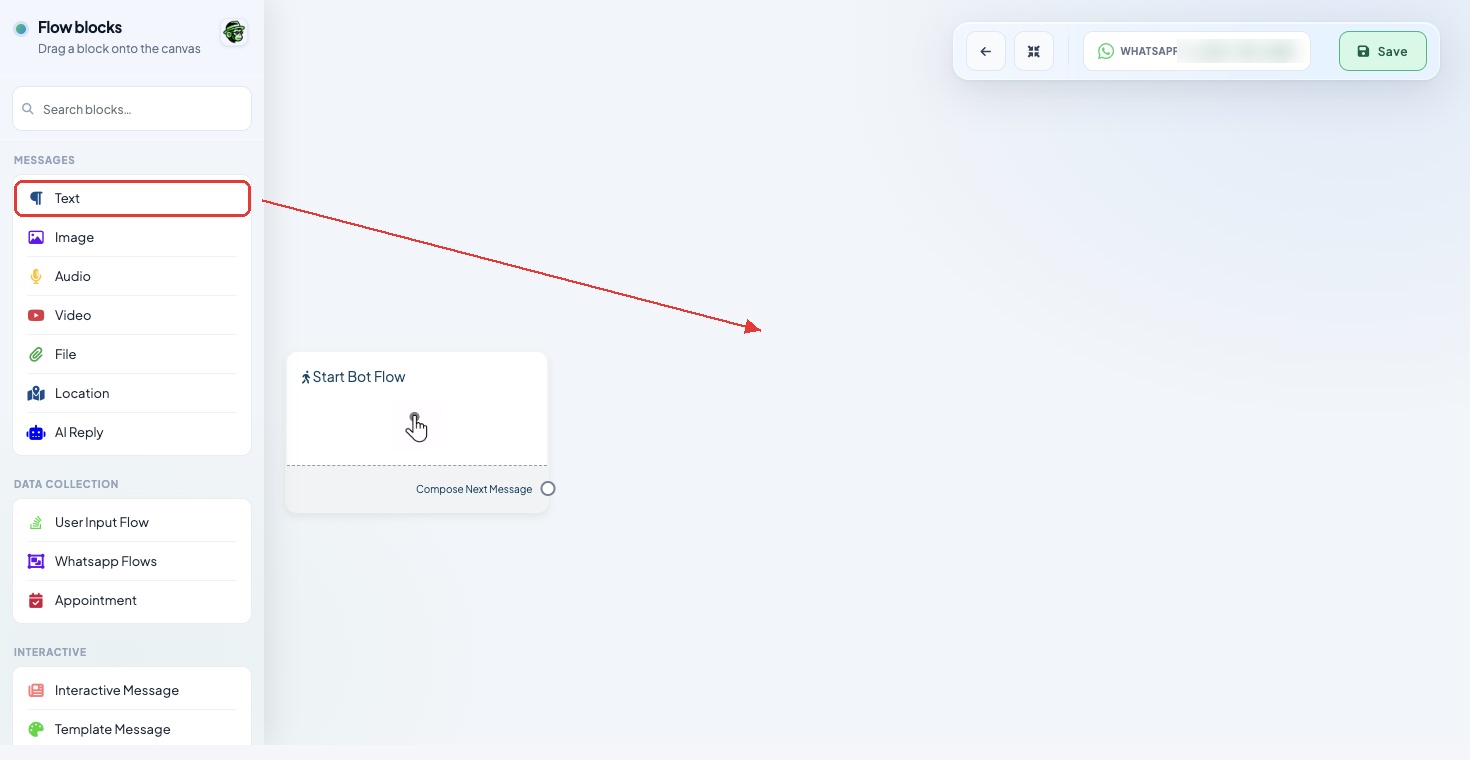 Drag any block from the left panel onto the canvas
To copy or remove a block, right-click it and choose Clone or Delete. Click Rearrange in the top toolbar to line all blocks up neatly. Nothing is live until you click Save at the top right.
The Blocks
Messages
| Block | What it does |
|---|---|
| Text | Sends a text message of up to 4,096 characters. You can add the customer's name or any custom field. |
| Image | Sends a PNG or JPG. Upload it, or use a link or a custom field that holds the link. |
| Audio | Sends a voice note or audio file (MP3, AMR or OGG). |
| Video | Sends an MP4, FLV or WMV video. |
| File | Sends a document: PDF, DOC, DOCX, TXT, PPT, PPTX, XLS or XLSX. |
| Location | Sends a message with a button that asks the customer to share their location. |
| AI Reply | Lets AI write the answer, based on sample text you give it or one of your AI training campaigns. |
Data Collection
| Block | What it does |
|---|---|
| User Input Flow | Asks the customer a series of questions, one at a time, and saves the answers together. You can download the answers as a spreadsheet. See How to Collect User Details Without Forms. |
| Whatsapp Flows | Sends a button that opens a form inside WhatsApp, so the customer fills it in without leaving the chat. See WhatsApp Flow Forms. |
| Appointment | Starts a booking from one of your appointment lists. See How to Trigger Appointment Booking from a Chatbot. |
Interactive
| Block | What it does |
|---|---|
| Interactive Message | Sends a message with a header, body and footer. You attach buttons or a list message to it, so this is the block for menus. |
| Template Message | Sends one of your templates (messages Meta has approved in advance). |
| CTA URL Button | Sends a message with one button that opens a web link. See How to Add Clickable CTA Buttons. |
Flow Control
| Block | What it does |
|---|---|
| Condition | Splits the flow based on the customer's profile or a custom field. Choose whether all of your rules must match, or any one of them. |
| New Sequence Campaign | Starts a series of follow-up messages sent over time. See How to Set Up Sales Sequence Chatbots. |
| Label Assign | Adds one or more labels to the customer when they reach this point. |
| Random Number Generator | Creates a random code of at least 5 characters, such as a coupon or booking number, and saves it to a custom field. Test it before you rely on it: send the code in a message and check that the real code arrives. |
Integrations
| Block | What it does |
|---|---|
| HTTP API | Connects the chatbot to another software you use, to send it information or get information back. This usually needs a developer to set up. See External HTTP API Integration in Bot Flow. |
| Google Sheet Data Fetch | Looks up data in a Google Sheet and uses it in the chat. See How to Use Google Sheet Data in Chatbot Replies. |
Every message block also has Delivery Options, where you can show the "typing..." dots and add a short wait before the message is sent.
Blocks That Need Something in Front of Them
Some blocks cannot be joined straight to others. The Flow Builder shows a warning if you try.
- AI Reply cannot follow a menu Row or a Text block. Put an Interactive Message with a button in front of it, and join the button to AI Reply.
- User Input Flow cannot follow a menu Row directly. Put a short Text message in front of it.
Things to Know
- Names and custom fields in messages. Use the Name and Custom buttons above the message box. The name goes in as
#LEAD_USER_FIRST_NAME#and shows the name on the customer's WhatsApp profile. Custom fields go in as#Field Name#. A hand-typed#nameis sent as plain text, so always use the buttons. - Date questions in a User Input Flow send the customer a link to a date picker, not a picker inside WhatsApp.
- While a form is running, the customer's next message counts as their answer, even if they tap a menu option.
- Buttons or a list. An Interactive Message can carry up to three buttons. For more choices, use List Messages, which can hold up to 10 options.
Related Articles
- How to Create a Keyword-Based WhatsApp Chatbot: a full build with every step shown
- How to Add Clickable CTA Buttons: buttons that open links
- How to Collect User Details Without Forms: build a question-by-question form
- Add Your OpenAI API Key: connect AI before using AI Reply