Add Your OpenAI API Key
Get your OpenAI API key from platform.openai.com and configure it in WhatChimp to power the AI Agent.
Updated 10 February 2026
Video: https://www.youtube.com/watch?v=lipgUv9YSbU
Before you can use the AI Agent, you need to connect an AI model by adding your API key. WhatChimp supports OpenAI and DeepSeek. This guide walks you through getting your OpenAI API key and configuring it in WhatChimp.
Get Your OpenAI API Key
- Go to platform.openai.com
- Log in with your OpenAI account (the same company behind ChatGPT)
- Click Settings in the left sidebar
- Click API Keys
- Click Create new secret key
- Give it a name (e.g., "WhatChimp") and select the default project
- Click Create secret key
- Copy the key immediately — you won't be able to see it again
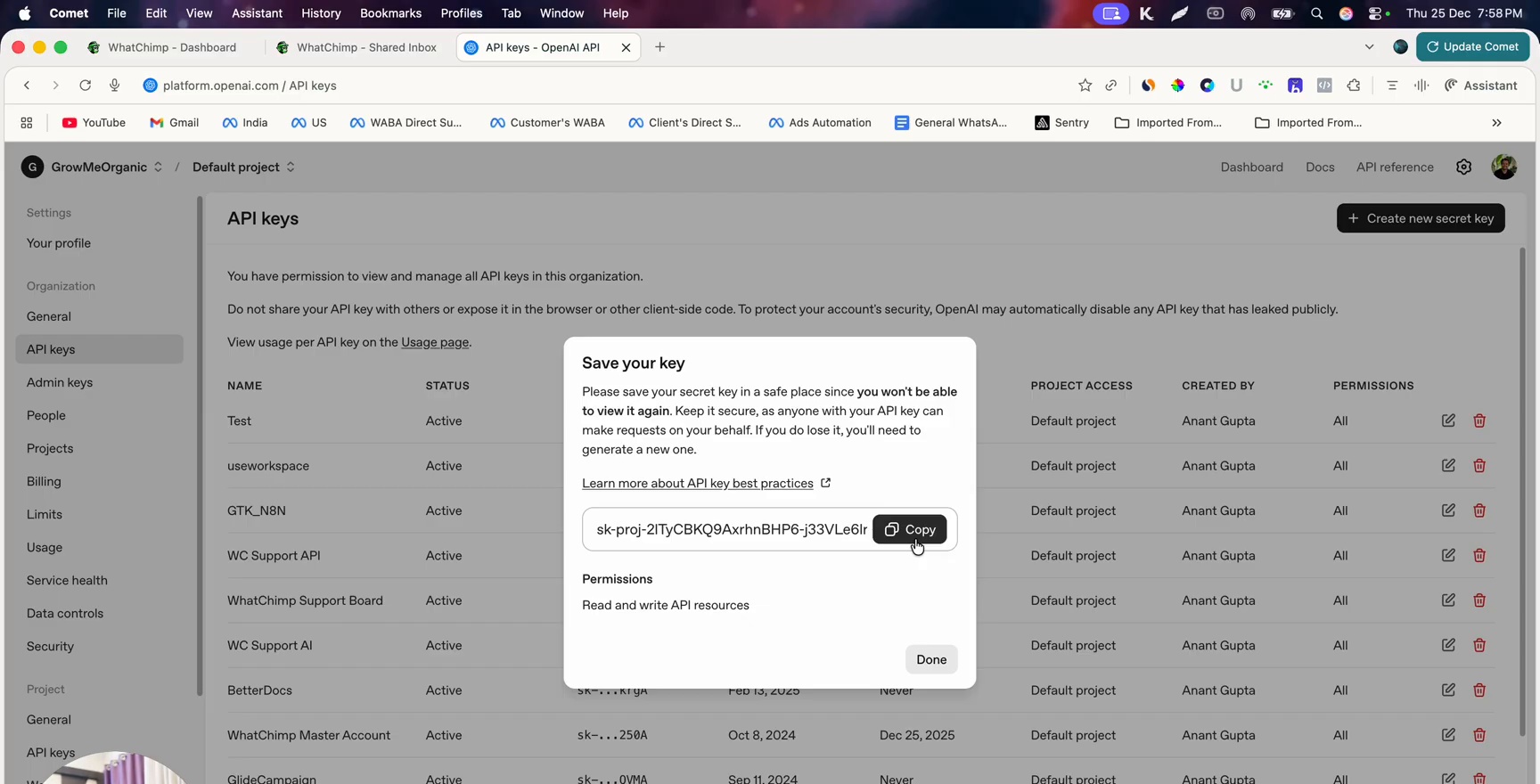 OpenAI API Keys page showing the Save your key dialog with the generated secret key and Copy button
Important: Keep your API key private. Never share it publicly or with anyone you don't trust. If you suspect your key has been compromised, revoke it immediately on platform.openai.com and create a new one.
Add a Payment Method on OpenAI
Before your API key will work, you need to add a credit card on platform.openai.com. Without it, OpenAI will reject API requests.
Go to Settings > Billing and add your payment method. OpenAI gives you a small free credit to start with, and the cost of using the API is very affordable — significantly cheaper than having a human handle the same volume of conversations.
Configure the API Key in WhatChimp
- In WhatChimp, go to Settings & Integration (at the bottom of the left sidebar)
- Scroll down to the AI API Integration section
- Select Open AI (or Deepseek if you prefer)
- Paste your API key in the key field
- Select the Prompt Model — GPT-4o Mini is recommended for most use cases (affordable and capable)
- Click Save
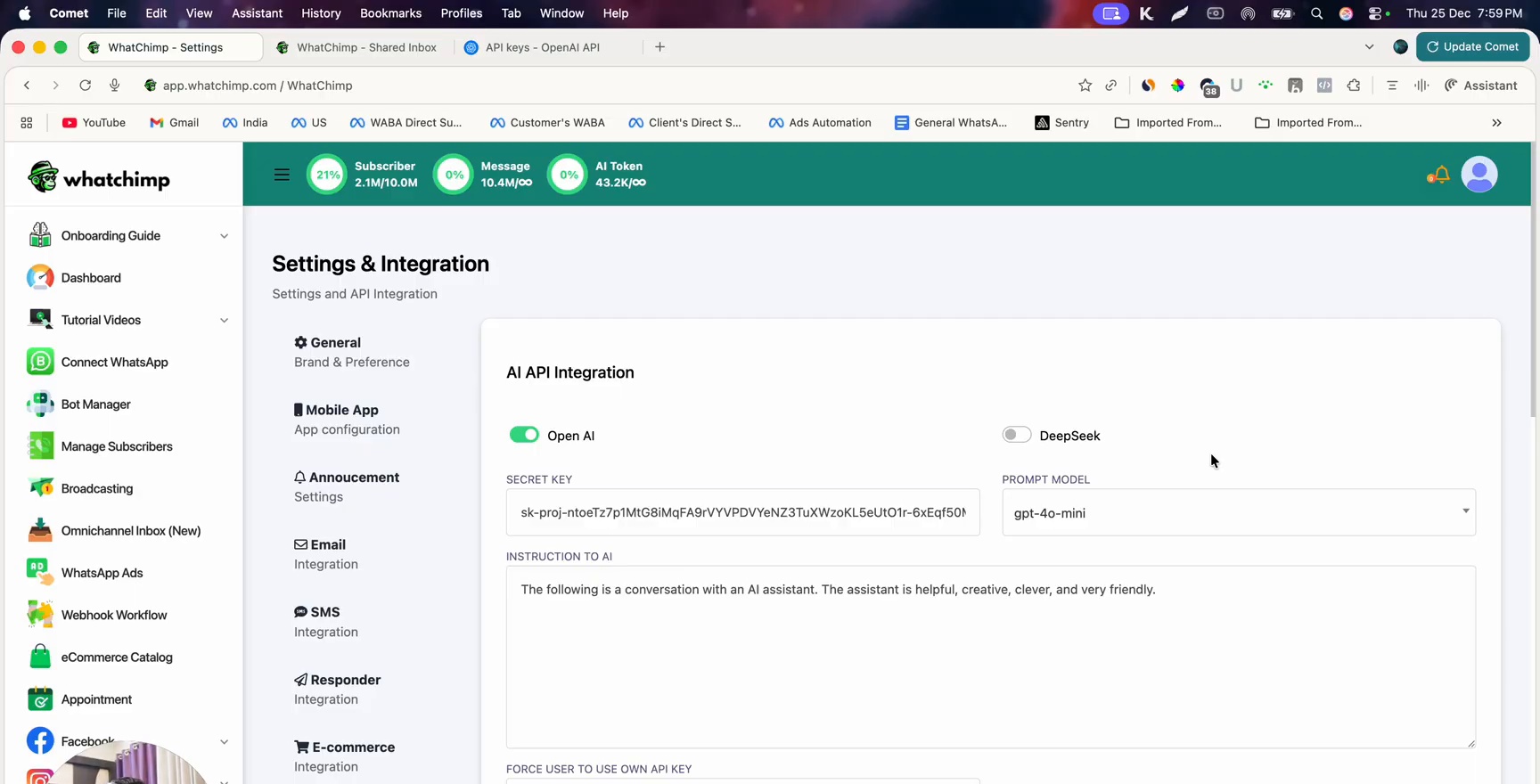
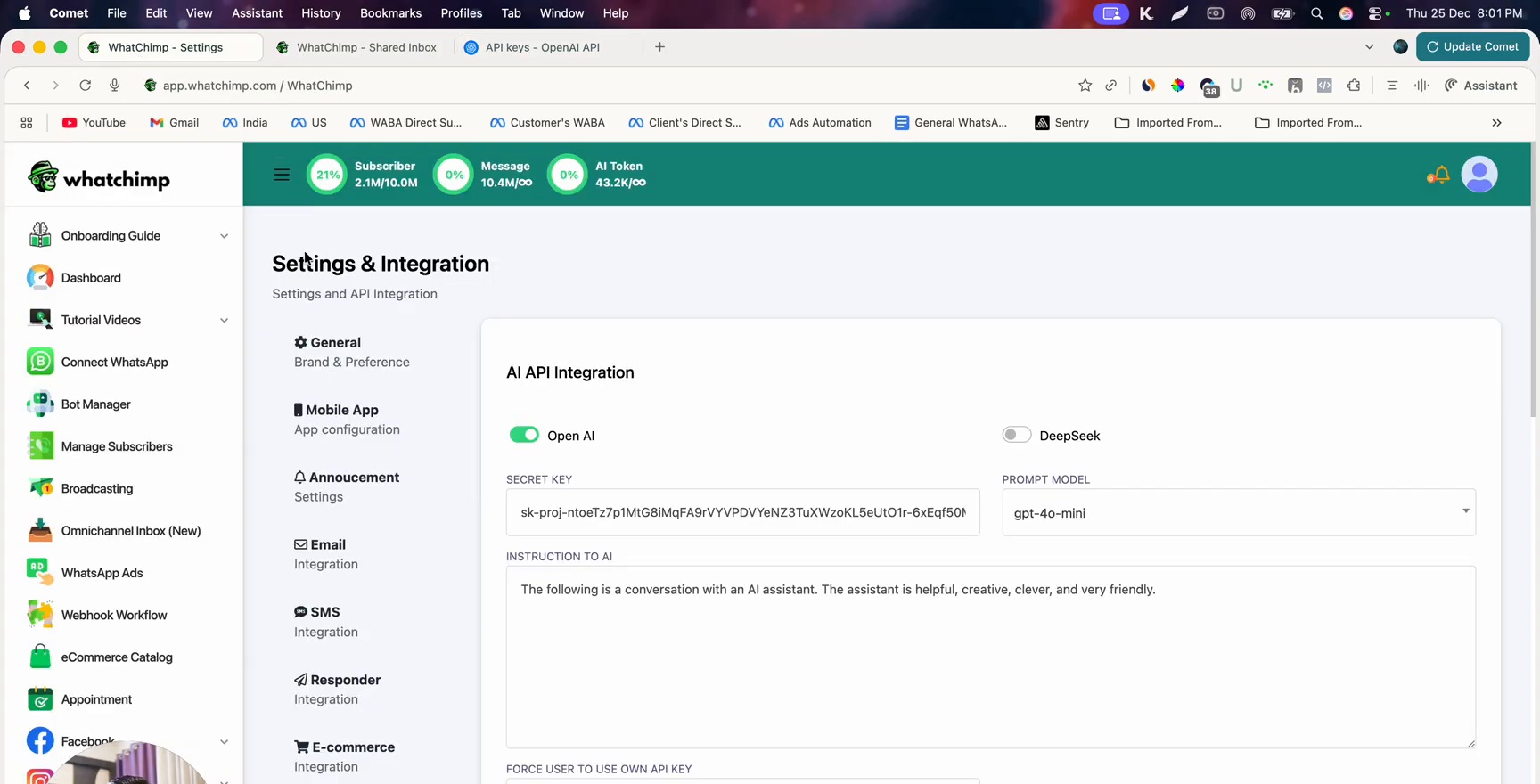 AI API Integration settings showing the model selection with GPT-4o Mini selected
Test Your API Key
To verify your API key is working:
- Go to the Omnichannel Inbox in the left sidebar
- Open any conversation
- Type a message in the reply box
- Click Rewrite with AI
If the AI rewrites your message, your API key is configured correctly.
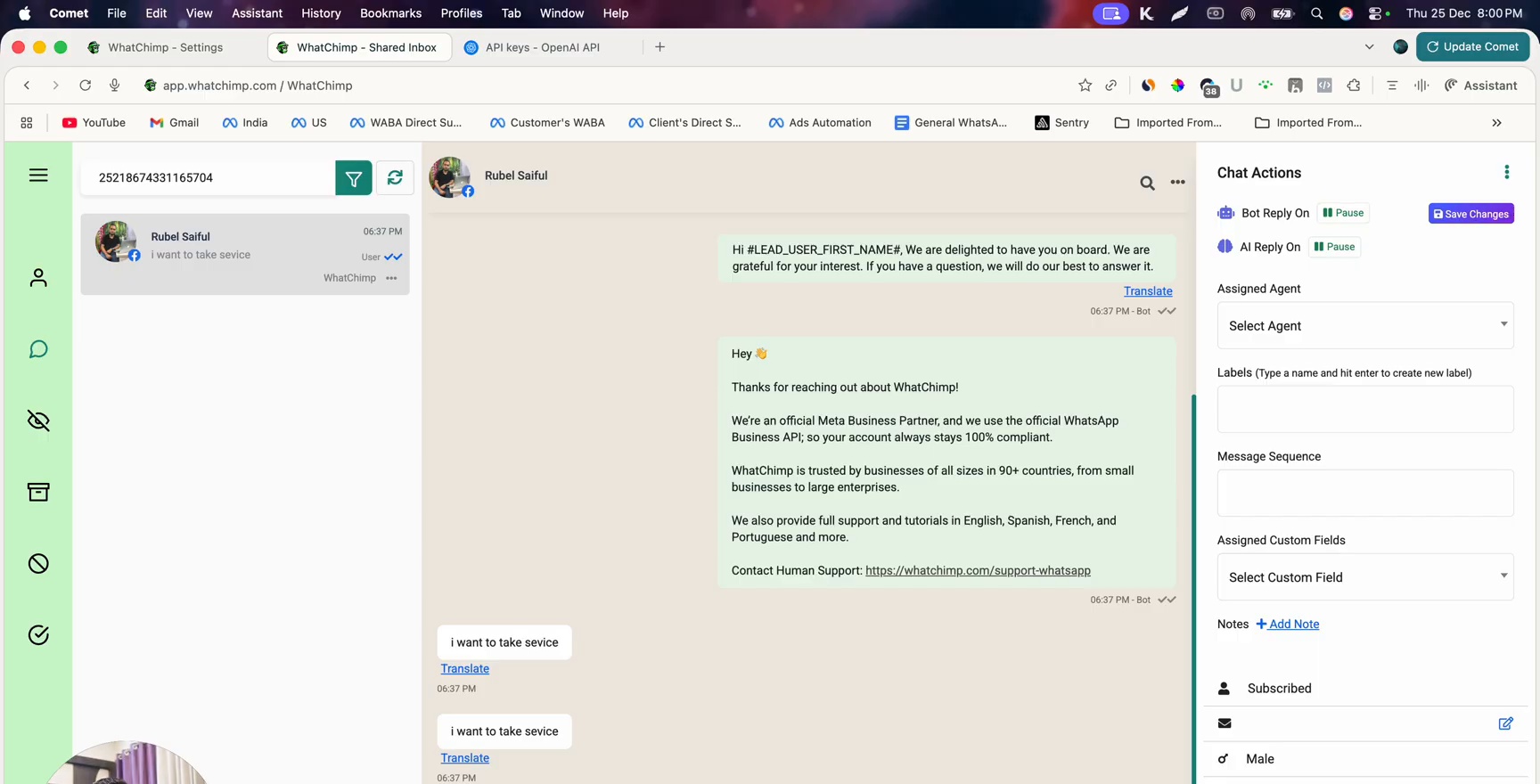 Omnichannel Inbox showing a conversation with the Rewrite with AI feature being used to test the API key
Tips
- GPT-4o Mini is the best balance of cost and capability for most business use cases as of 2025
- If you're watching this in the future, check OpenAI's pricing page for the latest recommended model
- The API cost is minimal — using AI for customer support is roughly 20-50x cheaper than hiring a human for the same volume
- You can switch between OpenAI and DeepSeek at any time
Next Steps
- Train your AI chatbot — add your business data so the AI can answer customer questions
- Enable the AI Agent — activate it on your WhatsApp number