Disable AI Agent During Business Hours
Configure business hours so AI only responds outside working hours
Updated 10 February 2026
You can disable the AI Agent during business hours so your human team handles conversations live, and the AI only takes over outside those hours. This is useful when you want personal support during the day and automated AI support at night or on weekends.
Step 1: Enable the Setting in AI Agent
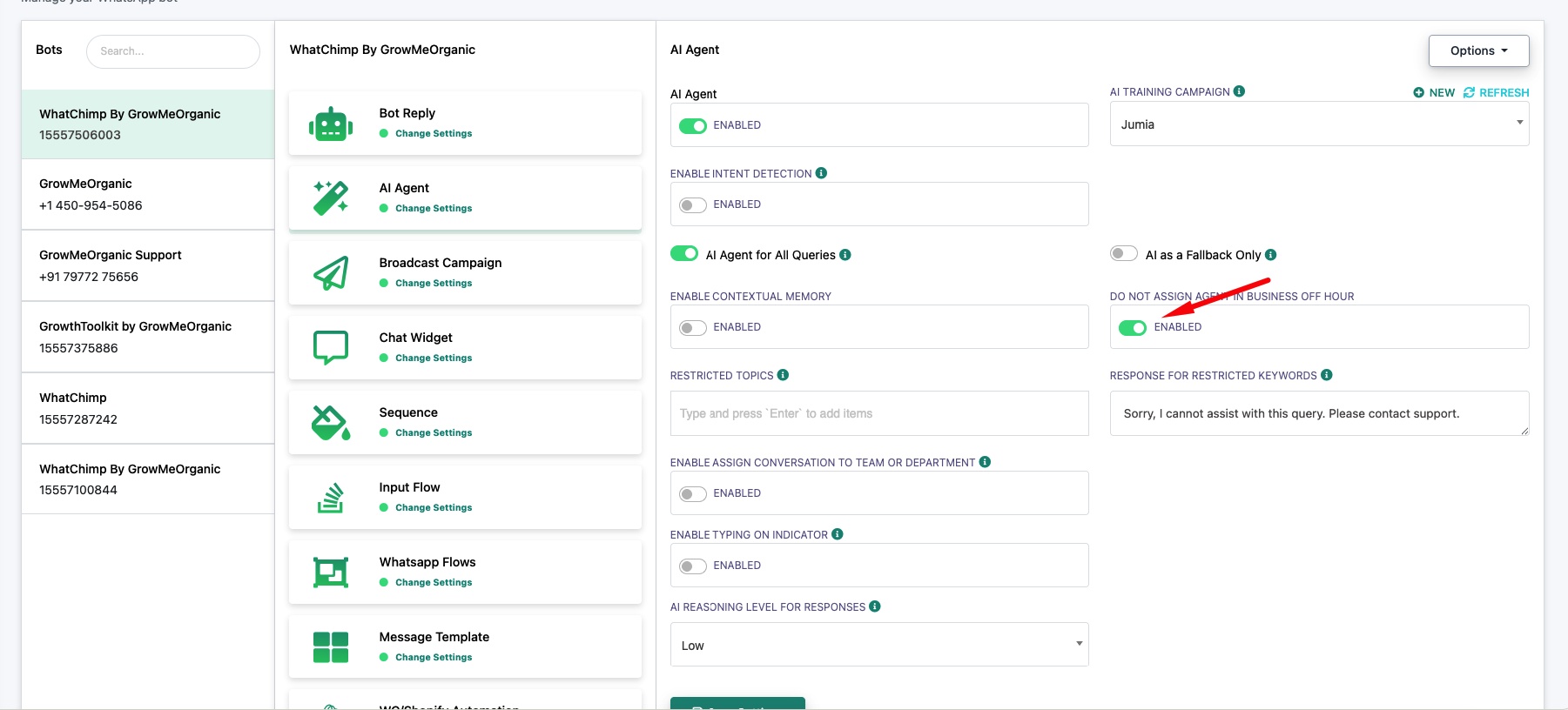
Go to Bot Manager → AI Agent → Change Settings for your WhatsApp number.
Toggle "Do Not Assign Agent in Business Off Hour" to Enabled. This tells the system to disable the AI during your configured business hours.
Step 2: Configure Your Business Hours
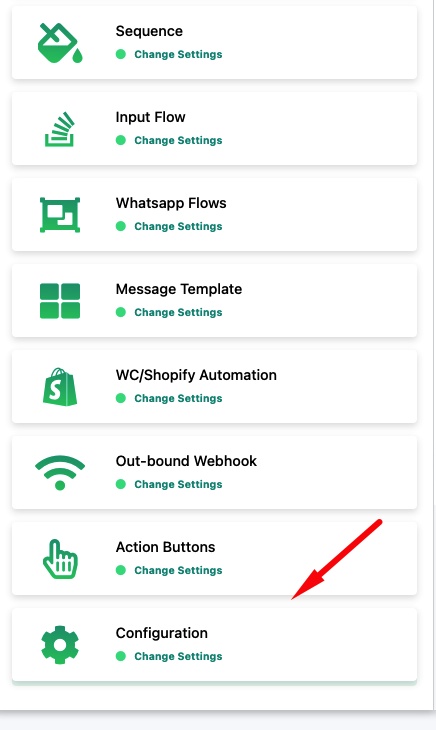
Go to Bot Manager → Configuration → Change Settings.
Expand "Business Hour Settings" and configure:
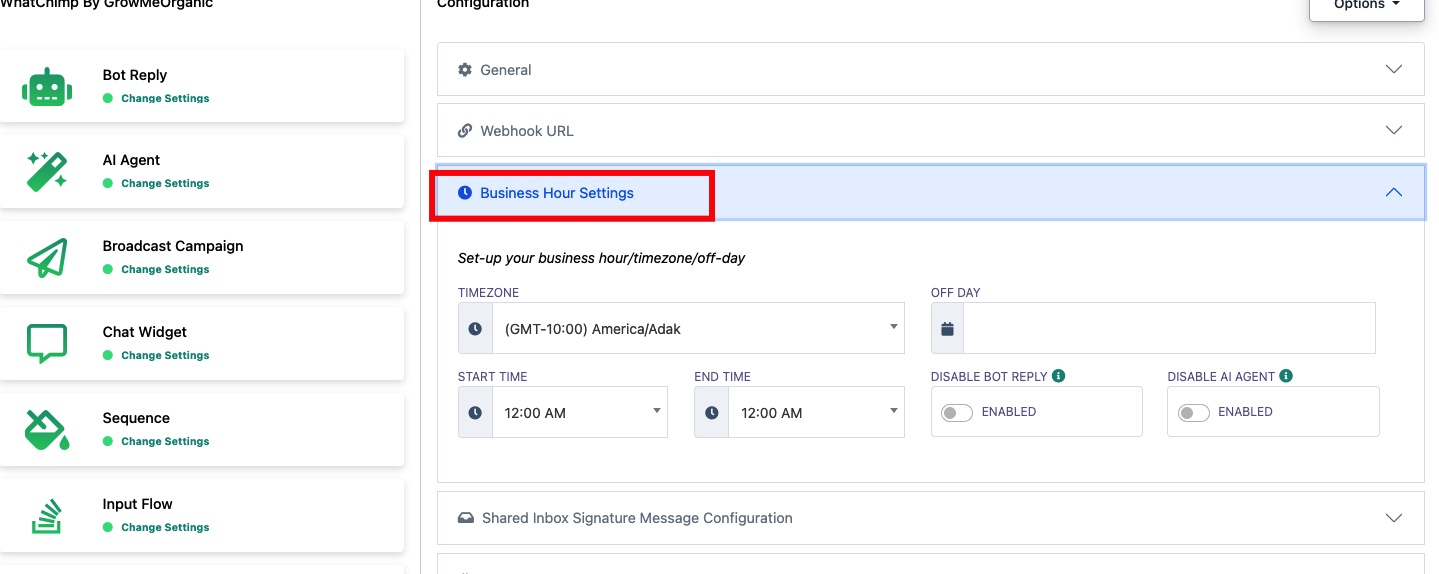
Timezone — Select your business timezone.
Off Day — Pick your weekly off days (the AI will stay active on these days).
Start Time / End Time — Set your working hours. The AI will be disabled during this window.
Disable Bot Reply — Optionally disable all bot replies during business hours too.
Disable AI Agent — Toggle this to disable the AI Agent specifically during business hours.
How it works: During business hours, the AI stays quiet and your team handles chats manually via the Omnichannel Inbox. Outside business hours, the AI takes over automatically.
Related Articles
Enable AI Agent for Your WhatsApp Number — Set up and configure the AI Agent
Auto-Assign Conversations to a Department — Route conversations to specific teams