WhatChimp API ke through Template Messages bhejein
Templates kaise banayein, API Console generator use karein, variables ke saath template messages bhejein, aur errors troubleshoot karein.
Updated 5 February 2026
Template messages aapko customers ko kabhi bhi WhatsApp messages bhejne dete hain — chahe unhone aapko dinon, hafton, ya mahino se message na bheja ho. Text messages ke unlike (jo sirf 24-hour window ke andar kaam karte hain), template messages pre-approved templates use karte hain aur inki koi time restriction nahi hai.
Yahi aapko notifications, order updates, appointment reminders, OTPs, aur koi bhi outbound message bhejne ke liye use karna chahiye jahan customer ne recently aapse contact nahi kiya hai.
Shuru karne se pehle: Ye ensure karein ki aapke paas apni API key aur phone number ID hai. Setup instructions ke liye WhatChimp Developer API ke saath shuru karein dekhein.
Personalized messages chahiye? Agar aapki template mein dynamic content hai jaise customer names, order numbers, ya dates, to WhatChimp API ke through Variables ke saath Template Messages bhejein dekhein {{1}}, {{2}} placeholders kaise kaam karte hain iske detailed guide ke liye.
Video: https://www.youtube.com/watch?v=czd3S5cBHvY
Template Messages Kyun?
WhatsApp text messages ke liye ek 24-hour session window enforce karta hai. Aap sirf customer ke last message ke 24 hours ke andar free-text reply bhej sakte hain. Uske baad, API ek error return karta hai.
Template messages is restriction ko bypass karte hain. Inhe kabhi bhi bheja ja sakta hai kyunki ye aise content use karte hain jo Meta dwara review aur approve kiya gaya hai.
Agar aap in mein se kuch bhi bana rahe hain, to aapko template messages chahiye:
- Order confirmations aur shipping updates
- Appointment ya booking reminders
- Payment receipts aur invoices
- Lead follow-up messages
- OTP aur verification codes
- Promotional offers aur broadcasts
- Inactive customers ke liye re-engagement messages
Template Message Types
Templates ko teen types mein categorize kiya gaya hai. Type approval speed aur pricing ko affect karta hai:
- Utility — Order confirmations, shipping updates, appointment reminders, payment receipts. Ye sabse tez approve hote hain.
- Marketing — Promotional messages, offers, product updates, re-engagement campaigns. Approval mein zyada time lag sakta hai.
- Authentication — OTP aur verification codes. Specific format requirements.
Step 1: WhatChimp mein Template Banayein
API ke through template message bhejne se pehle, aapko ek template banana aur approve karwana hoga. Yahan kaise:
Step A. Bot Manager > Message Template par jaayein

Step B. Message Template Settings ke neeche Create par click karein
Step C. Form bharein:
- Template Name — Ise ek clear naam dein (jaise,
welcome_message,promo_offer) - Message Body — Apne message ka content likhein
- Footer Text (optional) — Message ke neeche choti text
- Quick Reply / Buttons (optional) — Interactive buttons add karein
Apne message ko personalize karna chahte hain? Agar aapko dynamic content include karni hai jaise customer names, order numbers, ya dates, to aapko apni template banane se pehle template variables setup karna hoga. {{1}}, {{2}} placeholders use karne par complete step-by-step guide ke liye WhatChimp API ke through Variables ke saath Template Messages bhejein dekhein.
Step D. Save par click karein. Template Meta ko review ke liye submit ho jati hai.

Step E. Meta ke template approve karne ka wait karein. Status check karein Bot Manager > Message Template mein — yeh Approved, Pending, ya Rejected ke roop mein dikhega.
Detailed template creation walkthrough ke liye, WhatChimp mein WhatsApp Message Template banana dekhein.
Tip: Utility templates (order updates, booking confirmations) typically marketing templates se tez approve hote hain.
Step 2: Console Use Karke API Call Generate Karein
Apni template ke liye correct API call pane ka sabse aasan tarika Template Message Generator use karna hai jo API Developer Console mein built-in hai.
Step A. Settings > API Developer Console par jaayein (ya app.whatchimp.com/api/developer/console par navigate karein)
Step B. Send Message section tak scroll karein
Step C. Generate API End-point: Send Template Message ke neeche, dropdown se apna WhatsApp Account select karein
Step D. Dropdown se apni Message Template select karein — templates apne type (Marketing, Utility, etc.) ke saath listed hain
Step E. Console automatically complete API endpoint URL generate kar deta hai sabhi required parameters pre-filled ke saath
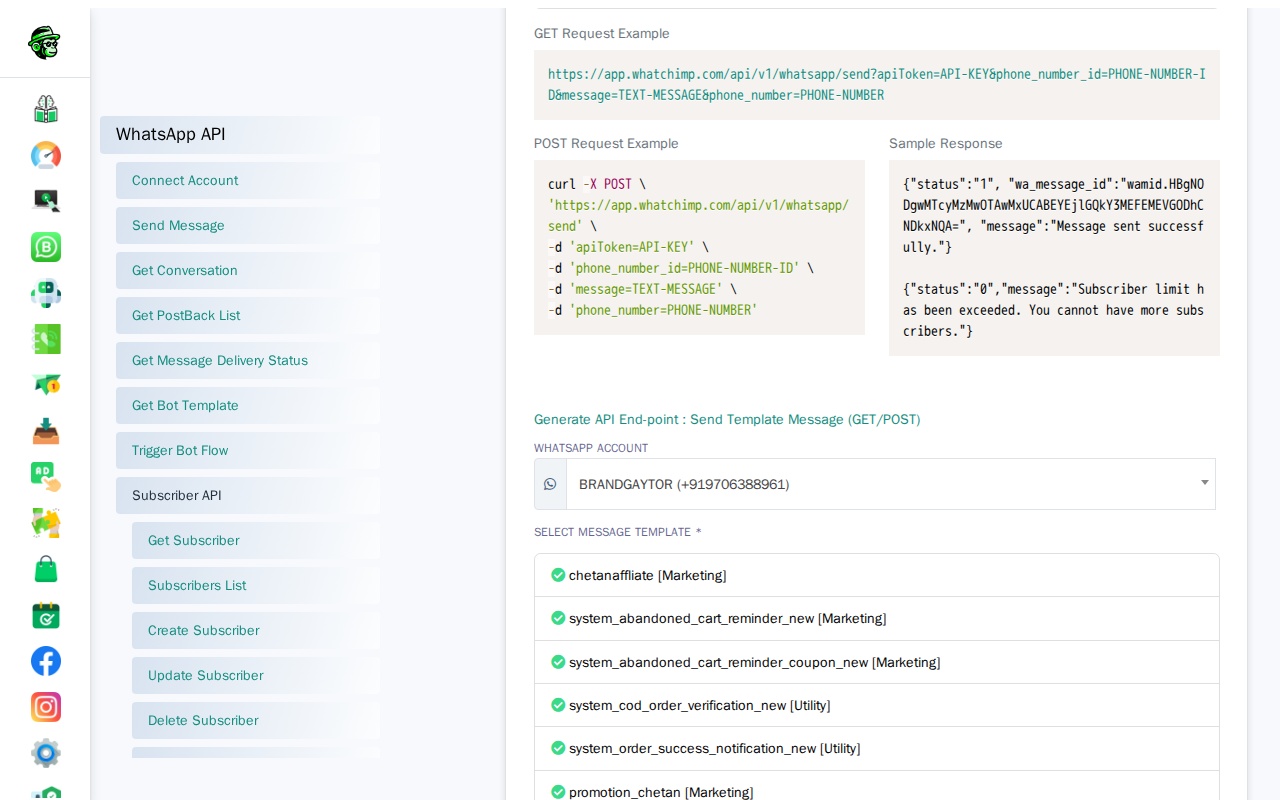
Generated URL copy karein — yeh aapki ready-to-use API call hai.
Step 3: API ke through Template Message Bhejein
Endpoint: GET/POST /api/v1/whatsapp/send
Full URL: https://app.whatchimp.com/api/v1/whatsapp/send
Console dwara generated URL use karein aur placeholder values ko apne actual data se replace karein.
Example — GET request:
https://app.whatchimp.com/api/v1/whatsapp/send?apiToken=API-KEY&phone_number_id=PHONE-NUMBER-ID&phone_number=919999999999&template_name=TEMPLATE-NAME&language_code=en_USExact parameters aapki template par depend karte hain. API Console generator correct structure banata hai — bas apni real values swap karein.
Personalized data bhej rahe hain? Agar aapki template {{1}}, {{2}} jaise variables use karti hai, to aapko is URL mein variable1=VALUE&variable2=VALUE parameters add karne honge. Full guide ke liye Variables ke saath Template Messages Bhejein dekhein.
Success Response:
{
  "status": "1",
  "wa_message_id": "wamid.HBgNODgwMTcyMzMwOTAwMxUCABEYEjlGQkY3MEFEMEVGODhCNDkxNQA=",
  "message": "Message sent successfully."
}
Common Errors aur Fixes
| Error | Cause | Fix |
|---|---|---|
| API ne template message reject kar diya | Template abhi tak Meta ne approve nahi kiya | Bot Manager > Message Template mein status check karein. Approval ka wait karein ya edit aur resubmit karein. |
| "Subscriber limit exceeded" | Aapke plan ki subscriber limit reach ho gayi | Apne WhatChimp plan ko upgrade karein ya inactive subscribers remove karein |
| Template "Rejected" ke roop mein dikhai de raha hai | Meta ne template content reject kar diya | Meta ke rejection reason ko review karein, content update karein, aur resubmit karein |
Related Articles
- WhatChimp API ke through Variables ke saath Template Messages bhejein — Dynamic data ke saath template messages personalize karein
- WhatChimp API ke through 24-Hour Text Messages bhejein — Session window ke andar text replies bhejein
- WhatChimp mein WhatsApp Message Template banana — Video ke saath detailed template creation guide
- WhatsApp Messages bhejna — Text vs Template — Comparison overview
- WhatChimp Developer API ke saath shuru karein — API setup aur authentication