Getting Started with WhatChimp Developer API
Updated 5 February 2026
The WhatChimp Developer API gives you programmatic access to WhatChimp's features — send messages, manage subscribers, trigger bot flows, and more, all through simple HTTP requests. Whether you're building integrations, automating workflows, or connecting WhatChimp with your own systems, the API makes it possible.
Video: https://www.youtube.com/watch?v=JPmo2B9VOM0
What is the WhatChimp Developer API?
WhatChimp provides a REST API for developers to interact with the platform programmatically. It's WhatChimp's own API (not the WhatsApp Business API directly) — WhatChimp handles the WhatsApp complexity for you.
You can send messages, manage contacts (subscribers), trigger bot flows, manage catalogs, and more. The API supports both GET and POST requests for most endpoints.
Finding the API Console
Follow these steps to access the API Console:
- Log in to your WhatChimp account at app.whatchimp.com
- Go to Settings (gear icon in the sidebar)
- Click API Developer Console (or navigate directly to
app.whatchimp.com/api/developer/console)
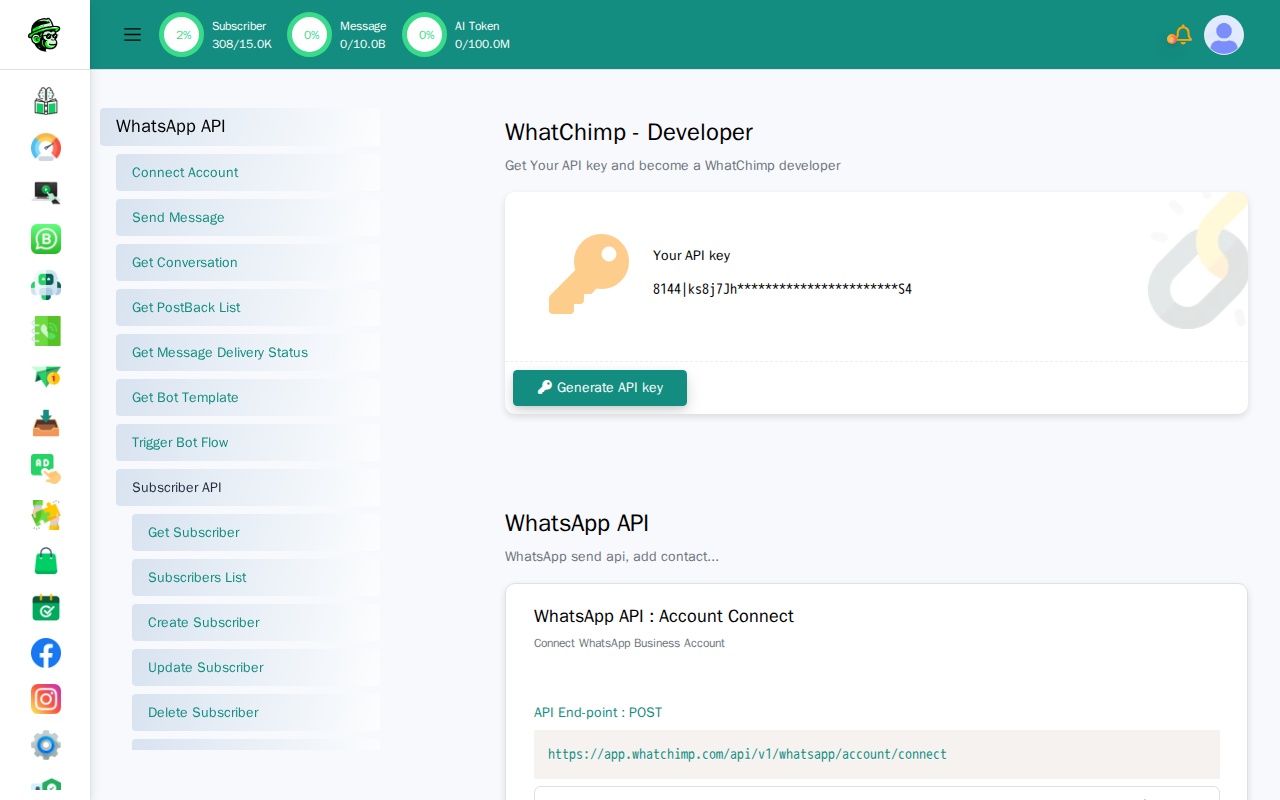
The API Console shows all available endpoints organized into sections:
- WhatsApp API — Send messages, get conversations, track delivery, manage templates
- Subscriber API — Create, read, update, delete subscribers; manage labels, sequences, custom fields
- Label API — List and create labels
- Catalog API — Manage product catalogs and orders
- Direct Login API — Generate direct login URLs
Generating Your API Key
Your API key is displayed at the top of the API Developer Console.
- Navigate to the API Developer Console
- Your existing API key is shown under "Your API key"
- To generate a new key, click the Generate API key button
Important: Keep your API key secure. Anyone with your API key can access your WhatChimp account's API features. If you suspect your key has been compromised, generate a new one immediately.
Authentication
Every API request requires your API key. Include it as the apiToken parameter in every request.
Base URL:
https://app.whatchimp.com/api/v1/Authentication parameter:
| Parameter | Type | Required | Description |
|---|---|---|---|
apiToken | String | Yes | Your WhatChimp API key |
Making Requests
Most WhatChimp API endpoints accept both GET and POST requests.
GET Request — Pass parameters as query string:
https://app.whatchimp.com/api/v1/whatsapp/send?apiToken=YOUR-API-KEY&phone_number_id=PHONE-NUMBER-ID&message=Hello&phone_number=919999999999POST Request — Pass parameters as form data:
curl -X POST \
  'https://app.whatchimp.com/api/v1/whatsapp/send' \
  -d 'apiToken=YOUR-API-KEY' \
  -d 'phone_number_id=PHONE-NUMBER-ID' \
  -d 'message=Hello' \
  -d 'phone_number=919999999999'
Response Format
All API responses return JSON with a consistent structure.
Successful response:
{
  "status": "1",
  "message": "Message sent successfully."
}
Error response:
{
  "status": "0",
  "message": "Subscriber limit has been exceeded. You cannot have more subscribers."
}status—"1"for success,"0"for failuremessage— Description of the result, or the requested data
Quick Start: Send a Text Message
Here's a complete example to send a WhatsApp text message through the WhatChimp API:
curl -X POST \
  'https://app.whatchimp.com/api/v1/whatsapp/send' \
  -d 'apiToken=YOUR-API-KEY' \
  -d 'phone_number_id=YOUR-PHONE-NUMBER-ID' \
  -d 'message=Hello from the WhatChimp API!' \
  -d 'phone_number=919999999999'
Parameters:
| Parameter | Type | Required | Description |
|---|---|---|---|
apiToken | String | Yes | Your WhatChimp API key |
phone_number_id | String | Yes | Your WhatsApp phone number ID (found in your WhatChimp account settings) |
message | String | Yes | The text message to send (URL-encode for GET requests) |
phone_number | String | Yes | Recipient's phone number with country code (e.g., 919999999999) |
Sample response:
{
  "status": "1",
  "wa_message_id": "wamid.HBgNODgwMTcyMzMwOTAwMxUCABEYEjlGQkY3MEFEMEVGODhCNDkxNQA=",
  "message": "Message sent successfully."
}
Note: Text messages can only be sent within 24 hours of the customer's last message to you (session window). To message customers outside this window, use a pre-approved template message. Learn more in WhatChimp Messaging API.
Common Parameters
These parameters appear across many WhatChimp API endpoints:
| Parameter | Description |
|---|---|
apiToken | Your WhatChimp API key (required on every request) |
phone_number_id | Your WhatsApp phone number ID — identifies which WhatsApp account to use |
phone_number | A subscriber's phone number, including country code (no + sign) |
What's Next?
Now that you know the basics, explore the full API:
- WhatChimp Messaging API — Send text and template messages, track delivery, get conversation history
- WhatChimp Subscriber Management API — Create, update, and manage your subscriber contacts
- WhatChimp Bot, Catalog & Utility APIs — Trigger bot flows, manage catalogs, and more