Send 24-Hour Text Messages via WhatChimp API
How to send text messages within the WhatsApp 24-hour session window using the WhatChimp API.
Updated 5 February 2026
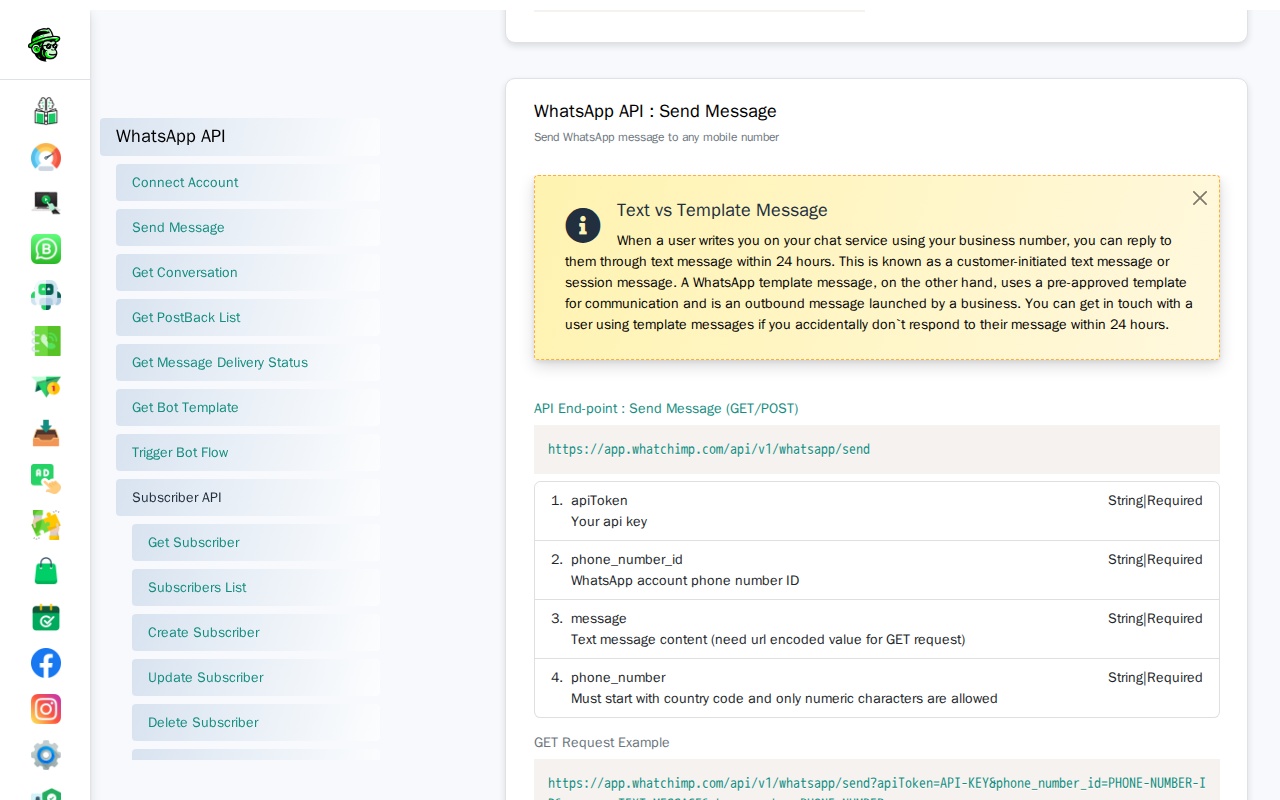
WhatsApp allows businesses to send free-text replies to customers — but only within 24 hours of the customer's last message. This is called a session message or 24-hour window message. This guide shows you how to send text messages via the WhatChimp API and explains exactly how the 24-hour rule works.
Before you begin: Make sure you have your API key and phone number ID. See Getting Started with WhatChimp Developer API for setup instructions.
What is the 24-Hour Session Window?
When a customer sends you a message on WhatsApp, a 24-hour session opens. During this window, you can reply with any text message you want — no template needed, no approval required.
Once the 24-hour window closes (the customer hasn't messaged you in over 24 hours), you cannot send text messages anymore. The API will return an error.
Key points:
- The 24-hour clock resets every time the customer messages you
- Only the customer can open a session — you cannot open one yourself
- Text messages within the session are part of a customer-initiated conversation (lower cost tier)
- Outside the 24-hour window, you must use a template message instead
When to Use Text Messages
Text messages are the right choice when:
- A customer has messaged you in the last 24 hours and you're replying to them
- You're building a chatbot that responds to incoming messages
- You're handling live chat replies to customer inquiries
- You're sending a quick follow-up while the conversation is still active
Do NOT use text messages for:
- Sending notifications, reminders, or order updates — use a template message
- Reaching out to customers who haven't messaged you recently
- Broadcasting promotional messages
- Sending OTPs or verification codes
API Endpoint
Endpoint: GET/POST /api/v1/whatsapp/send
Full URL: https://app.whatchimp.com/api/v1/whatsapp/send
Parameters:
| Parameter | Type | Required | Description |
|---|---|---|---|
apiToken | String | Yes | Your WhatChimp API key |
phone_number_id | String | Yes | Your WhatsApp phone number ID |
message | String | Yes | Text message content (URL-encode for GET requests) |
phone_number | String | Yes | Recipient phone number with country code, numeric only (e.g., 919999999999) |
Sending a Text Message
GET Request:
https://app.whatchimp.com/api/v1/whatsapp/send?apiToken=API-KEY&phone_number_id=PHONE-NUMBER-ID&message=Hello%2C+thanks+for+reaching+out!&phone_number=919999999999POST Request (curl):
curl -X POST \
  'https://app.whatchimp.com/api/v1/whatsapp/send' \
  -d 'apiToken=API-KEY' \
  -d 'phone_number_id=PHONE-NUMBER-ID' \
  -d 'message=Hello, thanks for reaching out!' \
  -d 'phone_number=919999999999'
Success Response:
{
  "status": "1",
  "wa_message_id": "wamid.HBgNODgwMTcyMzMwOTAwMxUCABEYEjlGQkY3MEFEMEVGODhCNDkxNQA=",
  "message": "Message sent successfully."
}
Error Responses
24-hour window expired:
If you try to send a text message outside the session window, the API will return an error. When this happens, switch to a template message.
Subscriber limit exceeded:
{"status": "0", "message": "Subscriber limit has been exceeded. You cannot have more subscribers."}This means your WhatChimp plan's subscriber limit has been reached. Upgrade your plan or remove inactive subscribers.
Tips
- URL-encode your message when using GET requests. Spaces become
%20or+, special characters need encoding. - Save the
wa_message_idfrom the success response — you can use it to track delivery status later. - If your message fails, check whether the 24-hour window is still open. If not, use a template message instead.
- For automated replies (chatbots), text messages work perfectly since the customer initiates the conversation.
Related Articles
- Send Template Messages via WhatChimp API — Send messages anytime, outside the 24-hour window
- Sending WhatsApp Messages via WhatChimp API — Text vs Template — Comparison overview
- WhatChimp Messaging API — Full messaging API reference
- Getting Started with WhatChimp Developer API — API setup and authentication