How to Set a Booking Reminder
Send an automatic WhatsApp reminder before each appointment to cut no-shows. Set the lead time, an optional country code, and the approved message template.
Updated 18 June 2026
A booking reminder is an automatic WhatsApp message WhatChimp sends a set number of hours before each appointment, so customers actually show up. You set it per appointment from the same Message Templates row you use for the other booking messages.
Open the Reminder Message
In Appointment, find your appointment in the Appointment Manager. In the Message Templates column, click Reminder.
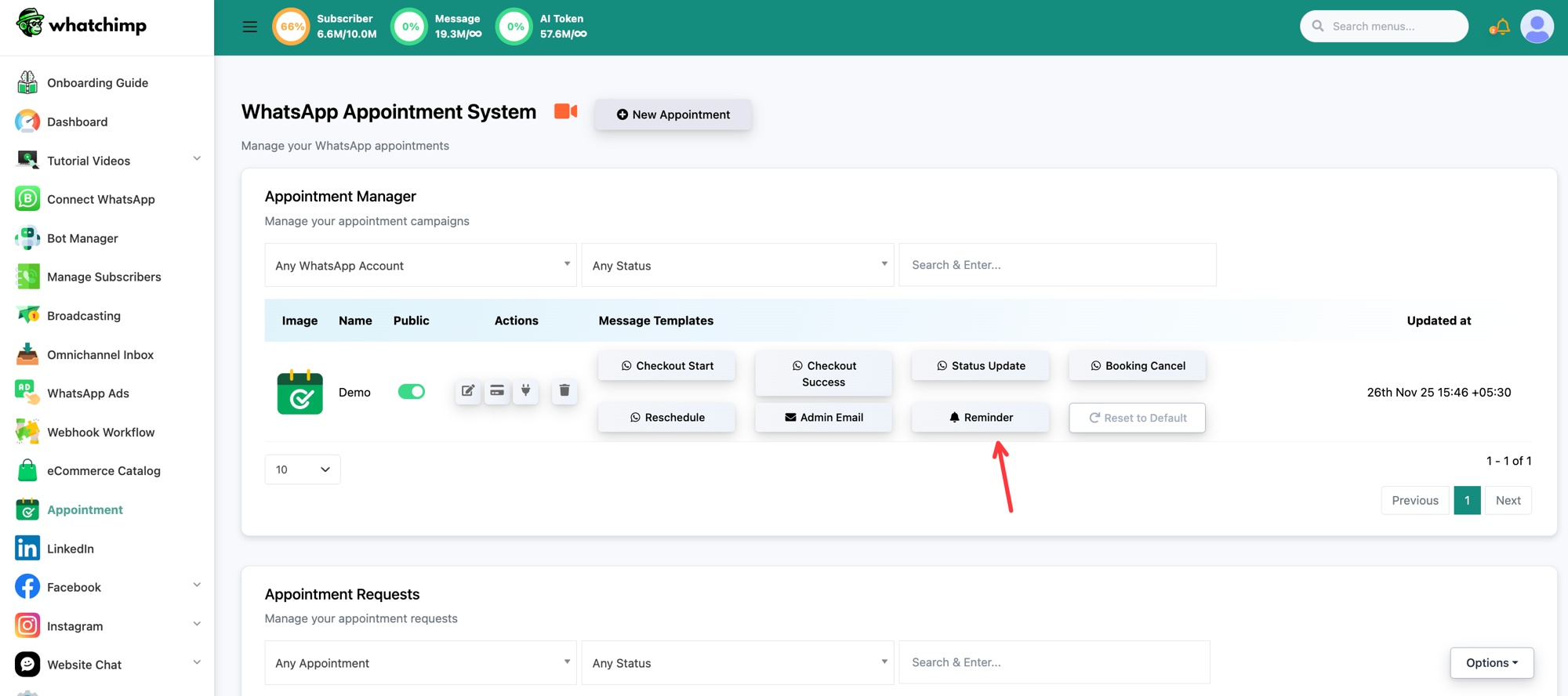 Reminder lives in the Message Templates column
This opens the Reminder Message panel with three settings.
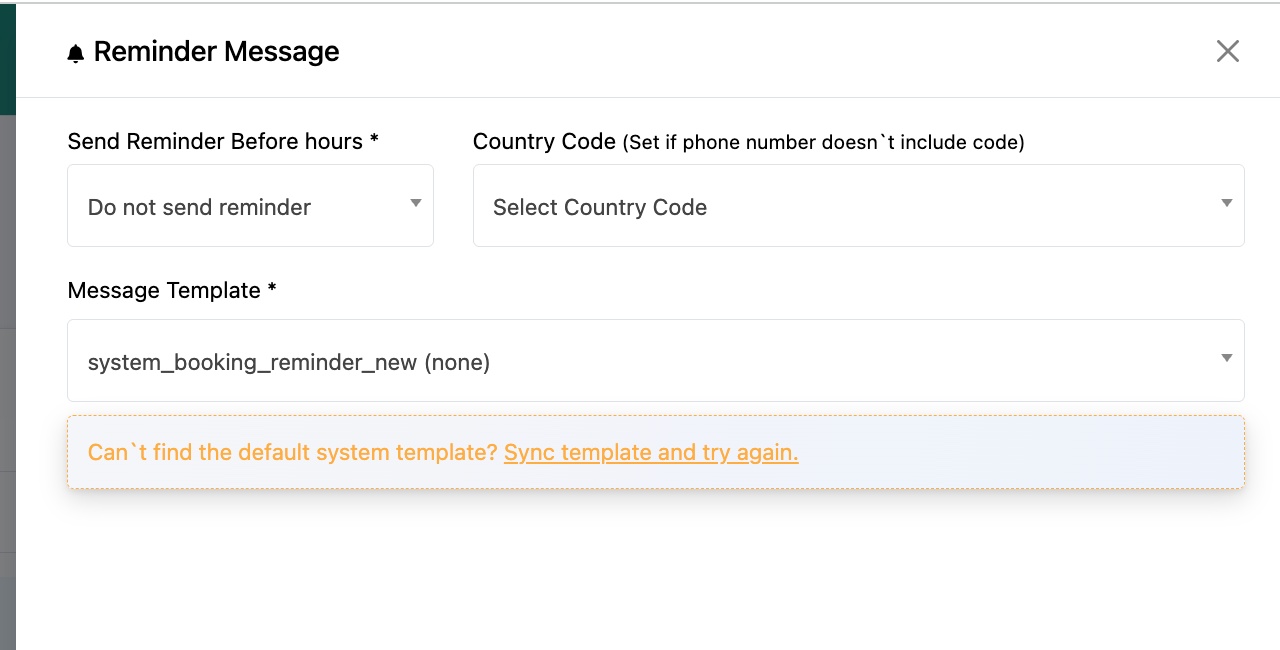 Send Reminder Before hours, Country Code, and Message Template
Send Reminder Before hours (required)
This sets how long before the appointment the reminder goes out. Open the dropdown and pick the lead time. Do not send reminder keeps reminders off; choosing 1 hour, 2 hour, 3 hour and so on turns them on and sets the timing.
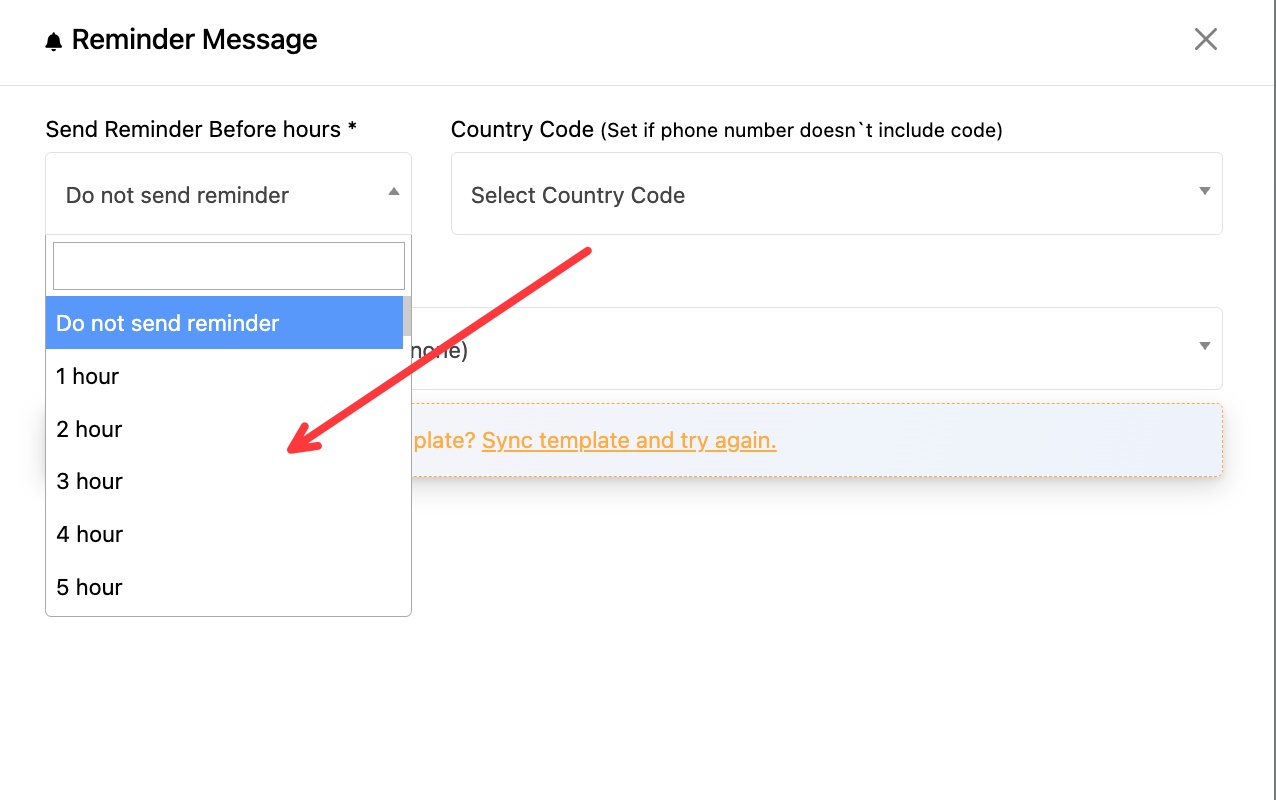 Pick how many hours before the appointment to remind
Pick a window that gives the customer enough time to act but is still close enough to be useful. One to three hours works well for most same-day bookings.
Country Code (optional)
This is a fallback for phone numbers stored without a country code. If a subscriber's number does not already include its code, WhatChimp prepends the one you select here so the reminder still delivers. Search and select the country.
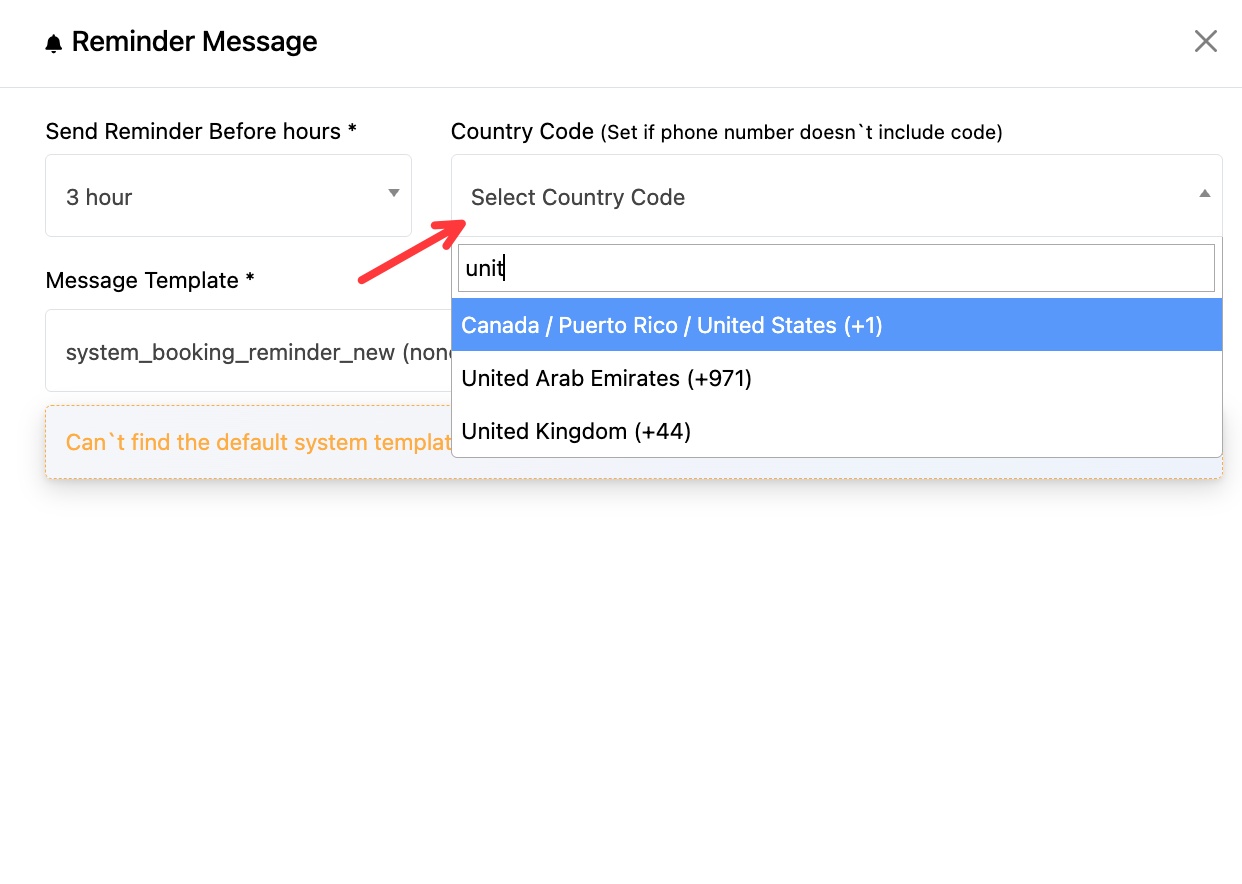 Used only when a stored number is missing its code
Leave this empty if your subscribers' numbers already include their country codes.
Message Template (required)
A reminder is sent hours or days after the booking, which is almost always outside WhatsApp's 24-hour customer service window. WhatsApp only allows messages outside that window if they use a pre-approved template, so the reminder must go through one. Open the dropdown and choose your template (the default is system_booking_reminder_new).
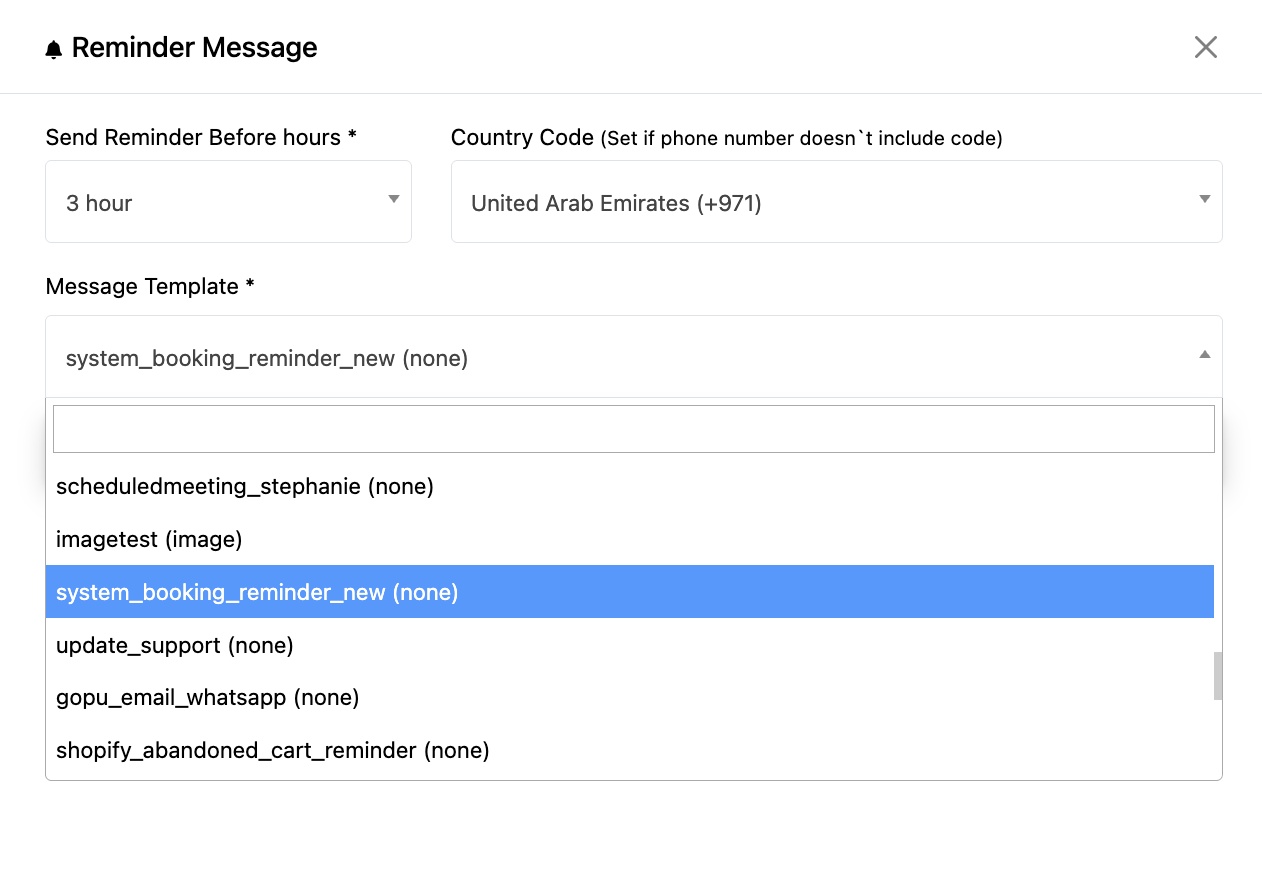 Reminders must use a pre-approved WhatsApp template
If the list is empty or your system reminder template is missing, click Sync template and try again to pull your approved templates from WhatsApp into WhatChimp, then reopen this dropdown.
You need an approved template first
If you do not have a suitable template yet, create one before setting the reminder. See:
Once the template is approved and synced, it appears in the Message Template dropdown above.
Save
When all three fields are set, click Save. WhatChimp will now send the reminder automatically before every booking for this appointment.
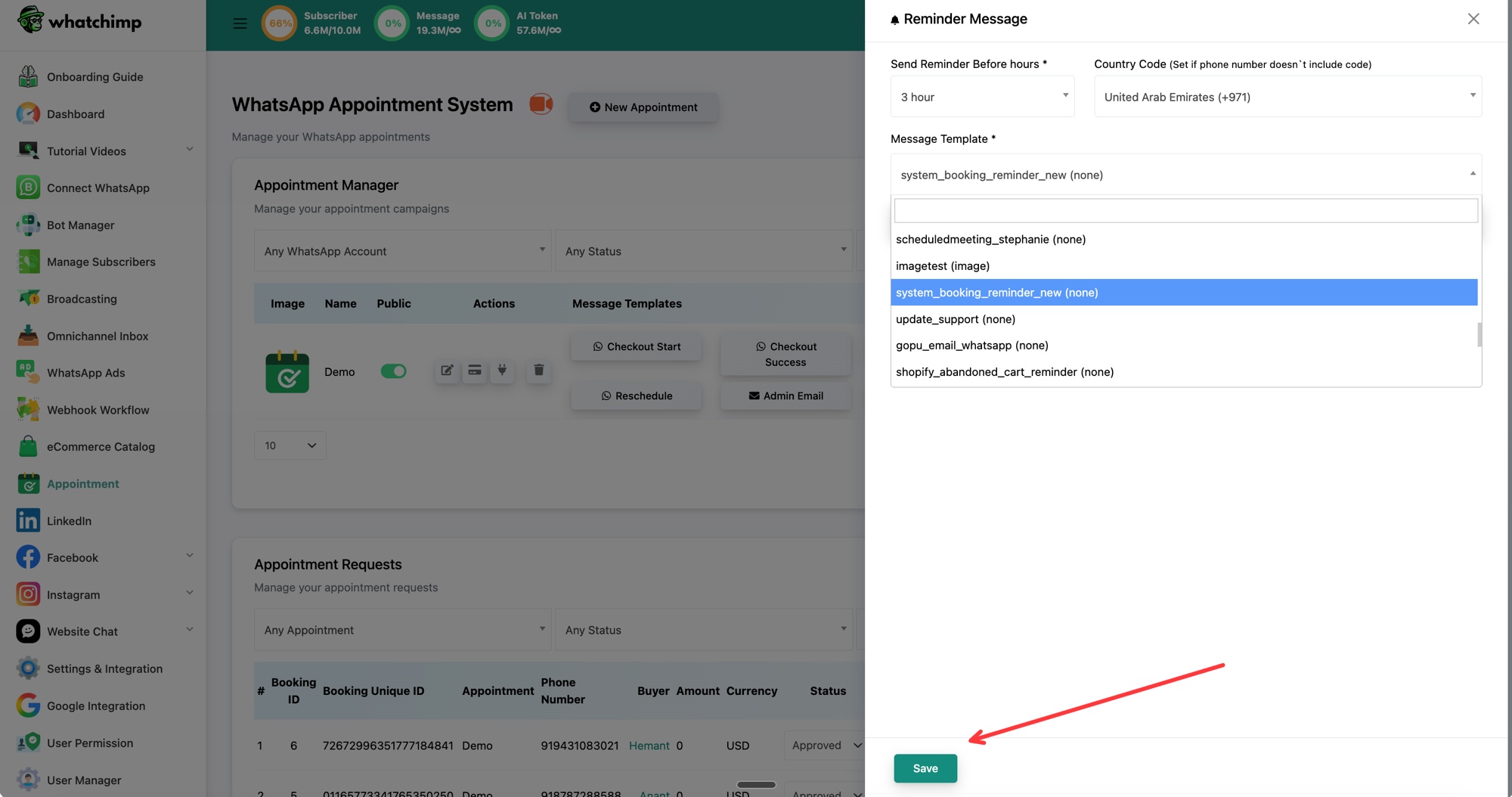 Save to turn the reminder on