How to Connect Your Google Calendar to WhatChimp
Connect your Google account so appointment bookings sync to Google Calendar with a Meet link. The first step for appointment booking in WhatChimp.
Updated 18 June 2026
Video: https://www.youtube.com/watch?v=_vtfCtElqtg
Before you can let customers book appointments inside WhatsApp, you need to connect a Google account. This links your Google Calendar to WhatChimp, so every booking lands on your calendar with a Google Meet link and you manage your availability from one place. This is the first step in setting up appointment booking.
Step 1: Open Google Integration
In the left sidebar, click Google Integration. You can also reach it from Settings & Integration, in the Google section.
Step 2: Connect your Google account
- Click Sign in with Google.
- Choose the Google account you want to use.
- On the Google permission screen, allow the access it asks for, including Calendar permission. WhatChimp needs this to create and manage bookings on your calendar.
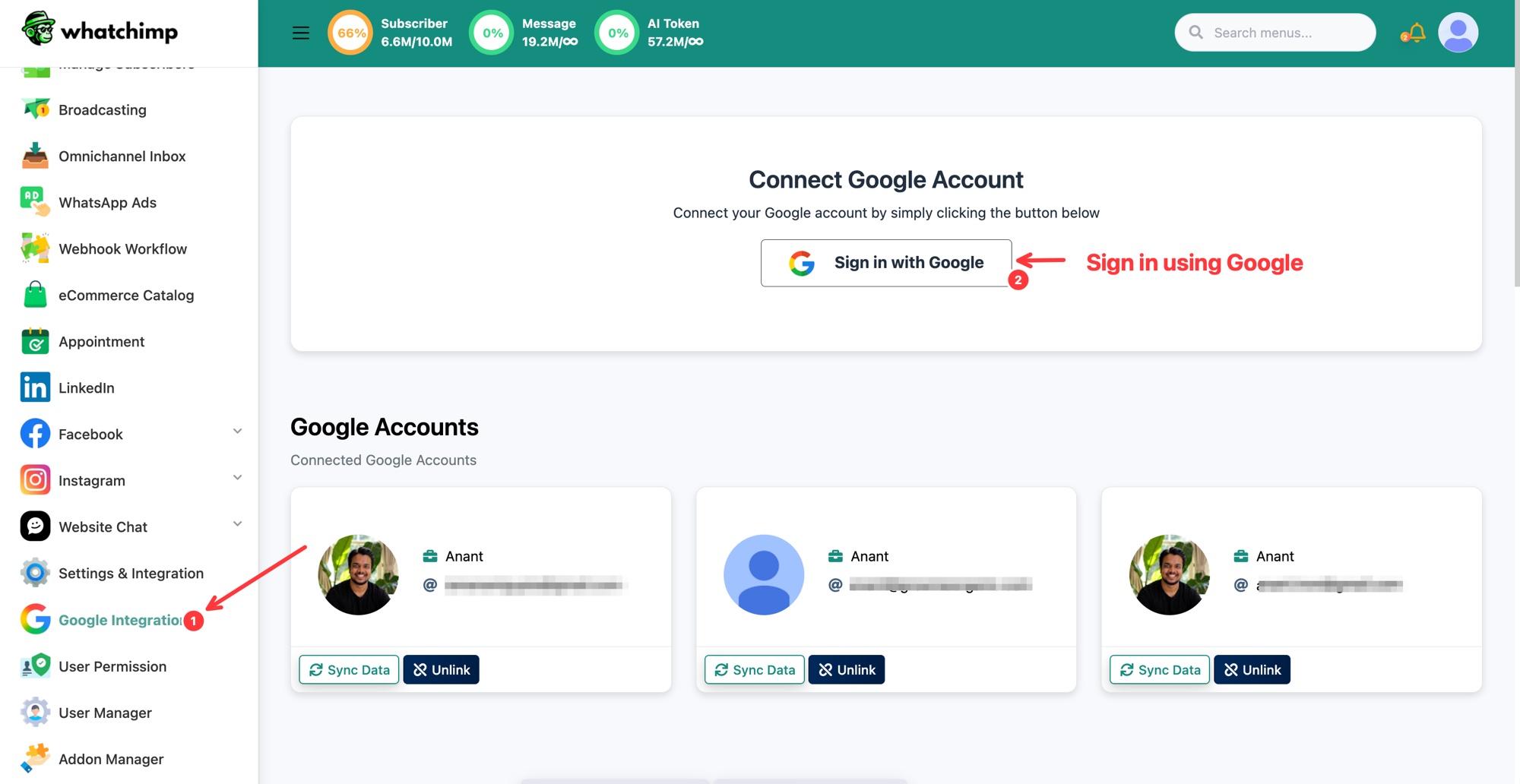 Click Sign in with Google to connect your account
Once connected, your account appears under Google Accounts. From each account card you can:
- Sync Data: refresh the calendars and details pulled from that account.
- Unlink: disconnect the account from WhatChimp.
You can connect more than one Google account if you manage separate calendars.
Step 3 (optional): Create a new Google Calendar
You can use a calendar you already have, or create a fresh one just for appointments, for example one with a specific time zone.
- Scroll down to the Google Calendar section.
- Click Create New Calendar.
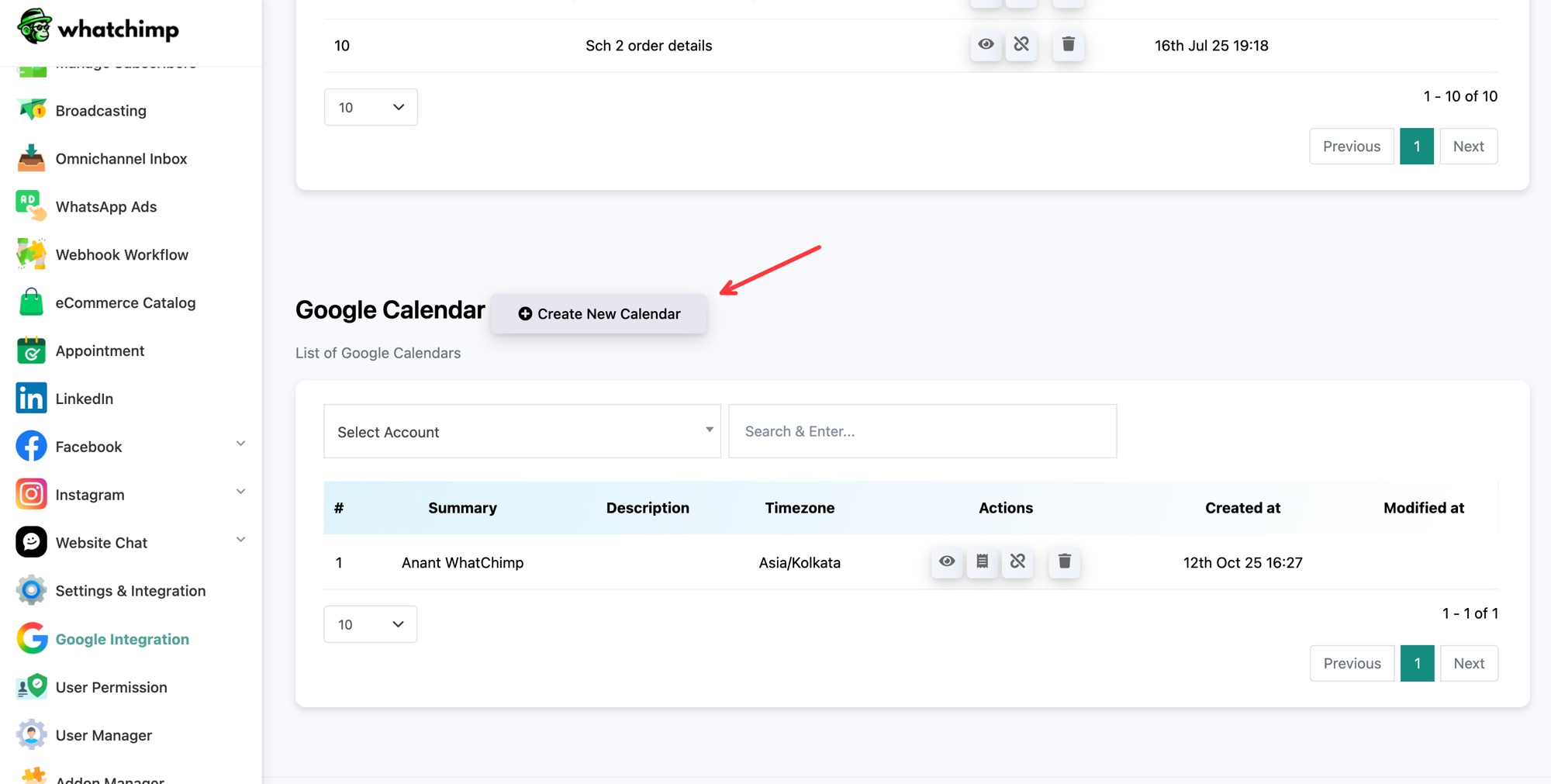 Click Create New Calendar to add a dedicated calendar
- In the Create Google Calendar window, fill in:
- Select Account: the connected Google account this calendar belongs to.
- Calendar Summary: a name for the calendar, for example "New Calendar" or "Appointments".
- Select Timezone: the time zone bookings should follow, for example (GMT-05:00) America/New York.
- Click Save.
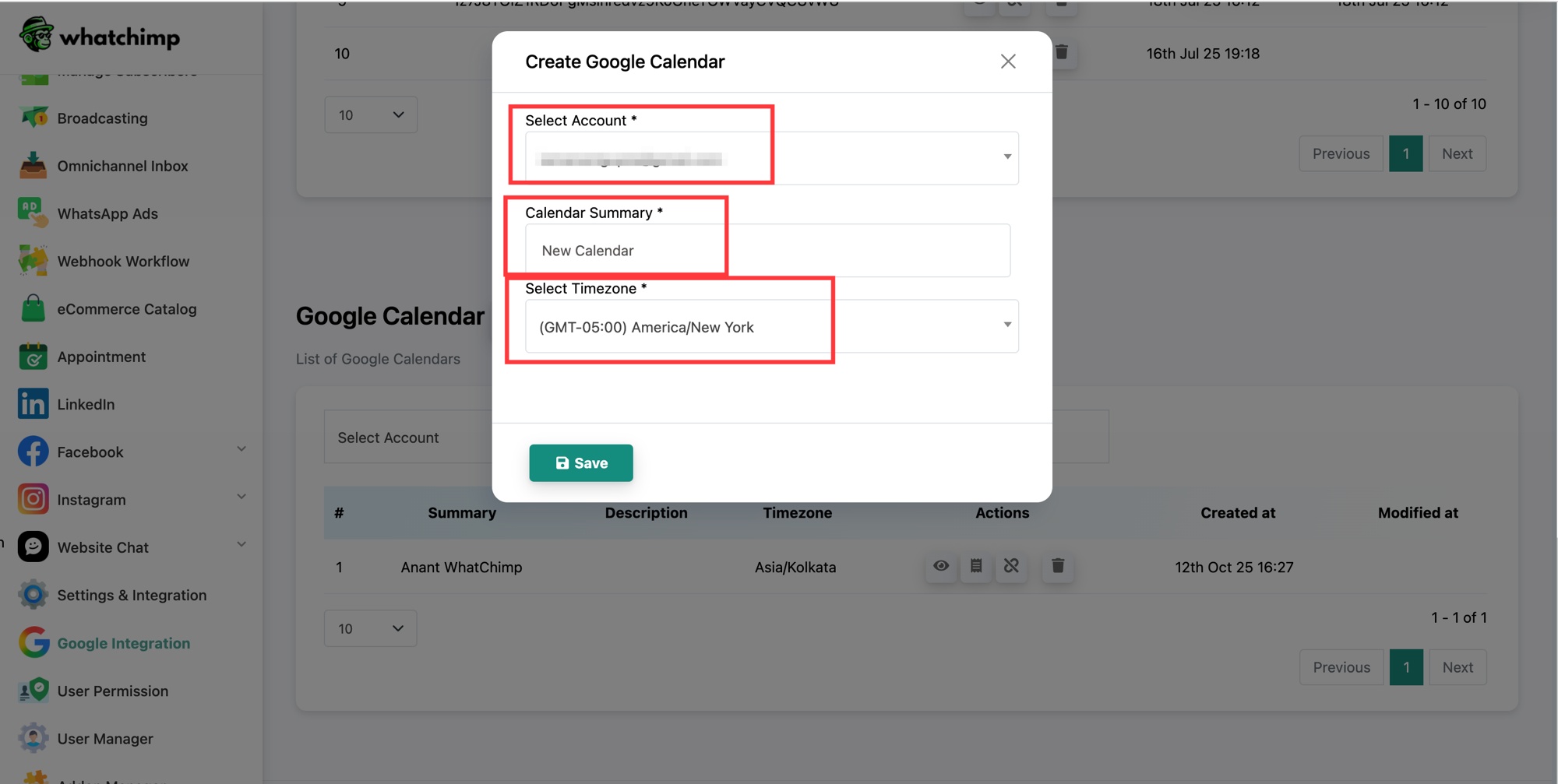 Choose the account, name the calendar, set its time zone, then Save
Your new calendar appears in the List of Google Calendars. For each calendar, the Actions column lets you view it, open its event list (every booking made against it), unlink it, or delete it.
What's next
With your Google account connected and a calendar ready, the next step is to create an appointment so customers can book it from WhatsApp.