Connect Google Spreadsheet
Connect your Google account to WhatChimp and manage your Google Sheets: create new sheets, add existing ones, and organize your spreadsheet connections.
Updated 18 June 2026
Video: https://www.youtube.com/watch?v=CB9BKBFtbJs
WhatChimp connects to Google Sheets so you can import contacts, collect leads, fetch data, and send automated WhatsApp messages, all powered by your spreadsheets. The first step is connecting your Google account.
Navigate to Google Integration
In the left sidebar, click Google Integration. You can also reach it from Settings & Integration, in the Google section. This is where you connect the Google account that powers your Google Sheets in WhatChimp (the same connection also powers Google Calendar).
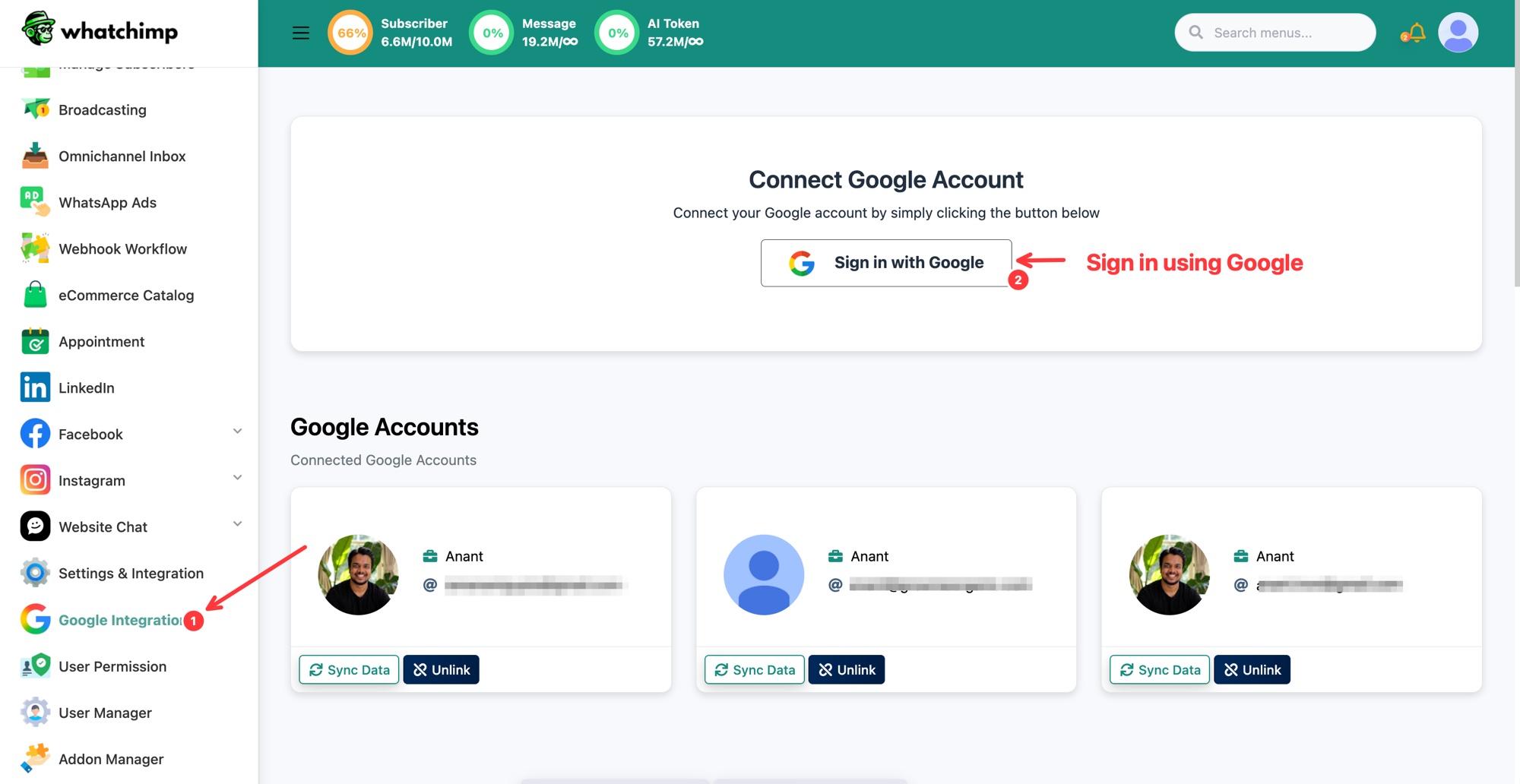 Click Sign in with Google to connect your account
Connect Your Google Account
- Click the Sign in with Google button.
- A Google popup will appear, choose your Google account.
- Review the permissions and click Continue to grant WhatChimp access to your Google Sheets.
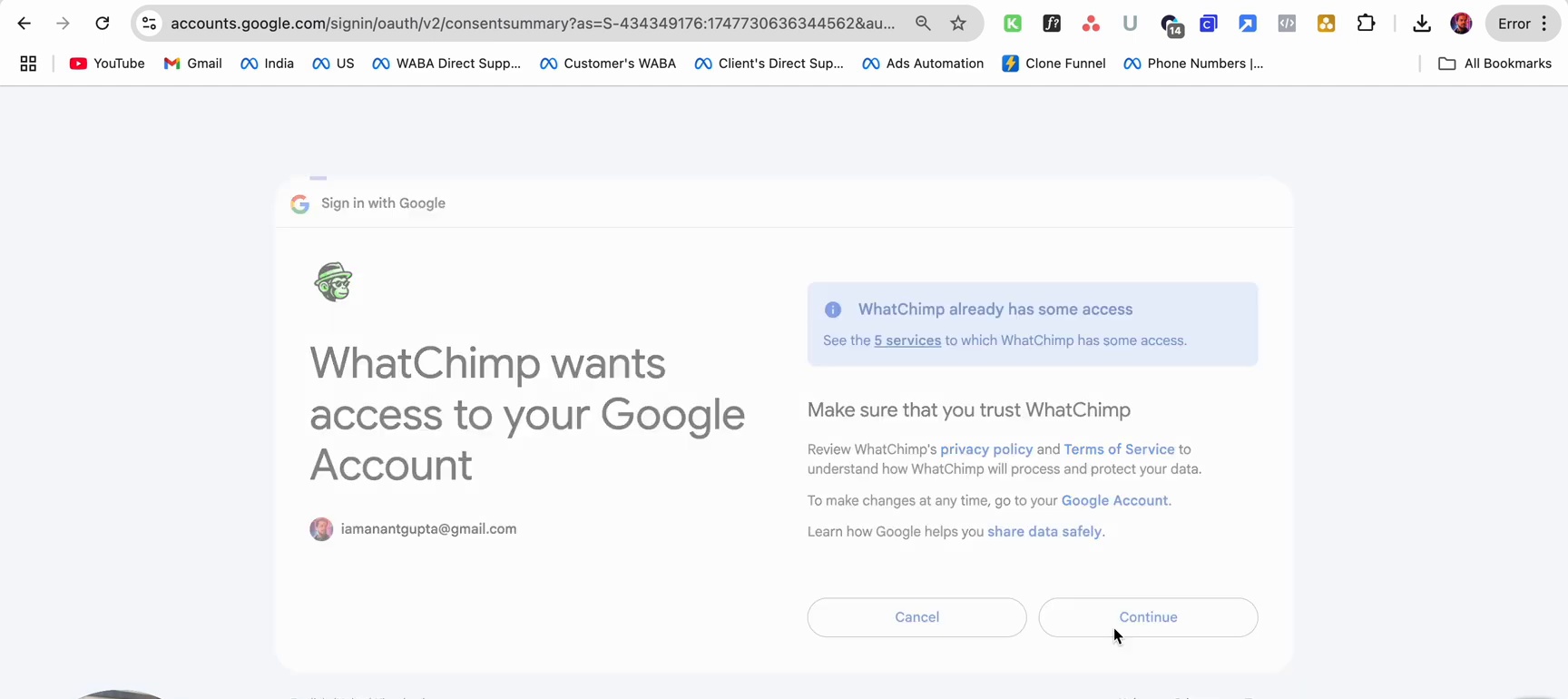 Allow WhatChimp to access your Google Sheets
Once connected, your Google account appears under Google Accounts with two action buttons:
- Sync Data: refresh the connection and sync your latest sheets.
- Unlink: disconnect your Google account from WhatChimp.
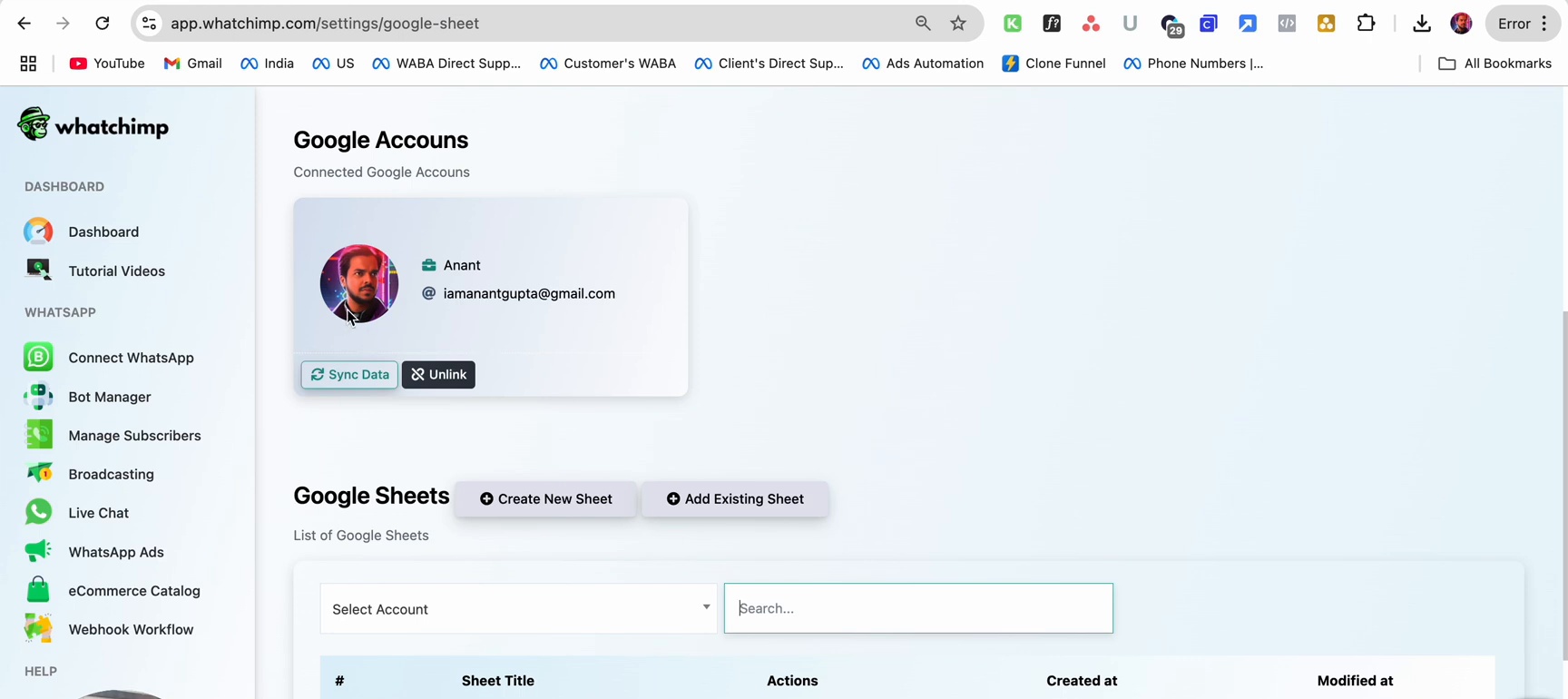 Your connected account with Sync Data and Unlink
Create a New Sheet
You can create a new Google Sheet directly from WhatChimp:
- Click the Create New Sheet button in the Google Sheets section.
- In the dialog that appears:
- Sheet Title: enter a name for your new sheet.
- Add Header: add column headers (for example, Name, Number). Click Add Header to add more columns.
- Click Save.
The sheet is created in your Google Drive and automatically linked to WhatChimp.
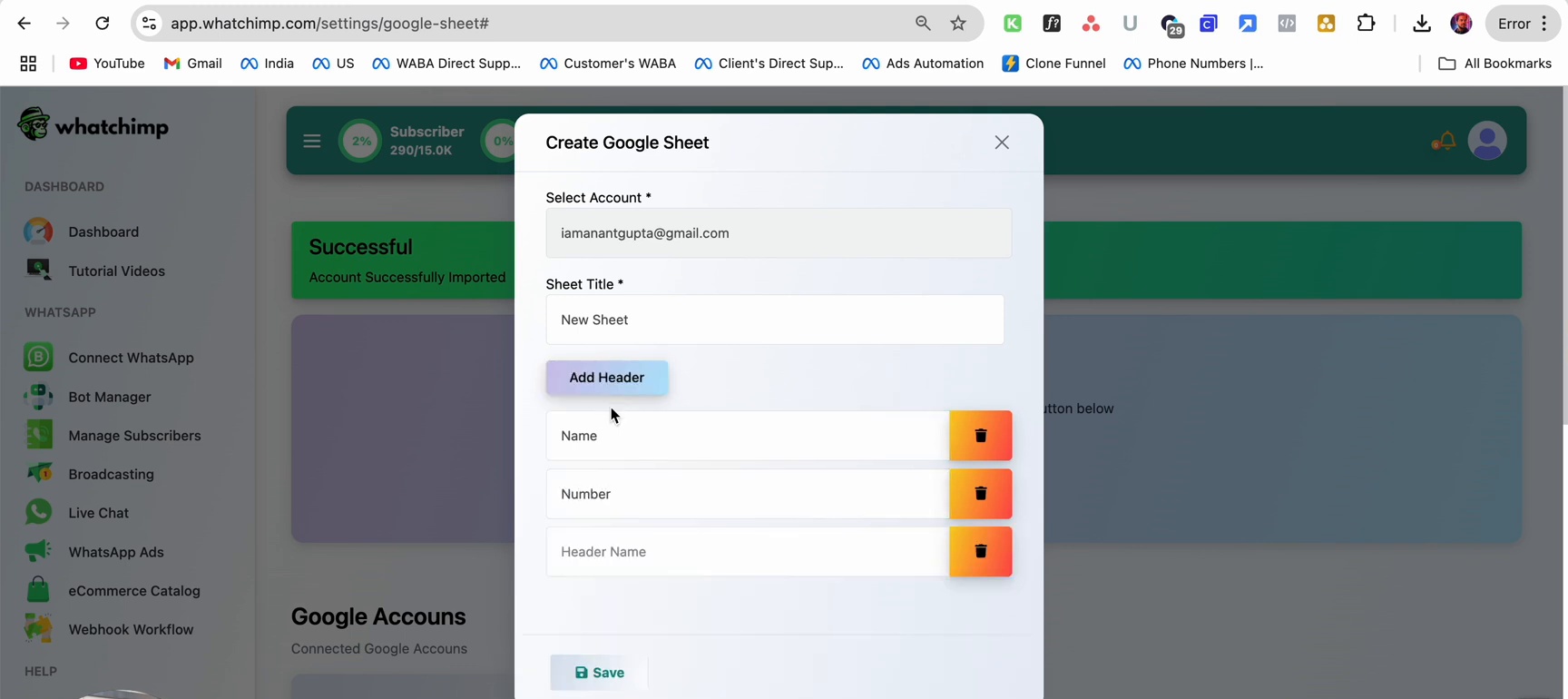 Name the sheet, add headers, then Save
Add an Existing Sheet
If you already have a Google Sheet in your Drive, you can link it to WhatChimp:
- Click the Add Existing Sheet button.
- Select Account: choose your connected Google account from the dropdown.
- Click Save.
The sheet will appear in your Google Sheets list and be available for use across WhatChimp features.
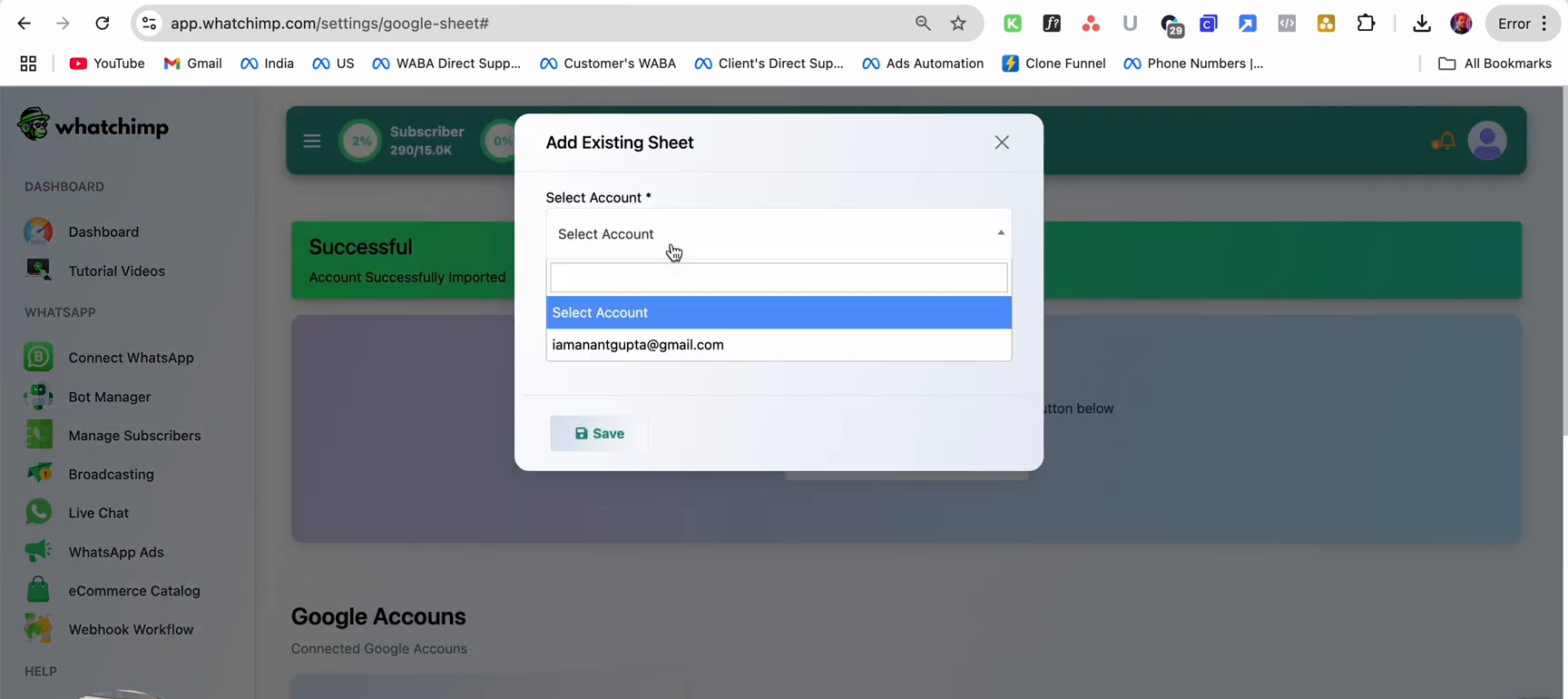 Pick the account, then Save
Managing Your Sheets
All your connected Google Sheets appear in a table with the following columns:
- #: row number.
- Sheet Title: name of the Google Sheet.
- Actions: view, copy link, and delete buttons.
- Created at: date and time the sheet was linked.
- Modified at: date and time of last modification.
Use the Select Account dropdown to filter sheets by Google account, or use the Search field to find a specific sheet.
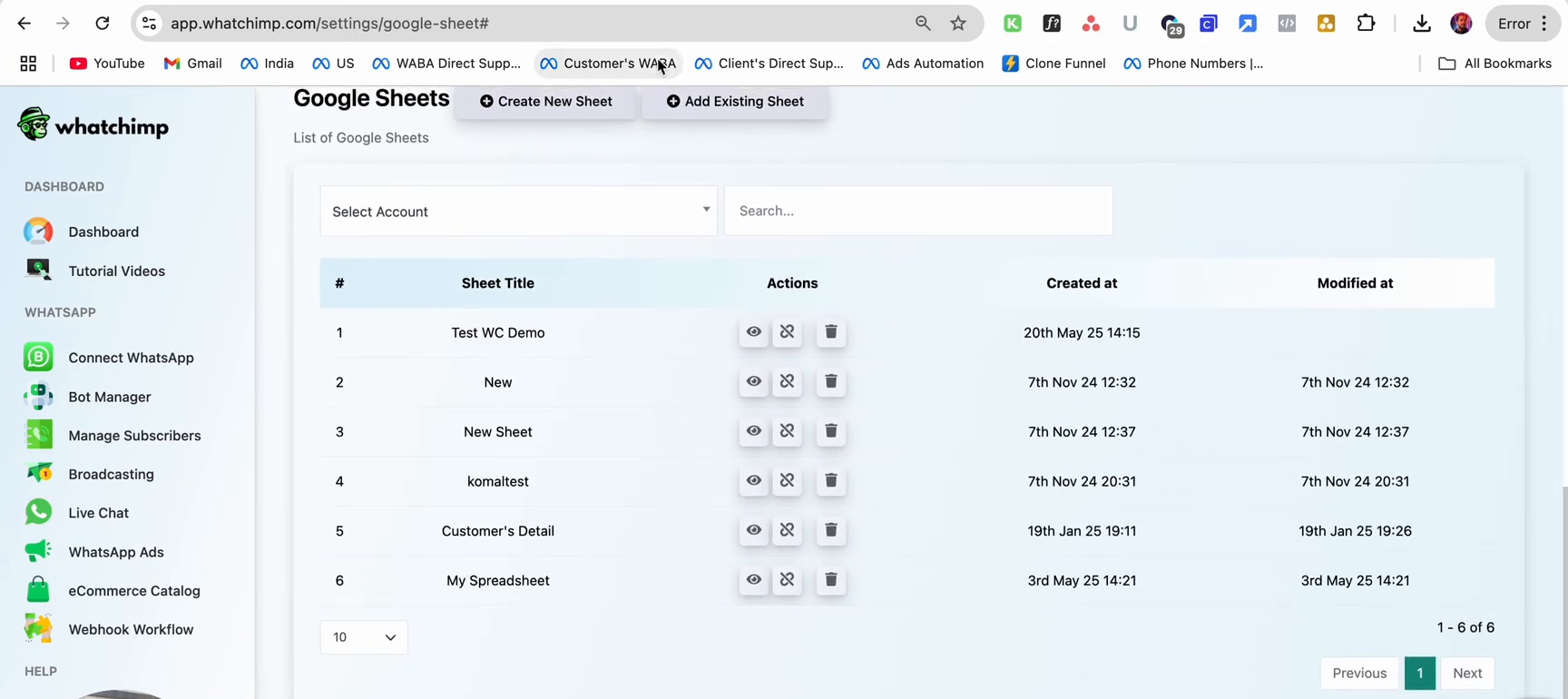 Filter by account or search to find a sheet
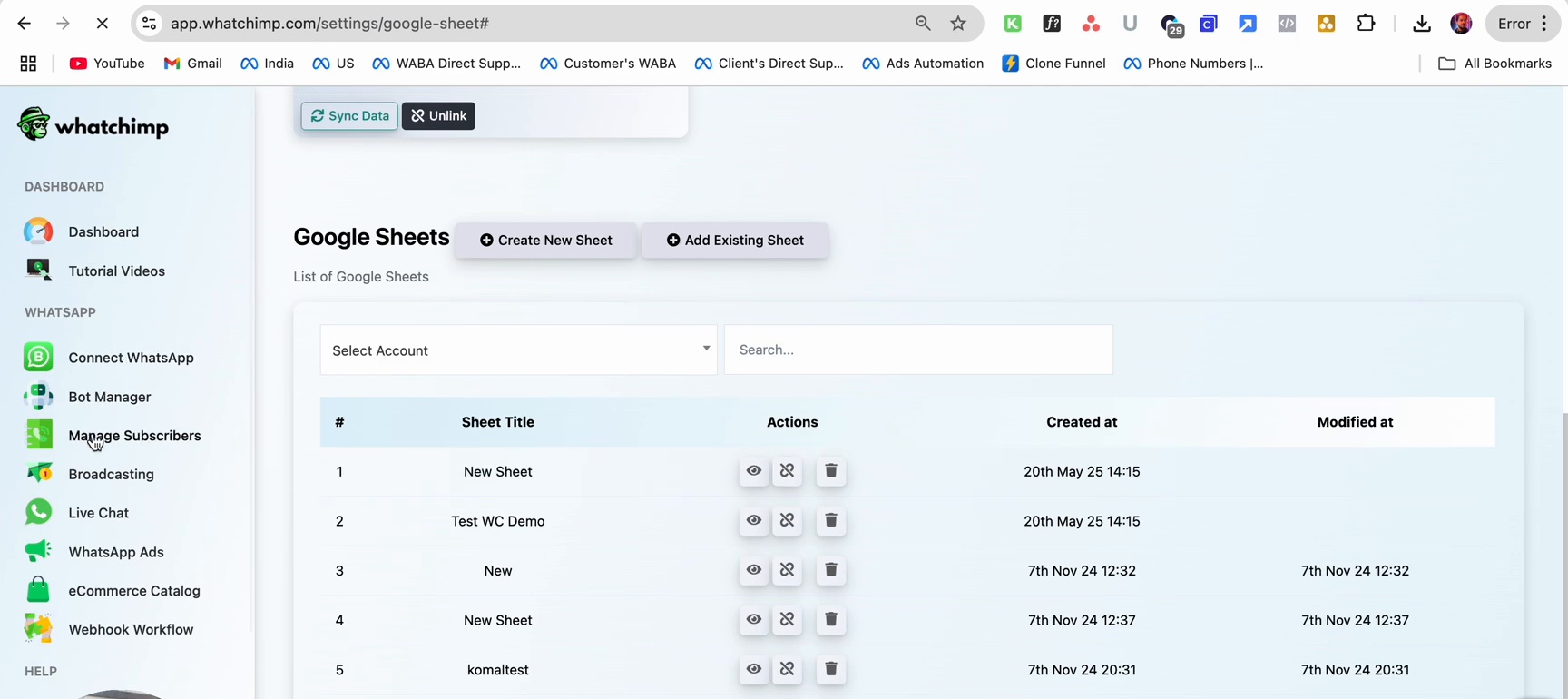 All your linked sheets in one place
Next Steps
Now that your Google account is connected, you can:
- Import Contacts from Google Spreadsheet to bulk-import contacts into WhatChimp's Subscriber Manager.
- Send New Subscriber Data to Google Spreadsheet to automatically save new subscriber information to a sheet.