Send New Subscriber Data to Google Spreadsheet
Automatically save new subscriber information to a Google Spreadsheet whenever someone messages your WhatsApp number using a bot flow.
Updated 18 June 2026
Video: https://www.youtube.com/watch?v=doKrRqo34UY
Automatically send new subscriber information to a Google Spreadsheet whenever someone messages your WhatsApp number. This keeps an external record of all your contacts without any manual work.
Prerequisite: You need to connect your Google account first before setting up this automation.
Create the Bot Flow
- Go to Bot Manager in the left sidebar
- Click Create Bot Flow (or open an existing flow)
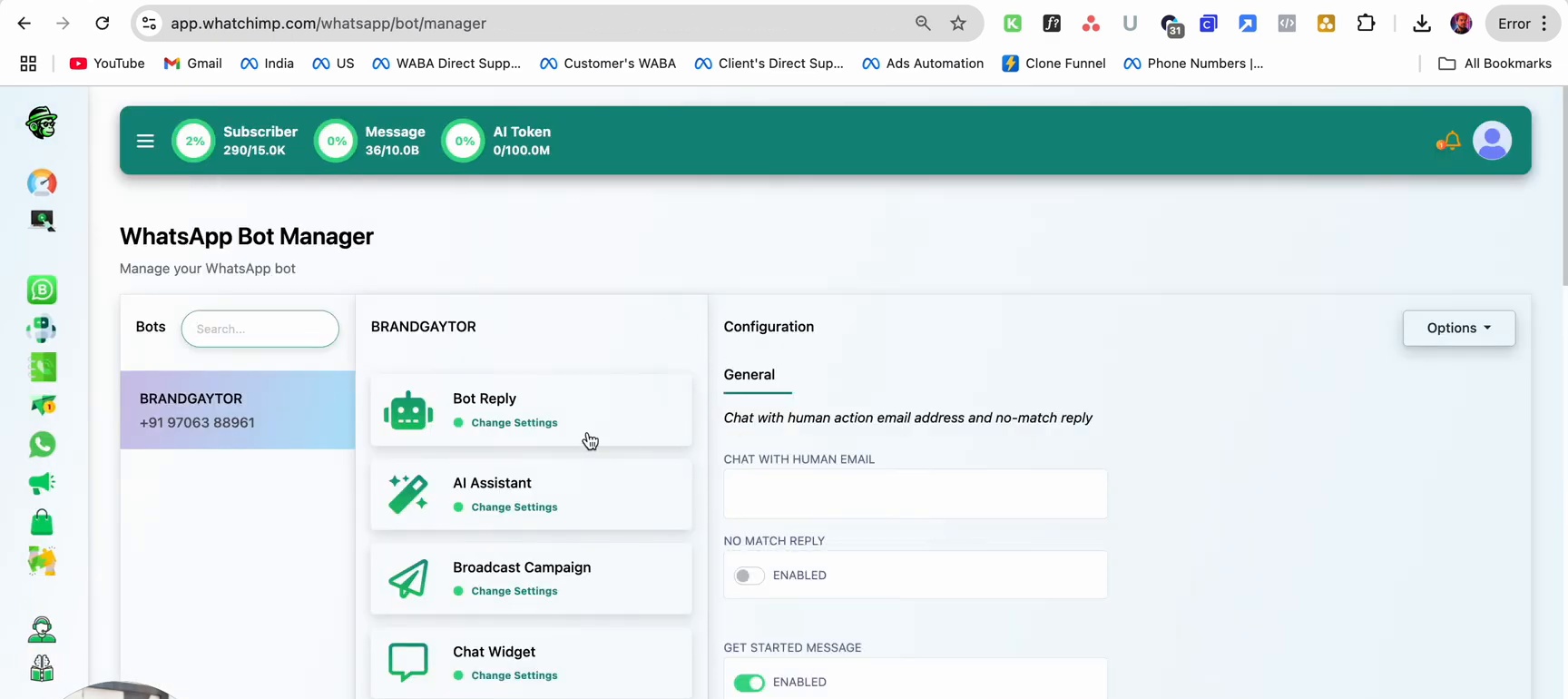 WhatsApp Bot Manager showing bot list and configuration options
Set Trigger Keywords
In the Configure Reference screen:
- Enter the keywords that will trigger the bot (e.g., "Interested", "Price Please")
- Under Send reply based on your matching type, choose:
- Exact keyword match — the bot triggers only when the exact keyword is sent
- String match — the bot triggers when the keyword appears anywhere in the message
- Optionally add Labels to tag subscribers who trigger this bot
- Select a Google Sheet to send data to (e.g., "Test WC Demo [Sheet1]")
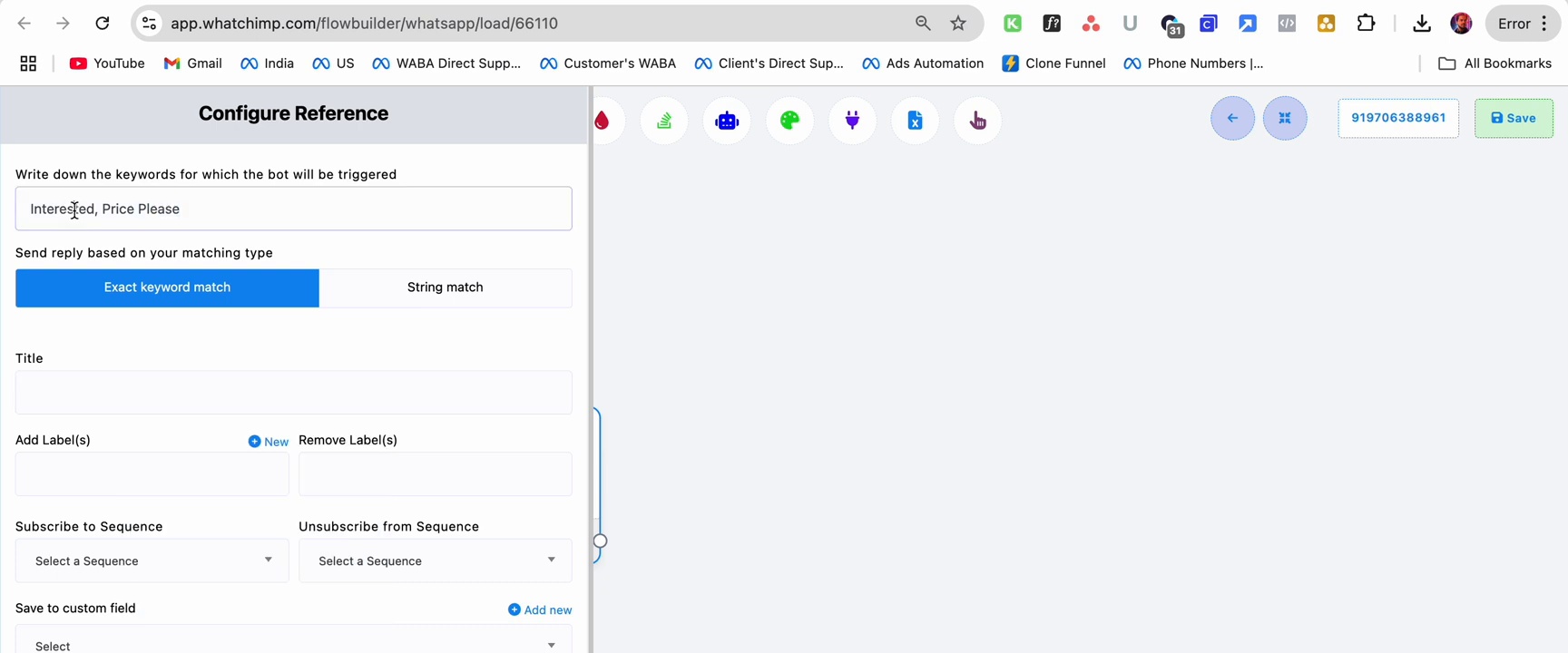 Configure Reference with trigger keywords, matching type, and Google Sheet selection
Add a Reply Message
Add a text message node so the subscriber gets an immediate response:
- Click Compose Next Message in the flow builder
- Enter your reply message (e.g., "Sure, we'll send you the details shortly")
- Click Save
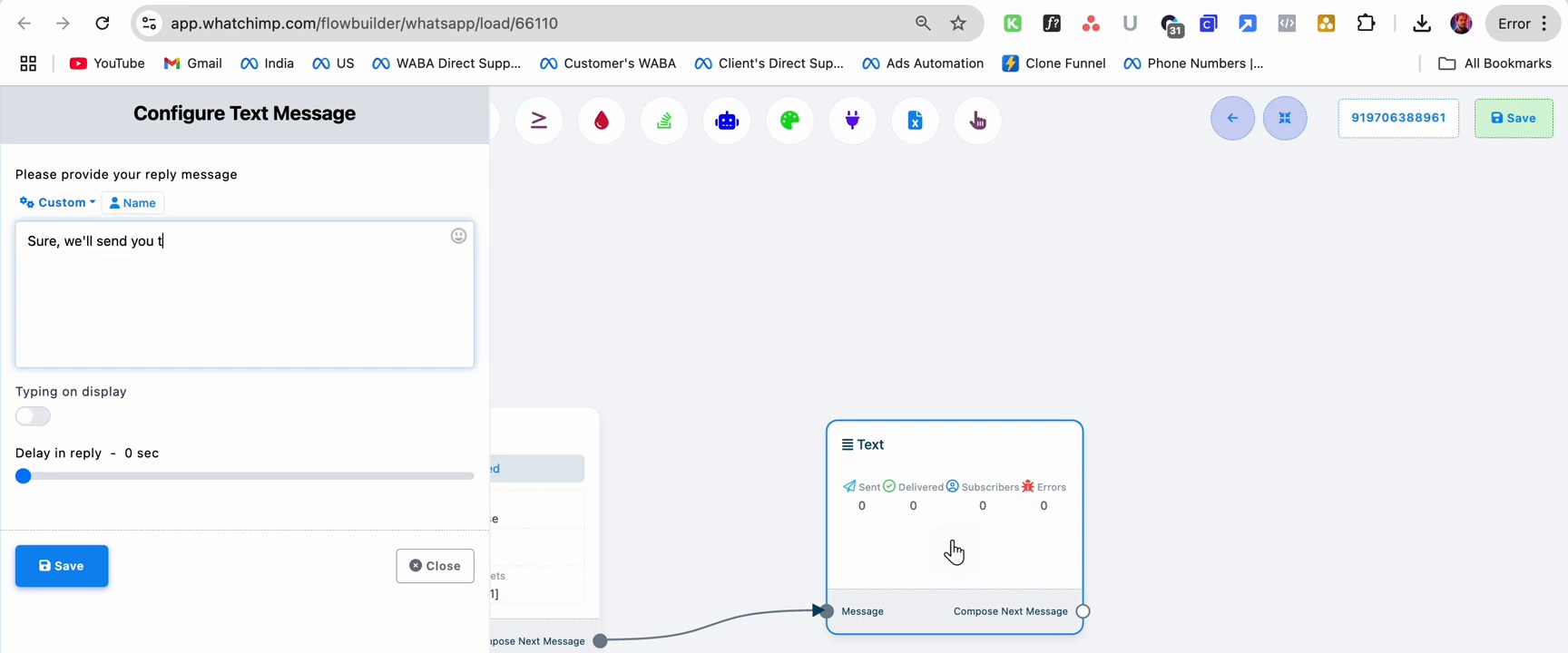 Text message configuration with reply message and flow builder preview
Review the Complete Flow
Your flow should now look like this:
- Start Bot Flow — triggers on your keywords, sends data to Google Sheets
- Text — sends the reply message to the subscriber
The Start Bot Flow node shows the configured keywords, matching type, and the connected Google Sheet.
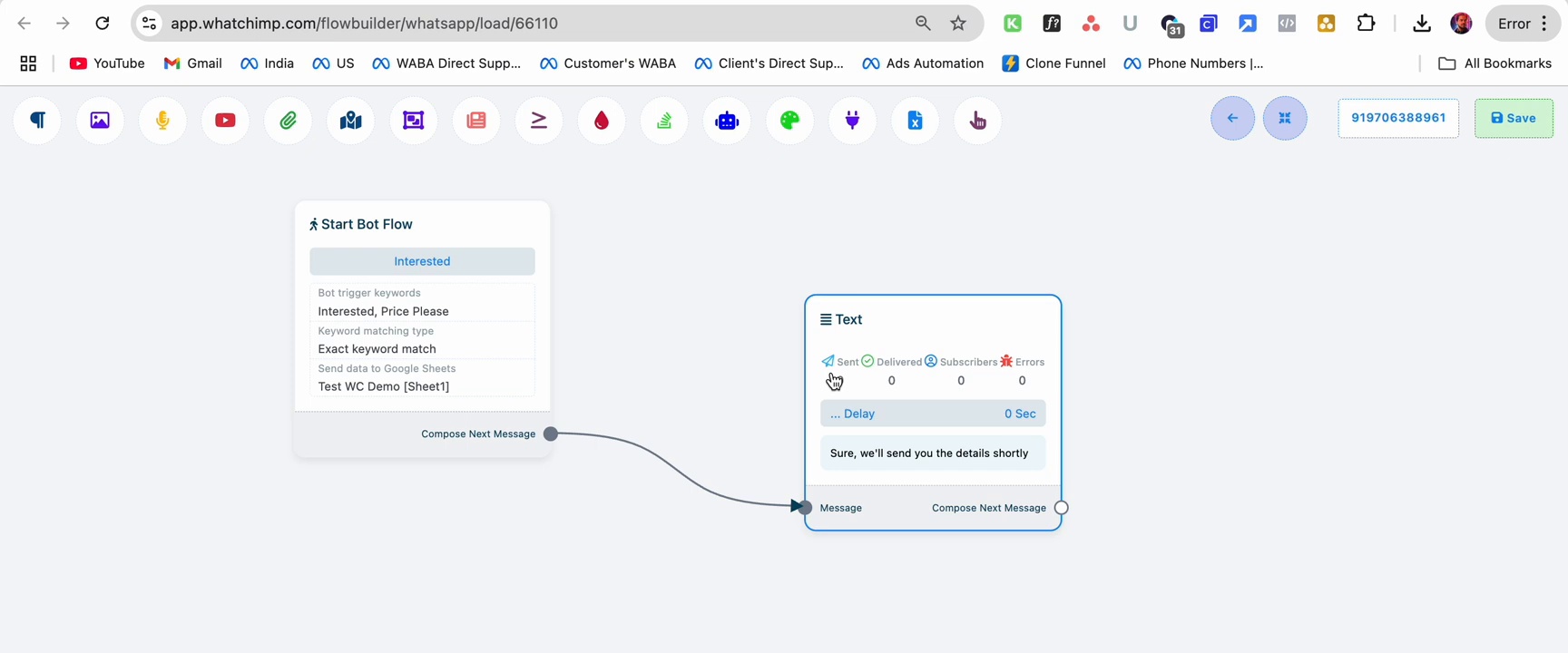 Flow builder showing Start Bot Flow connected to Text message node with Google Sheet integration
Save and Activate
Click Save in the top-right corner to activate the flow. You'll see a success message confirming the flow has been saved.
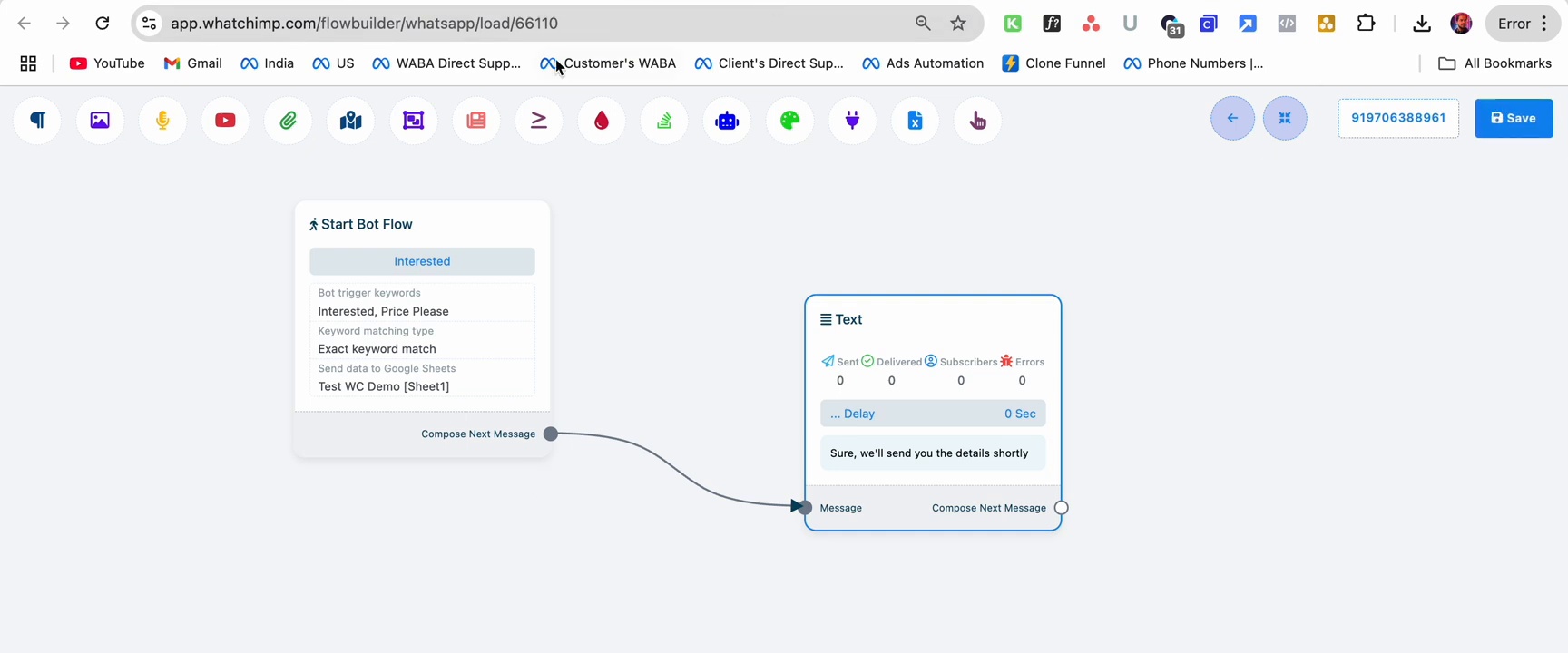 Flow builder with success notification after saving
Test the Flow
- Send one of the trigger keywords (e.g., "Interested") to your WhatsApp number from another phone
- The bot should reply with your configured message
- Open your Google Sheet — a new row should appear with the subscriber's data
The sheet captures the subscriber's name, phone number, and the trigger keyword they used.
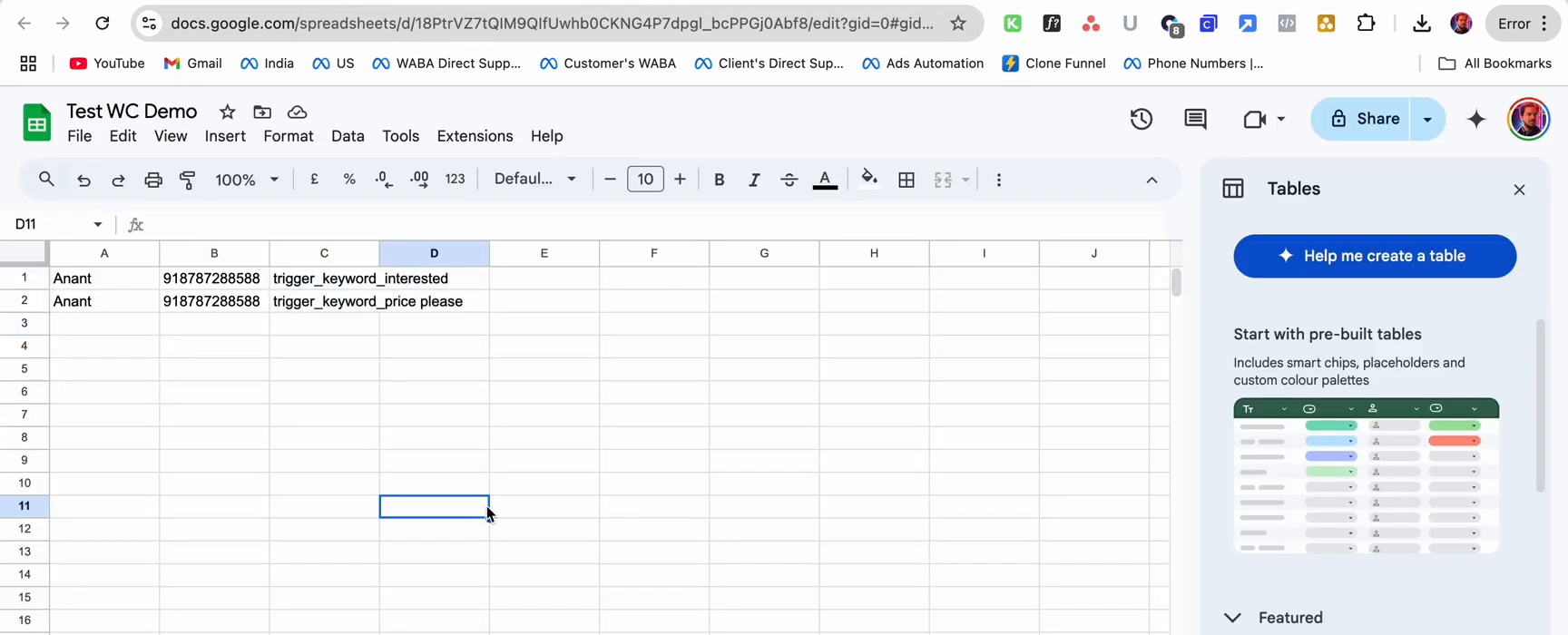 Google Sheet showing subscriber name, phone number, and trigger keyword captured automatically
Next Steps
- Collect WhatsApp lead details via chatbot — build an interactive bot that asks questions and saves answers to a Google Sheet
- Fetch details from a Google Spreadsheet — let customers look up data from your sheet via WhatsApp