How to View Appointment Requests
See every booking across your appointments in one table. Filter by appointment and status, change a booking's status, and open its invoice.
Updated 18 June 2026
Every booking a customer makes shows up under Appointment Requests, a table where you can see, filter, and manage all of your bookings in one place.
Open Appointment Requests
- In the left sidebar, open Appointment.
- Scroll down past the Appointment Manager to the Appointment Requests section.
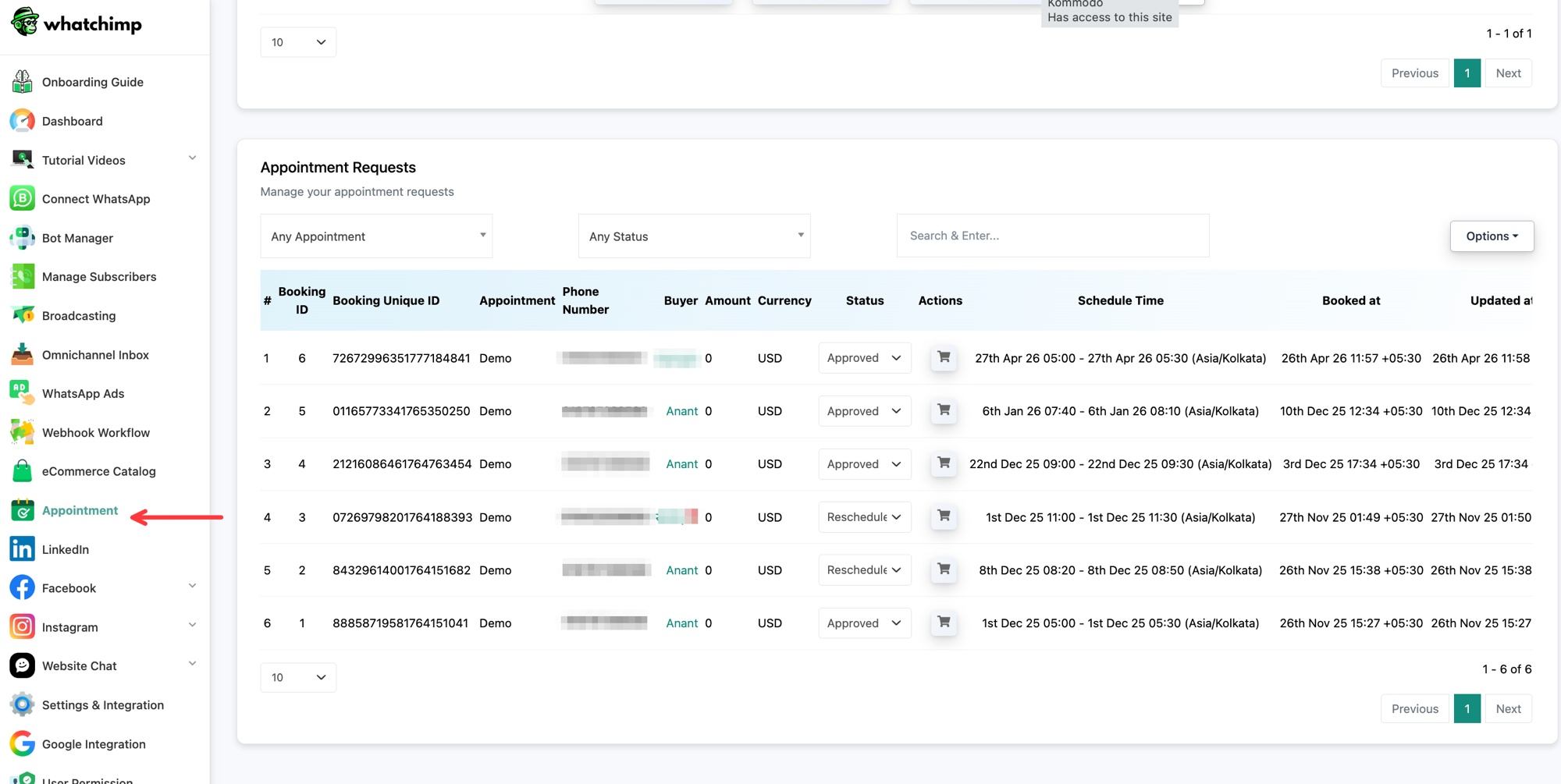 Every booking appears in the Appointment Requests table
What the table shows
Each row is one booking:
- Booking ID and Booking Unique ID: the short reference and the full unique identifier for the booking.
- Appointment: which appointment was booked, for example "Demo".
- Phone Number and Buyer: who made the booking.
- Amount and Currency: what they paid, if the appointment is paid.
- Status: the current state of the booking, for example Approved or Reschedule. You can change it from the dropdown.
- Actions: open the booking's invoice and details.
- Schedule Time: the booked slot, with its time zone.
- Booked at and Updated at: when the booking was made and last changed.
Find and manage bookings
- Use the appointment dropdown to show bookings for one appointment, the Status dropdown to filter by state, or the search box to find a specific booking.
- Change a booking's Status from its dropdown, for example to approve it or mark it for reschedule.
- Click the Actions icon to open the invoice for that booking.