Create Templates in WhatsApp Manager and Sync to WhatChimp
How to create message templates in Meta's WhatsApp Manager and sync them to WhatChimp
Updated 10 February 2026
WhatsApp is a powerful tool for businesses to engage with customers. Using WhatsApp’s Cloud API, you can send pre-defined message templates anytime, even beyond the 24-hour window.
WhatsApp Carousel Templates
WhatsApp Manager does not support carousel templates, but WhatChimp does! You can create and send carousel messages using this guide.
Steps to Create a WhatsApp Message Template
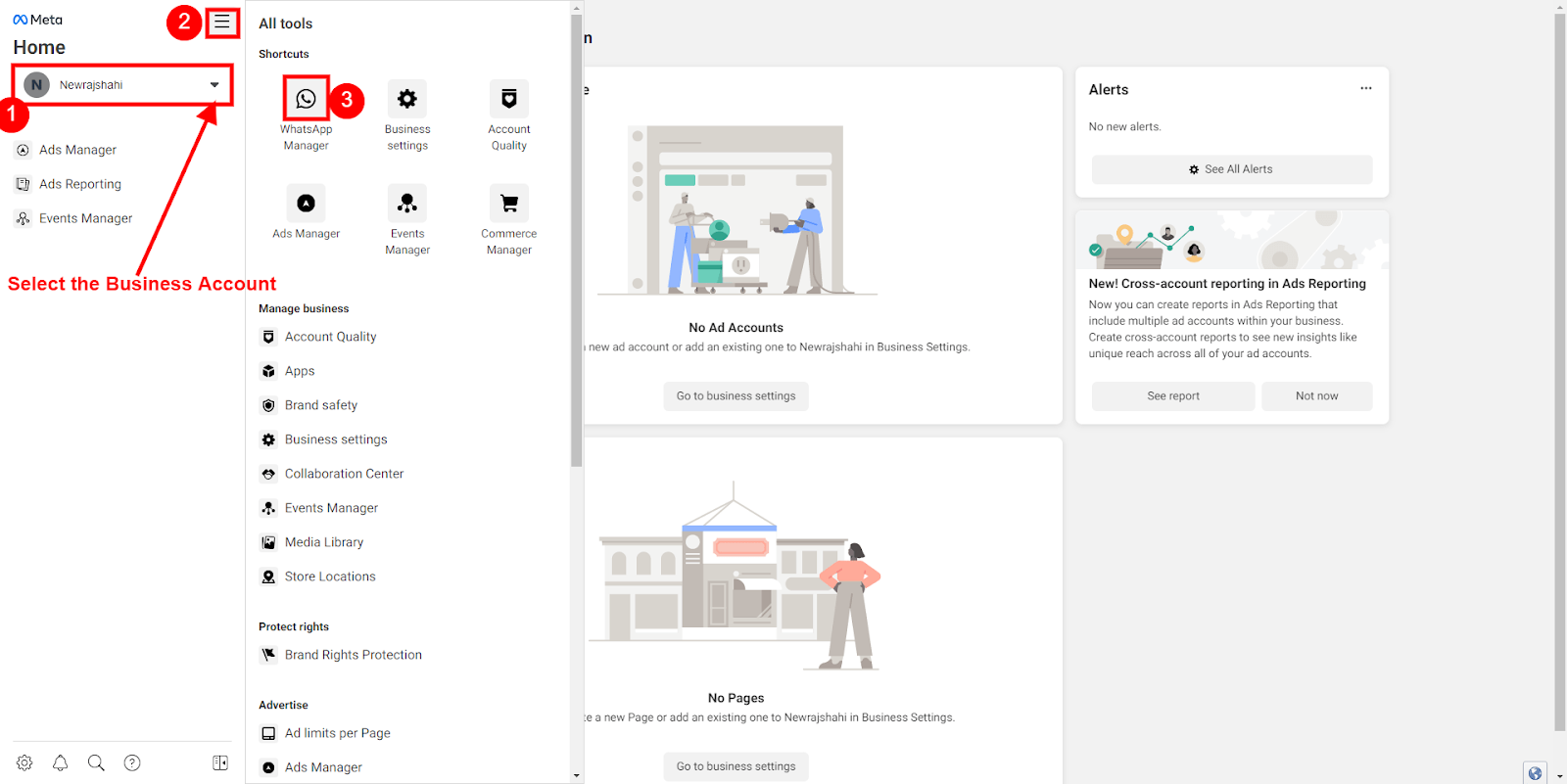
- Log in to business.facebook.com and select your business account.
- Click “All Tools” > “WhatsApp Manager”.
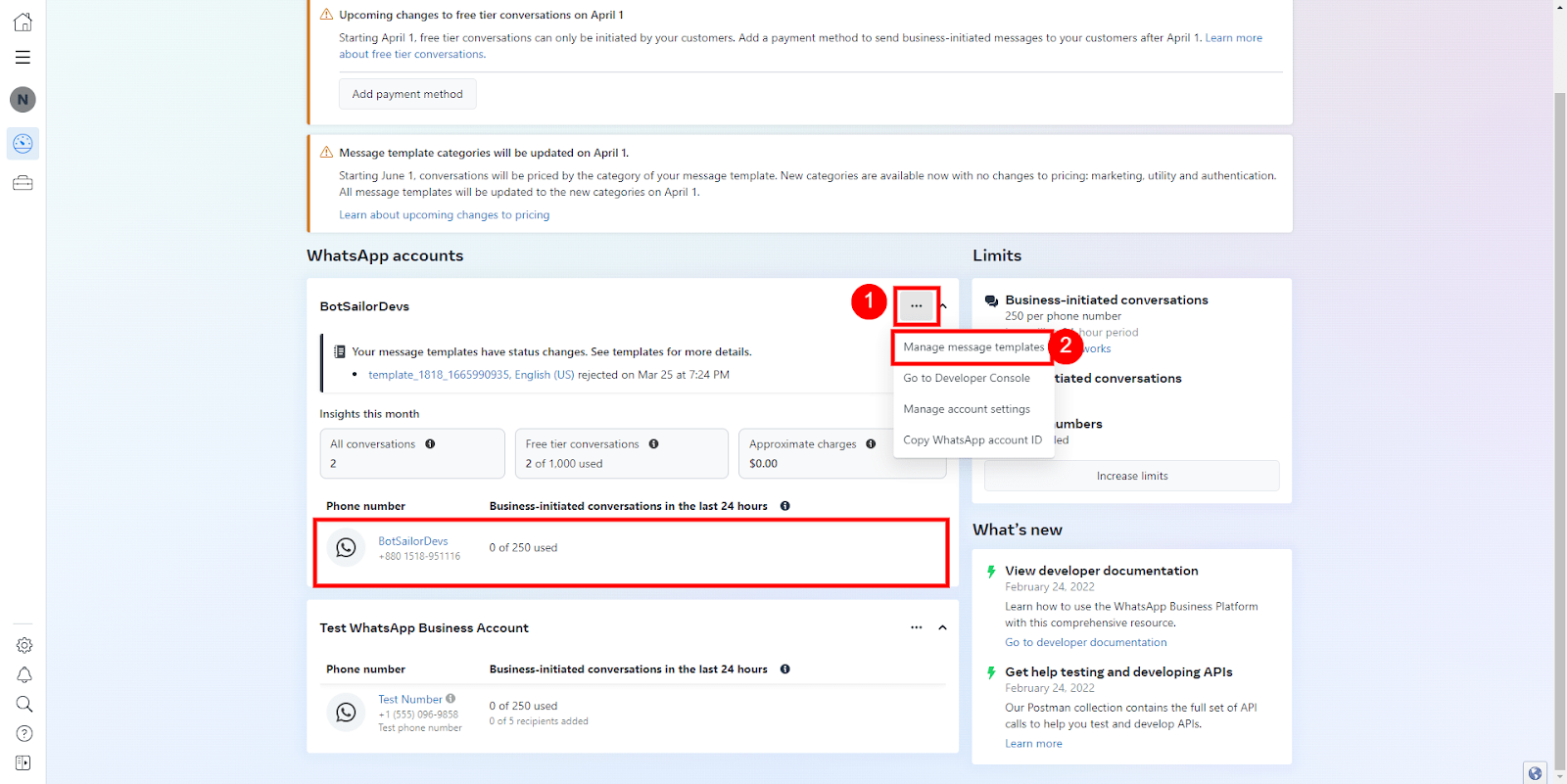
- Click the three dots menu and select “Manage Message Templates”.
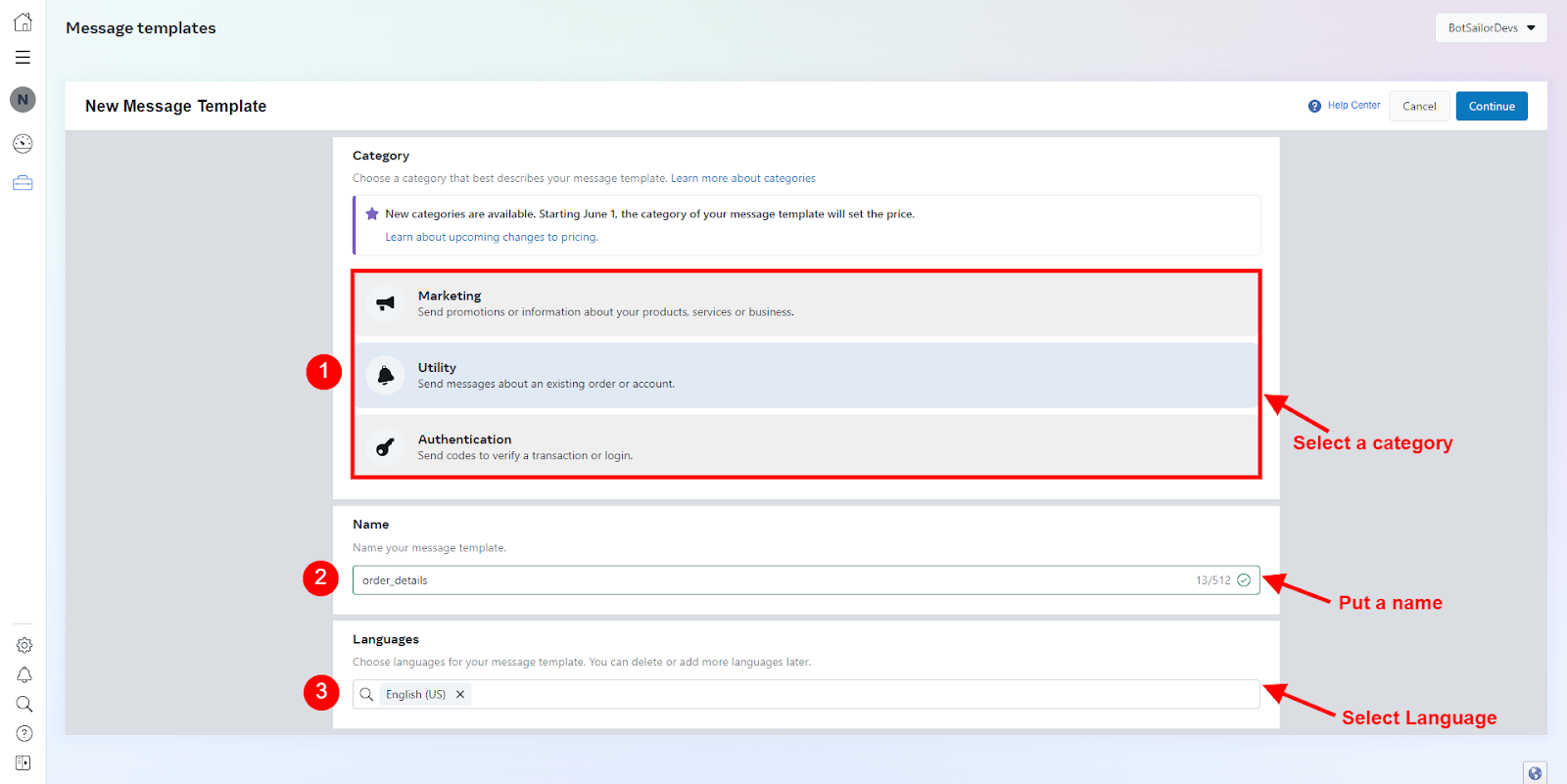
- Click “Create Template”, choose a category (Marketing, Utility, Authentication), name your template, and select a language.
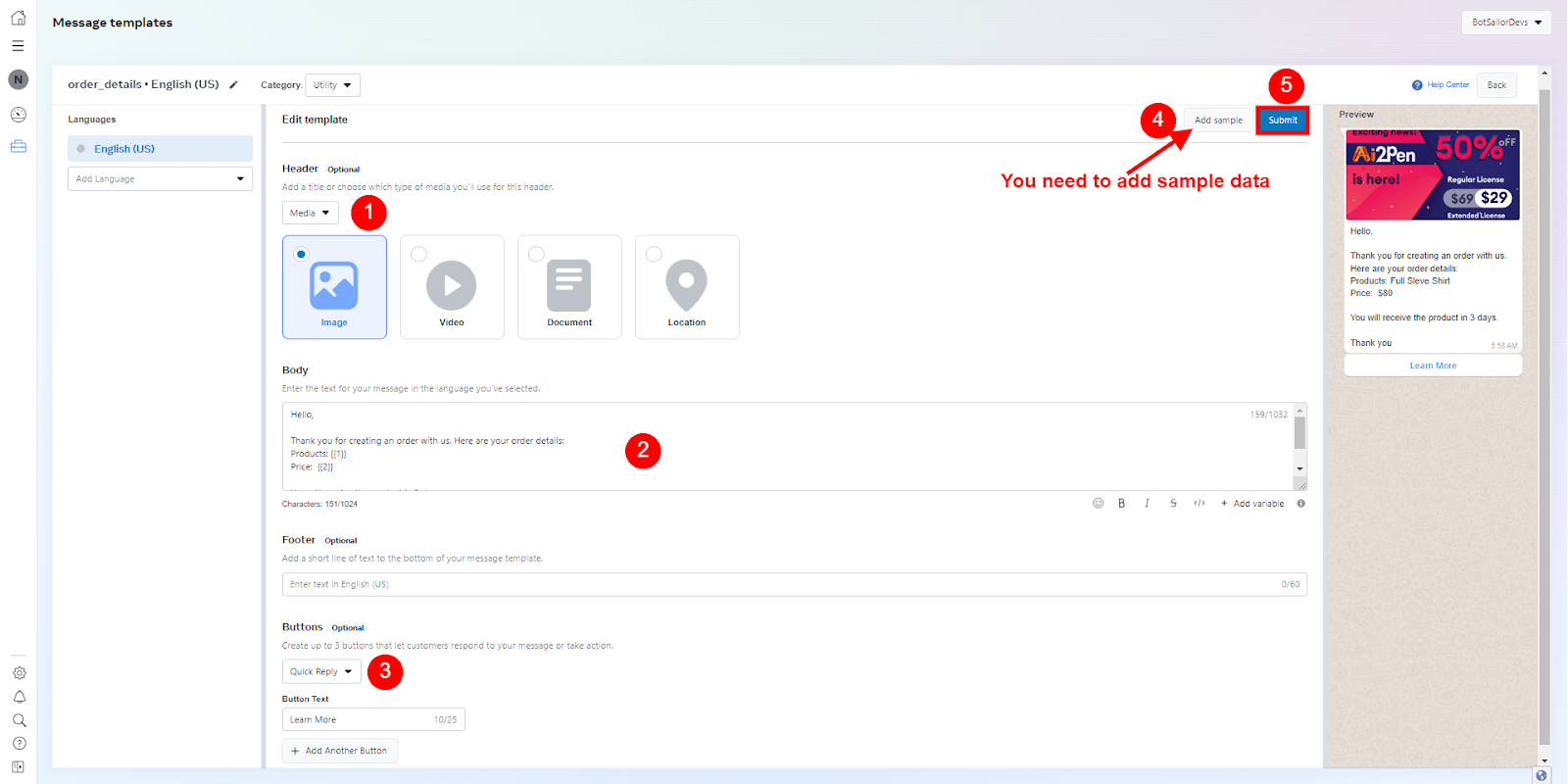
- (Optional) Add a header (text or media like images).
- Write the body of your message and insert variables if needed.
- (Optional) Add a footer and buttons (Quick Reply or Call-to-Action).
- Add sample data for testing, then submit your template for WhatsApp approval.
- WhatsApp will verify the template and approve it, after which it can be used.
Syncing with WhatChimp
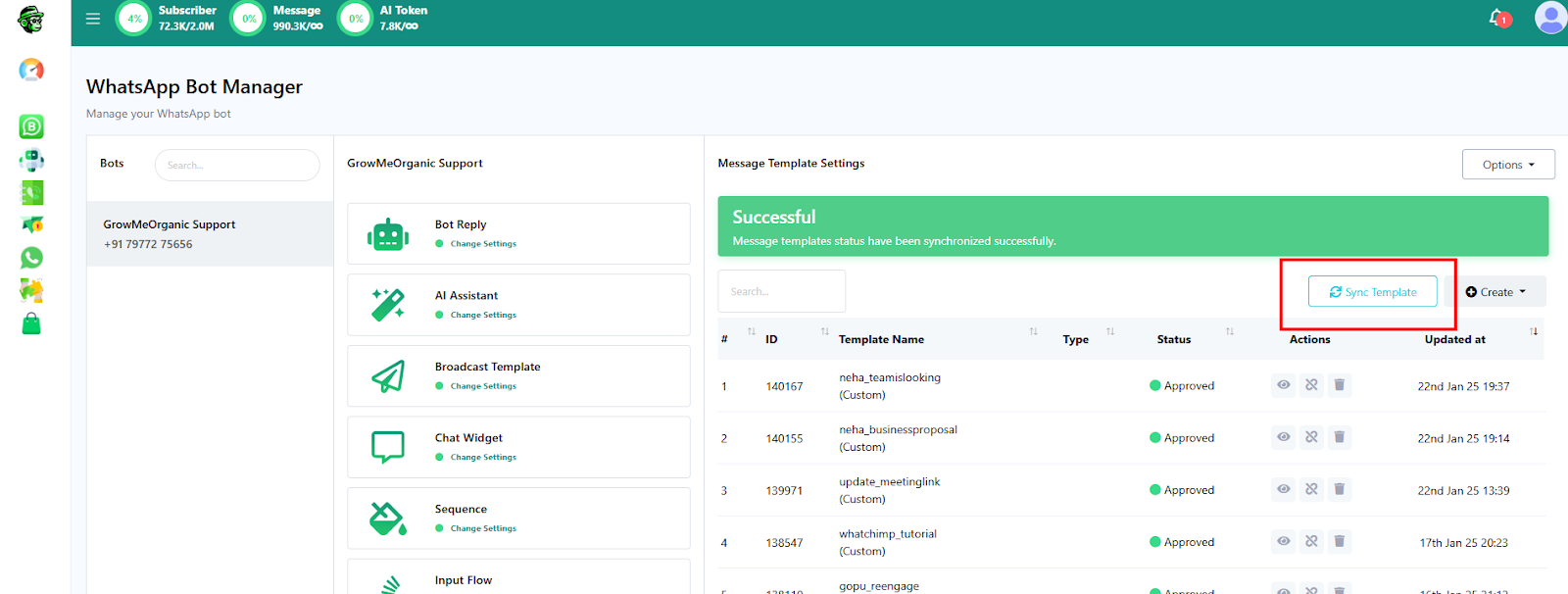
- Go to the Message Templates section in WhatChimp.
- Click “Sync Template” to fetch your approved template from the WhatsApp Cloud API.
- Map the variables for your chatbot (or create new ones).
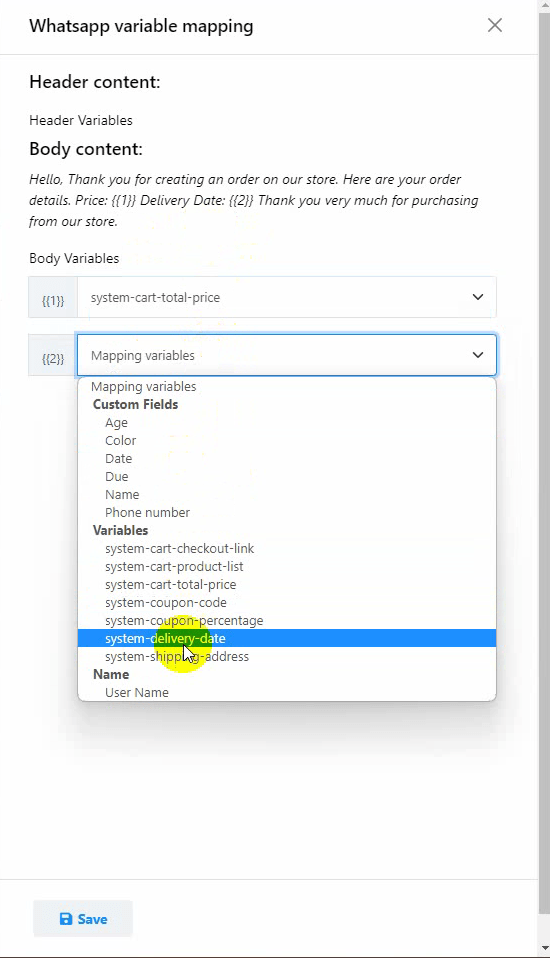
- Save the template—it’s now ready to use in WhatChimp!