Template Variables vs Custom Variables — What's the Difference?
Updated 10 February 2026
This is one of the most common sources of confusion for WhatChimp users: when should you use Template Variables versus Custom Variables (Custom Fields)? Both let you personalize WhatsApp messages, but they work in fundamentally different ways.
Understanding the difference is critical, especially if you're using the WhatChimp API. Using the wrong type can cause your messages to fail or display incorrect data.
Quick Comparison
| Feature | Template Variables | Custom Variables (Custom Fields) |
|---|---|---|
| Where Created | Bot Manager > Message Template > Template Variables section | Subscriber Manager > Manage Custom Fields |
| Data Storage | Temporary — passed each time you send | Permanent — stored on subscriber profile |
| Attached To | The message (not the contact) | The contact/subscriber |
| Best For | Dynamic data that changes every time: OTPs, order numbers, delivery dates, meeting links | Persistent data that rarely changes: name, company, email, country, industry |
| Template Syntax | {{1}}, {{2}}, {{3}} | {{custom_field_name}} |
| API Behavior | You MUST pass values in API call (variable1=VALUE) | System automatically pulls from subscriber data — NO need to pass in API call |
| Example Use Cases | One-time password: 123456<br>Order ID: ORD-9842<br>Delivery date: Feb 15 | Customer name: John Smith<br>Company: Acme Corp<br>Country: United States |
Template Variables
Template Variables are temporary placeholders that change with every message you send. They are NOT stored anywhere — you provide the value each time.
When to Use Template Variables
Use Template Variables for information that is:
- Unique to each message (changes every single time)
- Time-sensitive or one-time use
- Not worth storing permanently
Examples:
- OTP codes (expires in minutes)
- Order confirmation numbers
- Appointment times or meeting links
- Tracking numbers
- Invoice amounts
- Password reset tokens
Where to Create Template Variables
Step A. Go to Bot Manager > Message Template and select your bot.
Step B. Scroll down to the "Template Variables" section (below your template body).
Step C. Define your variables here (e.g., variable1, variable2).
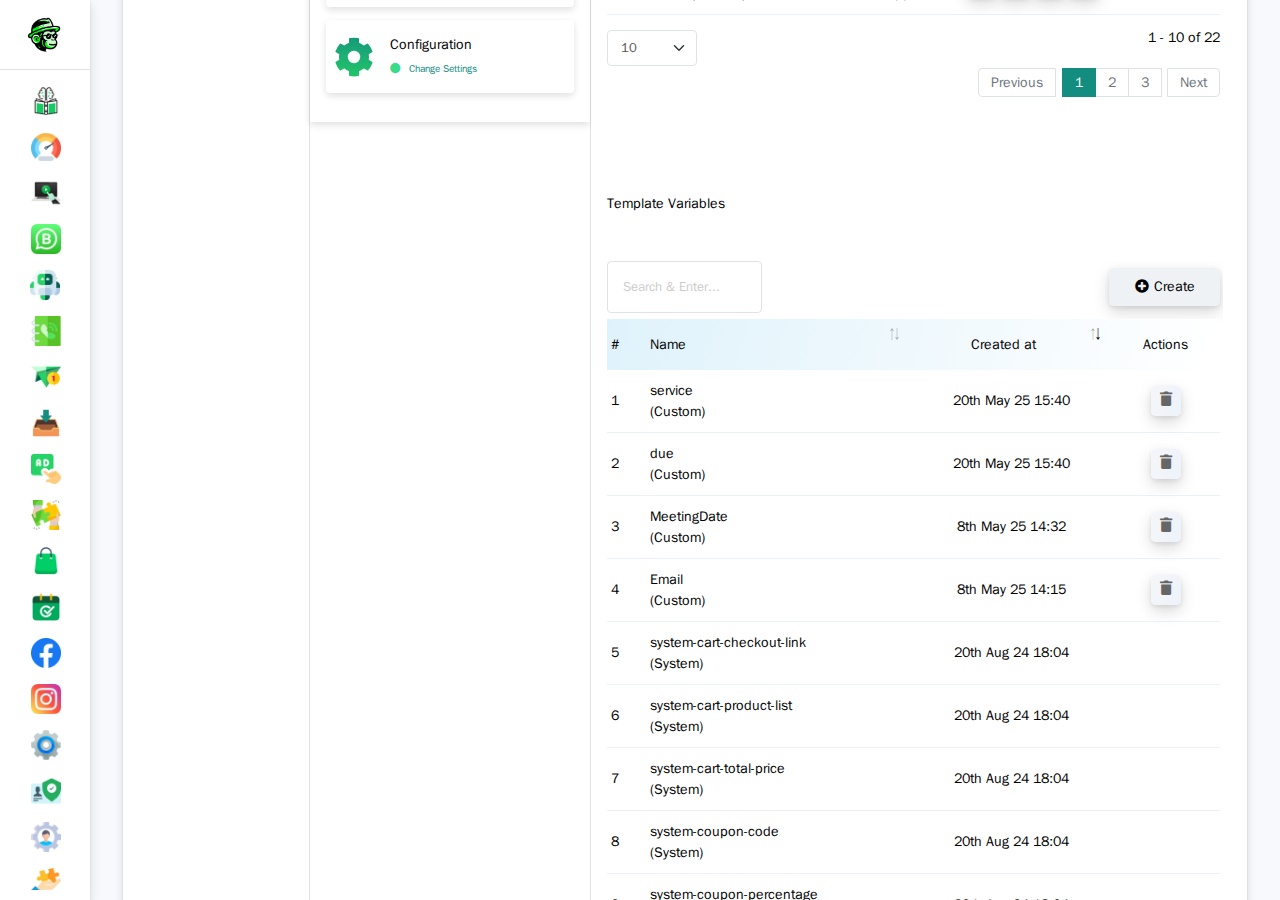
Video: Template Variables Walkthrough
Video: https://www.youtube.com/watch?v=R5jz8SkAM9I
How Template Variables Work in Templates
In your WhatsApp template body (the one you submit to Meta), you use {{1}}, {{2}}, {{3}} as placeholders:
Your OTP code is {{1}}. It will expire in {{2}} minutes.When you send the message, you pass the actual values.
How Template Variables Work in the API
When sending a template message via API that uses Template Variables, you MUST include the variable values in your API call:
https://app.whatchimp.com/api/v1/whatsapp/send?apiToken=API-KEY&phone_number_id=PHONE-NUMBER-ID&phone_number=919999999999&template_name=otp_verification&language_code=en_US&variable1=123456&variable2=5The API Console automatically generates these variable1=, variable2= placeholders for you when you select your template in the generator.
Custom Variables (Custom Fields)
Custom Variables — also called Custom Fields — are permanent data points stored on each subscriber's profile. Once you set them, they stay there until you update or delete them.
When to Use Custom Variables
Use Custom Variables for information that is:
- Persistent (doesn't change often)
- Applicable to the contact, not the message
- Reusable across multiple messages
Examples:
- Full name
- Company name
- Email address
- Country or city
- Industry or job title
- Customer tier (Gold, Silver, Bronze)
- Account manager name
Where to Create Custom Variables
Step A. Go to Subscriber Manager > Manage Custom Fields.
Or navigate directly to: /whatsapp/subscriber/manager/custom-field/list
Step B. Click Create and define your field name (e.g., company_name, country, email).
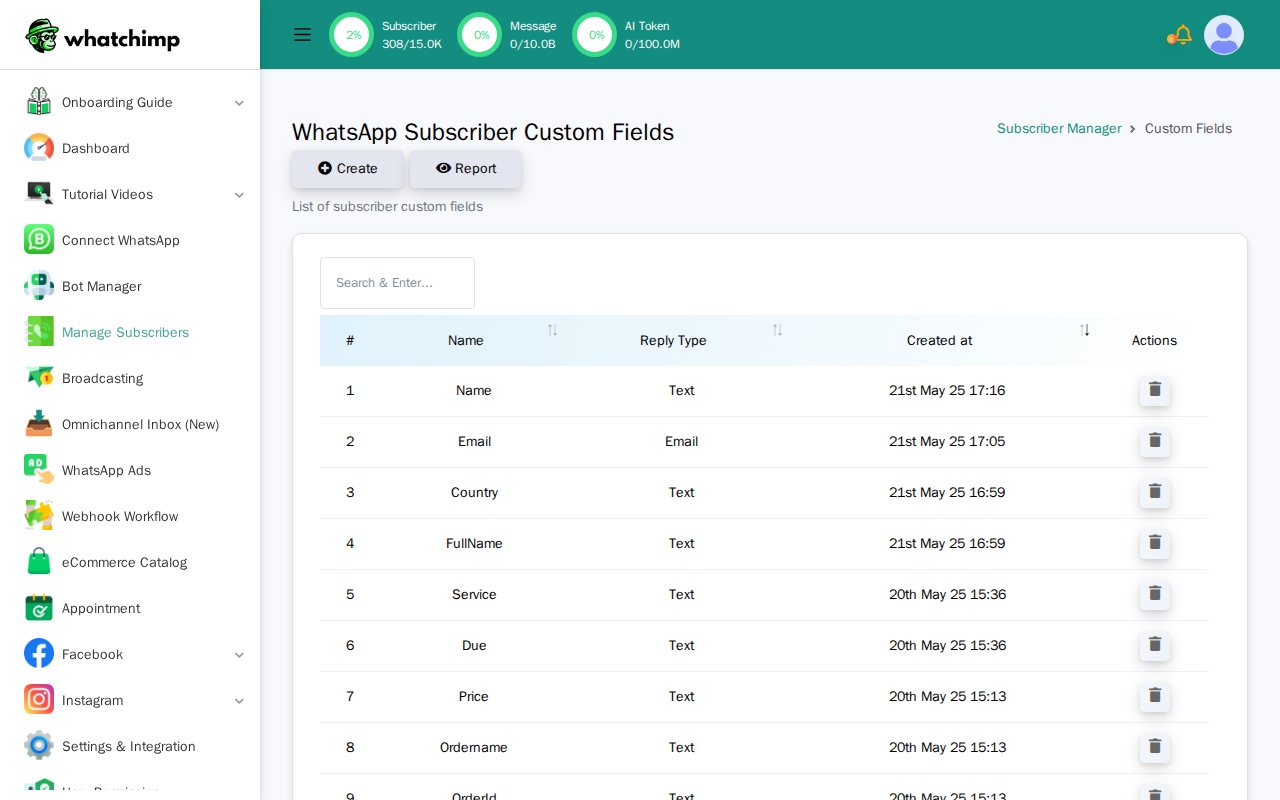
Step C. Set these fields on your subscribers using:
- The Subscriber Manager UI (manual entry)
- CSV import
- The WhatChimp Subscriber API
Video: Custom Variables Walkthrough
Video: https://www.youtube.com/watch?v=yd1O0Sd_zDQ
How Custom Variables Work in Templates
When creating your template in WhatChimp, you insert Custom Fields using the "Custom Fields" dropdown (NOT the "Variables" dropdown).
In your WhatsApp template body, they appear as:
Hi {{first_name}}, your company {{company_name}} has been verified!How Custom Variables Work in the API
This is the critical difference: When you send a template via API that uses Custom Variables, you do NOT pass the variable values in the API call.
https://app.whatchimp.com/api/v1/whatsapp/send?apiToken=API-KEY&phone_number_id=PHONE-NUMBER-ID&phone_number=919999999999&template_name=special_offer&language_code=en_USNotice: No variable1= parameters. The system automatically pulls the custom field values from the subscriber's stored data.
Important: You must set these custom field values on the subscriber BEFORE sending the message. If the subscriber doesn't have a value for company_name, that part of the message will be blank or show an error.
Which Should You Use?
Ask yourself: "Will this data change every time I send a message to this person?"
- Yes → Use Template Variables (e.g., OTP codes, order numbers)
- No → Use Custom Variables (e.g., name, company, email)
Can You Use Both?
Yes! You can combine both in the same template:
Hi {{first_name}}, your order {{1}} will arrive on {{2}}.{{first_name}}is a Custom Variable (pulled from subscriber data){{1}}and{{2}}are Template Variables (you passvariable1=ORD-123andvariable2=Feb 10in the API)
How This Affects the API
This is where most developers get confused. The API behavior is completely different for each type.
Template Variables in API Calls
You MUST pass values using variable1=, variable2=, etc.
curl "https://app.whatchimp.com/api/v1/whatsapp/send?apiToken=API-KEY&phone_number_id=PHONE-NUMBER-ID&phone_number=919999999999&template_name=order_update&language_code=en_US&variable1=ABC123&variable2=Feb%2015"If you forget to include the variable parameters, your message will fail or show blank placeholders.
Custom Variables in API Calls
You do NOT pass values. The system pulls them from the subscriber's profile.
curl "https://app.whatchimp.com/api/v1/whatsapp/send?apiToken=API-KEY&phone_number_id=PHONE-NUMBER-ID&phone_number=919999999999&template_name=special_offer&language_code=en_US"Before sending, you must set the custom fields on the subscriber using the WhatChimp Subscriber API:
curl -X POST "https://app.whatchimp.com/api/v1/whatsapp/subscriber/update" \
  -d "apiToken=API-KEY" \
  -d "phone_number_id=PHONE-NUMBER-ID" \
  -d "phone_number=919999999999" \
  -d "custom_fields[company]=Acme Corp" \
  -d "custom_fields[country]=United States"
See the WhatChimp Subscriber Management API for the full reference on assigning custom fields.
Common mistake: Developers try to pass custom field values as variable1=, variable2= in the template message API. This doesn't work. Custom fields are pulled from subscriber data, not from the API call parameters.
Video Walkthroughs
Watch these step-by-step video tutorials by Anant (WhatChimp founder):
Template Variables
Video: https://www.youtube.com/watch?v=R5jz8SkAM9I
Custom Variables (Custom Fields)
Video: https://www.youtube.com/watch?v=yd1O0Sd_zDQ