Variables de plantilla vs Variables personalizadas - ¿Cuál es la diferencia?
Updated 10 February 2026
Esta es una de las fuentes más comunes de confusión para los usuarios de WhatChimp: ¿cuándo debes usar Variables de plantilla versus Variables personalizadas (Campos personalizados)? Ambas te permiten personalizar mensajes de WhatsApp, pero funcionan de maneras fundamentalmente diferentes.
Comprender la diferencia es crítico, especialmente si estás usando la API de WhatChimp. Usar el tipo incorrecto puede causar que tus mensajes fallen o muestren datos incorrectos.
Comparación rápida
| Característica | Variables de plantilla | Variables personalizadas (Campos personalizados) |
|---|---|---|
| Dónde se crean | Bot Manager > Message Template > sección Template Variables | Subscriber Manager > Manage Custom Fields |
| Almacenamiento de datos | Temporal — se pasa cada vez que envías | Permanente — almacenado en el perfil del suscriptor |
| Adjunto a | El mensaje (no el contacto) | El contacto/suscriptor |
| Mejor para | Datos dinámicos que cambian cada vez: OTPs, números de pedido, fechas de entrega, enlaces de reunión | Datos persistentes que rara vez cambian: nombre, empresa, email, país, industria |
| Sintaxis de plantilla | {{1}}, {{2}}, {{3}} | {{custom_field_name}} |
| Comportamiento de API | DEBES pasar valores en la llamada API (variable1=VALUE) | El sistema extrae automáticamente de los datos del suscriptor — NO necesitas pasar en la llamada API |
| Casos de uso de ejemplo | Contraseña de un solo uso: 123456<br>ID de pedido: ORD-9842<br>Fecha de entrega: 15 de feb | Nombre del cliente: John Smith<br>Empresa: Acme Corp<br>País: Estados Unidos |
Variables de plantilla
Las Variables de plantilla son marcadores de posición temporales que cambian con cada mensaje que envías. NO se almacenan en ningún lugar: proporcionas el valor cada vez.
Cuándo usar Variables de plantilla
Usa Variables de plantilla para información que es:
- Única para cada mensaje (cambia cada vez)
- Sensible al tiempo o de uso único
- No vale la pena almacenar permanentemente
Ejemplos:
- Códigos OTP (expiran en minutos)
- Números de confirmación de pedido
- Horarios de citas o enlaces de reunión
- Números de seguimiento
- Montos de facturas
- Tokens de restablecimiento de contraseña
Dónde crear Variables de plantilla
Paso A. Ve a Bot Manager > Message Template y selecciona tu bot.
Paso B. Desplázate hacia abajo a la sección "Template Variables" (debajo del cuerpo de tu plantilla).
Paso C. Define tus variables aquí (por ejemplo, variable1, variable2).
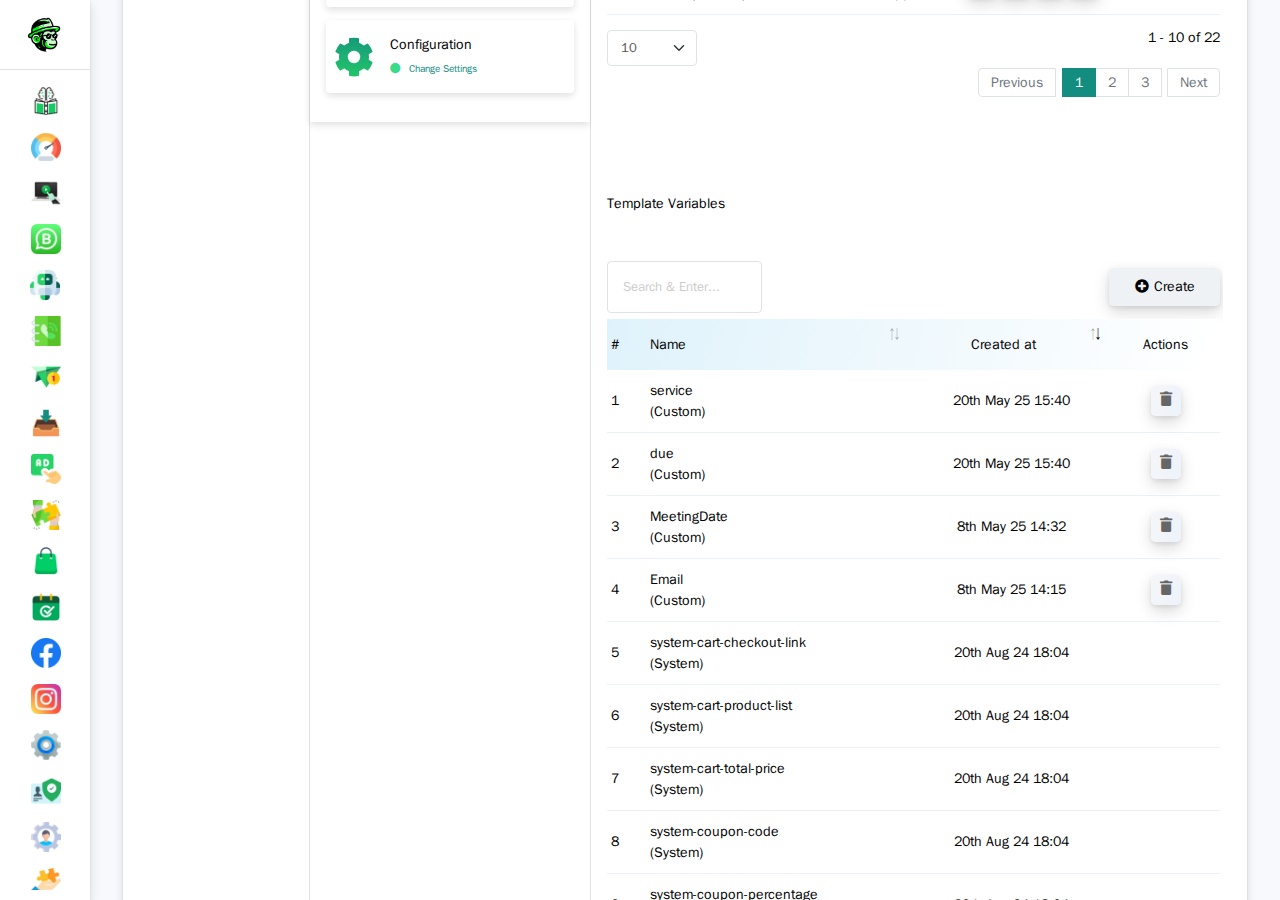
Video: Tutorial de Variables de plantilla
Video: https://www.youtube.com/watch?v=R5jz8SkAM9I
Cómo funcionan las Variables de plantilla en las plantillas
En el cuerpo de tu plantilla de WhatsApp (la que envías a Meta), usas {{1}}, {{2}}, {{3}} como marcadores de posición:
Your OTP code is {{1}}. It will expire in {{2}} minutes.When you send the message, you pass the actual values.
How Template Variables Work in the API
When sending a template message via API that uses Template Variables, you MUST include the variable values in your API call:
https://app.whatchimp.com/api/v1/whatsapp/send?apiToken=API-KEY&phone_number_id=PHONE-NUMBER-ID&phone_number=919999999999&template_name=otp_verification&language_code=en_US&variable1=123456&variable2=5The API Console automatically generates these variable1=, variable2= placeholders for you when you select your template in the generator.
Custom Variables (Custom Fields)
Custom Variables — also called Custom Fields — are permanent data points stored on each subscriber's profile. Once you set them, they stay there until you update or delete them.
When to Use Custom Variables
Use Custom Variables for information that is:
- Persistent (doesn't change often)
- Applicable to the contact, not the message
- Reusable across multiple messages
Examples:
- Full name
- Company name
- Email address
- Country or city
- Industry or job title
- Customer tier (Gold, Silver, Bronze)
- Account manager name
Where to Create Custom Variables
Step A. Go to Subscriber Manager > Manage Custom Fields.
Or navigate directly to: /whatsapp/subscriber/manager/custom-field/list
Step B. Click Create and define your field name (e.g., company_name, country, email).
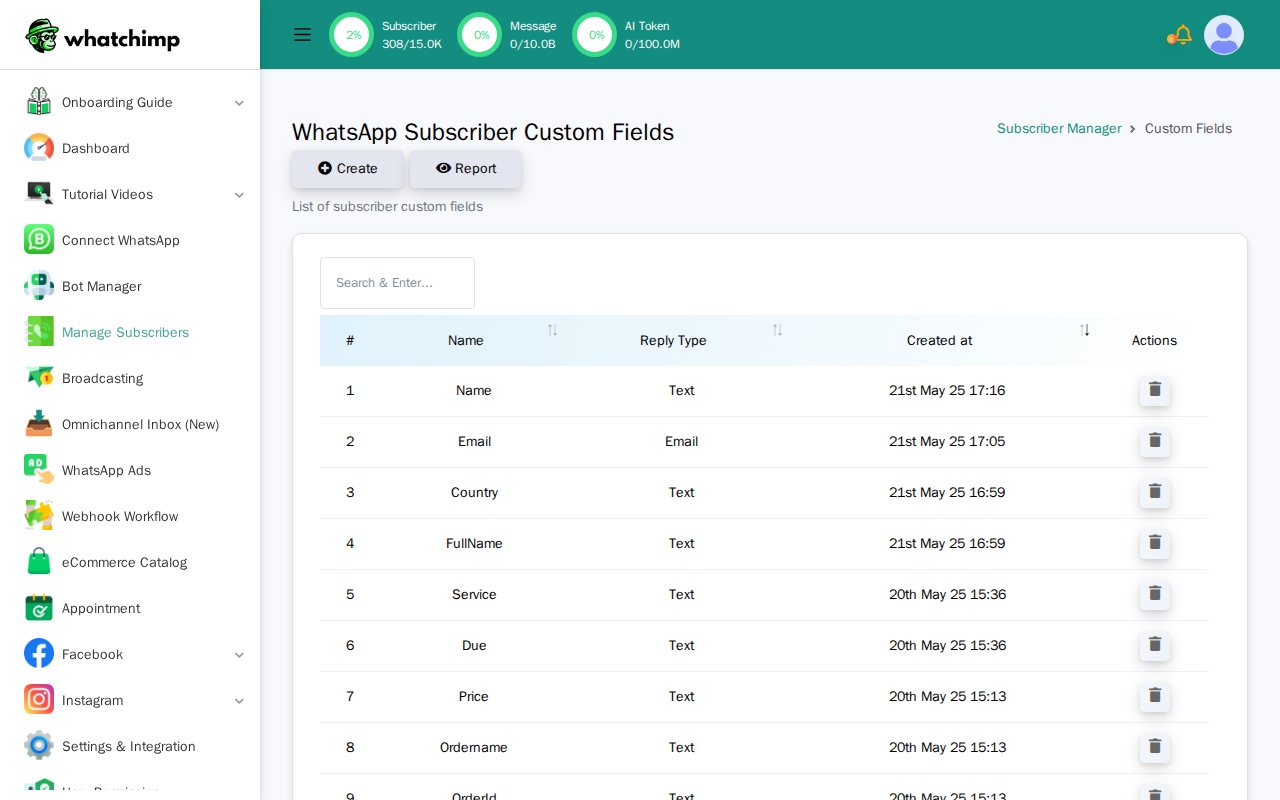
Step C. Set these fields on your subscribers using:
- The Subscriber Manager UI (manual entry)
- CSV import
- The WhatChimp Subscriber API
Video: Custom Variables Walkthrough
Video: https://www.youtube.com/watch?v=yd1O0Sd_zDQ
How Custom Variables Work in Templates
When creating your template in WhatChimp, you insert Custom Fields using the "Custom Fields" dropdown (NOT the "Variables" dropdown).
In your WhatsApp template body, they appear as:
Hi {{first_name}}, your company {{company_name}} has been verified!How Custom Variables Work in the API
This is the critical difference: When you send a template via API that uses Custom Variables, you do NOT pass the variable values in the API call.
https://app.whatchimp.com/api/v1/whatsapp/send?apiToken=API-KEY&phone_number_id=PHONE-NUMBER-ID&phone_number=919999999999&template_name=special_offer&language_code=en_USNotice: No variable1= parameters. The system automatically pulls the custom field values from the subscriber's stored data.
Important: You must set these custom field values on the subscriber BEFORE sending the message. If the subscriber doesn't have a value for company_name, that part of the message will be blank or show an error.
Which Should You Use?
Ask yourself: "Will this data change every time I send a message to this person?"
- Yes → Use Template Variables (e.g., OTP codes, order numbers)
- No → Use Custom Variables (e.g., name, company, email)
Can You Use Both?
Yes! You can combine both in the same template:
Hi {{first_name}}, your order {{1}} will arrive on {{2}}.{{first_name}}is a Custom Variable (pulled from subscriber data){{1}}and{{2}}are Template Variables (you passvariable1=ORD-123andvariable2=Feb 10in the API)
How This Affects the API
This is where most developers get confused. The API behavior is completely different for each type.
Template Variables in API Calls
You MUST pass values using variable1=, variable2=, etc.
curl "https://app.whatchimp.com/api/v1/whatsapp/send?apiToken=API-KEY&phone_number_id=PHONE-NUMBER-ID&phone_number=919999999999&template_name=order_update&language_code=en_US&variable1=ABC123&variable2=Feb%2015"If you forget to include the variable parameters, your message will fail or show blank placeholders.
Custom Variables in API Calls
You do NOT pass values. The system pulls them from the subscriber's profile.
curl "https://app.whatchimp.com/api/v1/whatsapp/send?apiToken=API-KEY&phone_number_id=PHONE-NUMBER-ID&phone_number=919999999999&template_name=special_offer&language_code=en_US"Before sending, you must set the custom fields on the subscriber using the WhatChimp Subscriber API:
curl -X POST "https://app.whatchimp.com/api/v1/whatsapp/subscriber/update" \
  -d "apiToken=API-KEY" \
  -d "phone_number_id=PHONE-NUMBER-ID" \
  -d "phone_number=919999999999" \
  -d "custom_fields[company]=Acme Corp" \
  -d "custom_fields[country]=United States"
See the WhatChimp Subscriber Management API for the full reference on assigning custom fields.
Common mistake: Developers try to pass custom field values as variable1=, variable2= en la API de mensajes de plantilla. Esto no funciona. Los campos personalizados se extraen de los datos del suscriptor, no de los parámetros de la llamada API.
Videos tutoriales
Mira estos tutoriales paso a paso en video de Anant (fundador de WhatChimp):
Variables de plantilla
Video: https://www.youtube.com/watch?v=R5jz8SkAM9I
Variables personalizadas (Campos personalizados)
Video: https://www.youtube.com/watch?v=yd1O0Sd_zDQ