Business Hours Ke Dauran AI Agent Disable Karein
Business hours configure karein taaki AI sirf working hours ke bahar respond kare
Updated 10 February 2026
Aap AI Agent ko business hours ke dauran disable kar sakte hain taaki aapki human team conversations ko live handle kare, aur AI sirf un hours ke bahar take over kare. Ye tab useful hai jab aap din mein personal support chahte hain aur raat mein ya weekends par automated AI support.
Step 1: AI Agent Mein Setting Enable Karein
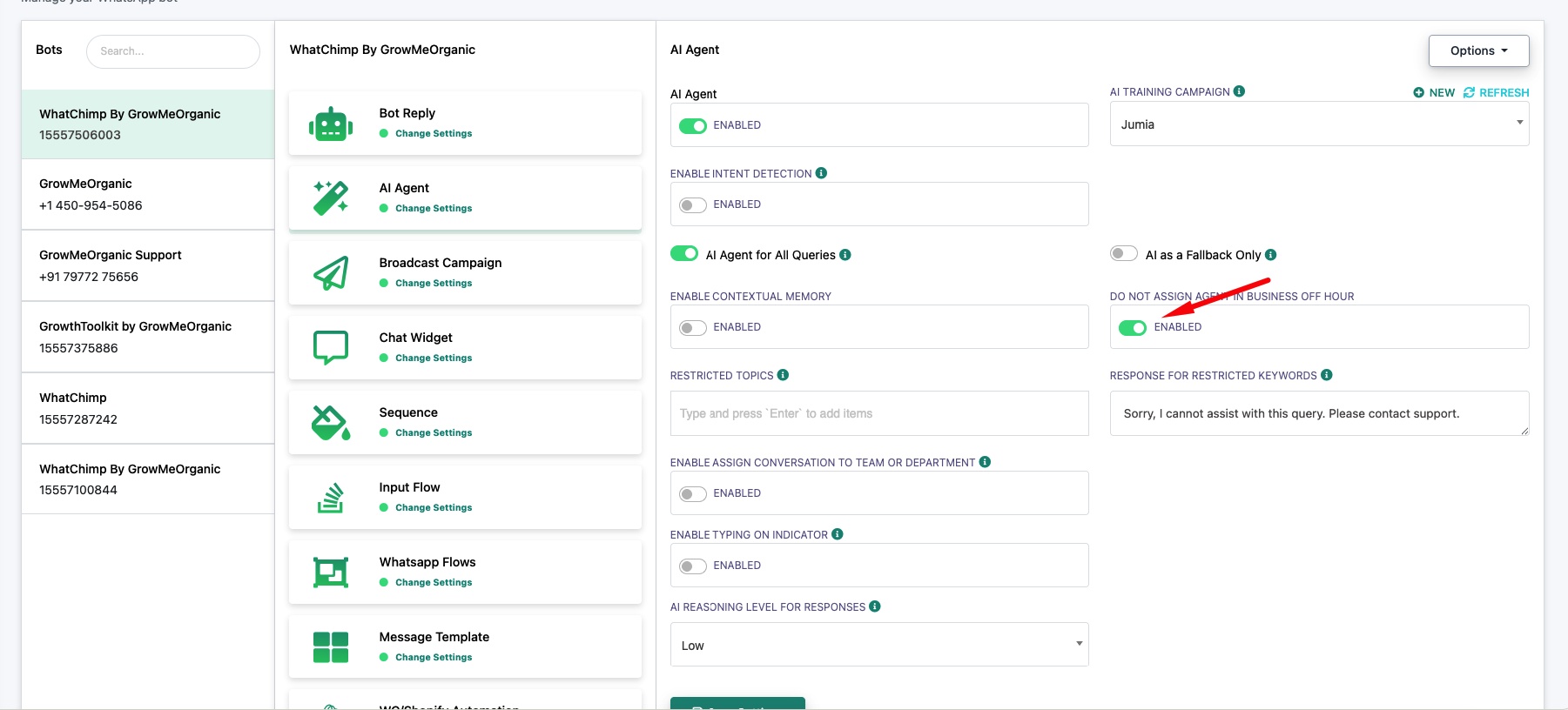
Bot Manager → AI Agent → Change Settings mein jaayein apne WhatsApp number ke liye.
"Do Not Assign Agent in Business Off Hour" ko Enabled par toggle karein. Ye system ko batata hai ki AI ko aapke configured business hours ke dauran disable kare.
Step 2: Apne Business Hours Configure Karein
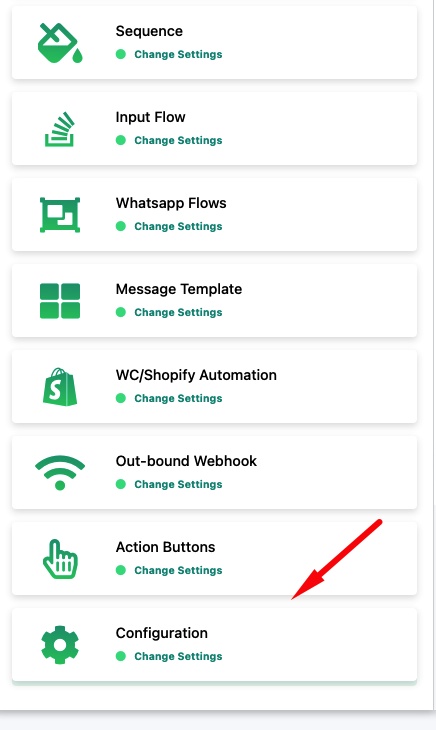
Bot Manager → Configuration → Change Settings mein jaayein.
"Business Hour Settings" expand karein aur configure karein:
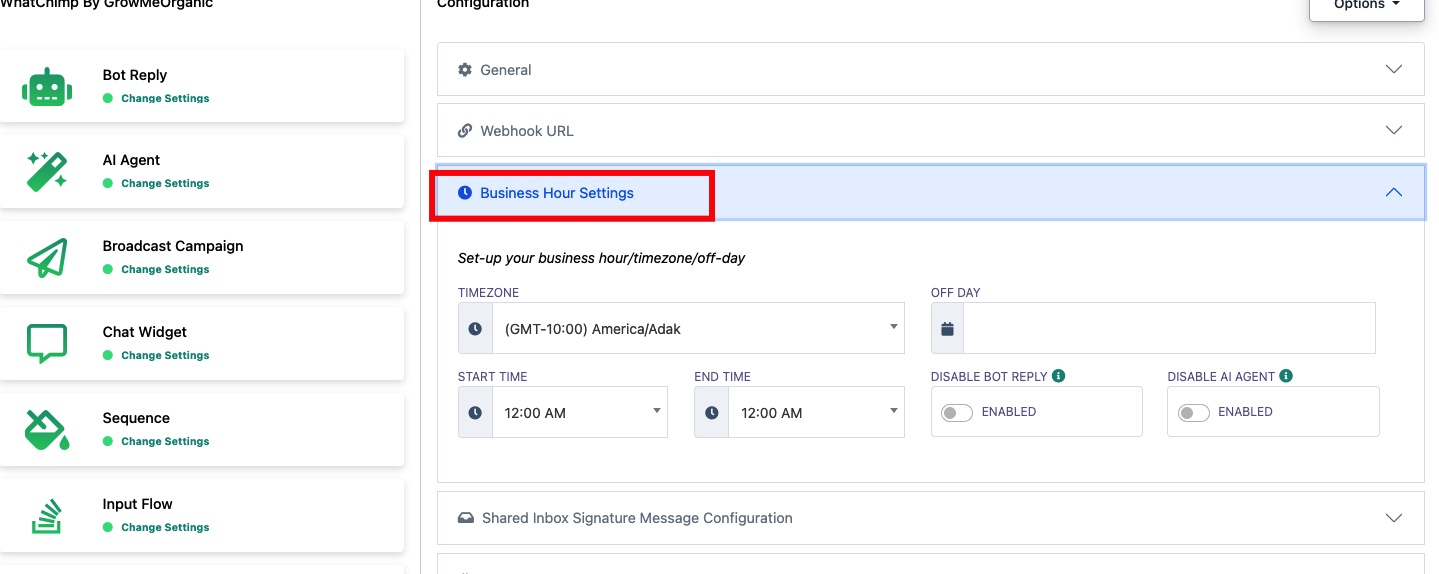
Timezone — Apna business timezone select karein.
Off Day — Apne weekly off days choose karein (AI in days par active rahega).
Start Time / End Time — Apne working hours set karein. AI is window ke dauran disabled rahega.
Disable Bot Reply — Optionally business hours ke dauran saare bot replies bhi disable karein.
Disable AI Agent — Ise toggle karein taaki AI Agent specifically business hours ke dauran disable ho.
Ye kaise kaam karta hai: Business hours ke dauran, AI chup rehta hai aur aapki team Omnichannel Inbox ke through manually chats handle karti hai. Business hours ke bahar, AI automatically take over kar leta hai.
Related Articles
Apne WhatsApp Number ke Liye AI Agent Enable Karein — AI Agent set up aur configure karein
Department Ko Conversations Auto-Assign Karein — Specific teams ko conversations route karein