WhatsApp Co-Existence: Use Your Business App and WhatChimp Together
Use the same number on WhatsApp Business App and WhatChimp API at the same time
Updated 16 June 2026
If you're already using the WhatsApp Business App, you don't need to delete your account to start using WhatChimp. Meta's co-existence feature lets you run both the Business App and the WhatsApp Business API on the same phone number at the same time.
This only works with the WhatsApp Business App — regular WhatsApp (personal) does not support co-existence. If you're on personal WhatsApp, see How to Migrate from WhatsApp App to WhatChimp instead.
What Is Co-Existence?
Co-existence is an official Meta feature that connects your WhatsApp Business App to the WhatsApp Business API without disconnecting the app. Both platforms run side by side on the same number. You keep using the Business App on your phone for quick replies and calls, while WhatChimp handles automation, broadcasts, and team collaboration through the API.
There's no migration, no downtime, and no risk of losing your number or conversations.
How It Works
When you connect your number to WhatChimp through the Embedded Signup flow, WhatsApp detects that the number is already active on the Business App. Instead of asking you to delete the app, it shows you a QR code. You scan this QR code from your Business App to link the two platforms together.
Once linked, messages are mirrored between both platforms. When a customer messages you, it appears in both the Business App on your phone and in WhatChimp's inbox. When you reply from either platform, the other one sees it too.
Your last 6 months of chat history sync over automatically, so you don't start from zero in WhatChimp.
What You Can Do on Each Platform
On your phone (Business App) — send quick personal replies, make voice and video calls, check messages on the go, manage your business profile.
On WhatChimp (API) — build automated chatbots, send bulk broadcasts, use a multi-agent team inbox, send message templates, integrate with CRMs, and track analytics.
The best part is you don't have to choose — use whichever platform makes sense for each conversation.
What Changes on the Business App
Once co-existence is active, a few Business App features are turned off to avoid conflicts with the API.
Broadcast lists are disabled on the Business App. Use WhatChimp for all your broadcast messaging instead — it's more powerful anyway.
Disappearing messages and view-once media are turned off for all chats.
Message editing and revoking are no longer available through the Business App.
Message throughput drops from 80 to 20 messages per second when both platforms are active. This won't affect most businesses unless you're sending very high volumes simultaneously from both platforms.
Everything else on the Business App works as before — calls, status updates, profile management, and direct messaging.
How to Set It Up
Step 1: Log In with Facebook
Go to the WhatChimp connection page at app.whatchimp.com/whatsapp/bot/connect and click Connect WhatsApp. You'll be prompted to log in with Facebook.

Step 2: Select Your Business
Choose the Business Portfolio that contains your WhatsApp Business Account. If you have an existing account, your business name will appear automatically.

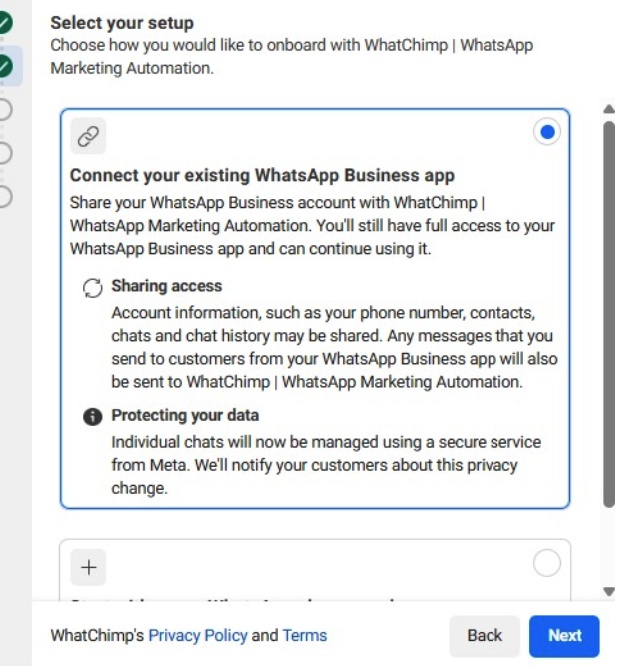
Step 3: Co-Existence Confirmation
If your country is eligible for co-existence, you'll see this screen. It confirms your Business App will stay active and your data (phone number, contacts, chats, history) will be shared with WhatChimp securely. Click Next to continue.
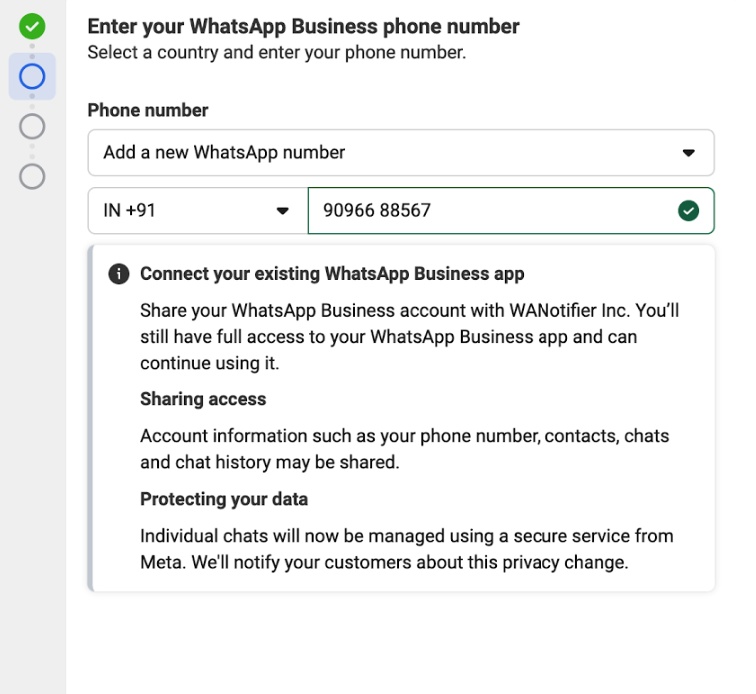
Step 4: Enter Your Phone Number
Enter the phone number you're already using on the WhatsApp Business App. Once verified, you'll see the "Connect your existing WhatsApp Business app" confirmation — it confirms you'll keep full access to your Business App and your data will be shared securely.
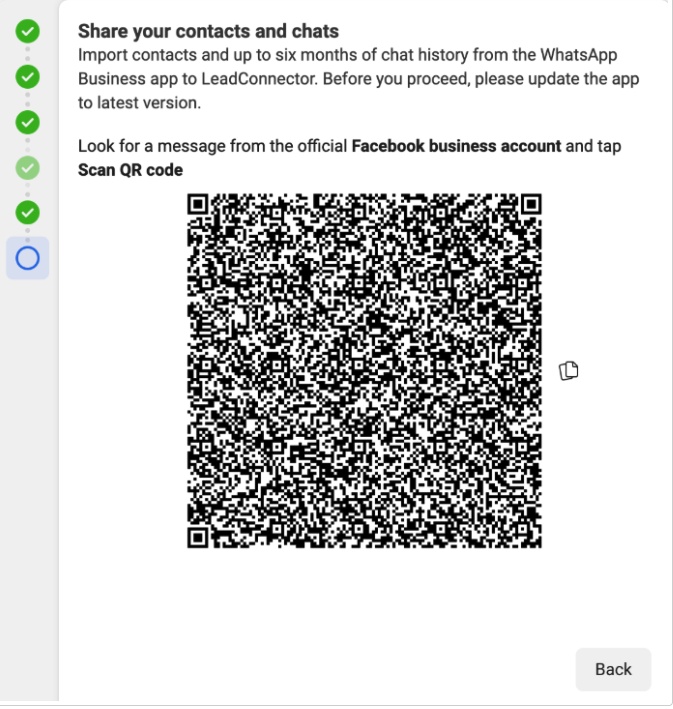
Step 5: Scan the QR Code
You'll see a QR code to link your Business App to the API. Open your WhatsApp Business App on your phone, go to the Facebook Business message, and scan this QR code.
Step 6: Complete the Link from Your Phone
On your phone, you'll receive a message from Facebook Business in WhatsApp. Tap Scan QR code to scan the code from Step 4 and complete the connection.
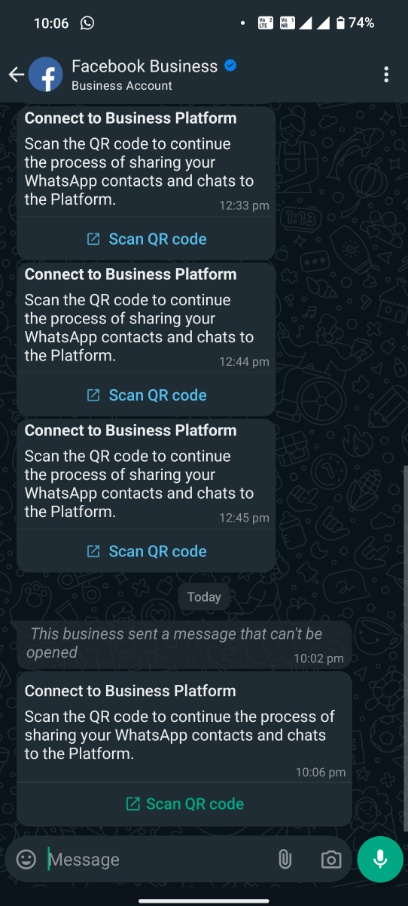
Step 7: Connect to the Business Platform
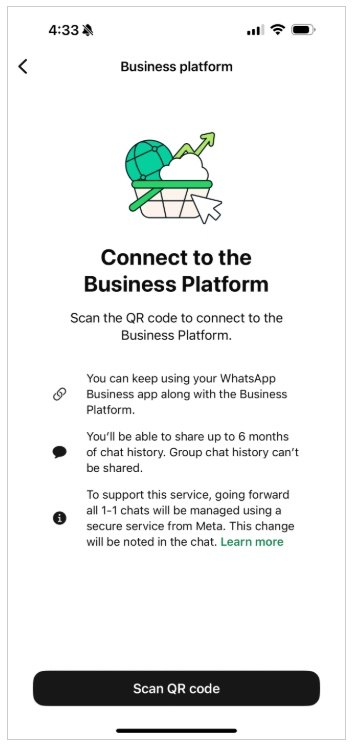
After scanning the QR code, the Business App shows the "Connect to the Business Platform" screen. It confirms you can keep using your Business App alongside the API, and that up to 6 months of chat history can be shared. Tap Scan QR code to proceed.
Step 8: Share Your Chat History
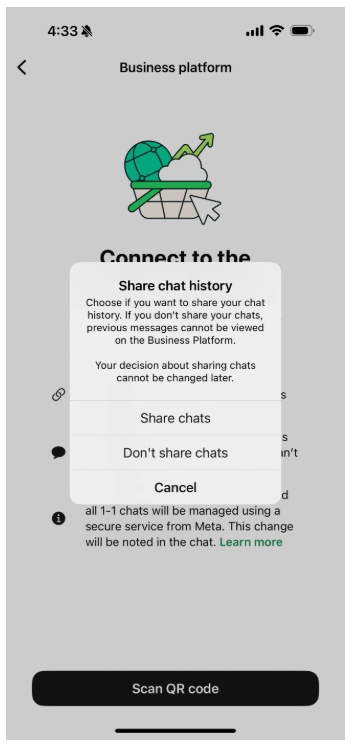
Choose whether to share your existing chats with WhatChimp. Tap Share chats to sync your last 6 months of conversations, or Don't share chats if you prefer to start fresh. This choice cannot be changed later.
That's it. Your Business App stays active, and WhatChimp is now connected to the same number through the API.
For the full connection walkthrough with screenshots, see How to Connect Your Phone Number with WhatChimp.
For Meta's official technical documentation on co-existence, see Meta's guide on onboarding Business App users.
Related Articles
How to Connect Your Phone Number with WhatChimp — Full signup walkthrough with screenshots
How to Migrate from WhatsApp App to WhatChimp — For personal WhatsApp users who need to delete first
How to Migrate to WhatChimp from Another BSP — Switching from another API provider