Connect with an Existing Business Portfolio
How to connect your WhatsApp number when you already have a Meta Business Portfolio
Updated 16 June 2026
If you already have a Business Portfolio in Meta (verified or not), follow this guide to connect your WhatsApp number to WhatChimp. This picks up from the Business Selection step in the main connection guide.
Select Your Business Portfolio
Open the Business portfolio dropdown and look for a portfolio with a "Verified" badge next to it. If you see one that matches your company name, select it.
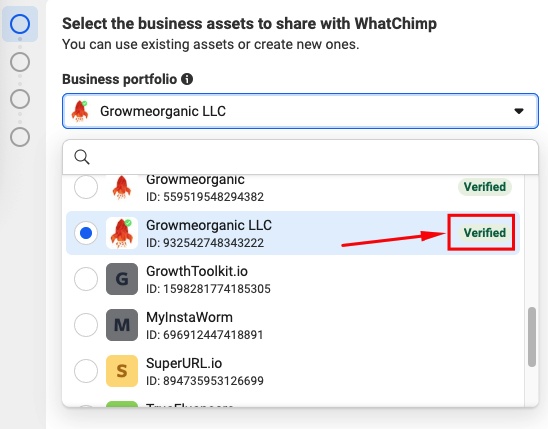
Once you select your verified portfolio, the next step (WhatsApp Business account) appears automatically. You're in the best position — your business is already verified and you can start messaging at higher limits right away.
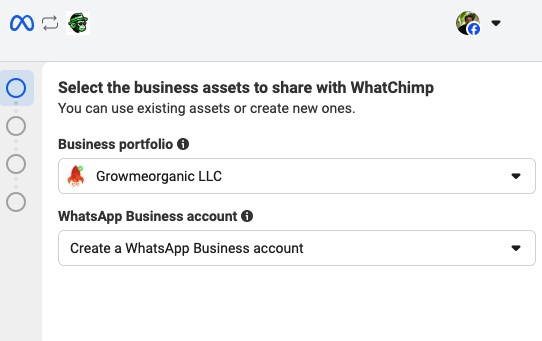
If your portfolio is not verified yet, you can still select it and continue. You can verify it later — see How to Verify Your Meta Business Manager for the step-by-step process.
Select WABA (WhatsApp Business Account)
If You Already Have Existing WABAs
If you've previously created WhatsApp Business Accounts under this portfolio (or you're migrating from another platform), you'll see your existing WABAs listed in the dropdown with their phone numbers.
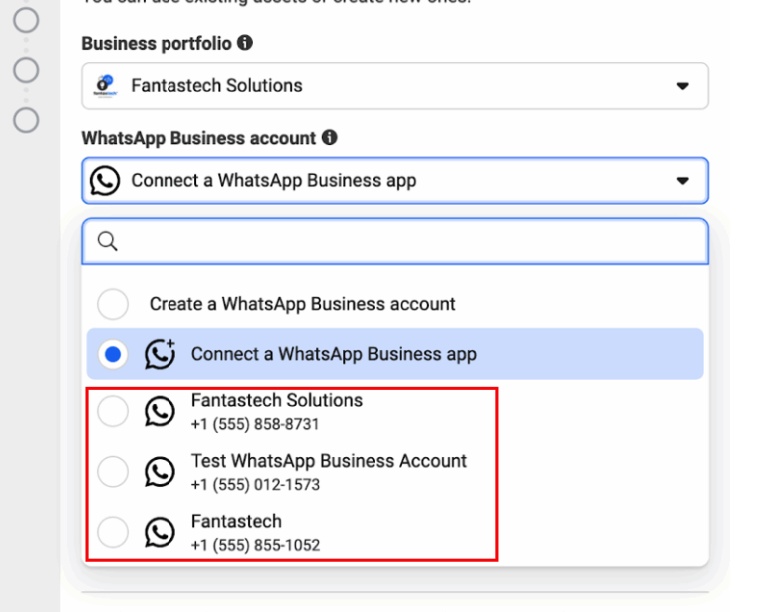
Reconnecting a number to WhatChimp? If you're reconnecting a number you previously used with WhatChimp, select the existing WABA and follow our dedicated guide: Reconnect an Existing WhatsApp Business Account to WhatChimp.
Migrating from another BSP? If your number is currently with another provider (like Interakt, Wati, AiSensy, etc.) and you want to move it to WhatChimp, don't select the existing WABA here. Instead, follow our dedicated migration guide: How to Migrate to WhatChimp from Another BSP — it ensures you keep your phone number, messaging limits, quality rating, and blue tick.
If You're Starting Fresh
If you don't have an existing WABA, you'll see these options:
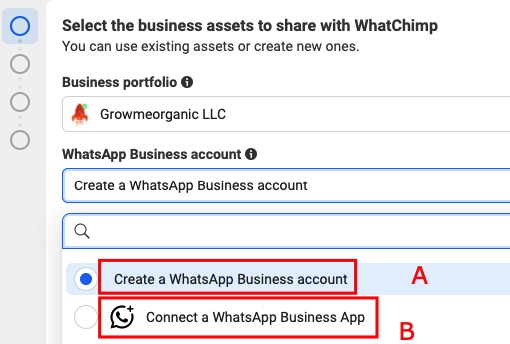
A: Create a WhatsApp Business account — Creates a fresh API account under your portfolio. Recommended for businesses that want a dedicated API setup, especially for bigger teams using multi-agent inboxes, chatbots, and broadcasts.
B: Connect a WhatsApp Business App — Links your existing Business App number to the API using WhatsApp's co-existence feature. You keep using the Business App on your phone while WhatChimp handles automation through the API. This option only appears if your country is eligible — if you don't see it, it's not available in your region yet. For full details, see WhatsApp Co-Existence.
Since Option B (co-existence) is covered in the co-existence article, we'll continue with Option A below.
Create a WhatsApp Business Profile
After selecting "Create a WhatsApp Business account", set up your profile:
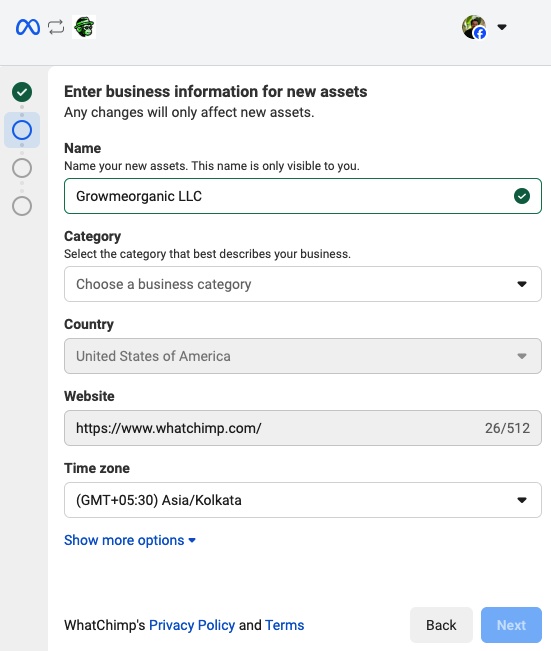
Verify Your Phone Number
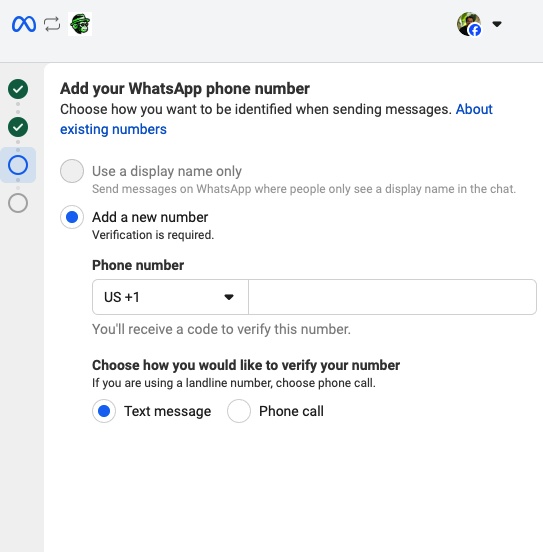
- Enter the phone number you want to connect to WhatChimp
- WhatsApp will send a verification code via SMS or call
- Enter the code to verify your phone number
Permissions
You'll be prompted to review the permissions WhatsApp requires for your business. These are standard permissions that cannot be changed. Click Continue to proceed.
Next Steps
Once your phone number is connected, complete these two essential steps:
Add Payment Method for WhatsApp API Billing — Set up billing so your WhatsApp API conversations are charged correctly.
Verify Your Meta Business Manager — Unlock higher messaging limits and full access to WhatsApp business features.
Related Articles
How to Connect Your Phone Number with WhatChimp (Embedded Signup) — Main connection guide starting from scratch
WhatsApp Co-Existence — Use your Business App and WhatChimp together on the same number
How to Migrate to WhatChimp from Another BSP — Switching from another API provider