Reconnect Your Disconnected WhatChimp Account
How to reconnect your WhatsApp number to WhatChimp after your account was disconnected due to trial expiry or missed billing
Updated 16 June 2026
If your WhatChimp account was disconnected from Meta — either because your free trial ended or you missed billing for an extended period — don't worry. Your WhatsApp Business Account, phone number, and everything else still exists on Meta's side. WhatChimp only disconnects itself from Meta to free up capacity, but nothing on your end is deleted.
Reconnecting takes just a few minutes because your Business Portfolio, WABA, and phone number are all still there. You just need to link them back to WhatChimp.
Why Was I Disconnected?
WhatChimp automatically disconnects accounts from Meta in two cases:
Free trial expired — If you didn't upgrade to a paid plan after your trial ended, your account was disconnected to free up capacity for active users.
Missed billing — If your WhatChimp subscription payment failed for an extended period, the account was disconnected to comply with Meta's limits on the number of WhatsApp accounts we can onboard.
Your WhatsApp Business Account, phone number, messaging limits, quality rating, templates, and blue tick (if you had one) are all still intact on Meta. Nothing was deleted — WhatChimp simply unlinked itself.
How to Reconnect
Make sure your WhatChimp subscription is active before reconnecting. If your trial expired, upgrade to a paid plan first. If your billing lapsed, update your payment method.
Once your WhatChimp account is active, go to Connect Account in your dashboard.
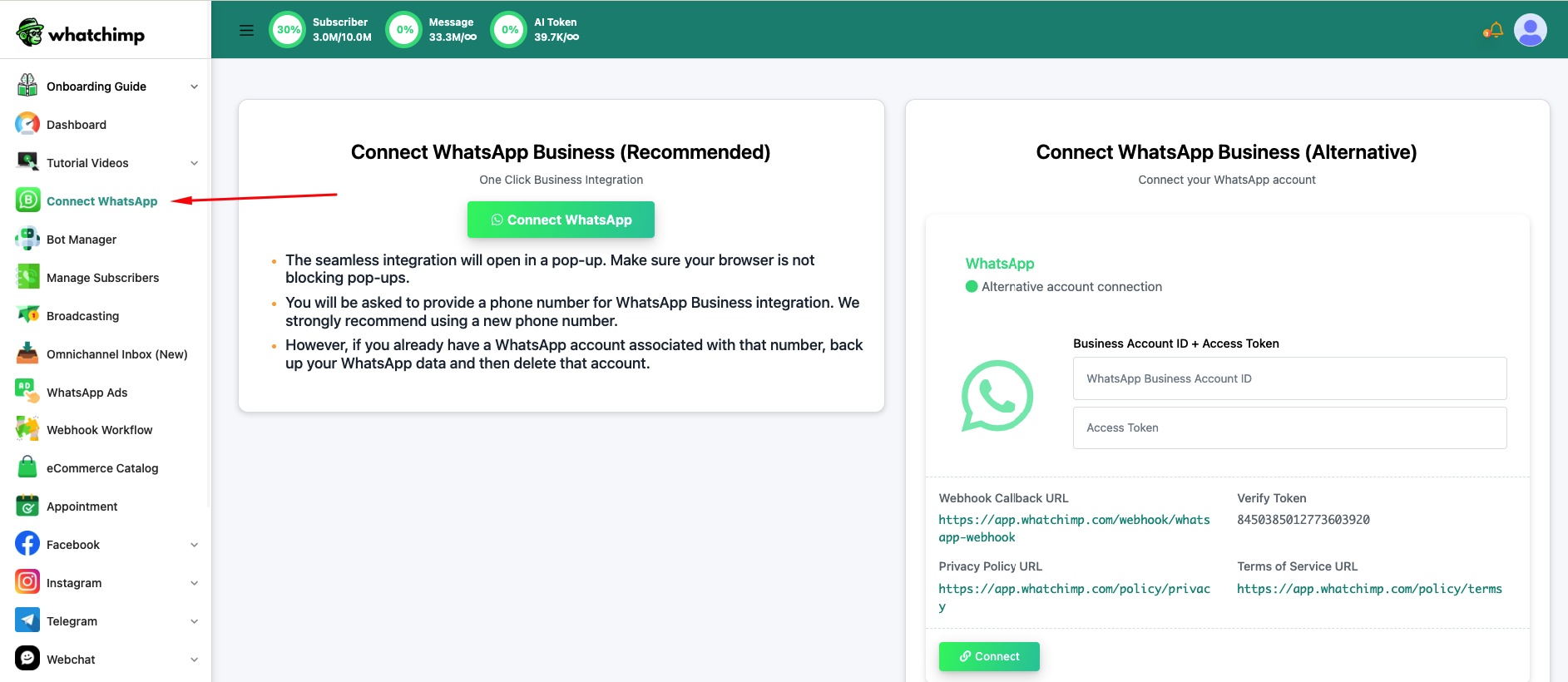
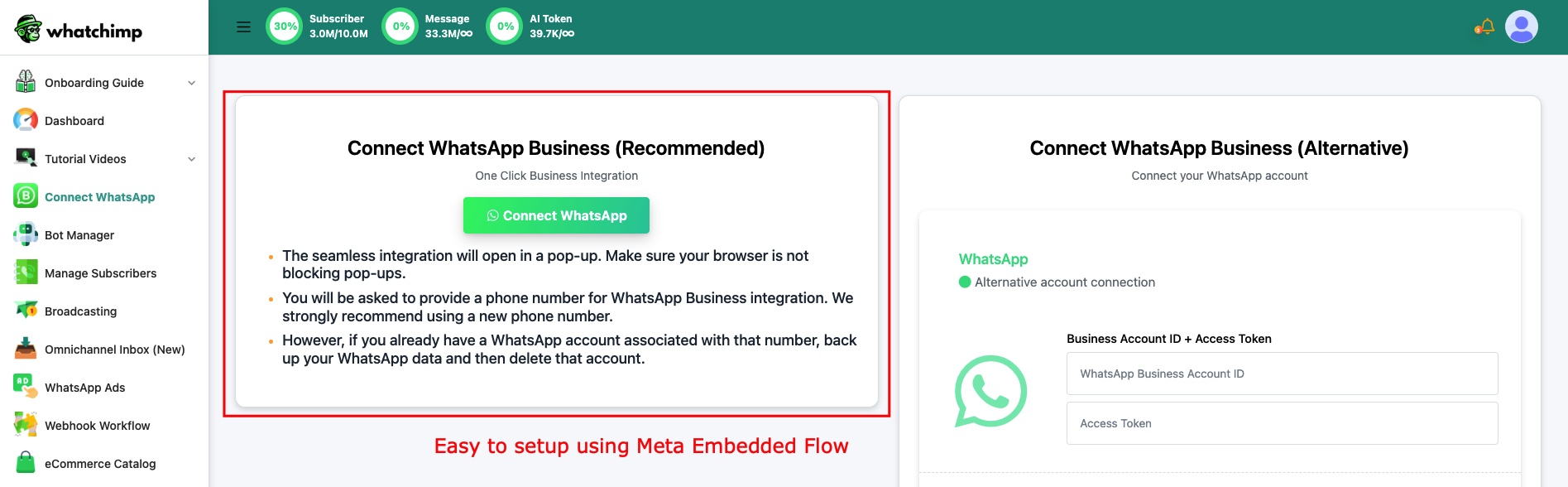
Click Connect WhatsApp to start the Embedded Signup flow.
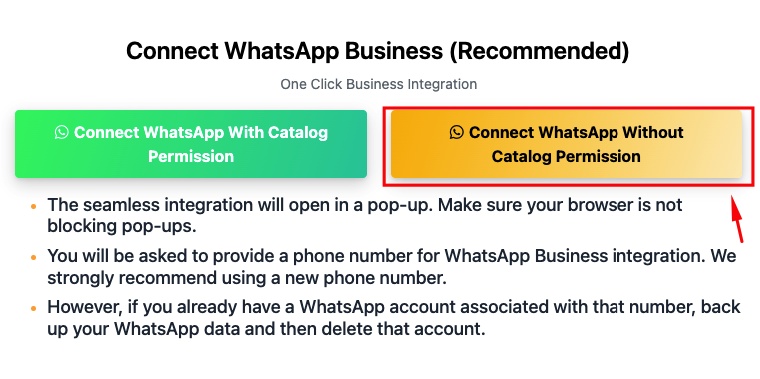
Select Connect WhatsApp Without Catalog Permission to move faster — you can connect your catalog later.
Log in with the same Facebook account you used before.

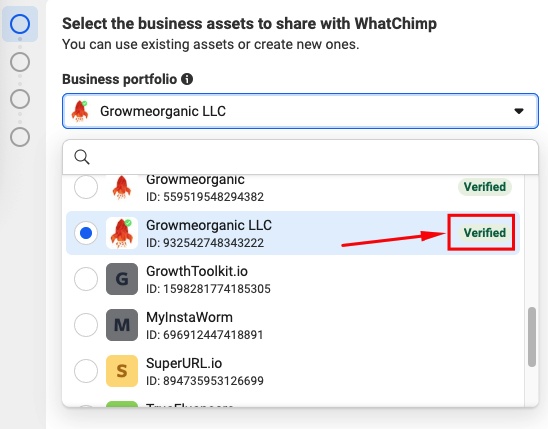
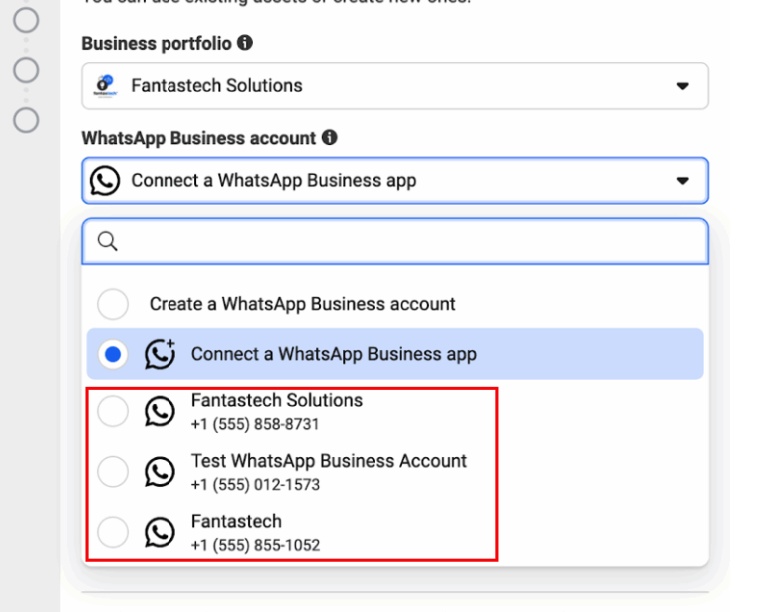
Your Business Portfolio will already be there — select it from the dropdown. If it's verified, you'll see the green badge.
Select your existing WABA (WhatsApp Business Account) from the dropdown — it will show the account you were using before.
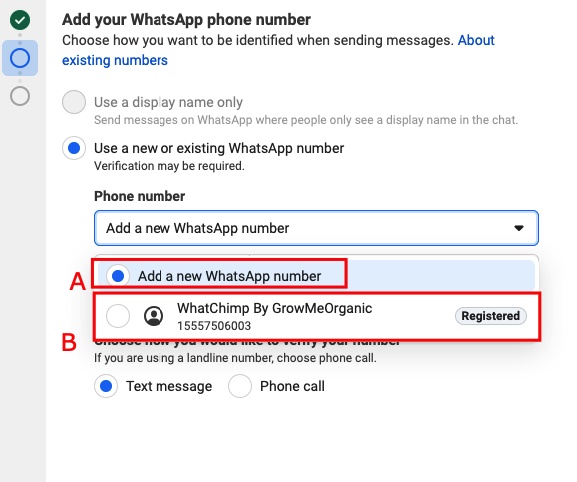
Select your existing phone number — choose the registered number, not "Add a new WhatsApp number".
Complete the permissions step and you're done. Your number is back on WhatChimp.
What Gets Preserved
Everything. Your phone number, messaging limits, quality rating, display name, business profile, approved templates, blue tick verification — all carry over because they were never deleted. They live on Meta's side, not WhatChimp's.
Next Steps
Add Payment Method for WhatsApp API Billing — Make sure your Meta billing is set up so WhatsApp API conversations are charged correctly.
Verify Your Meta Business Manager — If your business isn't verified yet, do this to unlock higher messaging limits.
Related Articles
How to Connect Your Phone Number with WhatChimp (Embedded Signup) — Full connection guide for new users
Connect with an Existing Business Portfolio — Detailed guide for users with existing Meta Business Portfolios
Reconnect an Existing WhatsApp Business Account to WhatChimp — Reconnecting a WABA with different number options