Reconnect an Existing WhatsApp Business Account to WhatChimp
How to reconnect a previously used WABA and phone number to WhatChimp
Updated 16 June 2026
If you've previously used WhatChimp (or another platform) and want to reconnect an existing WhatsApp Business Account (WABA) to WhatChimp, follow this guide. This picks up from the WABA selection step in the existing Business Portfolio guide.
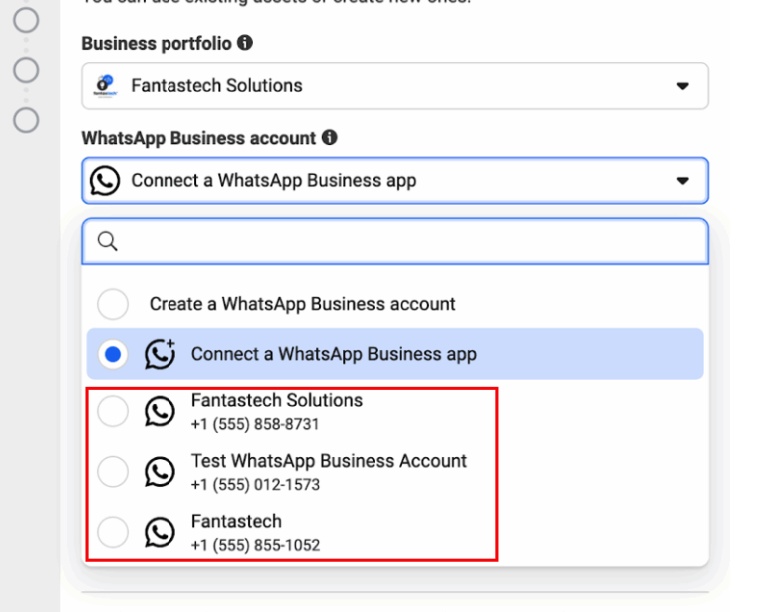
Select Your Existing WABA
In the WhatsApp Business account dropdown, select the WABA you want to reconnect. It will show the account name and phone number you previously used.
Add or Select a Phone Number
After selecting your WABA, you'll see the phone number step with two options:
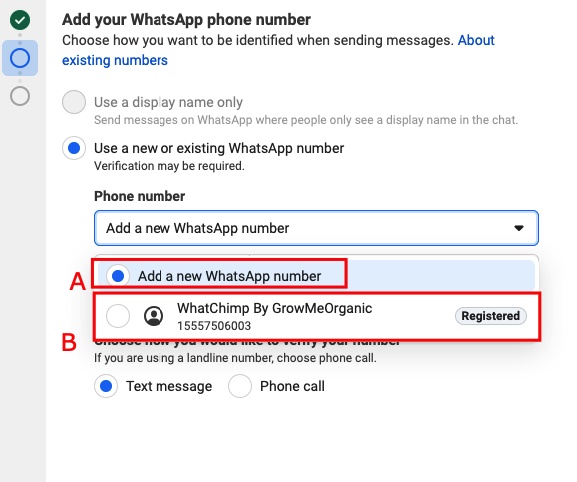
A: Add a new WhatsApp number — Use this if you want to connect a different phone number to this WABA. You'll need to verify the new number via SMS or phone call.
B: Select your existing number — If your previously registered number appears in the dropdown (marked as "Registered"), select it. This reconnects the same number to WhatChimp without any changes to your messaging limits, quality rating, or customer conversations.
Tip: If you're reconnecting the same number you used before, always select the existing registered number (Option B). This preserves everything — your messaging tier, quality rating, and templates.
Verify Your Number
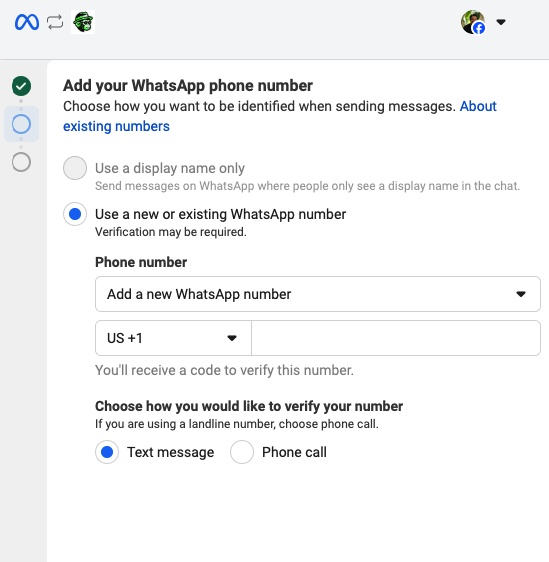
If you selected your existing registered number, verification may be skipped automatically since the number is already registered under your WABA.
If you added a new number, choose your verification method — Text message or Phone call — and enter the code you receive.
Complete the Connection
After verification, click through the permissions screen and complete the setup. Your WABA is now reconnected to WhatChimp.
If your number was previously active, your approved message templates and messaging limits should still be intact. Check your WhatChimp dashboard to confirm everything looks right.
Next Steps
Add Payment Method for WhatsApp API Billing — Make sure billing is set up for your reconnected account.
Verify Your Meta Business Manager — If your business isn't verified yet, do this to unlock higher messaging limits.
Related Articles
Connect with an Existing Business Portfolio — Full guide for users with existing Meta Business Portfolios
How to Migrate to WhatChimp from Another BSP — Migrating your number from another provider
How to Connect Your Phone Number with WhatChimp (Embedded Signup) — Starting fresh with a new number