متغيرات القالب مقابل المتغيرات المخصصة - ما الفرق؟
Updated 10 February 2026
هذا أحد أكثر مصادر الارتباك شيوعاً لمستخدمي WhatChimp: متى يجب عليك استخدام متغيرات القالب مقابل المتغيرات المخصصة (الحقول المخصصة)؟ كلاهما يسمح لك بتخصيص رسائل WhatsApp، لكنهما يعملان بطرق مختلفة جوهرياً.
فهم الفرق أمر بالغ الأهمية، خاصة إذا كنت تستخدم API من WhatChimp. استخدام النوع الخاطئ يمكن أن يتسبب في فشل رسائلك أو عرض بيانات غير صحيحة.
مقارنة سريعة
| الميزة | متغيرات القالب | المتغيرات المخصصة (الحقول المخصصة) |
|---|---|---|
| أين يتم إنشاؤها | Bot Manager > Message Template > قسم Template Variables | Subscriber Manager > Manage Custom Fields |
| تخزين البيانات | مؤقت — يتم تمريره في كل مرة ترسل فيها | دائم — مخزن على ملف المشترك |
| مرفق بـ | الرسالة (وليس جهة الاتصال) | جهة الاتصال/المشترك |
| الأفضل لـ | البيانات الديناميكية التي تتغير في كل مرة: أكواد OTP، أرقام الطلبات، تواريخ التسليم، روابط الاجتماعات | البيانات الثابتة التي نادراً ما تتغير: الاسم، الشركة، البريد الإلكتروني، البلد، الصناعة |
| بناء جملة القالب | {{1}}, {{2}}, {{3}} | {{custom_field_name}} |
| سلوك API | يجب عليك تمرير القيم في استدعاء API (variable1=VALUE) | يسحب النظام تلقائياً من بيانات المشترك — لا حاجة للتمرير في استدعاء API |
| أمثلة حالات الاستخدام | كلمة مرور لمرة واحدة: 123456<br>معرف الطلب: ORD-9842<br>تاريخ التسليم: 15 فبراير | اسم العميل: John Smith<br>الشركة: Acme Corp<br>البلد: الولايات المتحدة |
متغيرات القالب
متغيرات القالب هي حقول نصية مؤقتة تتغير مع كل رسالة ترسلها. لا يتم تخزينها في أي مكان — أنت تقدم القيمة في كل مرة.
متى تستخدم متغيرات القالب
استخدم متغيرات القالب للمعلومات التي:
- فريدة لكل رسالة (تتغير في كل مرة)
- حساسة للوقت أو للاستخدام لمرة واحدة
- لا تستحق التخزين الدائم
أمثلة:
- أكواد OTP (تنتهي في دقائق)
- أرقام تأكيد الطلب
- أوقات المواعيد أو روابط الاجتماعات
- أرقام التتبع
- مبالغ الفواتير
- رموز إعادة تعيين كلمة المرور
أين تنشئ متغيرات القالب
الخطوة أ. انتقل إلى Bot Manager > Message Template واختر bot الخاص بك.
الخطوة ب. مرر لأسفل إلى قسم "Template Variables" (أسفل جسم القالب الخاص بك).
الخطوة ج. حدد متغيراتك هنا (مثل، variable1, variable2).
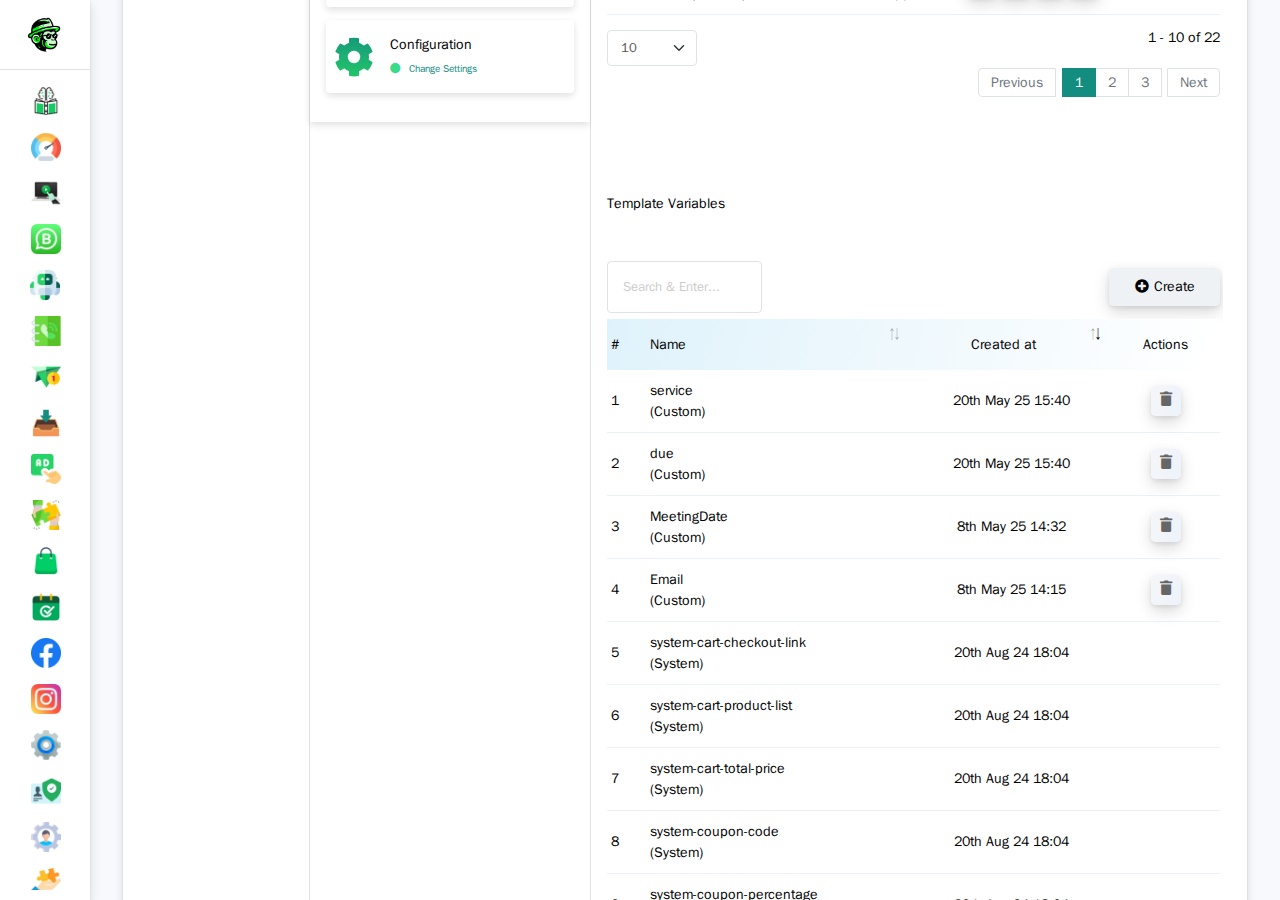
فيديو: شرح متغيرات القالب
Video: https://www.youtube.com/watch?v=R5jz8SkAM9I
كيف تعمل متغيرات القالب في القوالب
في جسم قالب WhatsApp الخاص بك (الذي تقدمه إلى Meta)، تستخدم {{1}}, {{2}}, {{3}} كحقول نصية:
Your OTP code is {{1}}. It will expire in {{2}} minutes.When you send the message, you pass the actual values.
How Template Variables Work in the API
When sending a template message via API that uses Template Variables, you MUST include the variable values in your API call:
https://app.whatchimp.com/api/v1/whatsapp/send?apiToken=API-KEY&phone_number_id=PHONE-NUMBER-ID&phone_number=919999999999&template_name=otp_verification&language_code=en_US&variable1=123456&variable2=5The API Console automatically generates these variable1=, variable2= placeholders for you when you select your template in the generator.
Custom Variables (Custom Fields)
Custom Variables — also called Custom Fields — are permanent data points stored on each subscriber's profile. Once you set them, they stay there until you update or delete them.
When to Use Custom Variables
Use Custom Variables for information that is:
- Persistent (doesn't change often)
- Applicable to the contact, not the message
- Reusable across multiple messages
Examples:
- Full name
- Company name
- Email address
- Country or city
- Industry or job title
- Customer tier (Gold, Silver, Bronze)
- Account manager name
Where to Create Custom Variables
Step A. Go to Subscriber Manager > Manage Custom Fields.
Or navigate directly to: /whatsapp/subscriber/manager/custom-field/list
Step B. Click Create and define your field name (e.g., company_name, country, email).
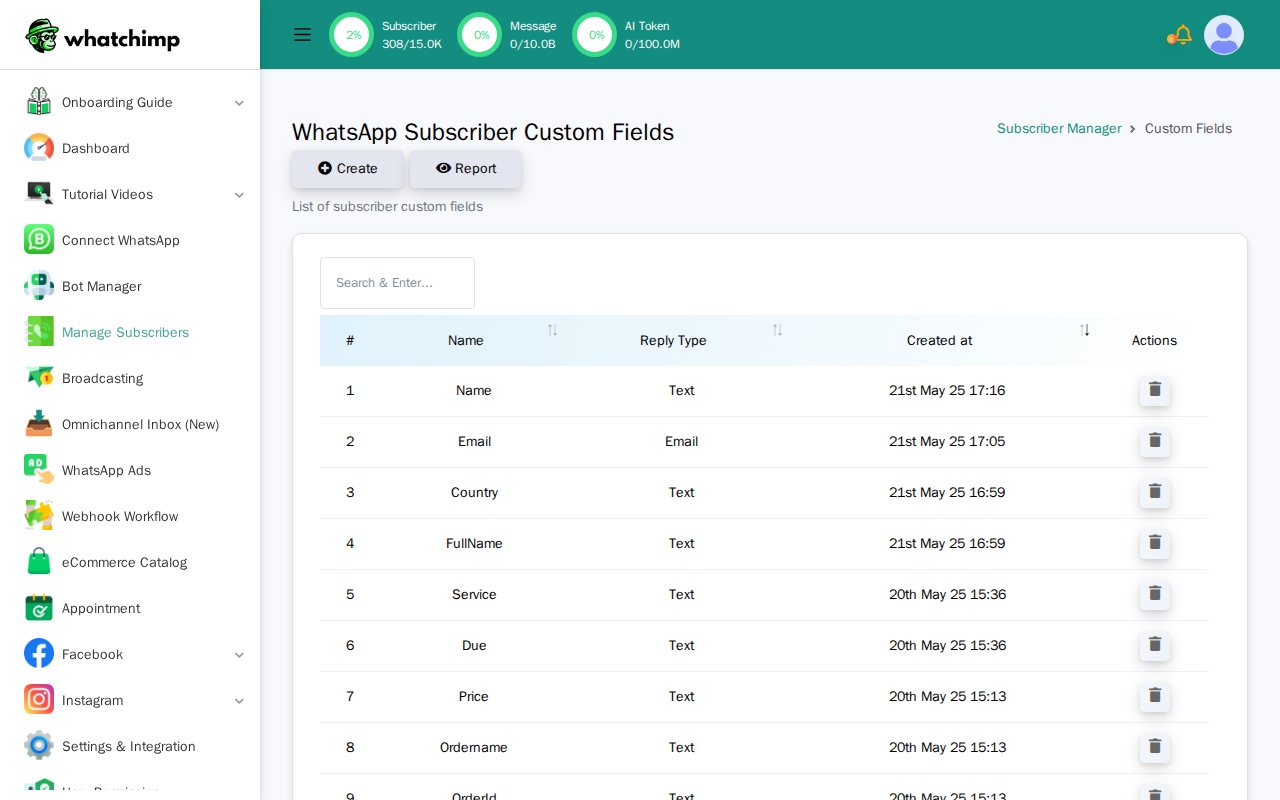
Step C. Set these fields on your subscribers using:
- The Subscriber Manager UI (manual entry)
- CSV import
- The WhatChimp Subscriber API
Video: Custom Variables Walkthrough
Video: https://www.youtube.com/watch?v=yd1O0Sd_zDQ
How Custom Variables Work in Templates
When creating your template in WhatChimp, you insert Custom Fields using the "Custom Fields" dropdown (NOT the "Variables" dropdown).
In your WhatsApp template body, they appear as:
Hi {{first_name}}, your company {{company_name}} has been verified!How Custom Variables Work in the API
This is the critical difference: When you send a template via API that uses Custom Variables, you do NOT pass the variable values in the API call.
https://app.whatchimp.com/api/v1/whatsapp/send?apiToken=API-KEY&phone_number_id=PHONE-NUMBER-ID&phone_number=919999999999&template_name=special_offer&language_code=en_USNotice: No variable1= parameters. The system automatically pulls the custom field values from the subscriber's stored data.
Important: You must set these custom field values on the subscriber BEFORE sending the message. If the subscriber doesn't have a value for company_name, that part of the message will be blank or show an error.
Which Should You Use?
Ask yourself: "Will this data change every time I send a message to this person?"
- Yes → Use Template Variables (e.g., OTP codes, order numbers)
- No → Use Custom Variables (e.g., name, company, email)
Can You Use Both?
Yes! You can combine both in the same template:
Hi {{first_name}}, your order {{1}} will arrive on {{2}}.{{first_name}}is a Custom Variable (pulled from subscriber data){{1}}and{{2}}are Template Variables (you passvariable1=ORD-123andvariable2=Feb 10in the API)
How This Affects the API
This is where most developers get confused. The API behavior is completely different for each type.
Template Variables in API Calls
You MUST pass values using variable1=, variable2=, etc.
curl "https://app.whatchimp.com/api/v1/whatsapp/send?apiToken=API-KEY&phone_number_id=PHONE-NUMBER-ID&phone_number=919999999999&template_name=order_update&language_code=en_US&variable1=ABC123&variable2=Feb%2015"If you forget to include the variable parameters, your message will fail or show blank placeholders.
Custom Variables in API Calls
You do NOT pass values. The system pulls them from the subscriber's profile.
curl "https://app.whatchimp.com/api/v1/whatsapp/send?apiToken=API-KEY&phone_number_id=PHONE-NUMBER-ID&phone_number=919999999999&template_name=special_offer&language_code=en_US"Before sending, you must set the custom fields on the subscriber using the WhatChimp Subscriber API:
curl -X POST "https://app.whatchimp.com/api/v1/whatsapp/subscriber/update" \
  -d "apiToken=API-KEY" \
  -d "phone_number_id=PHONE-NUMBER-ID" \
  -d "phone_number=919999999999" \
  -d "custom_fields[company]=Acme Corp" \
  -d "custom_fields[country]=United States"
See the WhatChimp Subscriber Management API for the full reference on assigning custom fields.
Common mistake: Developers try to pass custom field values as variable1=, variable2= في API رسالة القالب. هذا لا يعمل. يتم سحب الحقول المخصصة من بيانات المشترك، وليس من معاملات استدعاء API.
شروحات فيديو
شاهد هذه الدروس التعليمية المفصلة بالفيديو من Anant (مؤسس WhatChimp):
متغيرات القالب
Video: https://www.youtube.com/watch?v=R5jz8SkAM9I
المتغيرات المخصصة (الحقول المخصصة)
Video: https://www.youtube.com/watch?v=yd1O0Sd_zDQ