Labels, Views aur Search ke saath Conversations Organize karein
Labels, conversation views, aur search filters use karke apni inbox organized rakhein.
Updated 10 February 2026
Omnichannel Inbox jaldi bhar sakta hai. Conversation views, labels, aur search aapko har chat par nazar rakhne mein madad karte hain bina track khone ke.
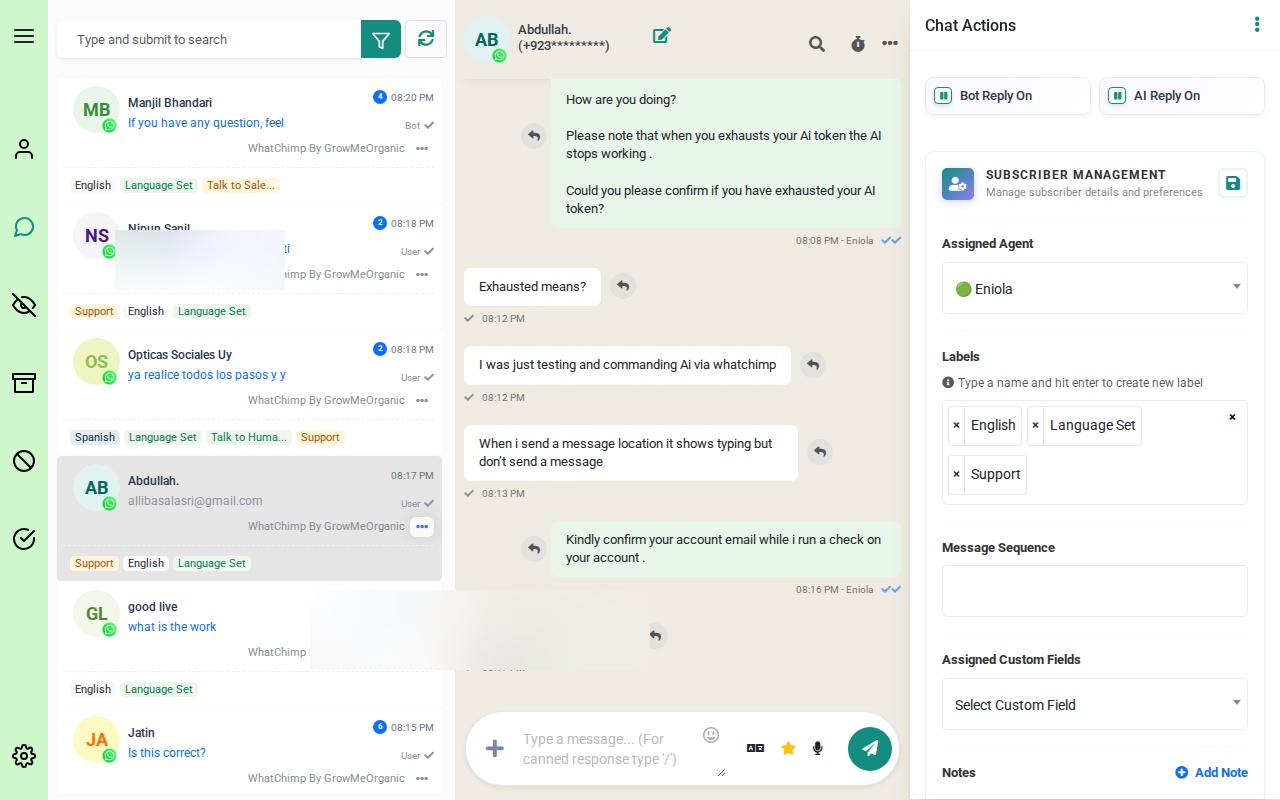 Omnichannel Inbox conversation list, chat area, aur actions panel ke saath
Conversation Views
Left sidebar mein icons hain jo alag alag conversation views ke beech switch karte hain. Har view aapki inbox ko filter karta hai sirf matching conversations dikhane ke liye.
 Sidebar icons upar se neeche: My Chats, All Chats, Unread, Archived, Blocked, aur Resolved
All Chats
Aapka default view. Har conversation saare channels mein yahan dikhta hai, status ya assignment se farq nahi padta.
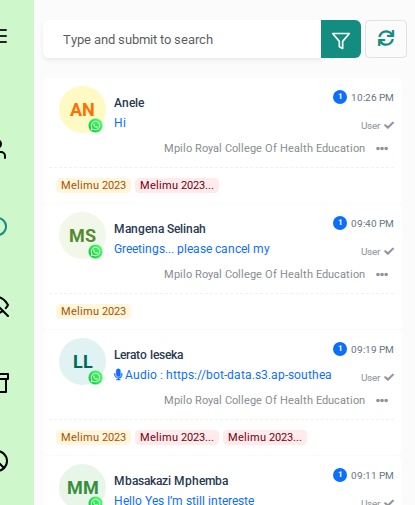 All Chats view conversations contact names, message previews, timestamps, aur labels ke saath dikha raha hai
Har conversation row dikhati hai:
- Contact naam aur avatar
- Message preview — conversation mein last message
- Timestamp — jab last message bheja gaya
- Labels — colored tags jaise "Melimu 2023" conversation ke neeche
- Organization — account ya group jisse contact belong karta hai
- Three-dot menu (...) — us conversation ke liye quick actions
My Chats
Conversations jo specifically aapko assigned hain. Doosre team members ki chats yahan nahi aayengi. Is view ko use karein apne khud ke workload par focus karne ke liye.
Unread
Conversations jinke messages aapne abhi tak nahi khole. Unread count badge contact name ke paas dikhta hai.
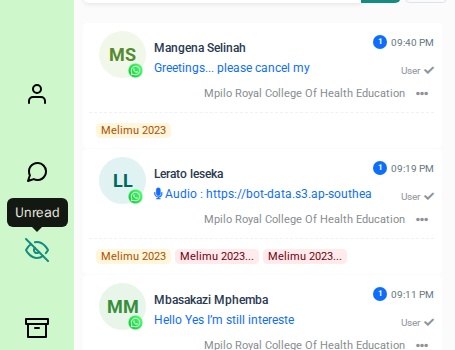 Unread view sirf woh conversations filter karta hai jo aapne abhi tak nahi padhi
Archived
Conversations jo aapne apni active inbox se bahar move kar di hain. Ye reference ke liye saved hain lekin aapki main list ko clutter nahi karengi.
 Archived view — yahan move ki gayi conversations reference ke liye rakhi jaati hain
Blocked
Contacts jinhe aapne block kiya hai. Blocked contacts aapko messages nahi bhej sakte.
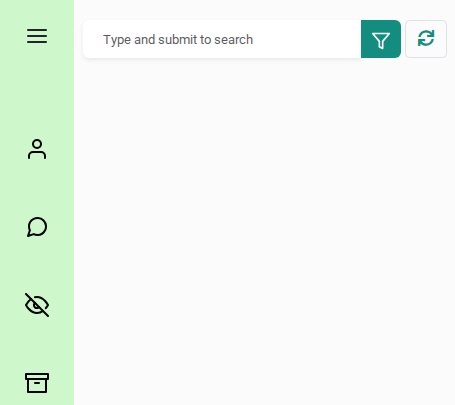 Blocked view contacts dikhata hai jinhe aapne block kiya hai
Resolved
Complete ho chuke conversations. Chats ko yahan move karein jab customer ka issue handle ho gaya ho. Resolved conversations assigned agent aur labels dikhati hain.
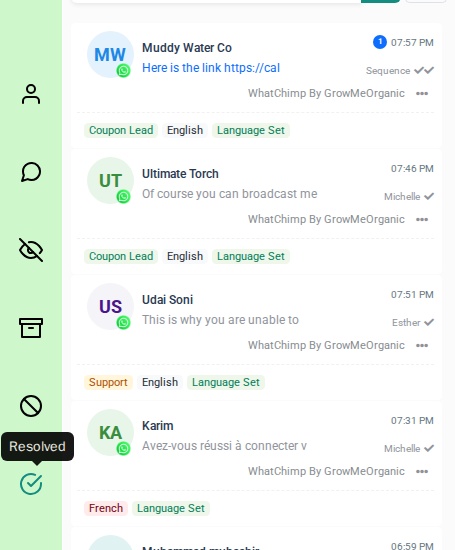 Resolved view completed conversations agent names jaise Michelle aur Esther, aur labels jaise Coupon Lead aur Support ke saath dikha raha hai
Labels
Labels colored tags hain jo aap conversations pe categorization ke liye attach karte hain. Ye list mein har conversation ke neeche dikhte hain aur specific types ki chats ko ek nazar mein spot karna easy banate hain.
Labels Add karna
- Ek conversation ko click karke kholein
- Right actions panel mein, Labels section dhundhein
- Label naam type karein aur naya label create karne ke liye Enter press karein, ya existing ones mein se select karein
- Labels automatically save ho jaate hain
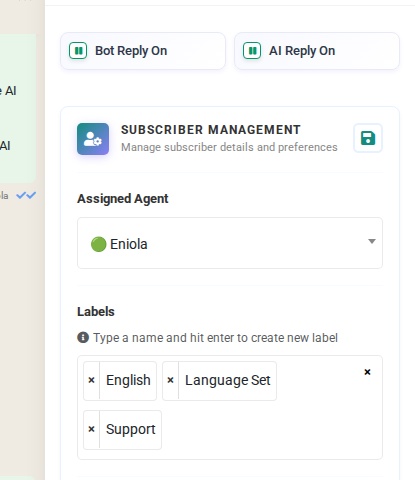 Actions panel Labels dikha raha hai English, Language Set, aur Support assigned ke saath. Naam type karein aur enter press karein naye labels create karne ke liye.
Actions panel Assigned Agent, Bot Reply aur AI Reply toggles, Message Sequence, aur selected conversation ke liye Assigned Custom Fields bhi dikhata hai.
Label Ideas
- Support / Sales Inquiry — conversation type se categorize karein
- Hot Lead / Warm Lead / Cold Lead — sales pipeline track karein
- VIP Customer / New Customer — contacts ko prioritize karein
- Follow-up Required / Pending Payment — action items ko flag karein
Search
Conversation list ke top par search bar use karein contacts jaldi dhundhne ke liye. Naam type karein aur search karne ke liye Enter press karein.

Search contact names ke against match karta hai. Results wahi conversation details dikhate hain jo main list — message preview, timestamp, labels, aur organization.
Conversations Manage karna
Quick actions dekhne ke liye kisi bhi conversation row par three-dot menu (...) click karein.
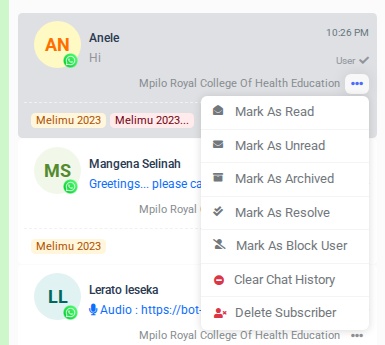 Three-dot menu options ke saath: Mark As Read, Mark As Unread, Mark As Archived, Mark As Resolve, Mark As Block User, Clear Chat History, aur Delete Subscriber
Available actions hain:
| Action | Kya karta hai |
|---|---|
| Mark As Read | Conversation par unread badge clear karta hai |
| Mark As Unread | Unread badge add karta hai taaki aap follow up yaad rakhein |
| Mark As Archived | Conversation ko Archived view mein move karta hai |
| Mark As Resolve | Conversation ko Resolved view mein move karta hai |
| Mark As Block User | Contact ko block karta hai aur Blocked view mein move karta hai |
| Clear Chat History | Conversation mein saare messages delete karta hai |
| Delete Subscriber | Contact aur unki conversation permanently remove karta hai |
Tips
- Apna din Unread mein start karein. Pehle Unread view check karein un conversations ko pakadne ke liye jo attention need karti hain.
- Conversations resolve karein jab done ho. Handled chats ko Resolved mein move karna aapke All Chats view ko clean aur active conversations par focused rakhta hai.
- Labels consistently use karein. Apni team ke saath ek labeling system par agree karein taaki sab log conversations ko same tarike se tag karein.
- Naam se search karein contacts jaldi dhundhne ke liye. Search bar mein contact ka naam type karein aur Enter press karein.
- Delete karne ki jagah archive karein. Agar conversation baad mein useful ho sakti hai, to use delete karne ki jagah archive karein.
Related Articles
- Conversations Filtering — conversations ko label, team member, bot status, aur zyada ke hisaab se narrow karne ke liye filters use karein
- Omnichannel Inbox ka Introduction — inbox ki puri layout aur features seekhein