Filter Conversations by Channel & Account
Learn how to filter your inbox by specific channels and connected accounts.
Updated 10 February 2026
The Omnichannel Inbox brings all your conversations — WhatsApp, Instagram, Facebook, and website — into one place. As your volume grows, filters help you zero in on the conversations that matter right now.
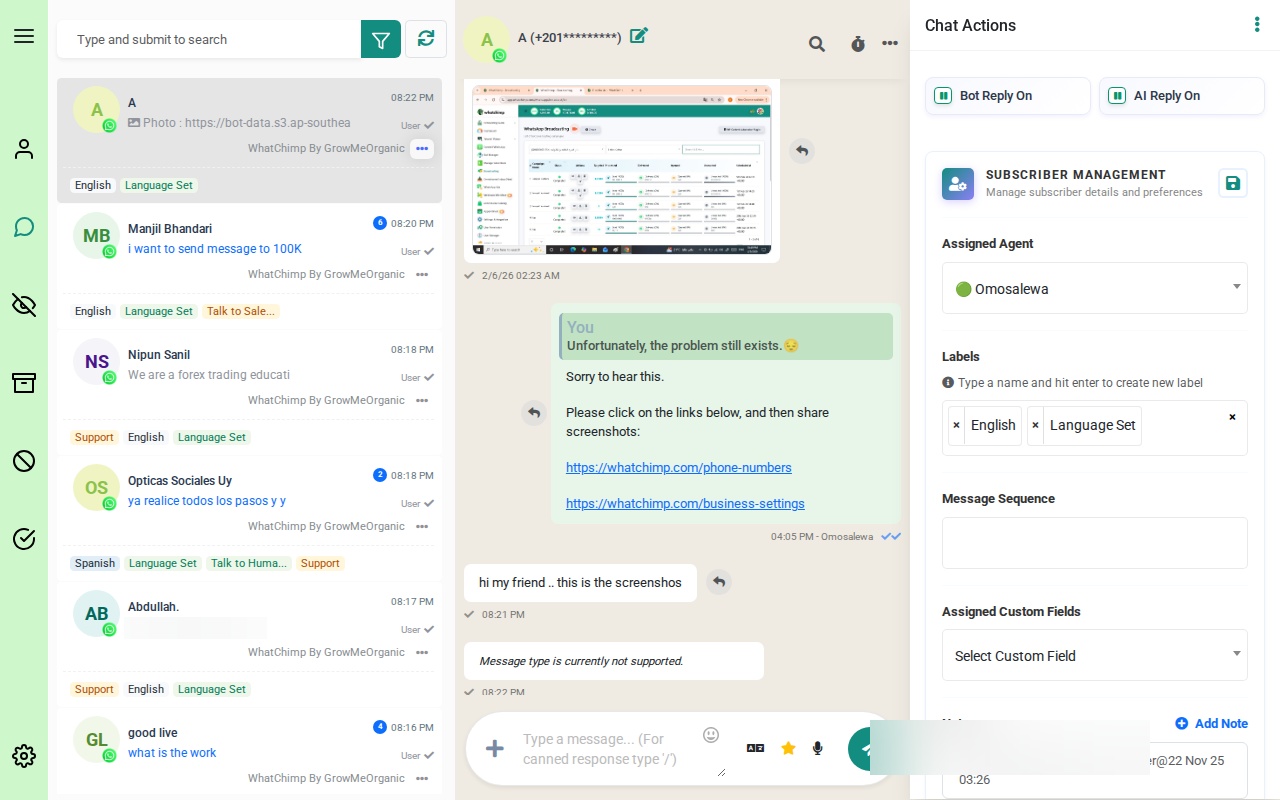 The Omnichannel Inbox with conversations from multiple channels
Opening the Filter Panel
- Go to the Omnichannel Inbox from the left sidebar
- At the top of the conversation list, click the filter icon (green funnel button)
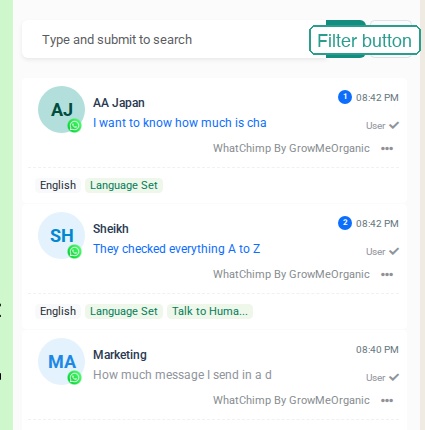 Click the green filter button to open the filter panel
The filter panel slides open with six filter options:
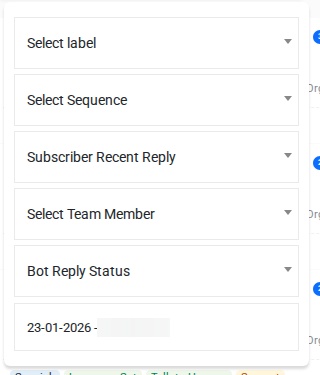 The filter panel with Label, Sequence, Recent Reply, Team Member, Bot Reply Status, and Date Range filters
Filter Options
1. Label
Filter conversations by the labels (tags) assigned to them. Click the Select label dropdown to see all available labels.
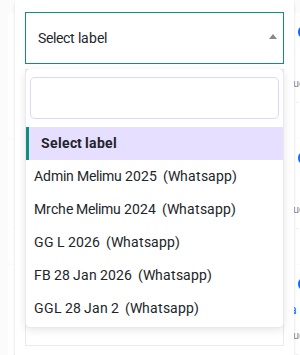 The Label dropdown showing labels like Admin Melimu 2025, GG L 2026, etc.
Labels appear as colored tags beneath each conversation in the list. For example, you might filter by:
- Support — see only conversations tagged as support requests
- Language Set — see conversations where the language has been identified
- Talk to Human — see conversations where the subscriber asked for a live agent
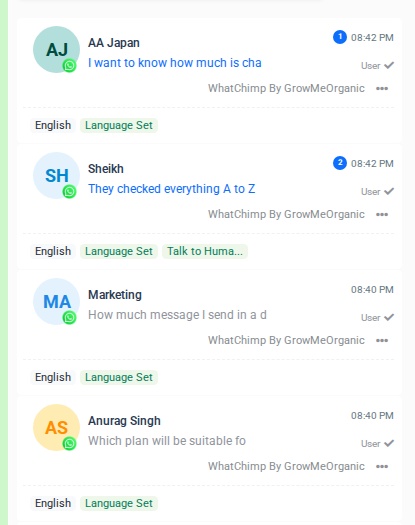 Each conversation shows its assigned labels beneath the preview text
2. Sequence
Filter by bot sequence. Click the Select Sequence dropdown to see your bot flows.
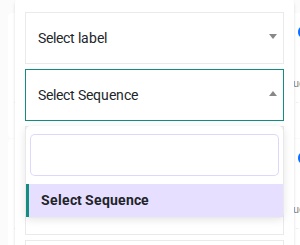 The Sequence dropdown lets you filter by bot flow
This shows only conversations where the subscriber is currently in (or has completed) a specific bot flow. Useful when you want to check how subscribers are progressing through an onboarding or sales sequence.
3. Subscriber Recent Reply
Sort conversations based on how recently the subscriber last replied. Click the Subscriber Recent Reply dropdown to see the sorting options.
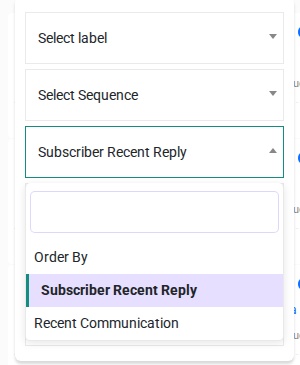 Choose between Subscriber Recent Reply and Recent Communication sorting
The two options are:
- Subscriber Recent Reply — sorts by when the subscriber last sent a message (default)
- Recent Communication — sorts by any recent activity, including your own replies
This helps you prioritize conversations with fresh replies that need attention first.
4. Team Member
Filter by the agent assigned to each conversation. Click the Select Team Member dropdown to see all team members.
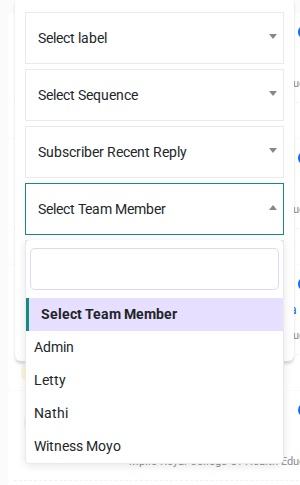 The Team Member dropdown showing Admin, Letty, Nathi, and Witness Moyo
Use this when:
- You want to see only your own conversations
- A manager wants to review a specific agent's workload
- You need to find conversations handled by a particular team member
5. Bot Reply Status
Filter based on whether the bot is currently active on a conversation. Click the Bot Reply Status dropdown to see the options.
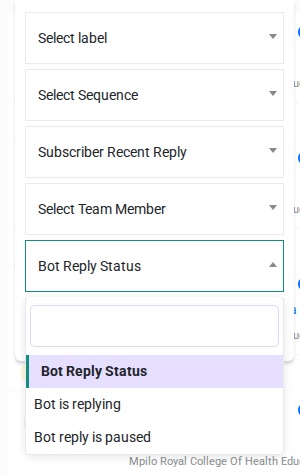 Choose between Bot is replying and Bot reply is paused
The two options are:
- Bot is replying — the bot is handling replies automatically
- Bot reply is paused — a human agent has taken over
This is especially useful for support teams who need to find conversations waiting for human attention.
6. Date Range
Filter conversations within a specific time period. Click the date field to open the calendar picker.
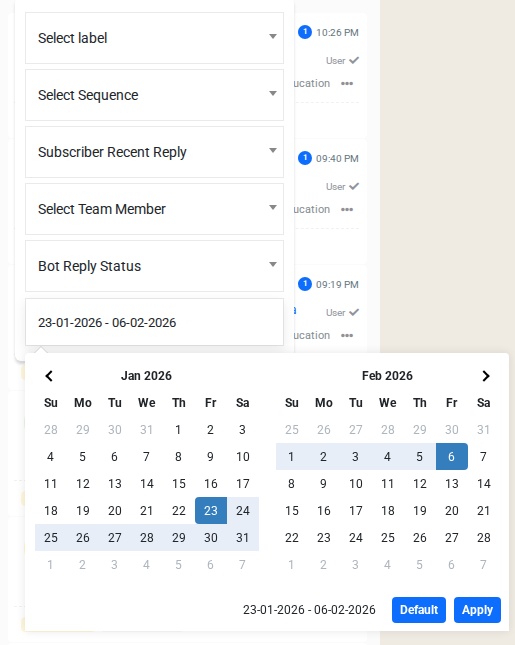 The date range picker showing January and February 2026 calendars with Default and Apply buttons
Select a start date and end date, then click Apply. Click Default to reset to the standard date range. This is helpful for:
- Reviewing conversations from a specific campaign
- Finding older conversations from a particular week
- Generating reports for a time period
Combining Filters
You can apply multiple filters at the same time. For example:
- Label: "Support" + Bot reply is paused — find support conversations waiting for a human reply
- Team Member: your name + Date Range: last 7 days — see your recent conversations
- Sequence: "Welcome Flow" + Subscriber Recent Reply — check who recently replied during onboarding
Filters stack together, so each additional filter narrows the list further.
Tips
- Start with one filter. Apply the most important filter first, then add more only if the list is still too long.
- Use labels consistently. The Label filter is only as useful as your labeling habits. Set up labels like "Support", "Sales", and "VIP" and assign them to conversations as they come in.
- Check Bot Reply Status regularly. Conversations with the bot paused are waiting for a human — don't let them sit unattended.
- Use Date Range for reporting. Quickly review all conversations from a specific campaign period or business week.
Related Articles
- Introduction to Omnichannel Inbox — learn the full inbox layout and features