Organize Conversations with Labels, Views & Search
Keep your inbox organized using labels, conversation views, and search filters.
Updated 10 February 2026
The Omnichannel Inbox can fill up fast. Conversation views, labels, and search help you stay on top of every chat without losing track.
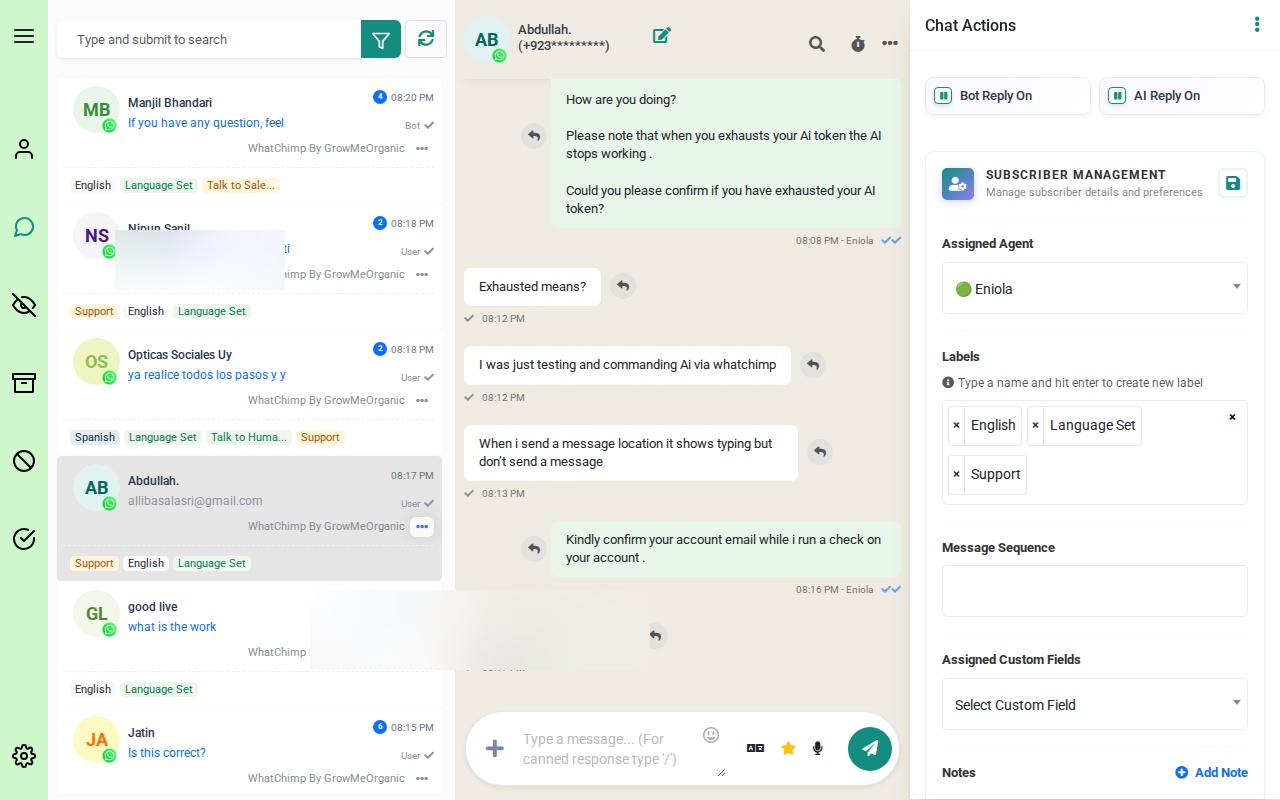 The Omnichannel Inbox with the conversation list, chat area, and actions panel
Conversation Views
The left sidebar has icons that switch between different conversation views. Each view filters your inbox to show only the conversations that match.
 The sidebar icons from top to bottom: My Chats, All Chats, Unread, Archived, Blocked, and Resolved
All Chats
Your default view. Every conversation across all channels appears here, regardless of status or assignment.
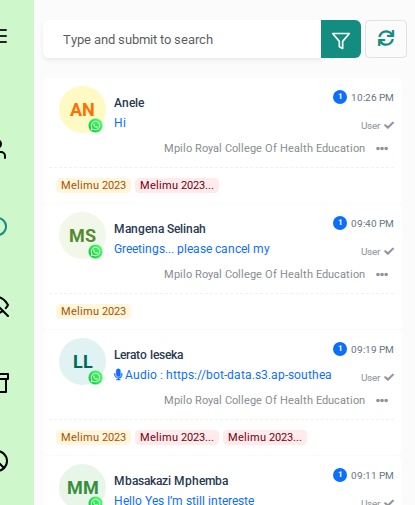 The All Chats view showing conversations with contact names, message previews, timestamps, and labels
Each conversation row shows:
- Contact name and avatar
- Message preview — the last message in the conversation
- Timestamp — when the last message was sent
- Labels — colored tags like "Melimu 2023" beneath the conversation
- Organization — the account or group the contact belongs to
- Three-dot menu (...) — quick actions for that conversation
My Chats
Conversations assigned specifically to you. Other team members' chats won't appear here. Use this view to focus on your own workload.
Unread
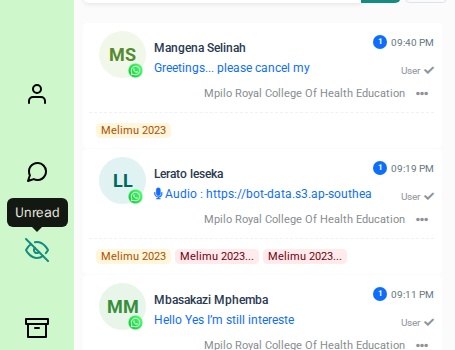
Conversations with messages you haven't opened yet. The unread count badge appears next to the contact name.
Archived
Conversations you've moved out of your active inbox. They're saved for reference but won't clutter your main list.
 The Archived view — conversations moved here are kept for reference
Blocked
Contacts you've blocked. Blocked contacts cannot send you messages.
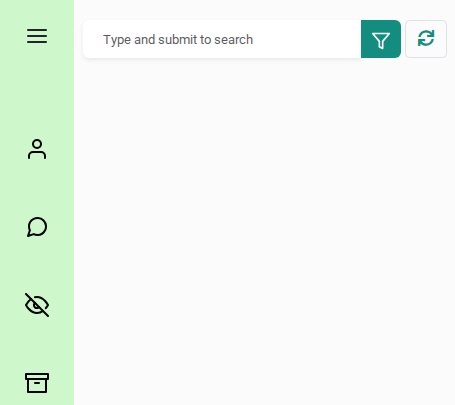 The Blocked view shows contacts you have blocked
Resolved
Completed conversations. Move chats here when the customer's issue has been handled. Resolved conversations show the assigned agent and labels.
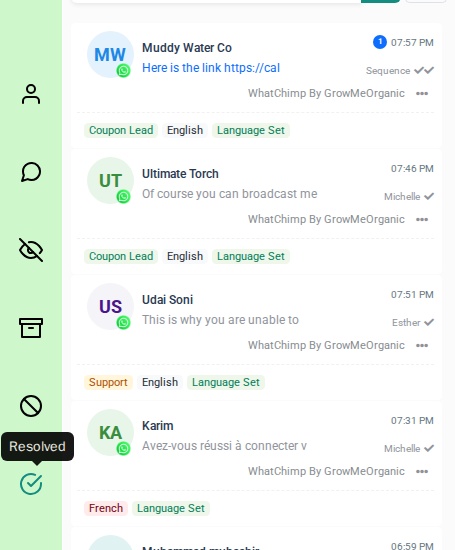 The Resolved view showing completed conversations with agent names like Michelle and Esther, and labels like Coupon Lead and Support
Labels
Labels are colored tags you attach to conversations for categorization. They appear beneath each conversation in the list and make it easy to spot specific types of chats at a glance.
Adding Labels
- Open a conversation by clicking on it
- In the right actions panel, find the Labels section
- Type a label name and press Enter to create a new label, or select from existing ones
- Labels are saved automatically
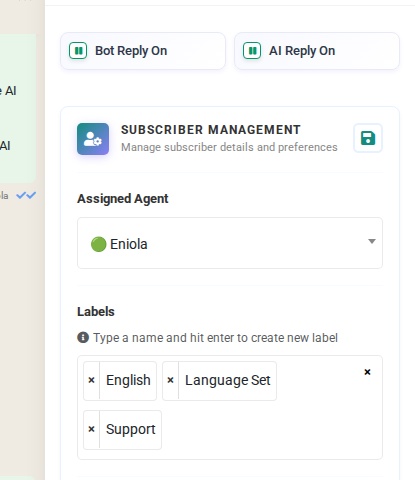 The actions panel showing Labels with English, Language Set, and Support assigned. Type a name and hit enter to create new labels.
The actions panel also shows the Assigned Agent, Bot Reply and AI Reply toggles, Message Sequence, and Assigned Custom Fields for the selected conversation.
Label Ideas
- Support / Sales Inquiry — categorize by conversation type
- Hot Lead / Warm Lead / Cold Lead — track sales pipeline
- VIP Customer / New Customer — prioritize contacts
- Follow-up Required / Pending Payment — flag action items
Search
Use the search bar at the top of the conversation list to find contacts quickly. Type a name and press Enter to search.

Search matches against contact names. Results show the same conversation details as the main list — message preview, timestamp, labels, and organization.
Managing Conversations
Click the three-dot menu (...) on any conversation row to see quick actions.
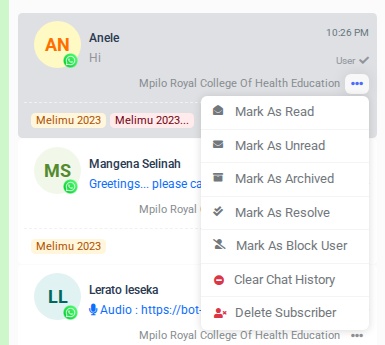 The three-dot menu with options: Mark As Read, Mark As Unread, Mark As Archived, Mark As Resolve, Mark As Block User, Clear Chat History, and Delete Subscriber
The available actions are:
| Action | What it does |
|---|---|
| Mark As Read | Clears the unread badge on the conversation |
| Mark As Unread | Adds an unread badge so you remember to follow up |
| Mark As Archived | Moves the conversation to the Archived view |
| Mark As Resolve | Moves the conversation to the Resolved view |
| Mark As Block User | Blocks the contact and moves them to the Blocked view |
| Clear Chat History | Deletes all messages in the conversation |
| Delete Subscriber | Permanently removes the contact and their conversation |
Tips
- Start your day in Unread. Check the Unread view first to catch conversations that need attention.
- Resolve conversations when done. Moving handled chats to Resolved keeps your All Chats view clean and focused on active conversations.
- Use labels consistently. Agree on a labeling system with your team so everyone tags conversations the same way.
- Search by name to find contacts fast. Type a contact's name in the search bar and press Enter.
- Archive instead of delete. If a conversation might be useful later, archive it rather than deleting it.
Related Articles
- Filtering Conversations — use filters to narrow conversations by label, team member, bot status, and more
- Introduction to Omnichannel Inbox — learn the full inbox layout and features