Follow-up Reminders & Message Sequences
Never miss a follow-up with reminders and automated message sequences.
Updated 10 February 2026
Never miss a follow-up. WhatChimp gives you two ways to stay on top of customer conversations: Follow-Up Reminders for manual nudges, and Message Sequences for automated multi-step follow-ups.
Follow-Up Reminders
Set a personal reminder to follow up on any conversation at a specific time.
Setting a Reminder
- Open a conversation in the Omnichannel Inbox
- Click the three-dot menu (⋯) next to the customer's name at the top
- Select Set Follow-up Reminder
- Choose a preset time — 1 Hour, 6 Hours, 12 Hours, or 24 Hours Later — or pick a custom date and time
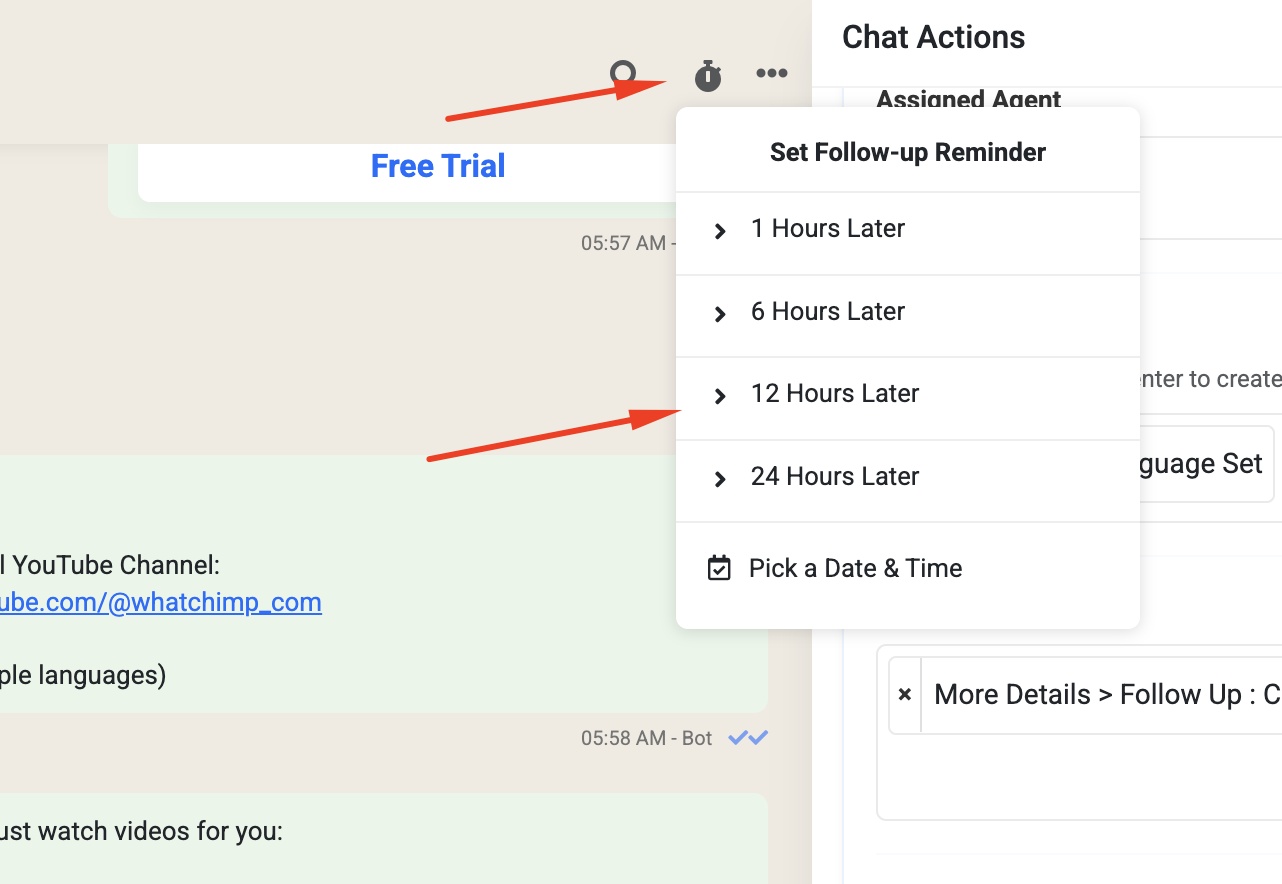
When the time arrives, you'll get a sound notification as long as the inbox is open.
Viewing Your Follow-Up List
To see all your scheduled reminders:
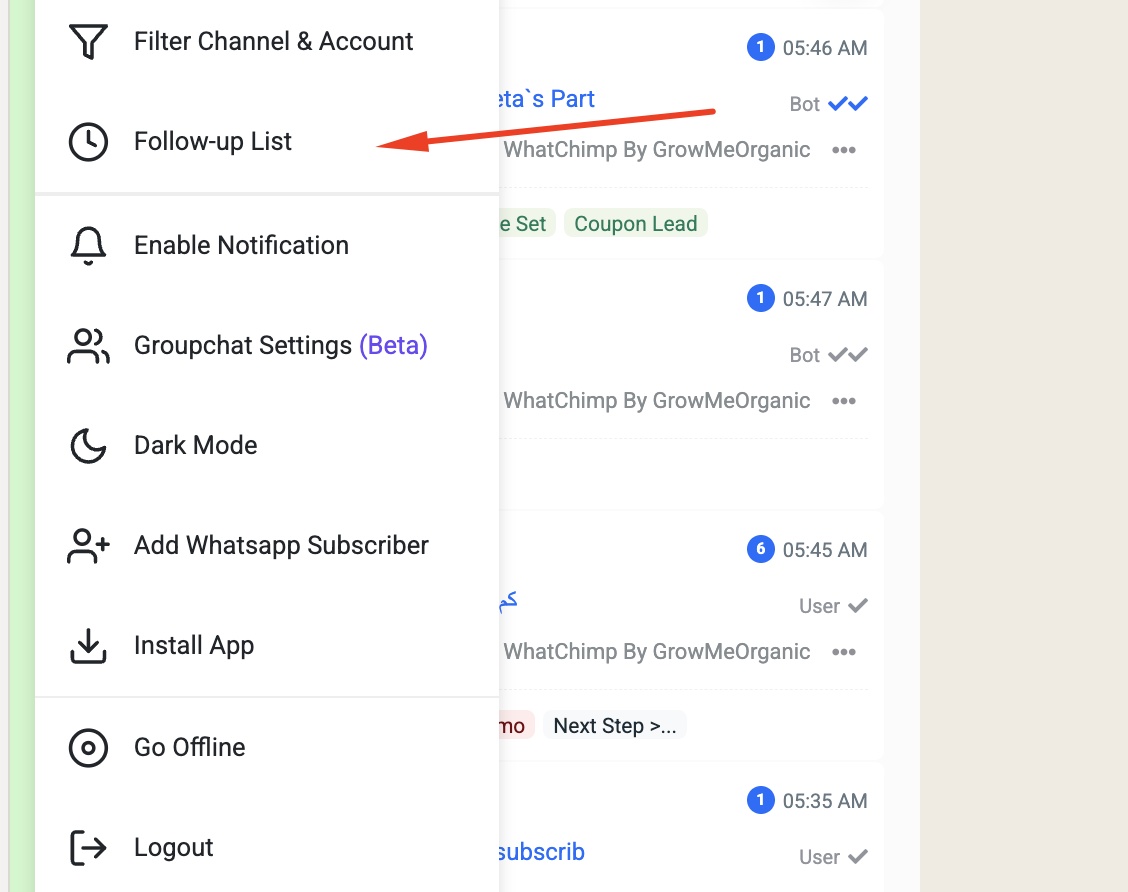
- Click the Settings icon (gear) in the bottom of the left sidebar
- Select Follow-up List
- The Follow-up List shows all your scheduled reminders with the bot name, subscriber name, and follow-up time
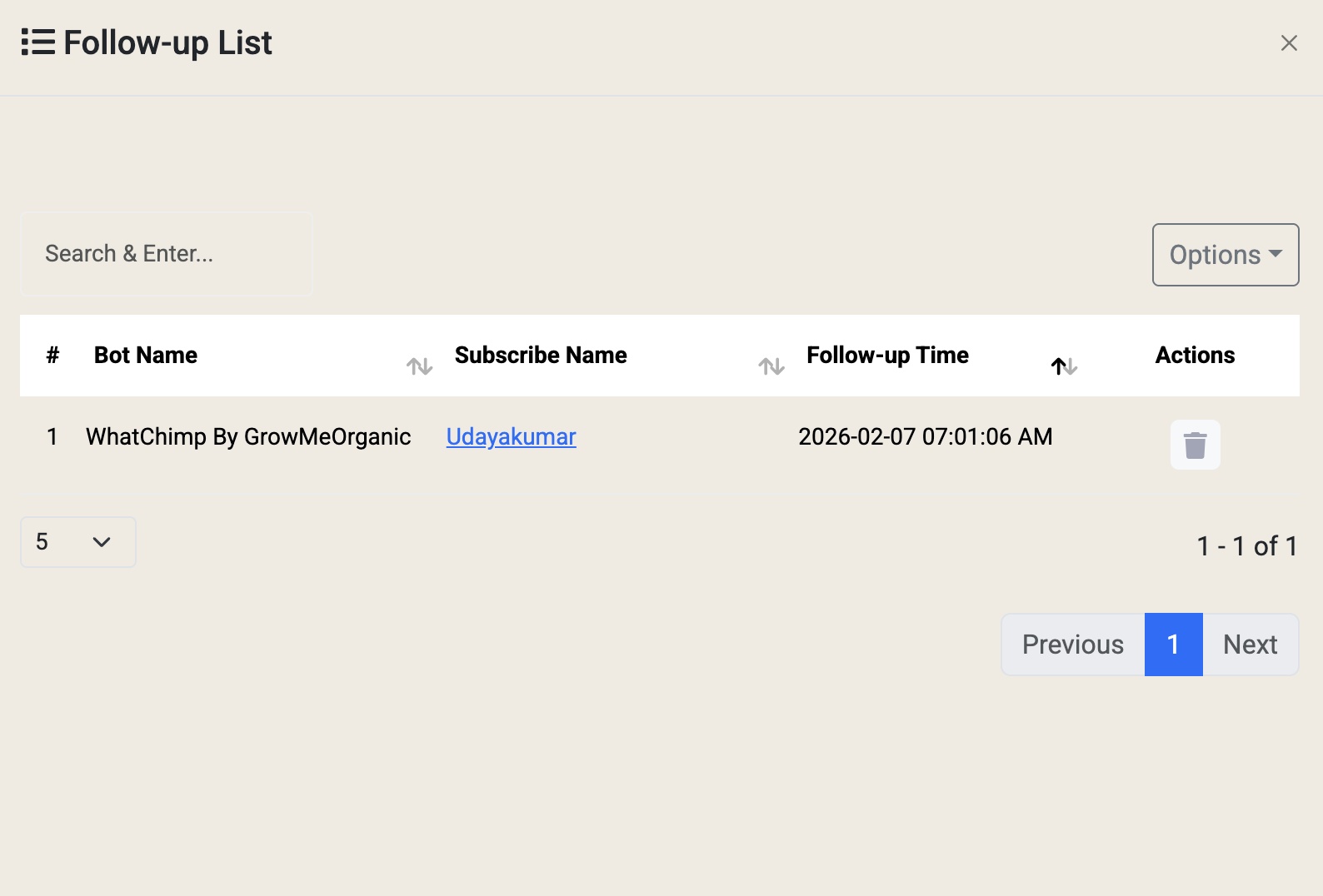
Click any entry to jump directly to that conversation. Use the delete icon to remove a reminder you no longer need.
Message Sequences
For routine follow-ups — like review requests, payment reminders, or onboarding steps — use Message Sequences. These are automated series of messages that send on a schedule, so you don't have to remember to follow up manually.
How Sequences Work
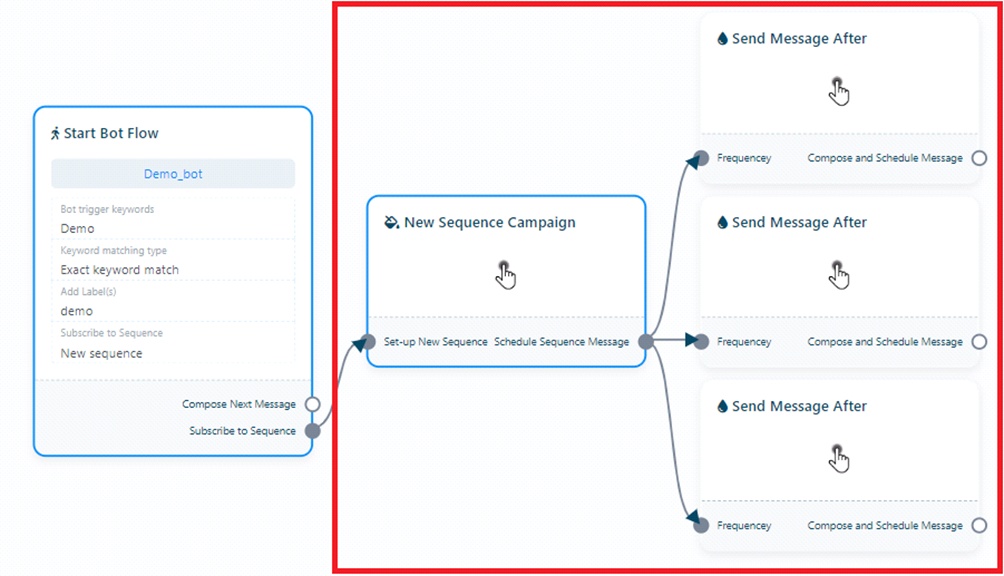
A sequence is a series of timed messages that fire automatically after being assigned to a conversation:
- You create a sequence with one or more messages, each with a delay (e.g., send after 15 minutes, then after 1 day, then after 3 days)
- You assign the sequence to a customer's conversation
- Messages send automatically at the scheduled times
- If the customer replies, you can pause or stop the sequence
Assigning a Sequence to a Conversation
- Open a conversation in the Omnichannel Inbox
- In the right panel, scroll down to Message Sequence
- Click the dropdown and select the sequence you want to apply
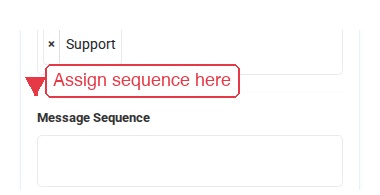
The sequence starts immediately. Messages will send at the intervals you configured when building the sequence.
Building a Sequence
Sequences are created in the Bot Manager. For a full step-by-step guide on building message sequences with the flow builder, see:
How to Set Up a Sales Sequence Chatbot
That guide covers:
- Creating a new sequence campaign in the flow builder
- Setting message timing and frequency
- Composing each message in the sequence
- Using approved WhatsApp templates for messages sent outside the 24-hour window
Use Cases
- Review requests — Ask for feedback 1 hour after resolving a support ticket
- Payment reminders — Send a gentle nudge 24 hours after sharing an invoice
- Onboarding — Walk new customers through setup over several days
- Sales follow-up — Nurture leads who showed interest but didn't convert
- Abandoned cart — Remind customers about items they left behind
Tips
- Use reminders for one-off follow-ups. A customer said "I'll decide by Friday"? Set a reminder for Friday morning.
- Use sequences for repeatable workflows. If you follow the same pattern for every new lead or support ticket, automate it.
- Combine both. Assign a sequence for the standard follow-up flow, and set a personal reminder for anything that needs a human touch.
- Keep sequences short. 2-3 messages are usually enough. Too many messages can feel spammy.
- Use approved templates. Messages sent outside the 24-hour WhatsApp window require pre-approved templates, so make sure your sequence messages use them.
Related Articles
- How to Set Up a Sales Sequence Chatbot — Full guide to building automated sequences
- Messaging Tools: Canned Responses, Templates & Attachments — Speed up replies with saved messages and templates
- AI Translation & Rewrite — Translate and polish messages before sending