AI Translation & Message Rewrite
Translate incoming messages and improve your replies using AI-powered features.
Updated 10 February 2026
WhatChimp's AI-powered translation and rewrite tools help you communicate with customers in any language, directly from the Omnichannel Inbox. Translate incoming messages you can't read, reply in the customer's language, and polish your messages before sending — all without leaving the conversation.
Translating Incoming Messages
When a customer sends a message in a language you don't understand, you can translate it instantly.
- Open the conversation in the Omnichannel Inbox
- Hover over the incoming message
- Click the Translate icon (文A) that appears — the tooltip says "Translate it"
- The translated text appears directly below the original message, along with the detected source language (e.g., "Translated from Arabic")
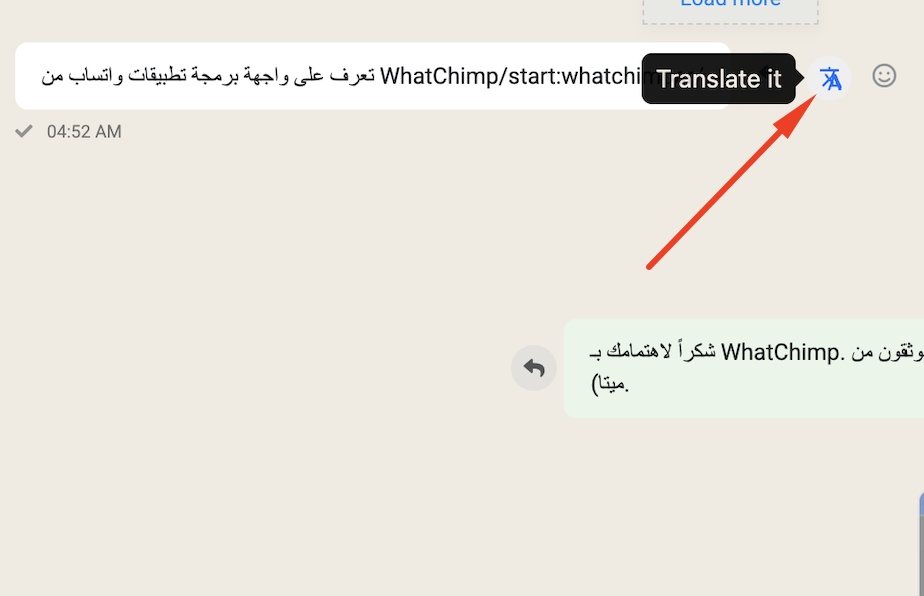
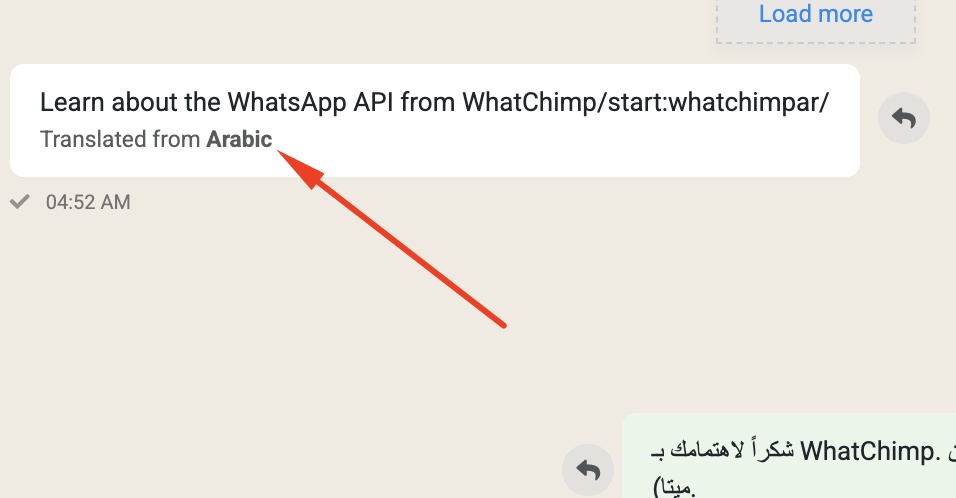
The original message stays visible so you always have context. You can translate any incoming message — there's no limit.
Replying in the Customer's Language
You don't need to know the customer's language to reply in it. Use the Translate button in the message composer to convert your reply before sending.
- Type your reply in your own language in the message composer
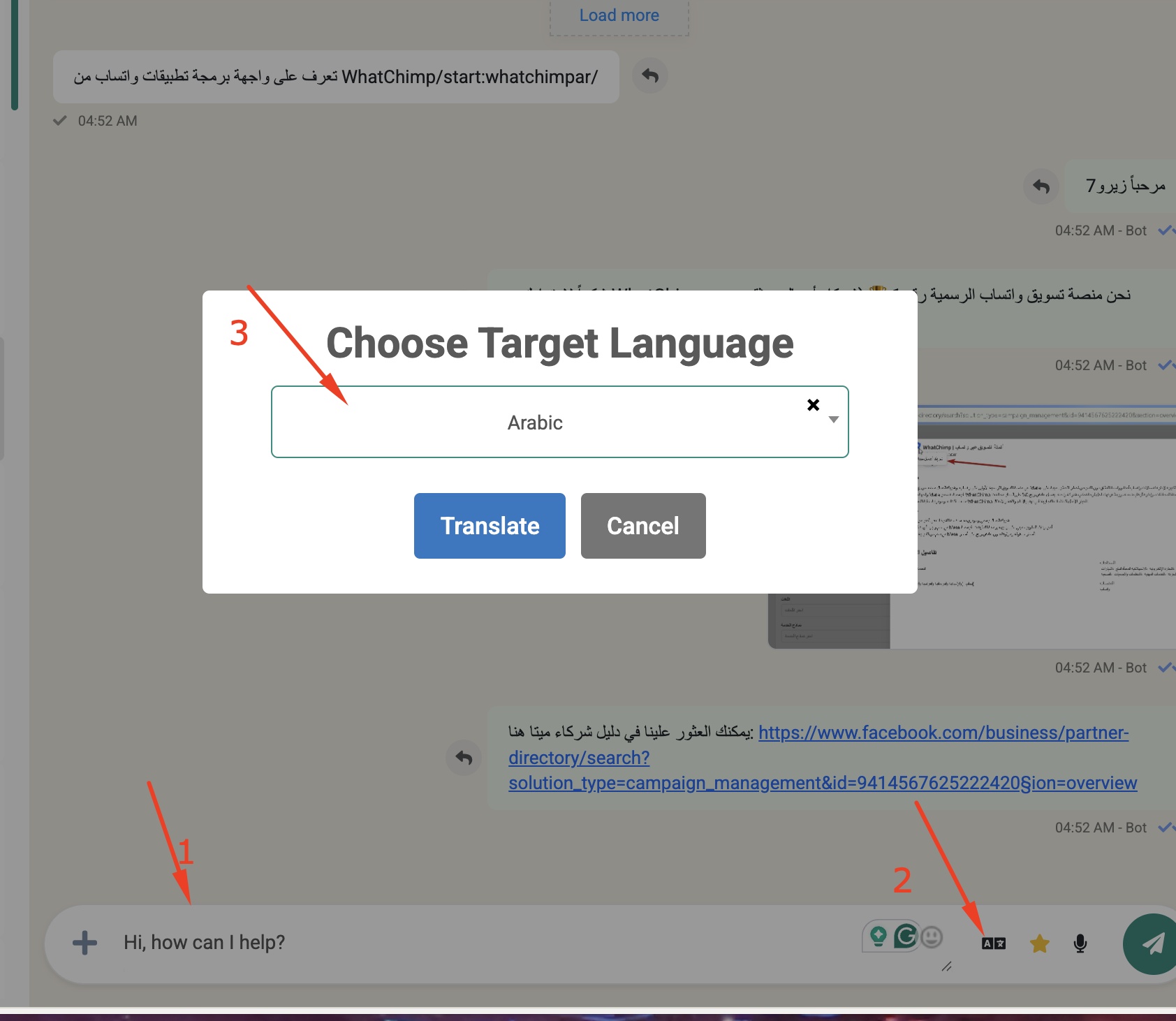
- Click the Translate icon (文A) next to the emoji button in the composer toolbar
- In the "Choose Target Language" dialog, select the language from the dropdown (e.g., Arabic, Spanish, French)
- Click Translate
- Your message is converted to the selected language
- Review the translation, then click Send
Available Languages
Translation supports a wide range of languages including Arabic, Spanish, French, Portuguese, German, Chinese, Hindi, Italian, Japanese, Korean, Russian, Turkish, and many more. The language list appears in the dropdown when you click the translate icon.
AI Message Rewrite
AI Rewrite improves your messages before you send them — fixing grammar, improving tone, and making your replies more professional. This is useful when you're typing quickly or want to ensure a polished response.
- Type your message in the composer
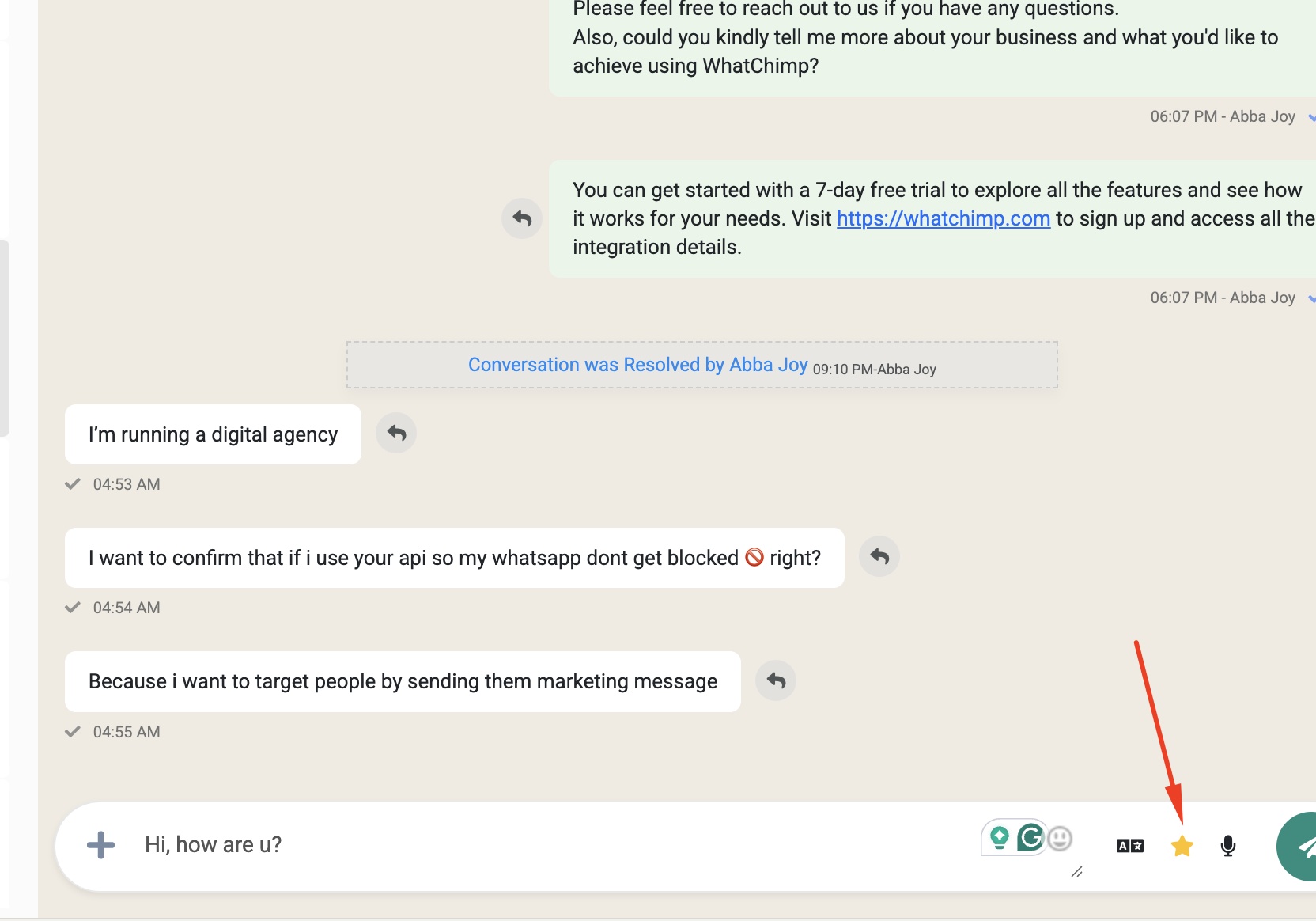
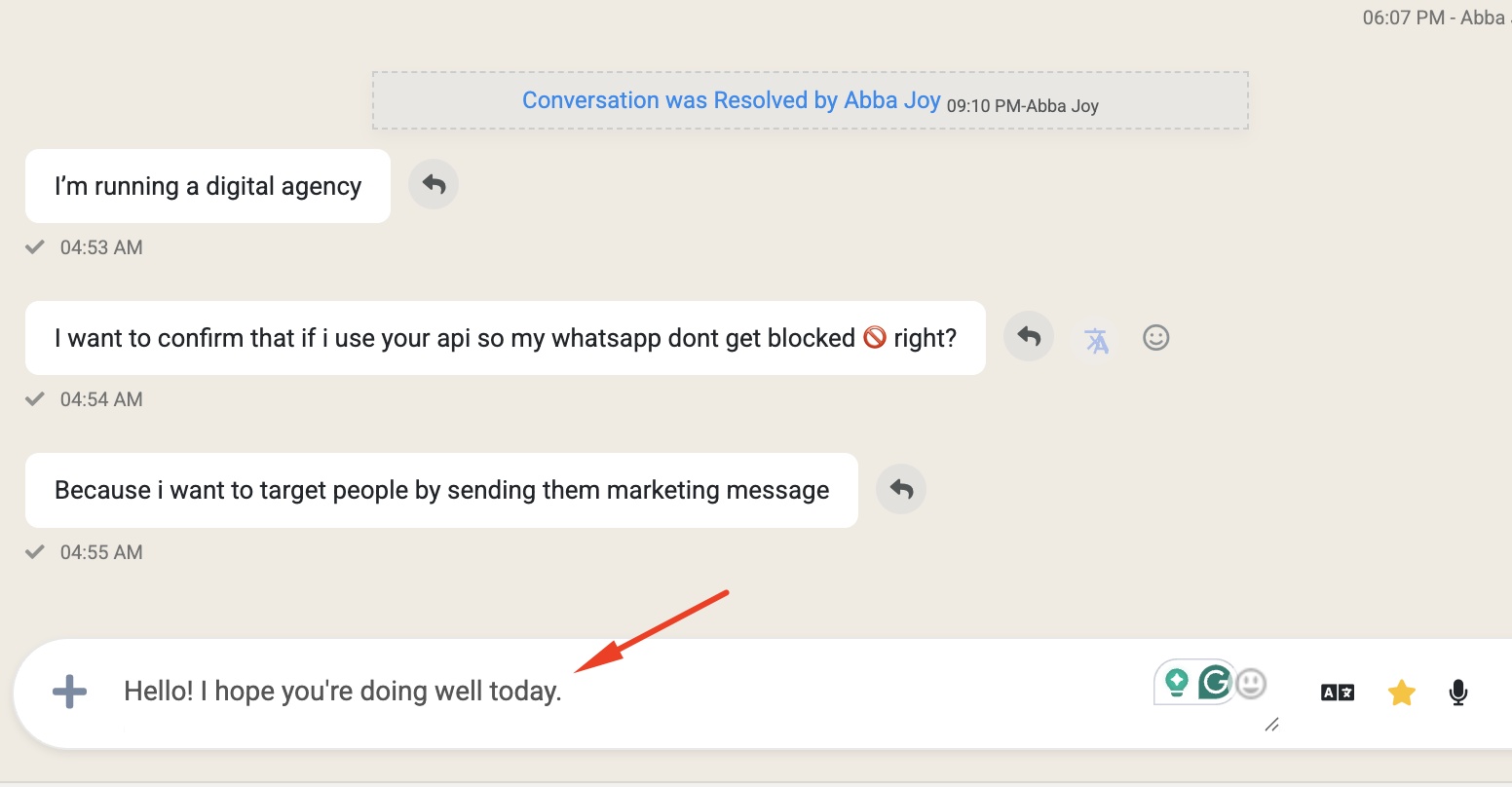
- Click the Rewrite with AI button (star icon) in the composer toolbar
- The AI generates an improved version of your message
- Review the rewritten text and send it
What AI Rewrite Improves
- Grammar and spelling — catches typos and fixes sentence structure
- Professional tone — turns casual messages into polished responses
- Clarity — simplifies confusing phrasing
- Meaning preserved — your intent stays the same, just better worded
Example
Your draft: "Hi, how are u?"
After AI Rewrite: "Hello! I hope you're doing well today."
Combining Translation and Rewrite
The real power comes from using both features together. Here's a typical workflow for supporting international customers:
- A customer sends a message in Arabic
- You hover over their message and click the Translate icon to read it in English
- You type a quick reply in English
- You click Rewrite with AI to make it professional
- You click the Translate icon (文A) and select Arabic
- You review the translated message and hit Send
The customer receives a professional response in their own language — and you never had to leave the conversation or open a separate translation tool.
Tips
- Always review translations before sending. AI translation is accurate but not perfect. Glance over the result to catch anything odd, especially for sensitive topics like pricing or policies.
- Rewrite first, then translate. If you're using both features, clean up your English first with AI Rewrite, then translate. Translating well-written text produces better results than translating rough drafts.
- Use translation for context, not just replies. Even if you plan to reply in English, translating an incoming message helps you understand exactly what the customer is asking.
- AI Rewrite works best with complete thoughts. A full sentence like "your order ships tomorrow" rewrites better than a fragment like "ships tmrw."
Related Articles
- Introduction to Omnichannel Inbox — learn the inbox interface and panels
- Team Collaboration & Agent Assignment — assign conversations to the right team member
- Train AI Assistant for Chatbot — automate responses with AI-trained chatbots