Messaging Tools: Canned Responses, Templates & Attachments
Speed up your responses with canned replies, send templates, and share files.
Updated 10 February 2026
Speed up your responses with canned replies, send approved templates, and share files — all from the message composer in the Omnichannel Inbox.
The Message Composer
Every conversation has a message composer at the bottom of the chat. The composer toolbar gives you quick access to all messaging tools:
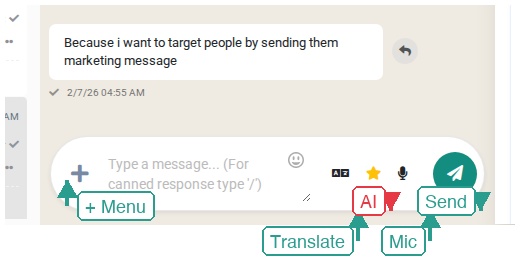
- + Menu — Open the attachment menu to send templates, canned responses, or files
- Translate — Translate your message into the customer's language (learn more)
- AI — Rewrite your message with AI for a more professional tone (learn more)
- Mic — Record and send an audio message
- Send — Send your message
Canned Responses
Canned responses are pre-written replies you can insert with a single keystroke. They're perfect for FAQs, greetings, and common follow-ups.
Using Canned Responses
- Click inside the message composer
- Type / (forward slash) to open the canned response list
- Scroll or search to find the response you need
- Click on a response to insert it into your message
- Edit if needed, then send
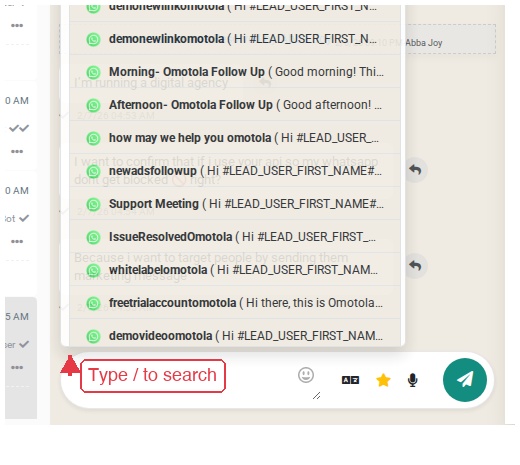
You can also access canned responses from the + Menu in the composer.
Using Variables
Make canned responses personal with variables:
{{first_name}}— Customer's first name{{last_name}}— Customer's last name
Example: "Hi {{first_name}}, thanks for reaching out! How can I help you today?"
Becomes: "Hi John, thanks for reaching out! How can I help you today?"
Sending Templates and Flows
When the 24-hour messaging window has closed, you need to use an approved WhatsApp template to re-engage the customer. You can also send bot flows to trigger automated conversations.
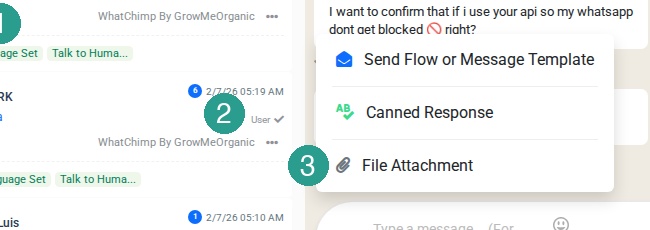
- Click the + Menu button in the composer
- Choose Send Flow or Message Template
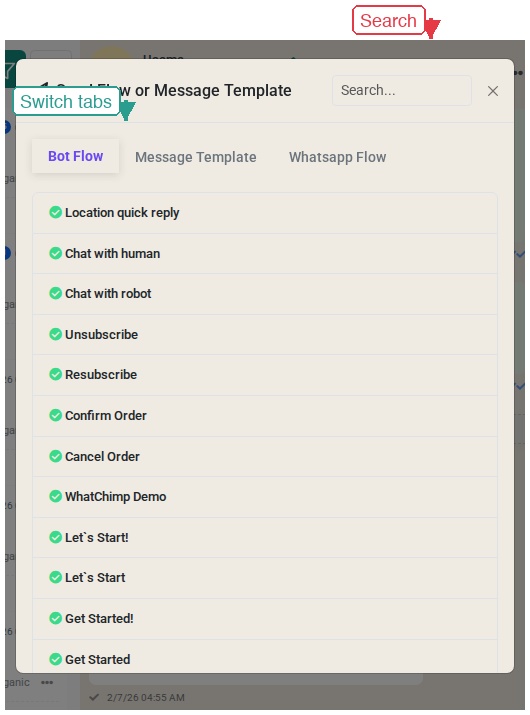
- The template selector opens with three tabs: Bot Flow, Message Template, and WhatsApp Flow
- Use the Search bar to find a specific template or flow
- Click on a template to select it
- Switch to the Message Template tab to see your approved WhatsApp message templates with previews
- Fill in any variable fields if the template requires them
- Click Send
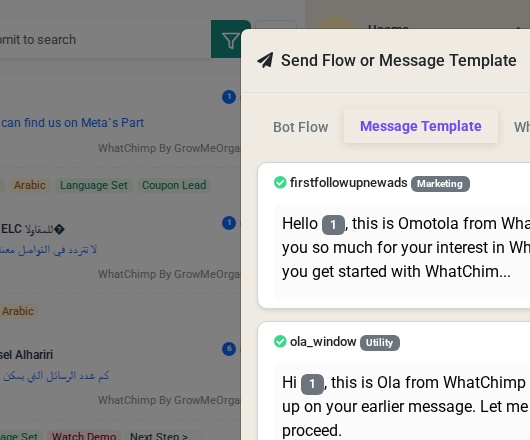
The customer receives your template. When they reply, the 24-hour messaging window reopens for free-form messaging.
The 24-Hour Messaging Window
WhatsApp enforces a 24-hour rule for business messaging:
- Inside the window — After a customer messages you, you can send any message freely for 24 hours
- Outside the window — You can only send pre-approved template messages
Tips
- Respond quickly to stay inside the window
- Prepare templates for common follow-ups so you're never stuck
- Use templates to re-engage quiet customers
Sharing Attachments
Send files, images, and documents directly in the chat.
- Click the + Menu button in the composer
- Choose File Attachment
- The upload dialog appears — click Upload or drag and drop files into the dropzone
- Select your file(s) and send
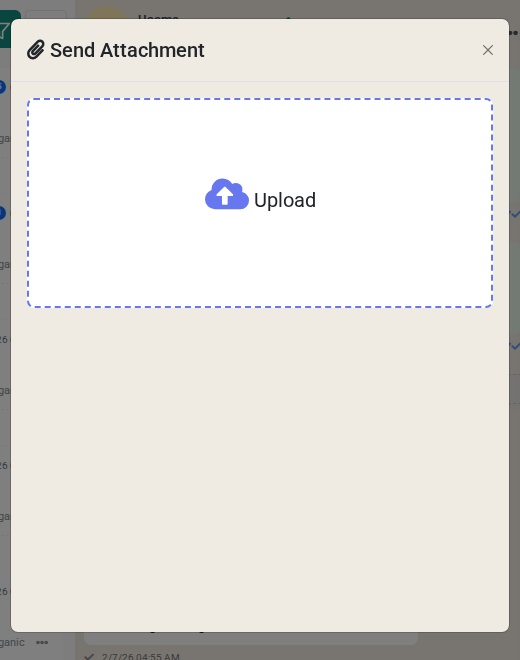
Supported File Types
- Images — PNG, JPG, GIF
- Videos — MP4
- Documents — PDF, DOC, DOCX, and other common formats
Audio Messages
To send a voice message:
- Click the Mic button in the composer toolbar
- Record your voice message
- Click Send
Audio messages play natively in WhatsApp, just like voice notes between friends.
Tips
- Use "/" for speed. Typing / in the composer is the fastest way to access canned responses — no clicking required
- Keep templates approved and ready. WhatsApp requires template approval, so prepare them in advance
- Use variables to personalize. Canned responses with
{{first_name}}feel personal even though they're pre-written - Compress large files. WhatsApp has file size limits, so compress large videos or documents before sending
Related Articles
- Introduction to Omnichannel Inbox — Learn the inbox interface and panels
- AI Translation & Rewrite — Translate messages and polish replies with AI
- Team Collaboration & Agent Assignment — Assign conversations to the right team member