Why Your Chatbot Gets Stuck on an Old Conversation (and How to Fix It)
If your WhatsApp chatbot stays stuck on an old, unfinished Input Flow, set an Input Flow Session Expiry Time so abandoned sessions clear automatically.
Updated 25 September 2026
Picture this. You set up an Input Flow to collect a customer's name, email, and phone number, one question at a time. The customer answers the first two, then goes quiet without finishing. Later you message them again, but instead of a fresh start, your bot is still waiting on that old, half-finished flow. Their next reply gets read as the answer to a question you asked days ago.
If your chatbot ever feels stuck on a previous conversation, or keeps asking about something the customer already moved past, this is almost always why. The fix is one setting: Input Flow Session Expiry Time.
Why the bot gets stuck
When a customer enters an Input Flow, WhatChimp opens a session and remembers which question it is waiting on. Every message the customer sends after that is treated as the answer to the current question, until the flow finishes.
If the customer never finishes, that session does not close on its own. The default Input Flow Session Expiry Time is 0, which means the session never expires. So the next time anyone messages, the bot is still parked on the old question, and the conversation feels frozen.
Setting an expiry time solves it. If the customer does not complete the flow within the time you choose, the session is dropped, and their next message starts clean.
How to set an Input Flow Session Expiry Time
- Open Bot Manager from the left sidebar.
- In the Bots list, click the bot you want to change.
- Click the settings (gear) icon next to the bot's name to open its Configuration.
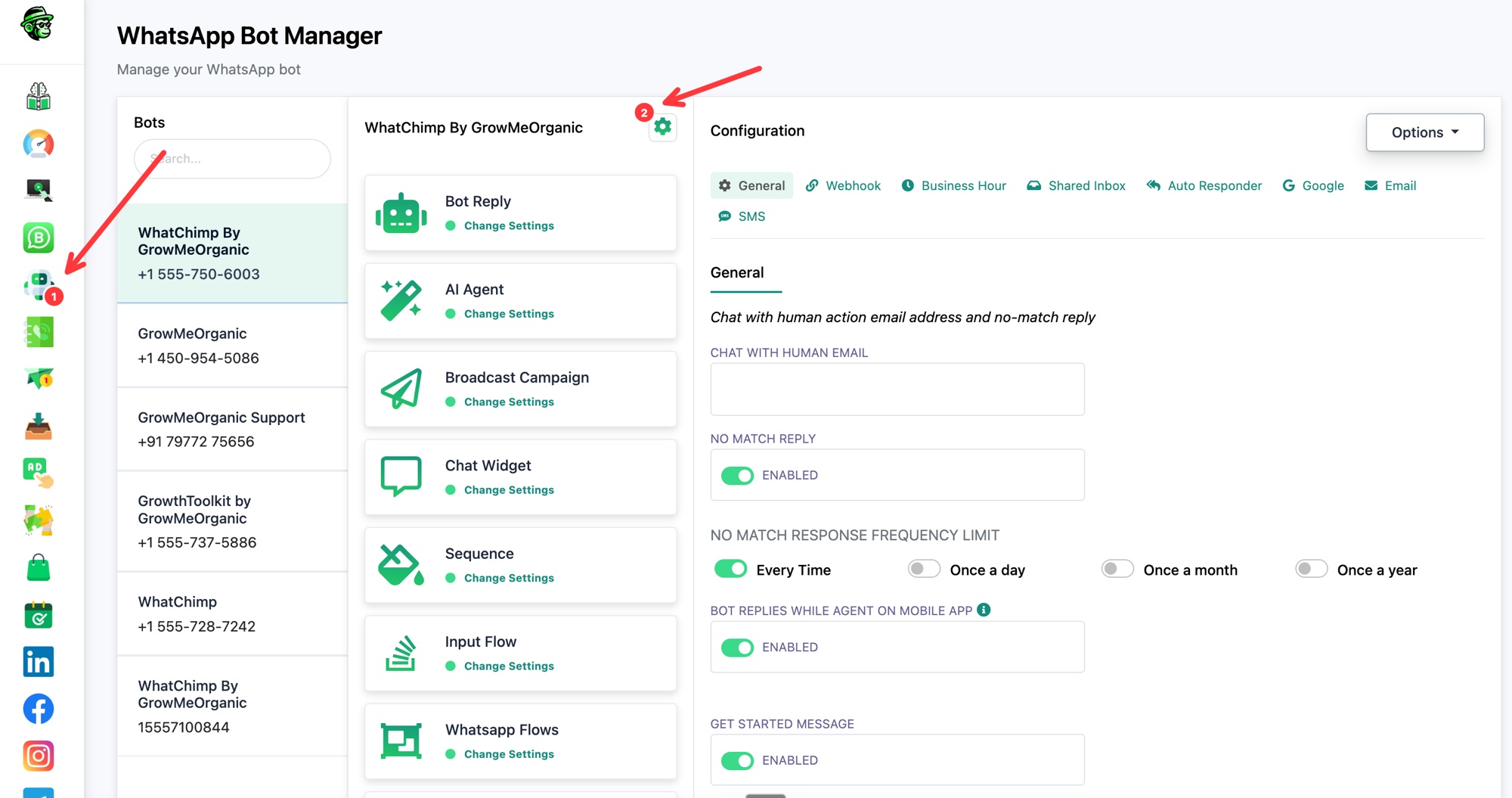
- In Configuration, open the Shared Inbox tab.
- Scroll down to the Session Expiry Time section.
- In Input Flow Session Expiry Time (in minute), enter how many minutes a flow can stay open before it expires. For example, 30.
- Save your changes.
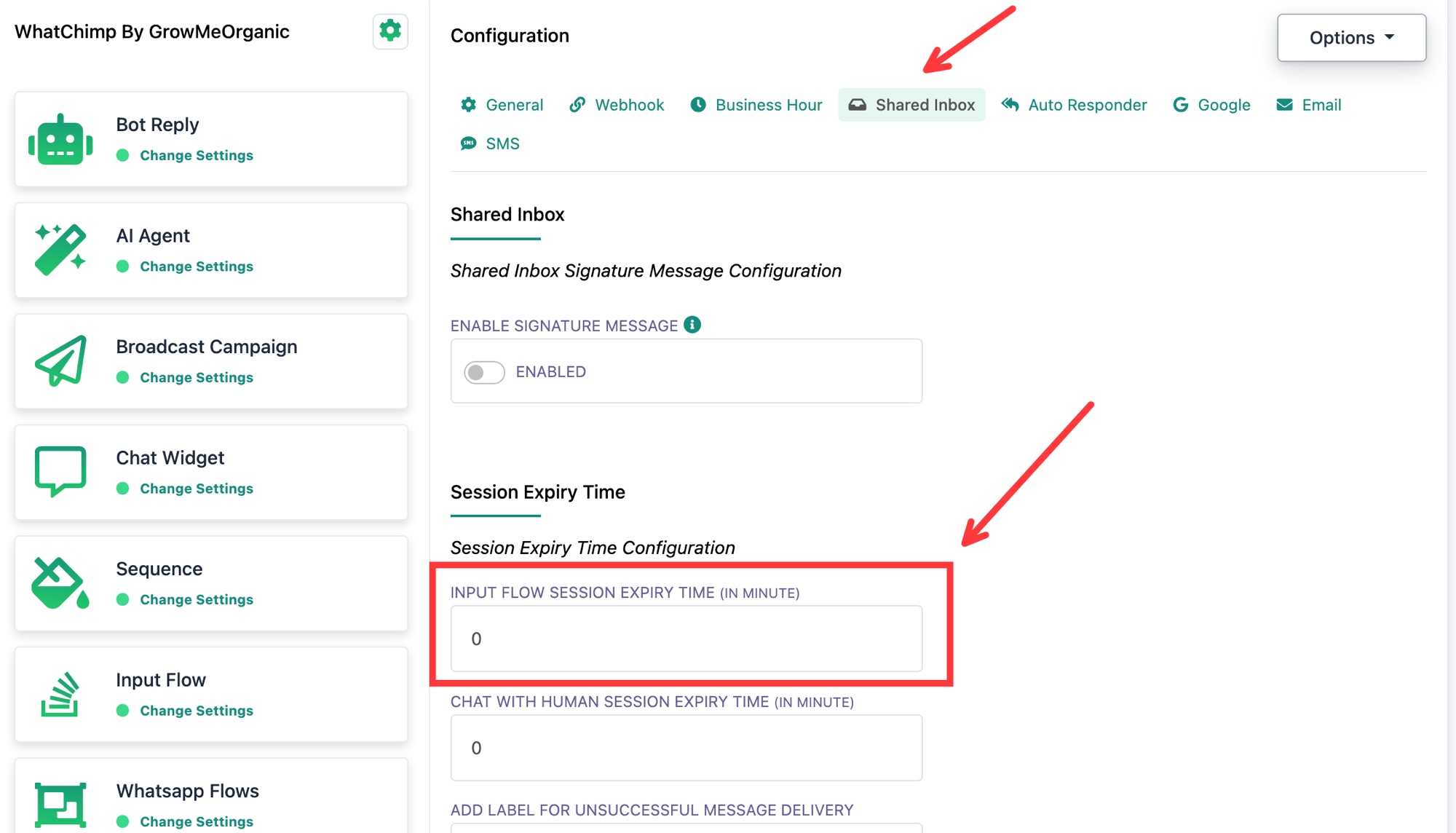 Set the Input Flow Session Expiry Time in minutes
Remember: A value of 0 means the session never expires, and that is exactly what leaves a flow stuck. Enter any number above 0 to turn on automatic expiry.
What value should you choose
Pick a window that matches how long a real customer needs to answer:
- Quick flows (name, email, phone): 10 to 30 minutes is usually plenty.
- Longer or more considered answers (booking details, support context): 60 minutes or more.
There is no perfect number. If customers often get cut off mid-flow, raise it. If old sessions keep interfering with new chats, lower it.
What happens when a session expires
- The unfinished Input Flow closes, and any partly collected answers from that session are dropped.
- The customer's next message is treated as a brand new message, so your normal keywords, bot replies, and triggers work again.
- Nothing is sent to the customer when a session expires. It clears quietly in the background.
A related setting: Chat With Human Session Expiry Time
Just below Input Flow you will see Chat With Human Session Expiry Time (in minute). This controls how long a conversation stays handed off to a human agent before the bot takes back over. It works the same way: 0 means it never expires. Set it if your live-chat handoffs stay open longer than you want.
Tips
- Test it yourself. Start the flow, stop halfway, wait past the expiry time, then send a new message and confirm the bot starts fresh.
- Keep the window realistic. Too short and you cut off slow repliers, too long and stale sessions block new chats.
- This setting is per bot. If you run several numbers, set it on each one.