No Match Reply & Frequency Setup
Configure automatic replies for unmatched messages and control reply frequency
Updated 25 September 2026
Video: https://www.youtube.com/watch?v=jLKv4AqJAyA
When a subscriber's message doesn't match any chatbot keyword, WhatChimp sends an automatic fallback called a No Match Reply. The Frequency setting controls how often this reply is sent.
No Match Reply
A fallback response for messages that don't match any keyword. Use it to:
- Suggest an alternative action
- Share a help link
- Direct the subscriber to a human agent
Frequency Options
| Option | Behavior |
|---|---|
| Every Time | Replies on every unmatched message. |
| Once a day | Replies at most once per subscriber per day. |
| Once a month | Replies at most once per subscriber per month. |
| Once a year | Replies at most once per subscriber per year. |
Edit the Reply Content
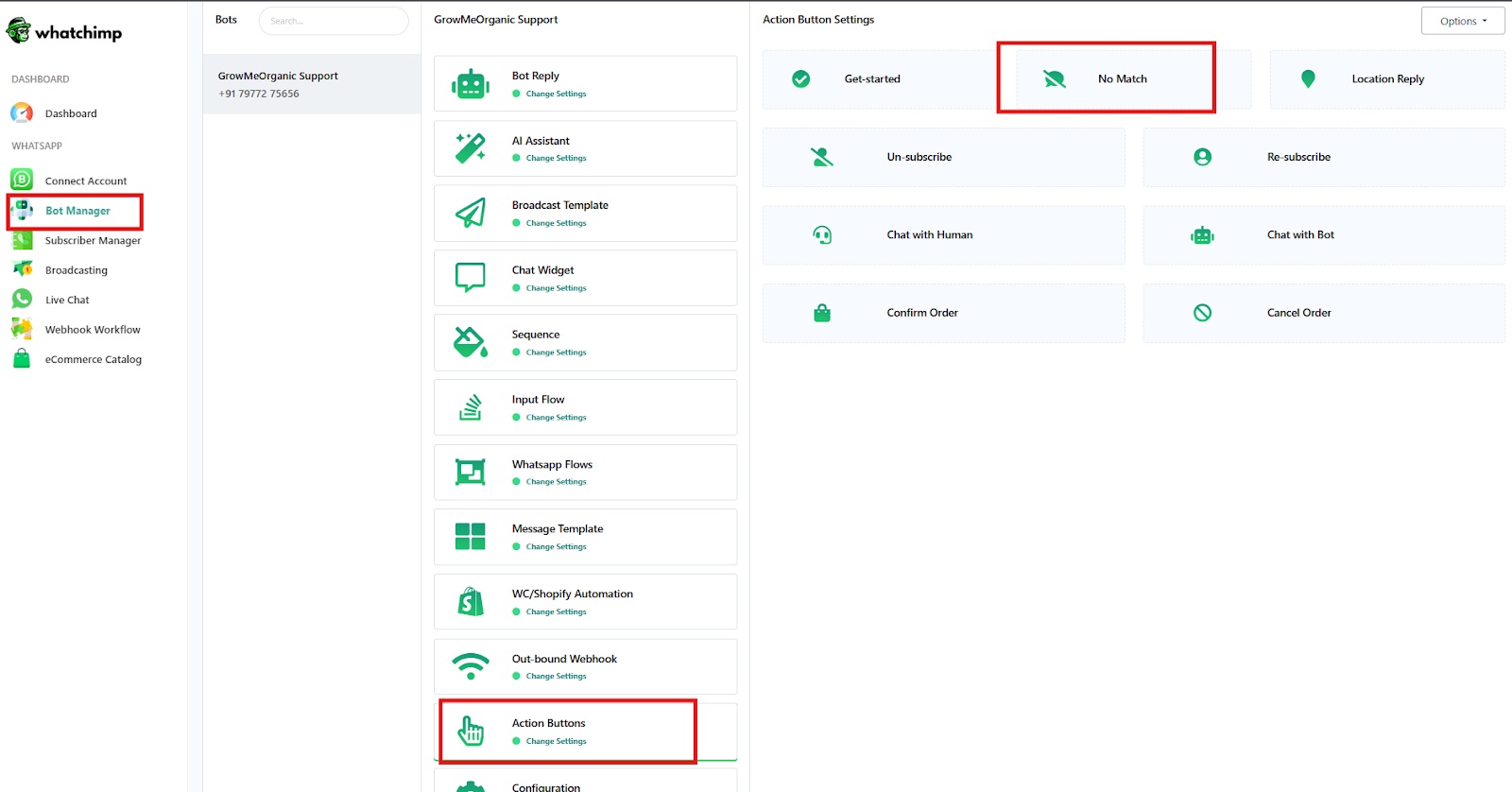
Go to: Sidebar > Bot Manager
- Click Actions on your WhatsApp bot.
- Select No Match Reply Template to open the Visual Flow Builder.
- Edit the reply by adding text, images, buttons, or quick replies.
- Click Save.
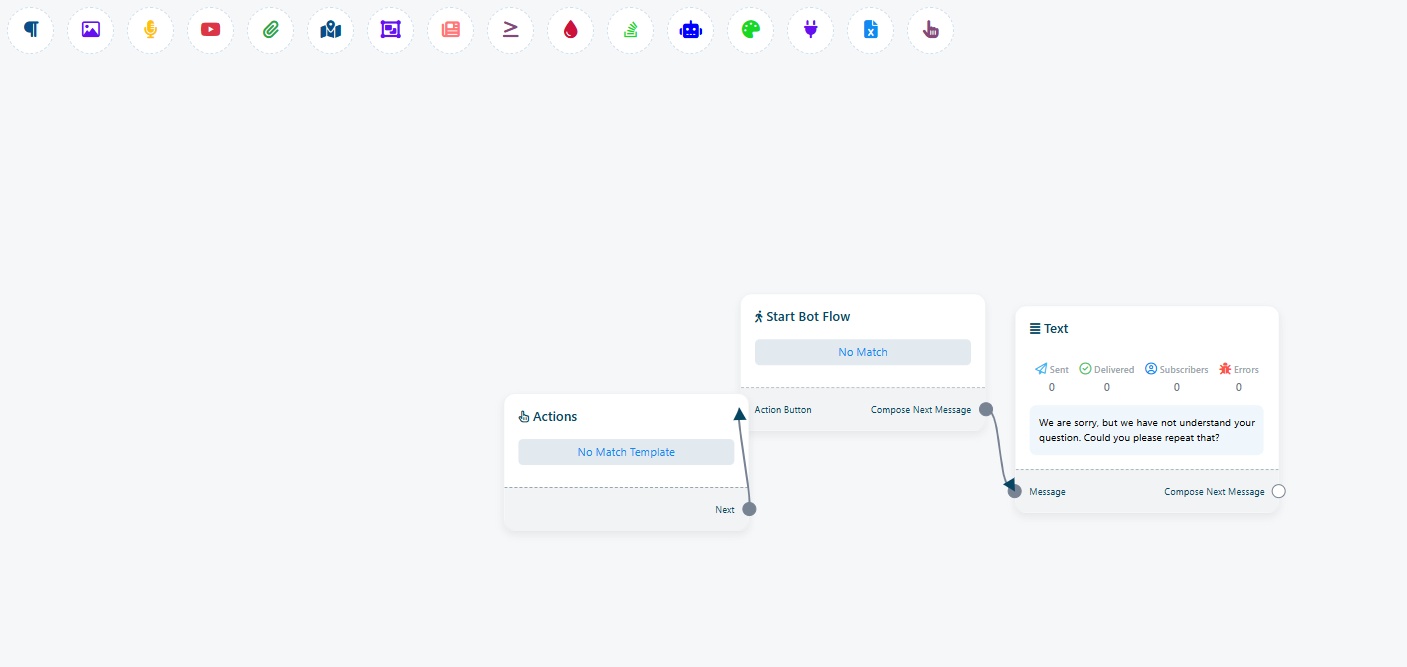 Edit the No Match Reply in the Visual Flow Builder
Enable and Set Frequency
The Configuration screen now opens from the settings icon next to your bot, not from a separate Configuration tab.
- Open Bot Manager from the left sidebar.
- In the Bots list, click the bot you want to change.
- Click the settings (gear) icon next to the bot's name to open its Configuration.
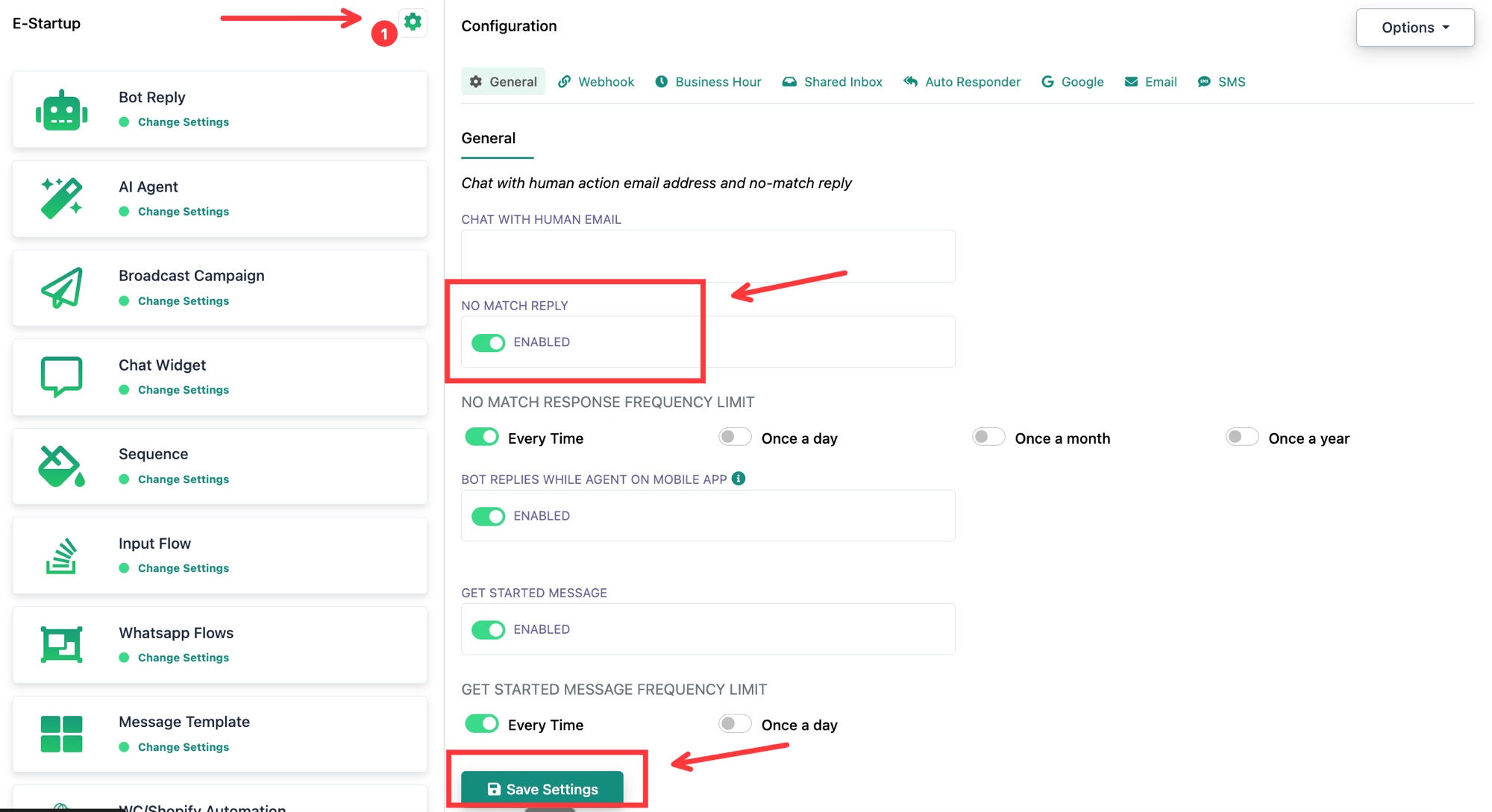
- Stay on the General tab.
- Find No Match Reply and toggle it on.
- Under No Match Response Frequency Limit, choose how often the reply is sent: Every Time, Once a day, Once a month, or Once a year.
- Click Save Settings.
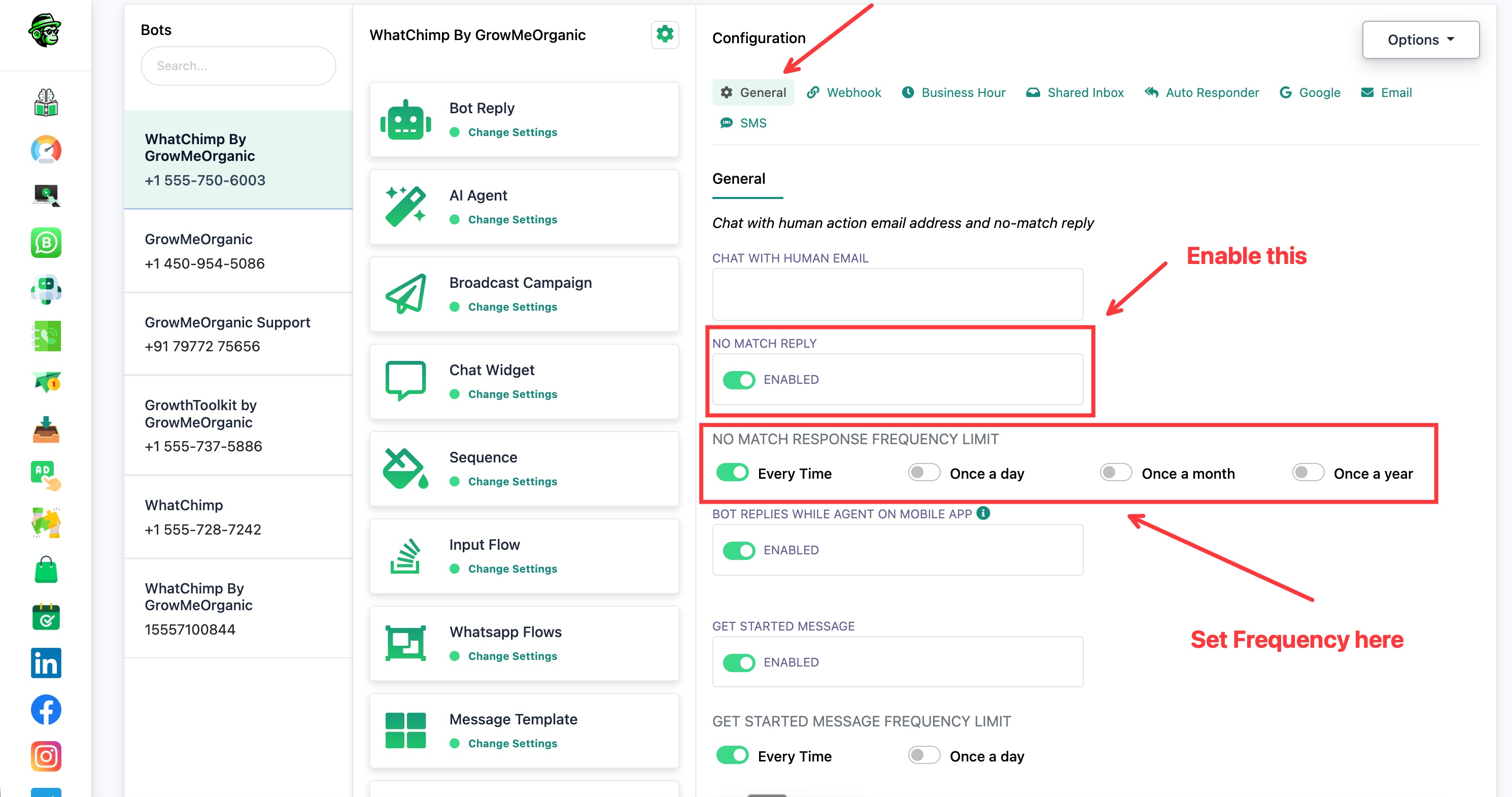 Enable No Match Reply, then pick a frequency under No Match Response Frequency Limit
That is it. The No Match Reply now turns on and fires at the frequency you picked.