How to Make a Chatbot Reply to Any Keyword (Not Just the Ones You Set)
Want one chatbot to answer any message, not just exact keywords? Set up a catch-all reply so every message a customer sends gets a response.
Updated 25 September 2026
You set up a keyword-based chatbot, so it fires when someone types an exact word like "price" or "support". That works well, until a customer types something you did not plan for and gets no reply at all. What if you want one chatbot to respond to any message, no matter which words the customer uses?
This guide shows you how to set up a catch-all bot that fires on any keyword, so every customer message gets a response.
Why a keyword-only chatbot leaves gaps
A keyword chatbot is precise. It only fires when the incoming message matches one of the keywords you configured. That precision is useful, but it also means every other message, every typo, greeting, or question you did not anticipate, falls through with no reply.
For a lot of use cases you want the opposite: a single chatbot that answers anything.
The catch-all that fires on any keyword
WhatChimp has a built-in catch-all reply for exactly this. It triggers on every message that does not match one of your specific keywords, so in practice it fires on any keyword. In the app this option is called the No Match Reply. Think of it as your "any keyword" or default chatbot.
It works alongside your keyword bots, it does not replace them:
- If a message matches a specific keyword, that keyword bot fires.
- If it matches nothing, your catch-all fires instead.
So you keep your precise keyword bots and still guarantee that every other message gets answered.
Step 1: Build your catch-all reply
First, design the message this bot will send.
- Open Bot Manager from the left sidebar.
- Click Actions on your WhatsApp bot, then select No Match Reply Template to open the Visual Flow Builder.
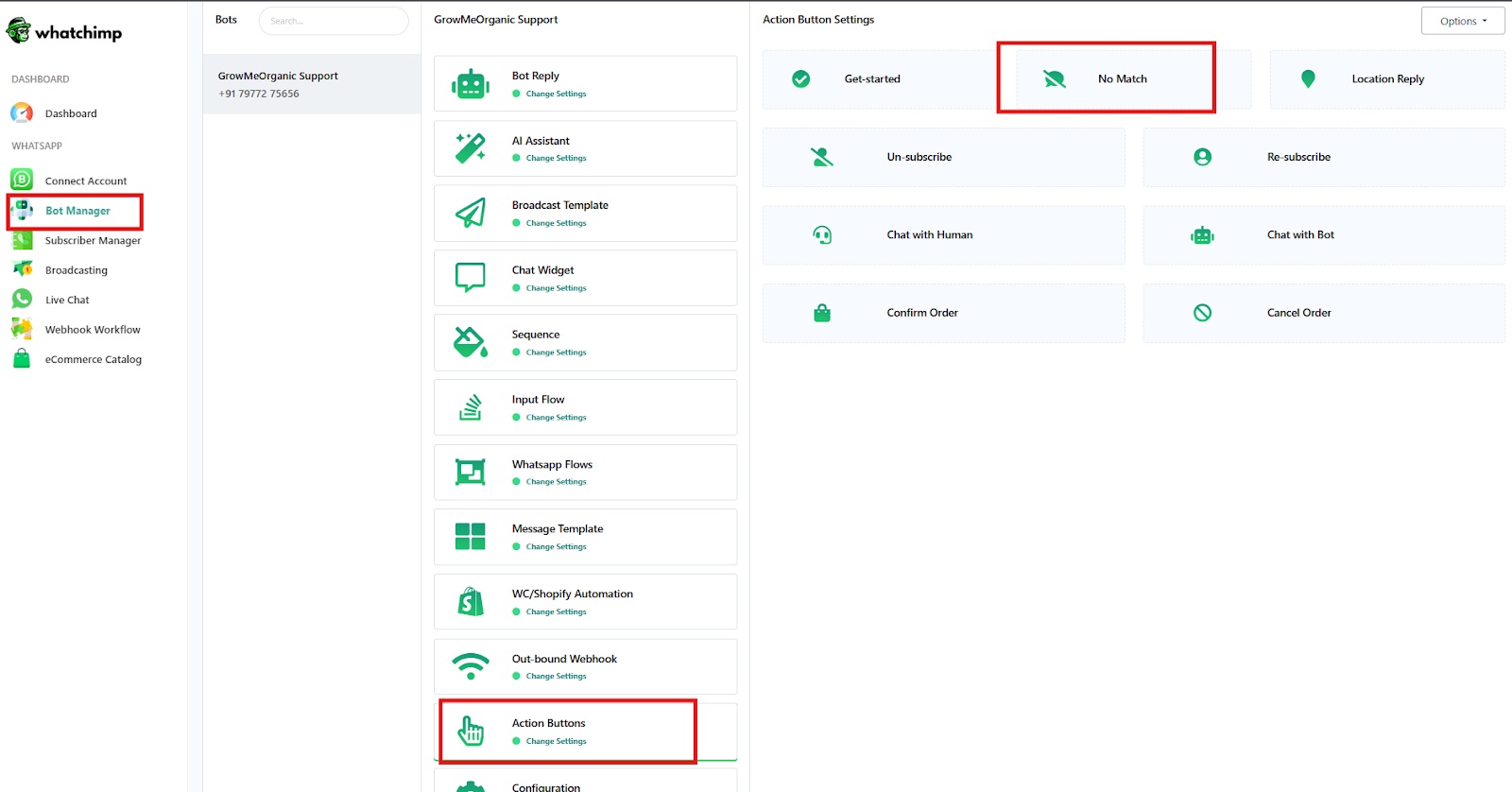
- Add your reply: text, images, buttons, or quick replies. A good catch-all points the customer somewhere useful, like a menu or a human agent.
- Click Save.
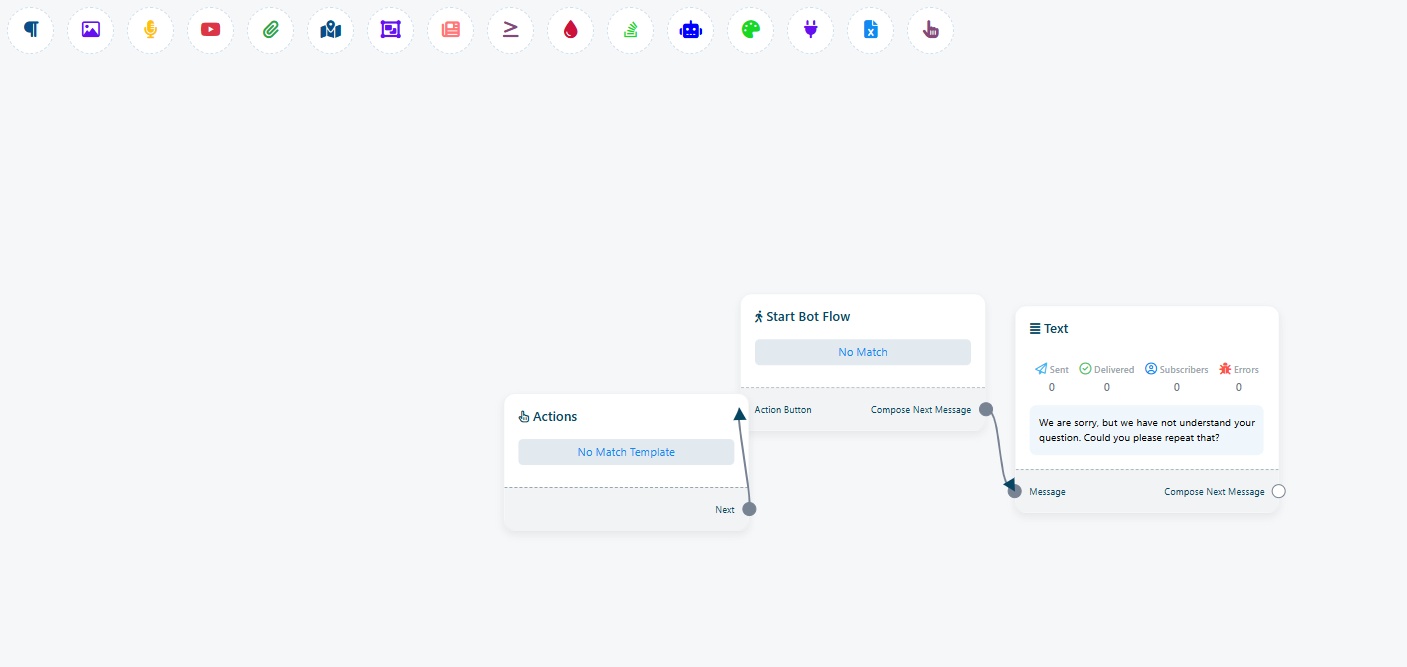 Build the catch-all message in the Visual Flow Builder
Step 2: Turn it on and choose how often it fires
Now switch the catch-all on. The settings live in your bot's Configuration, which opens from the settings icon next to the bot.
- In the Bots list, click the bot you want to change.
- Click the settings (gear) icon next to the bot's name to open its Configuration.
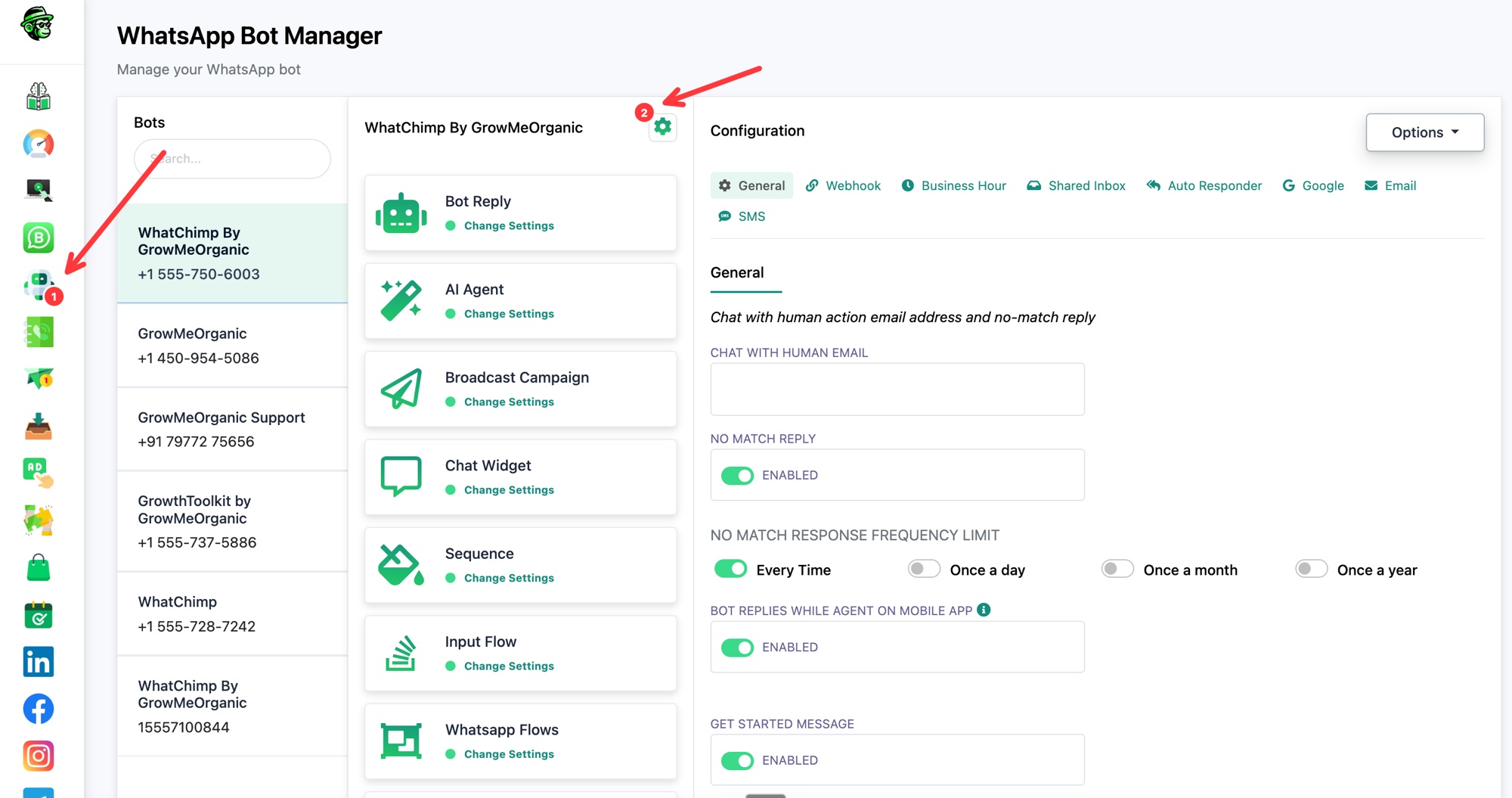
- On the General tab, find No Match Reply and toggle it on.
- Under No Match Response Frequency Limit, choose how often it fires. For a bot that truly answers every message, pick Every Time. The other options (Once a day, Once a month, Once a year) limit it to one catch-all reply per subscriber in that window.
- Click Save Settings.
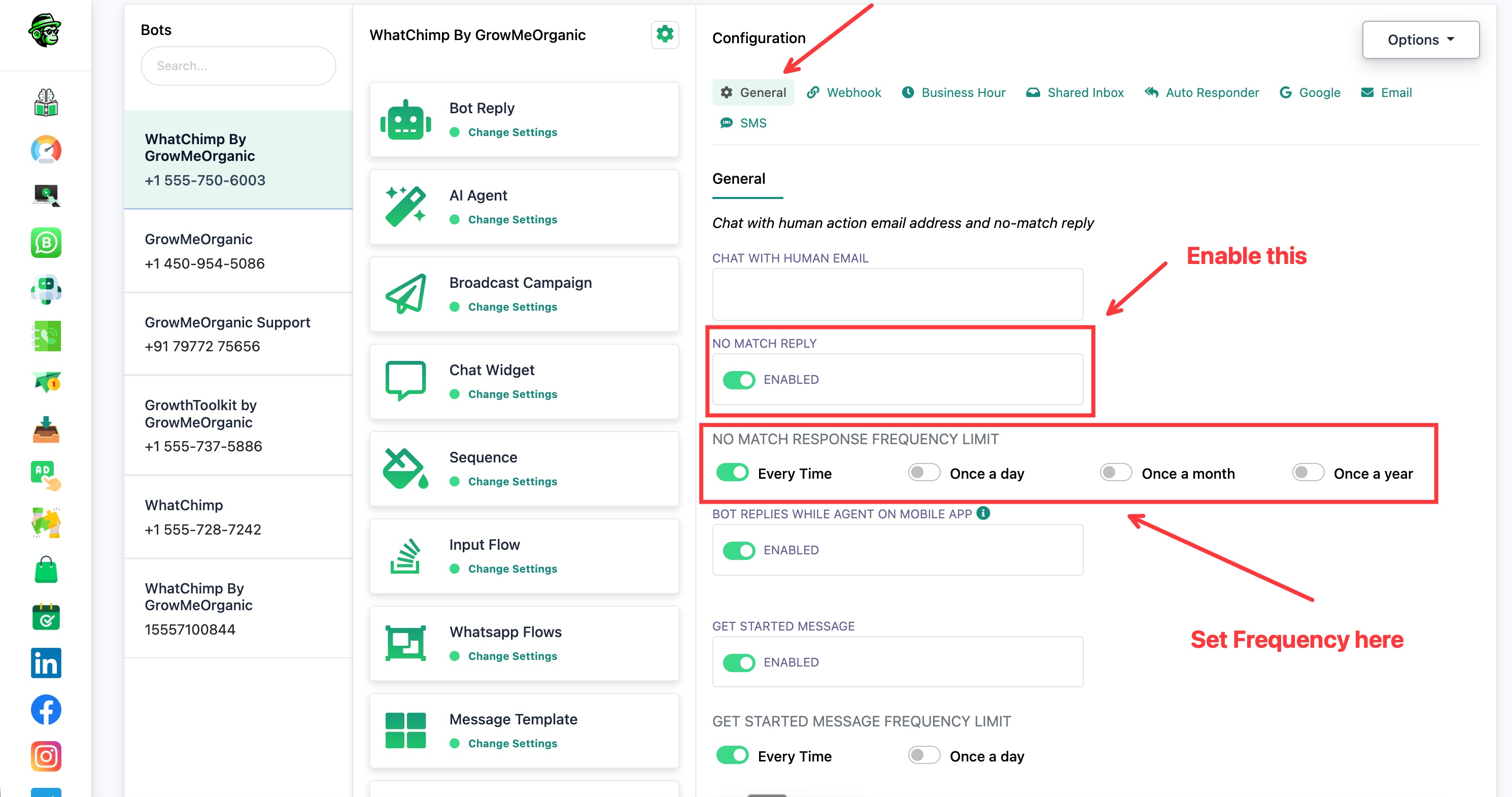 Enable the catch-all reply and set how often it fires
Now your chatbot fires on any keyword. Any message that does not match a specific keyword gets your catch-all reply.
Tips
- Set the frequency to Every Time if you want a real "respond to everything" bot. Lower frequencies are better when the catch-all is just an occasional nudge.
- Keep the catch-all helpful, not a dead end. Offer a menu, a link, or a way to reach a person.
- This never overrides your keyword bots. It only catches the messages they miss, so you can run both together.