Auto-Tag Failed WhatsApp Deliveries So You Can Find and Recover Them
WhatChimp can automatically label any contact whose message failed to deliver, so you can find and follow up with everyone a broadcast missed.
Updated 25 September 2026
When you send a broadcast, not every message reaches its destination. Some numbers are inactive, some people blocked your business, and some messages fail for reasons on Meta's side. Normally those failures are easy to miss, because you only see a small status icon buried inside each conversation.
WhatChimp can flag them for you automatically. You pick one label, and from then on any contact whose message fails to deliver gets that label applied on its own. Later you filter by the label and see everyone a send missed, all in one list.
What this setting does
In your bot's Shared Inbox settings there is an option called Add Label for Unsuccessful Message Delivery. You choose a label, and WhatChimp applies that label to any subscriber whose message could not be delivered.
It runs quietly in the background, so you do not have to open each chat to check. Once the label is set, your failed deliveries collect themselves into a group you can open any time.
Before you start: create a label
The dropdown only lists labels that already exist, so if you do not have one for this yet, create it first.
- Go to Manage Subscribers and open your labels.
- Create a clear label, for example "Failed Delivery" or "Undelivered".
- Save it, then come back to the bot settings below.
If you already have a label you want to use, skip this step.
How to turn on auto-labelling for failed deliveries
- Open Bot Manager from the left sidebar.
- In the Bots list, click the bot you want to change.
- Click the settings (gear) icon next to the bot's name to open its Configuration.
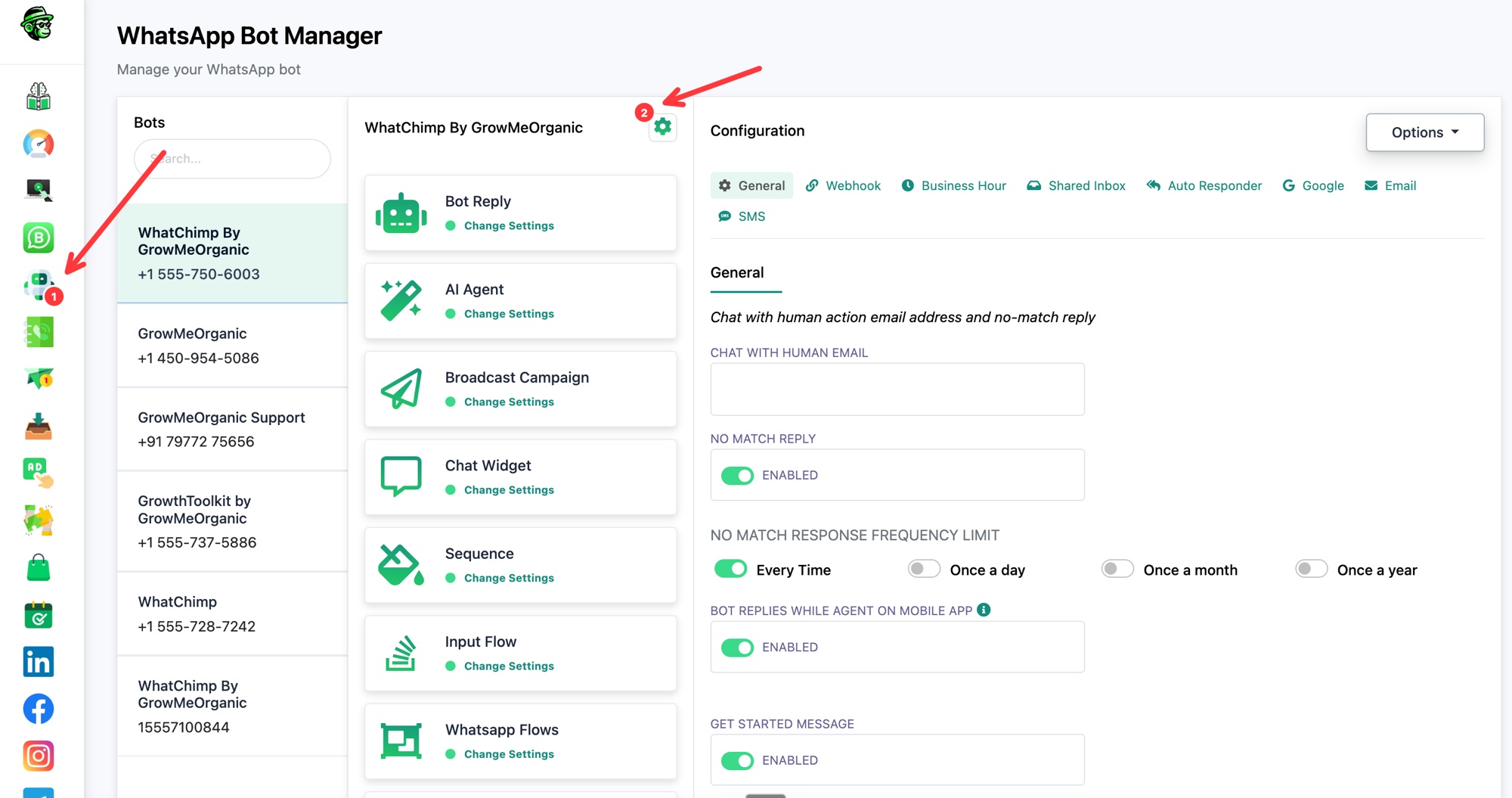
- Open the Shared Inbox tab.
- Scroll down to Add Label for Unsuccessful Message Delivery.
- Open the Select label dropdown and choose your failed-delivery label.
- Click Save Settings.
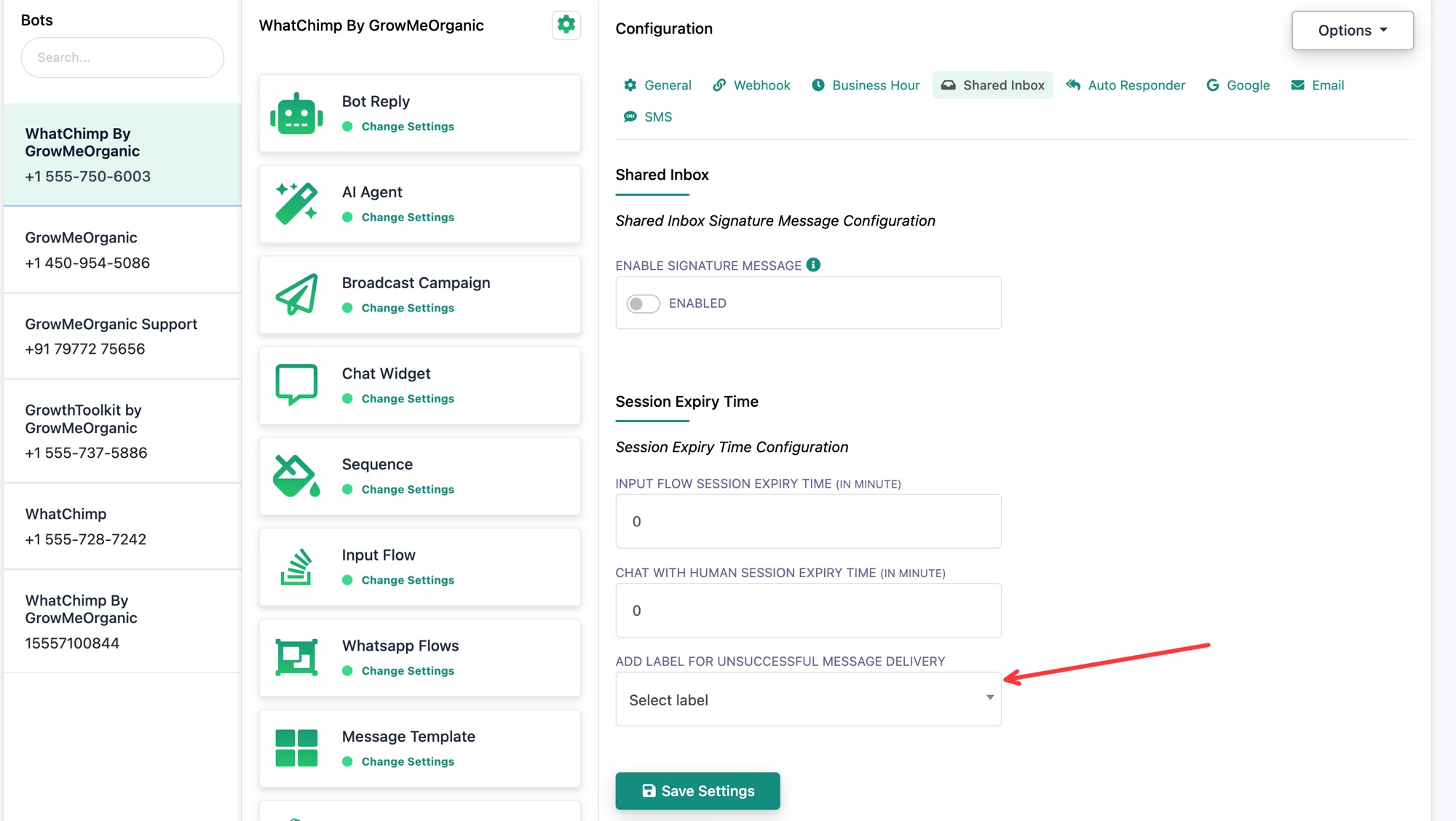 Choose a label under Add Label for Unsuccessful Message Delivery, then save
That is it. From now on, any contact whose message fails to deliver through this bot is tagged with that label.
How to find your failed deliveries
Once the label is collecting contacts:
- Go to Manage Subscribers (or the Omnichannel Inbox).
- Filter by the label you chose.
- You now have the full list of everyone a message did not reach.
From there you can clean out invalid numbers, retry on another channel, or follow up when the contact is active again.
What counts as a failed delivery
A delivery is marked unsuccessful when the message leaves WhatChimp but WhatsApp cannot deliver it to the recipient. Common reasons:
- The number is not on WhatsApp or is no longer active.
- The recipient blocked your business.
- You are outside the 24-hour window and no valid template applies.
- A temporary delivery error on Meta's side.
This is different from a message that is simply pending or still sending. Only messages WhatsApp reports as failed get the label.
Tips
- Use a label name you will recognise later, like "Undelivered June Broadcast" if you want to track one campaign.
- Review the labelled list right after every large broadcast, because that is when failures cluster.
- Pair this with the troubleshooting guide below to fix the root cause, not just tag the symptom.
- This setting is per bot, so set it on each number you send from.