Round Robin on Any Message (No Match Reply)
Assign every incoming WhatsApp message to a team and round-robin it to an available agent, using the No Match Reply.
Updated 21 June 2026
Use this when you want every incoming message to be handed to a team, not just messages that match a specific keyword. It is the right choice for a general support or sales number where any chat should reach an available agent straight away.
This works through the No Match Reply, the catch-all that fires whenever a customer's message does not match one of your keywords. You enable it, then add the team assignment to its flow.
Before you start: set up your team and agents first. See Create a Team and Add Your Agents.
Step 1: Open Bot Manager
In the left sidebar, click the Bot Manager icon to open the WhatsApp Bot Manager page. In the Bots list, select the bot you want to set up.
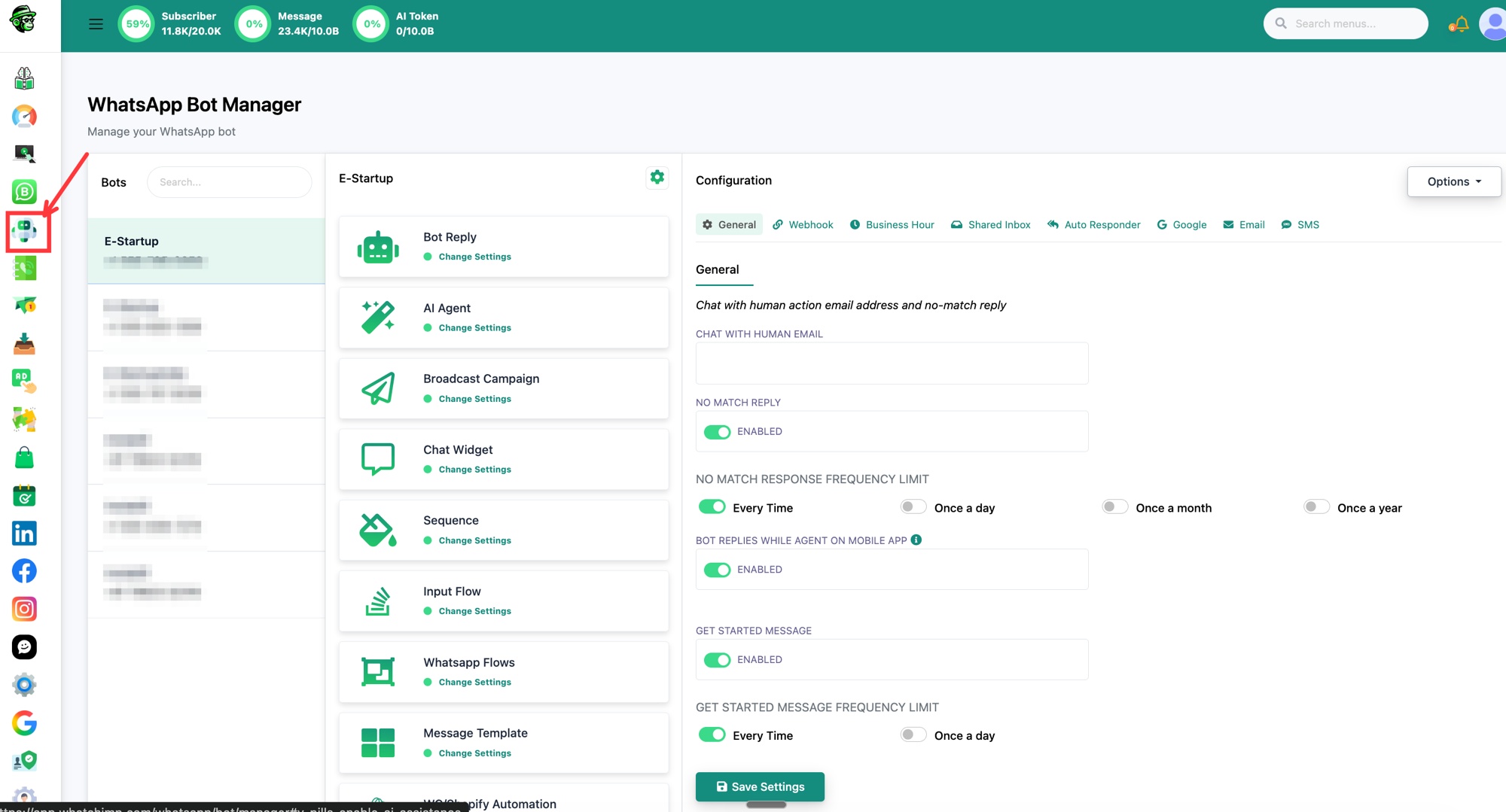 Open Bot Manager from the left sidebar and pick your bot
Step 2: Enable No Match Reply
Click the settings (gear) icon to open the bot's Configuration, then go to the General tab. Turn on No Match Reply, then under No Match Response Frequency Limit choose how often it fires: Every Time, Once a day, Once a month, or Once a year. Click Save Settings.
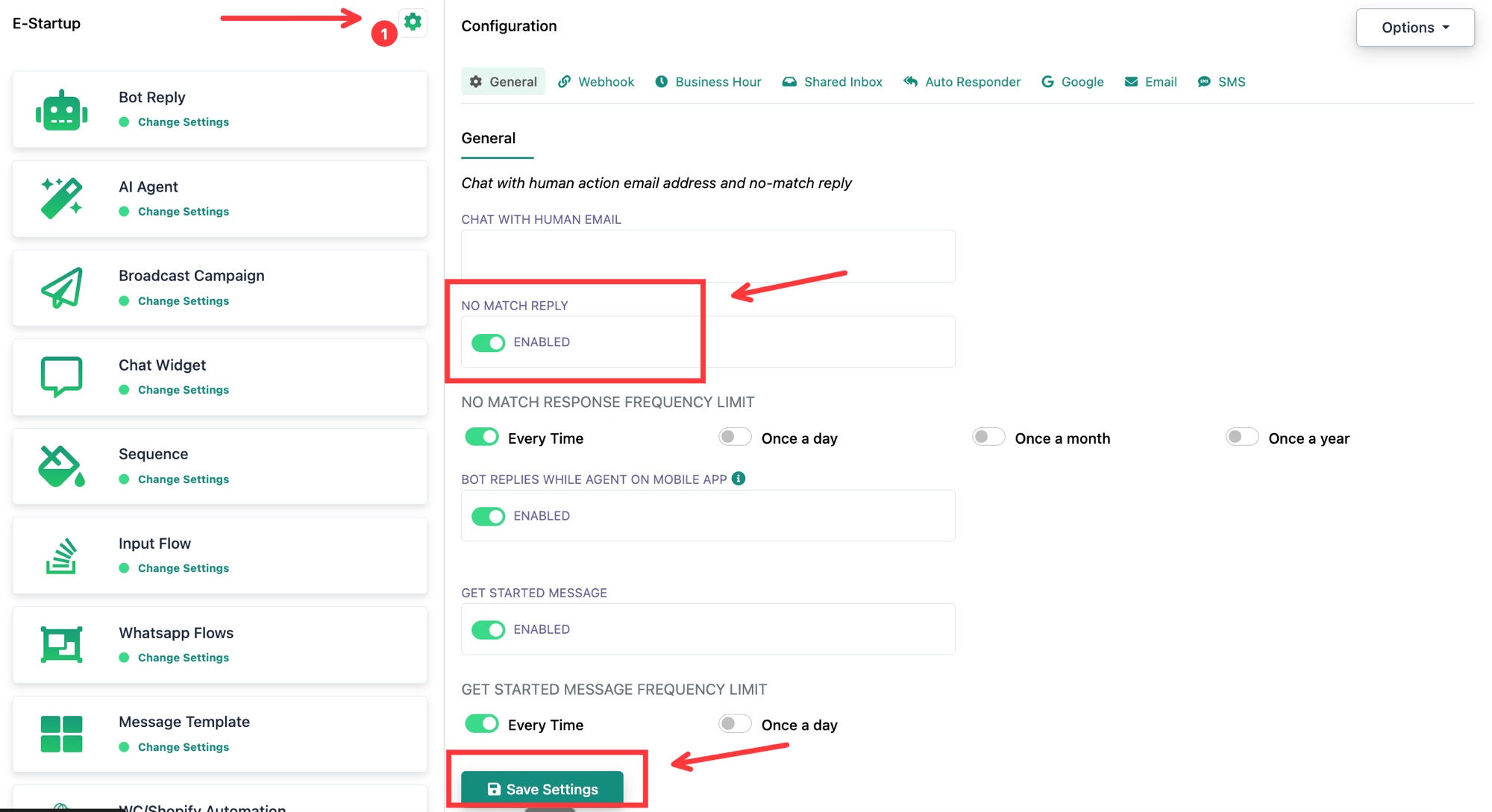 Enable No Match Reply and set its frequency, then Save Settings
Step 3: Open the No Match flow
From your bot's Actions, select No Match Reply Template.
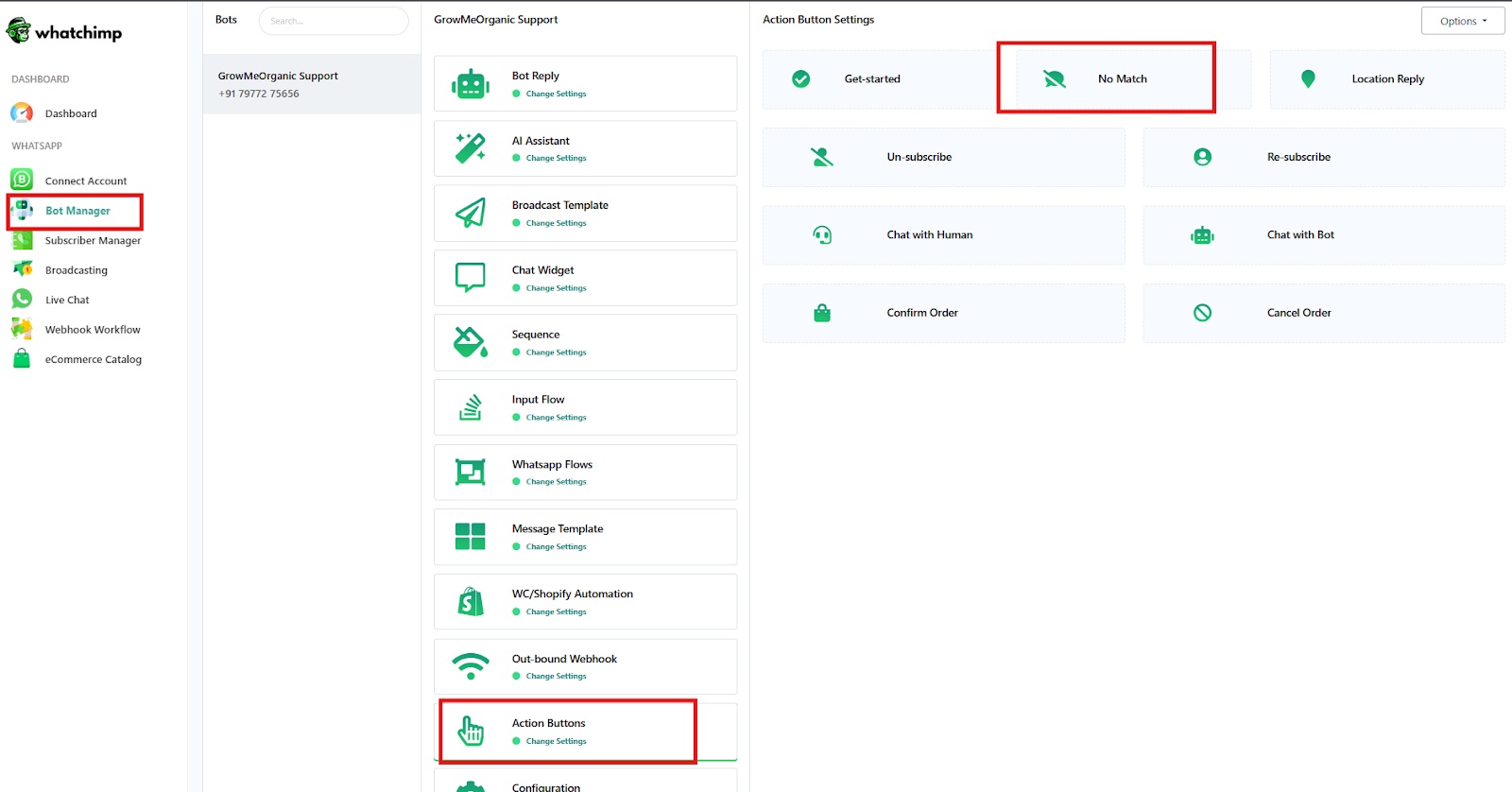 Click Actions, then No Match Reply Template
This opens the Visual Flow Builder showing your No Match flow: an Actions / No Match Template block joined to a Start Bot Flow / No Match block and your reply message.
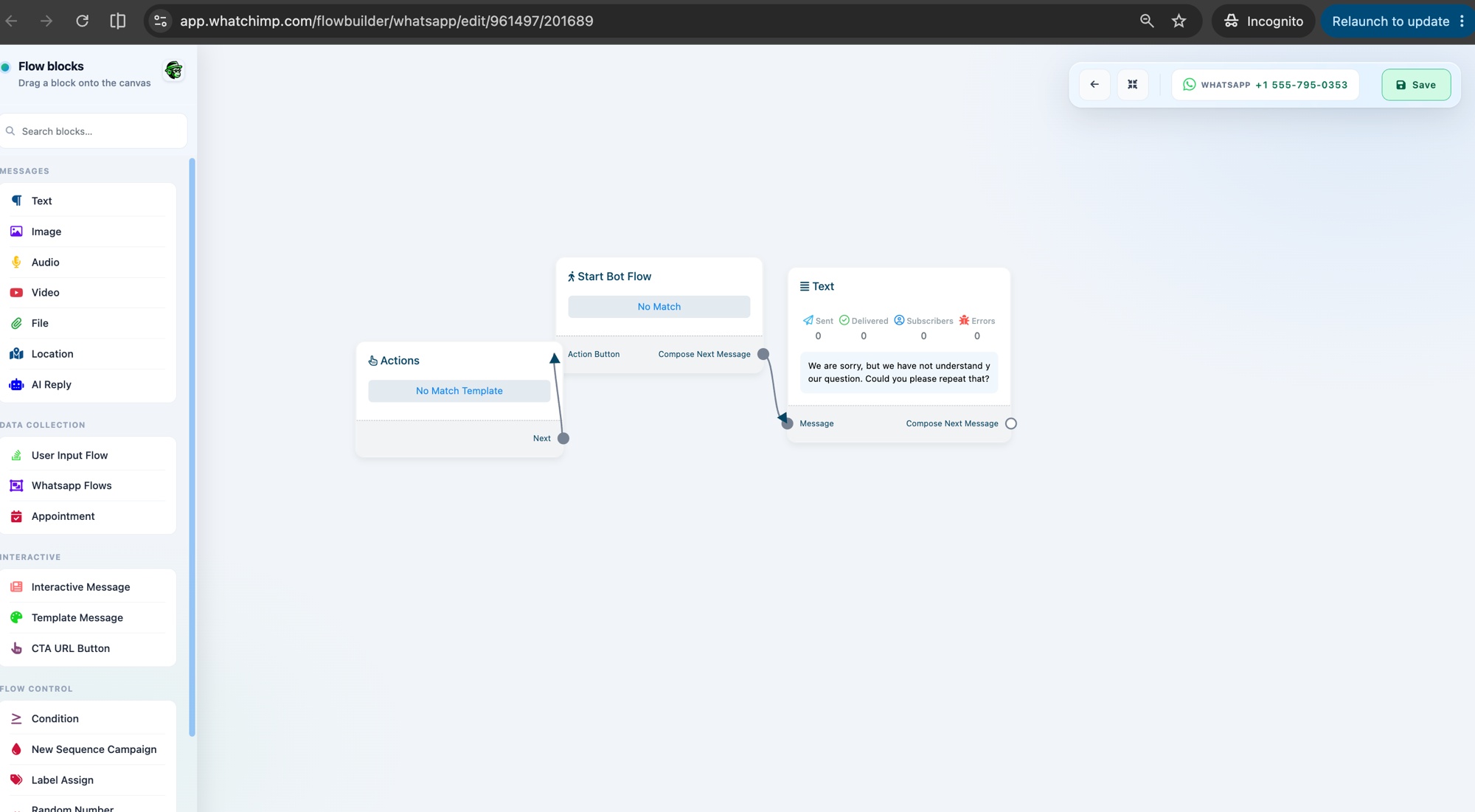 The No Match flow: Actions, Start Bot Flow, and the reply message
Step 4: Open the No Match block
Click the Start Bot Flow / No Match block to open its settings.
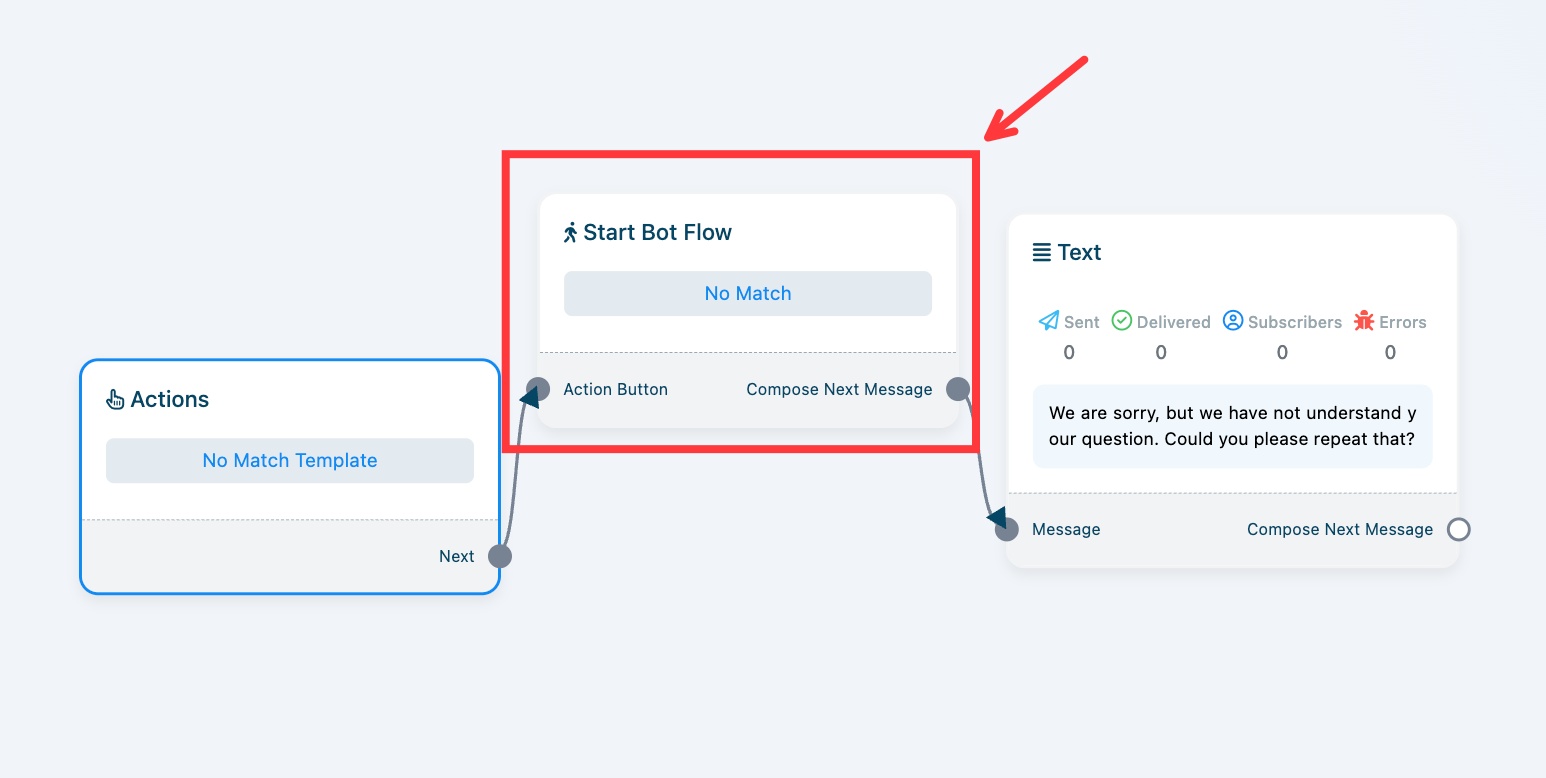 Click the Start Bot Flow No Match block to configure it
Step 5: Assign the conversation to your team
In the Configure Reference panel, expand Automation Actions. Under Assign Conversation to a group, select your Team Role.
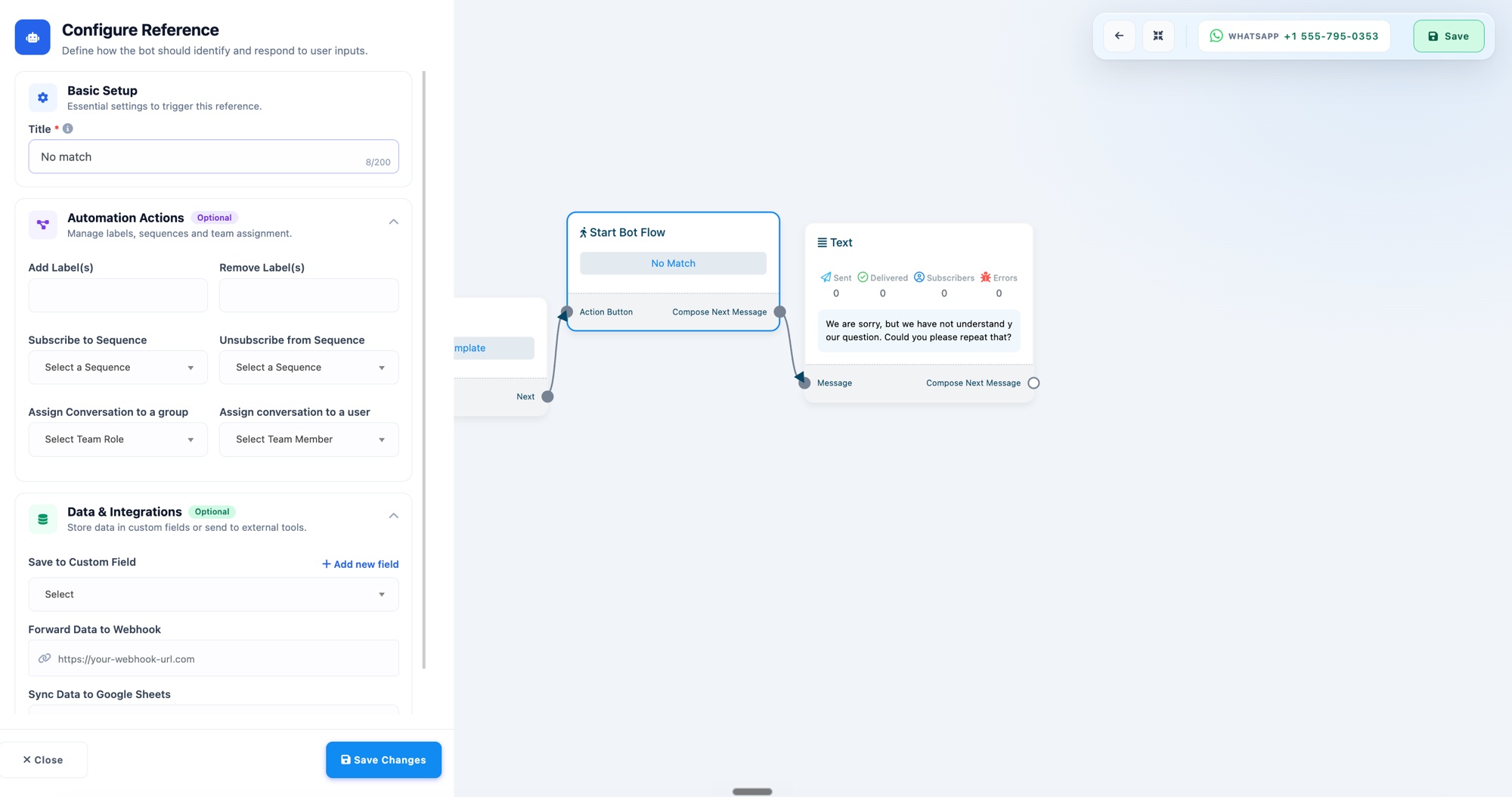 Expand Automation Actions and set Assign Conversation to a group
Assigning to a group is what makes it round robin: WhatChimp rotates the chat to an available agent in that team. If you instead want every message to go to one specific person, use Assign conversation to a user and pick a Team Member.
Step 6: Save
Choose the Team Role (for example "Team Leader (Pooja)"), click Save Changes, then click Save at the top right to save the flow.
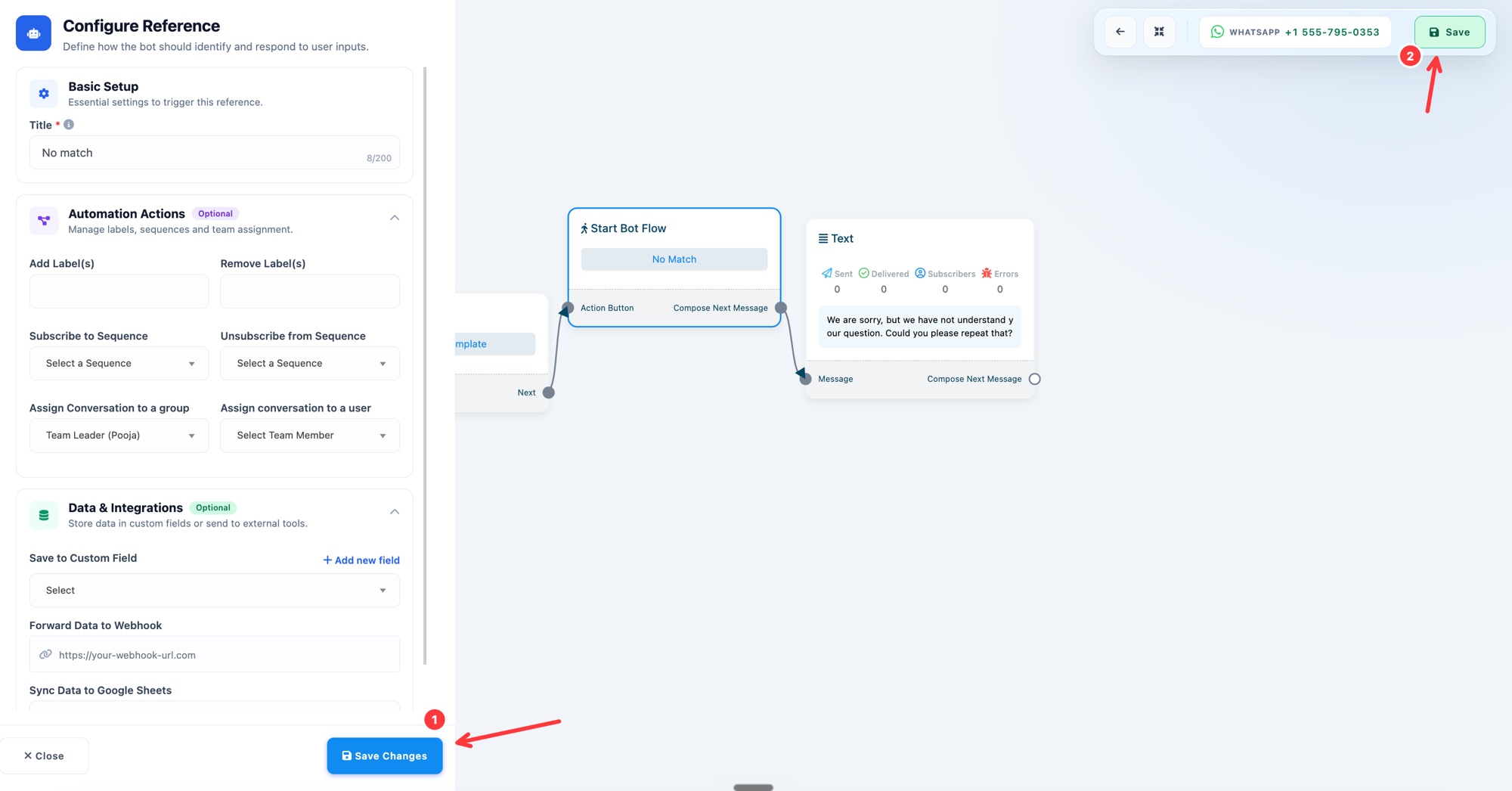 Pick the Team Role, then Save Changes and Save
That is it. Any message that does not match a keyword now gets round-robined to an available agent in your team.
For more on the catch-all reply itself, see No Match Reply and Frequency Setup.