Round Robin on a Keyword
Route customers to the right team based on the keyword they send, then round-robin the chat to an available agent.
Updated 21 June 2026
Use this when a specific keyword should send the customer to a specific team. For example, "sales" goes to your Sales team and "support" goes to your Support team. Each keyword can route to a different team, so the right department always picks up.
A keyword is the trigger that starts a chatbot flow, so this is the very first thing the bot checks. You add the team assignment right at that starting point.
Before you start: set up your team and agents first. See Create a Team and Add Your Agents.
Step 1: Open Bot Manager
In the left sidebar, click Bot Manager. Select your bot from the Bots list, then open Bot Reply. You will see the list of your bot's replies.
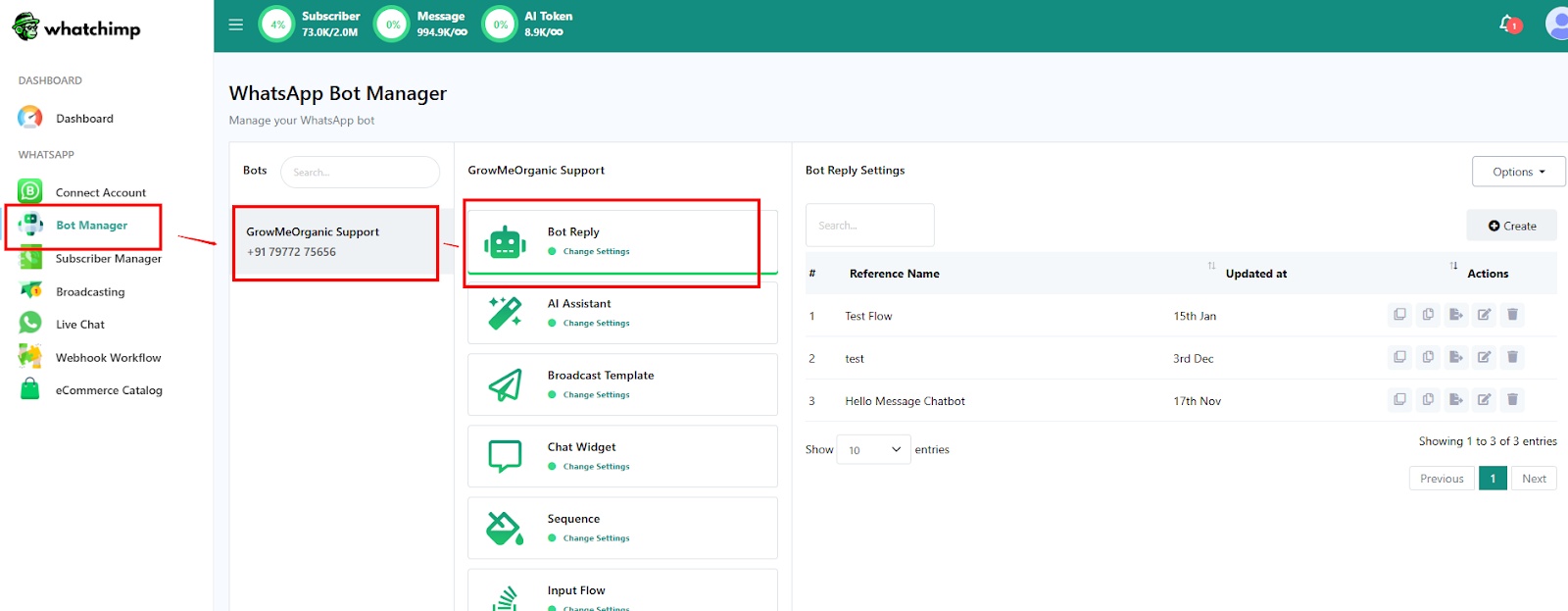 Open Bot Manager, pick your bot, and open Bot Reply
Step 2: Create a new reply
Click Create to start a new bot reply.
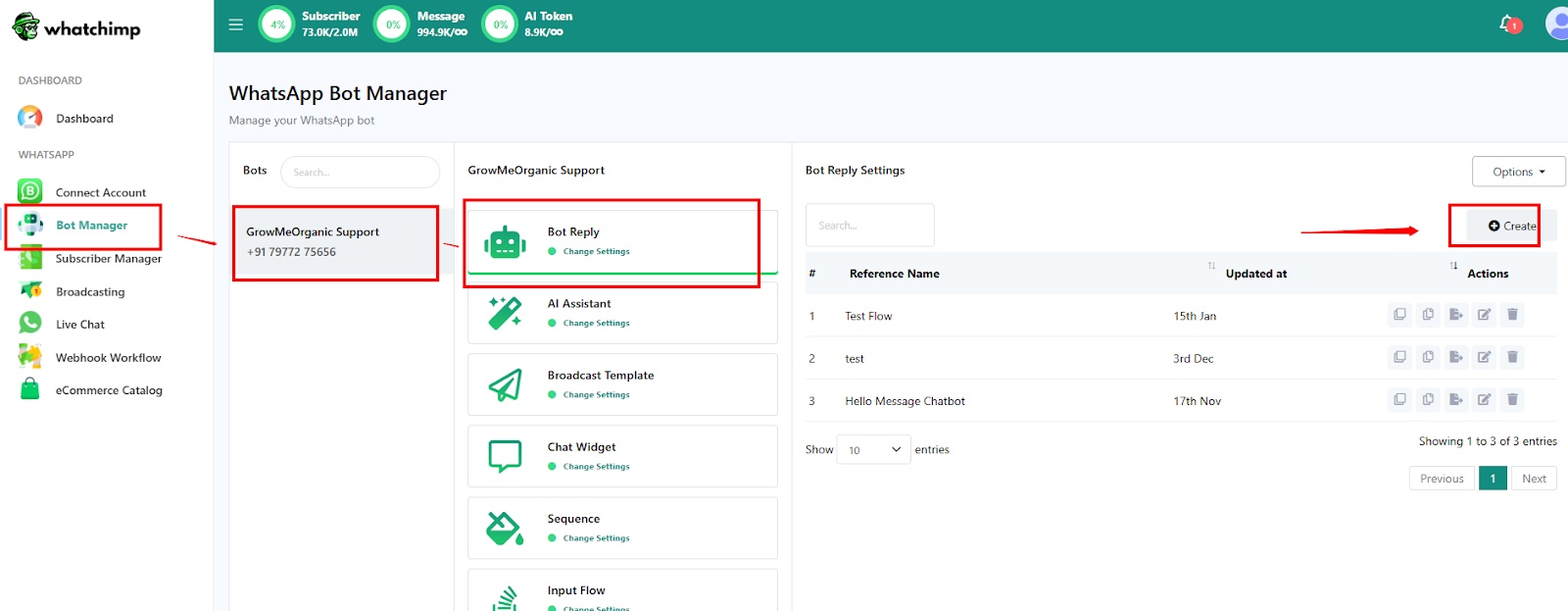 Click Create to add a new reply
Step 3: Open the Start Bot Flow block
The Visual Flow Builder opens with a Start Bot Flow block. Click the block to configure it.
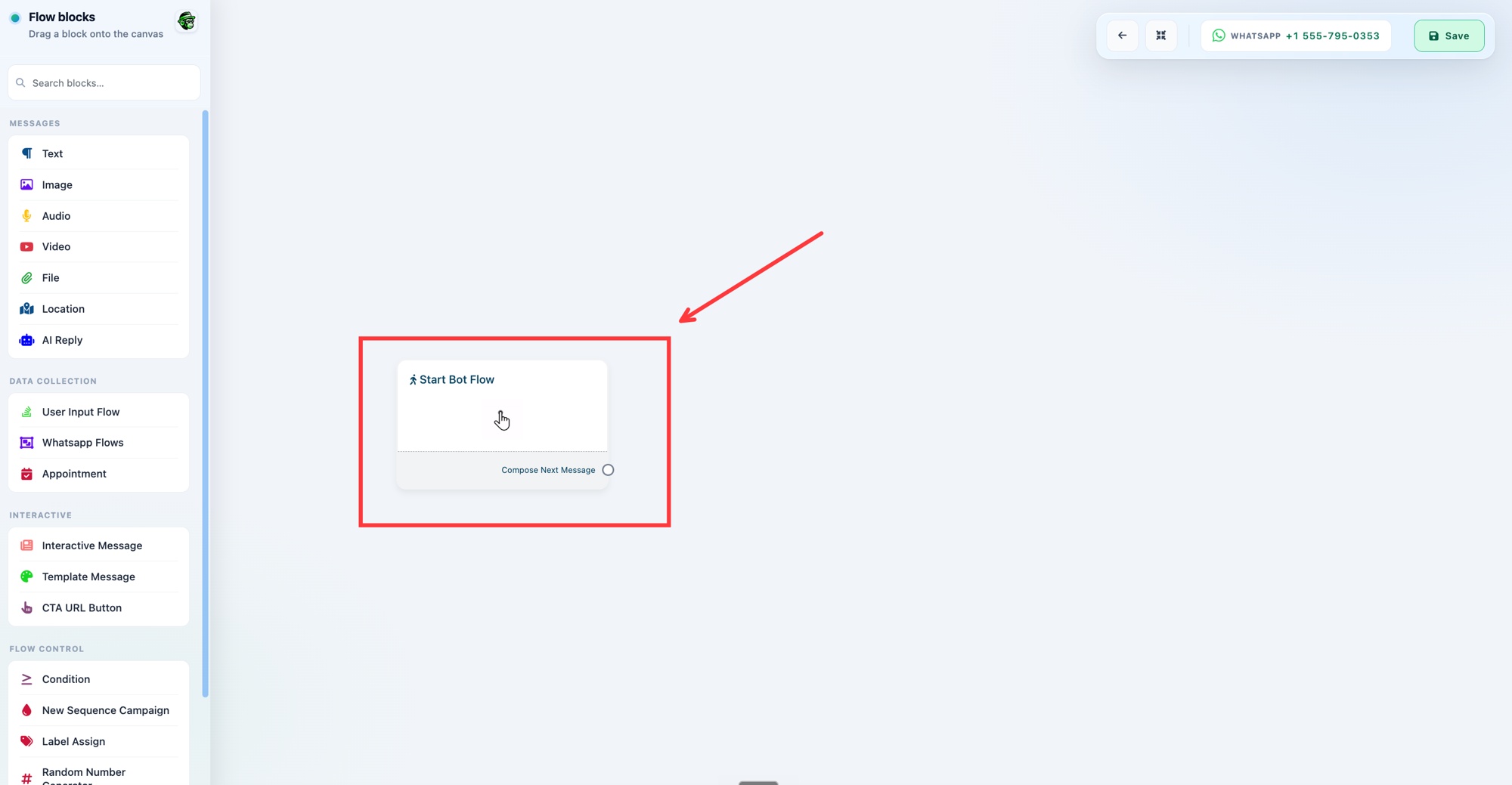 Click the Start Bot Flow block to open its settings
Step 4: Set the keyword and assign a team
In the Configure Reference panel:
- Under Trigger Keywords, enter the keyword(s) that should start this flow, for example "sales".
- Choose a Keyword matching type: Exact keyword match, or String match to match similar keywords.
- Give it a Title.
- Expand Automation Actions and find Assign Conversation to a group.
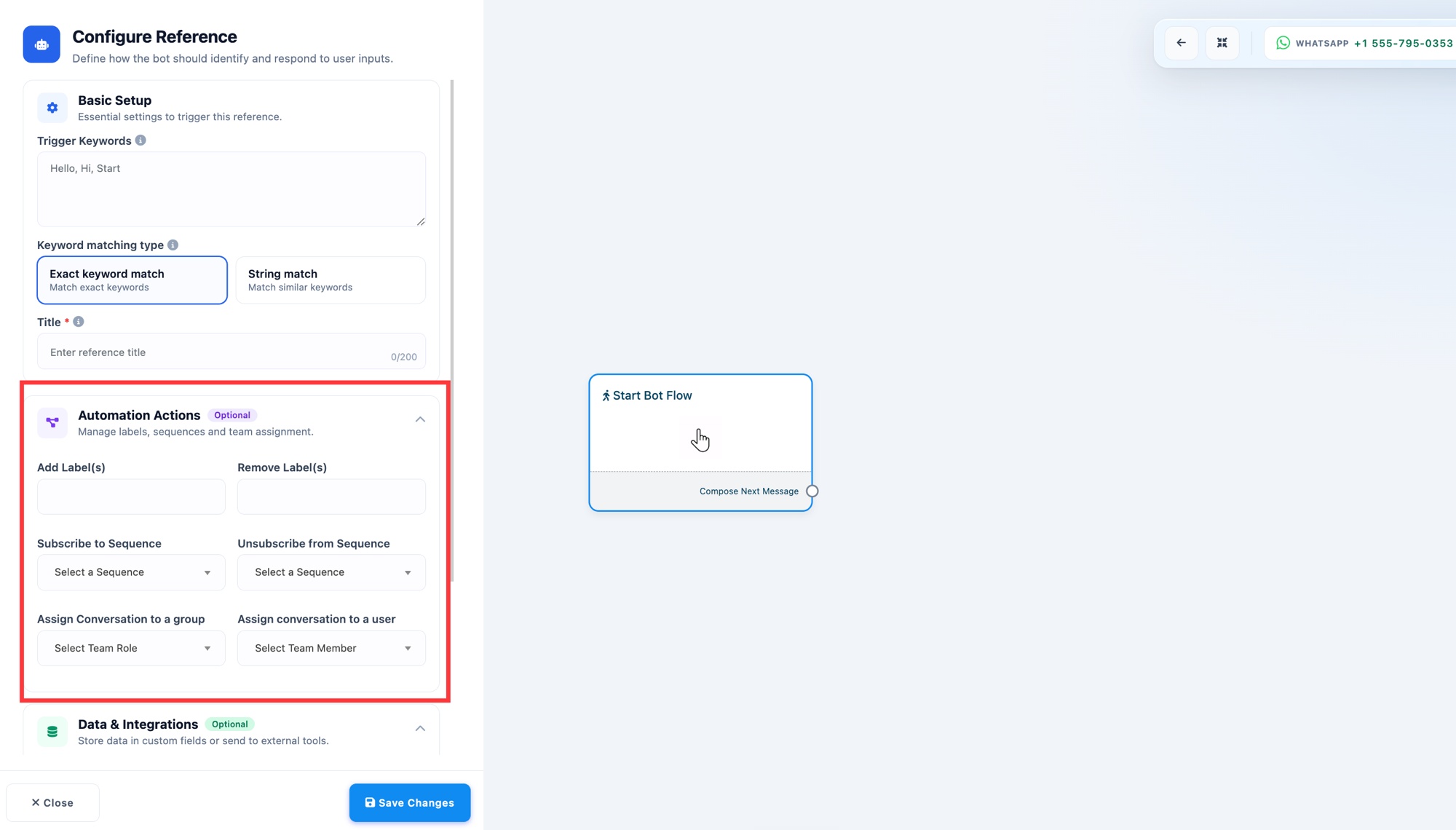 Set the trigger keyword, then open Automation Actions
Open the Assign Conversation to a group dropdown and choose the Team Role that should handle this keyword.
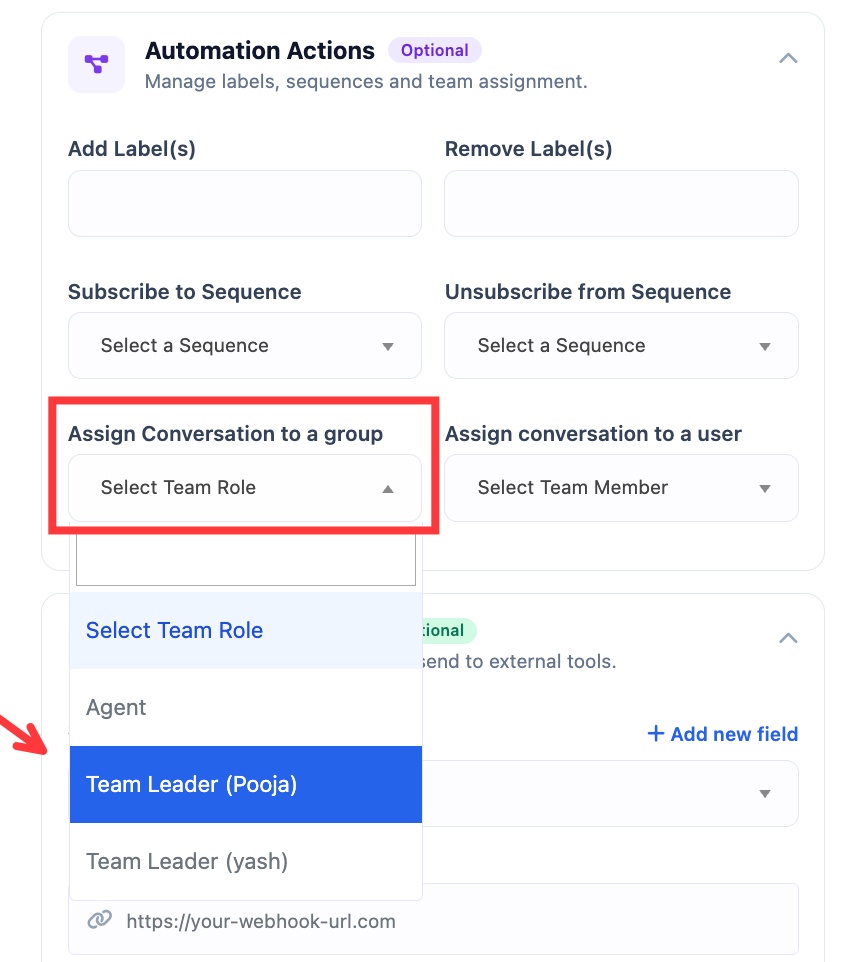 Pick the Team Role from the Assign Conversation to a group dropdown
Assigning to a group is what makes it round robin: WhatChimp rotates the chat to an available agent in that team. To send the keyword to one specific person instead, use Assign conversation to a user.
Step 5: Save
Click Save Changes, then click Save at the top right to save the flow.
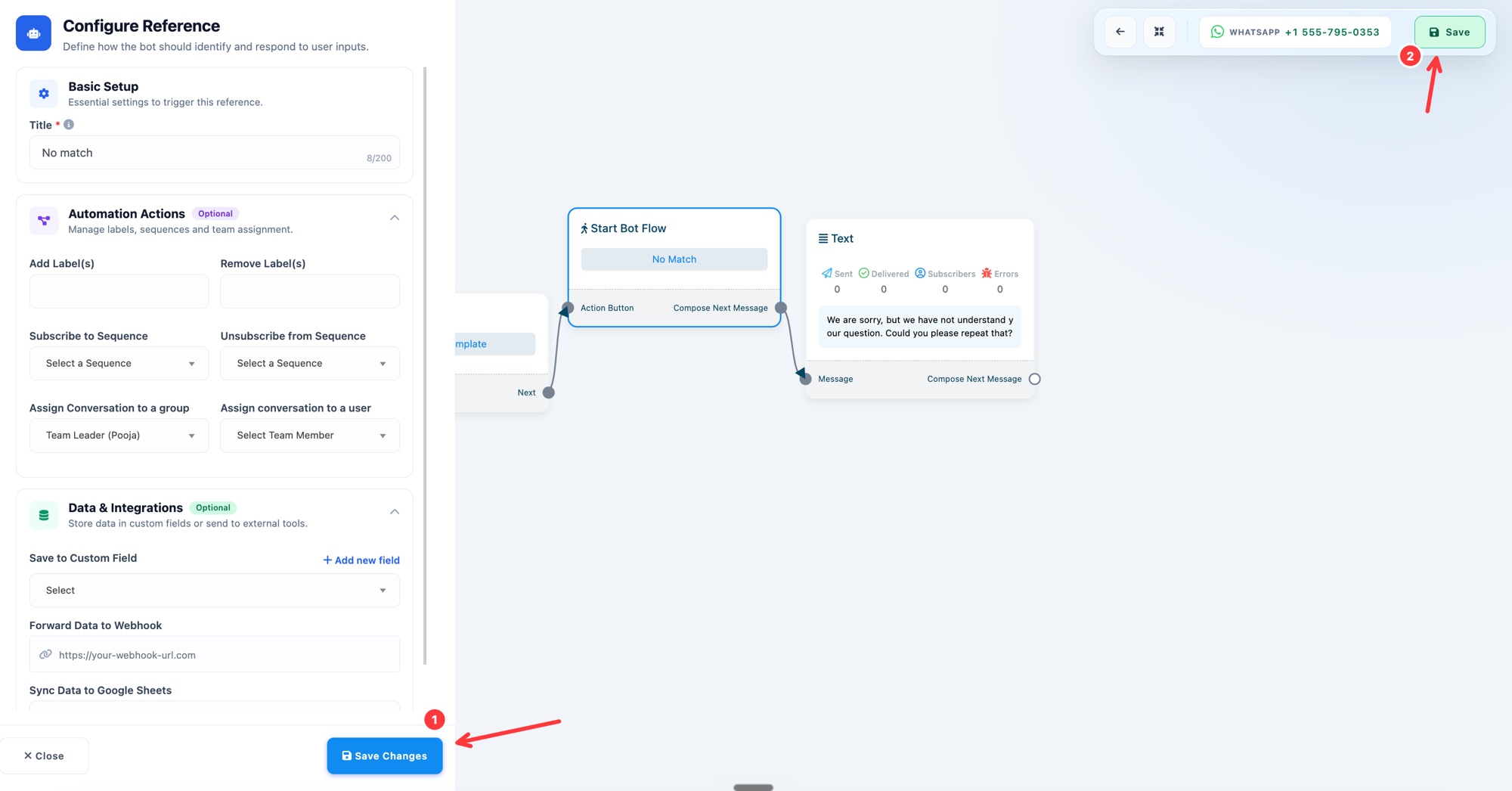 Save Changes, then Save the flow
Set up one reply per keyword to route each intent to its own team, for example "sales" to a "Sales Agent" role and "support" to a "Support Agent" role.