Create a Team and Add Your Agents
Set up a team in WhatChimp as a User Permission role, then add agents to it. This is the foundation for round-robin chat assignment.
Updated 21 June 2026
Before you can round robin chats to a team, you need a team and some agents in it. In WhatChimp a "team" is a User Permission role, and your agents are members who hold that role. This article sets up both.
Think of a team as a department or function: a "Sales Team", a "Support Agent" role, or something more specific like "Support Agent under John". You can create as many as you need and route different chats to different teams.
Step 1: Create the team (a User Permission role)
- Go to User Permission in the left sidebar, or open it directly at app.whatchimp.com/package/list.
- Create a new role and name it for the team or department it represents, for example "Support Agent", "Sales Team", or "Support Agent under John".
- Set the access this role should have and save it.
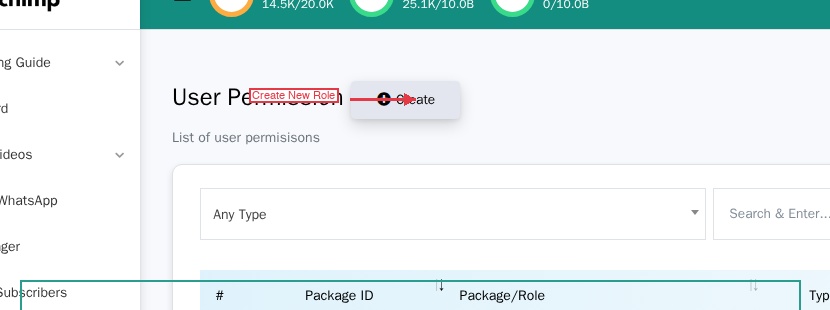 Create a role under User Permission; this role is your team
For the full set of role options (platform access and module permissions), see How to Set Up User Roles and Permissions.
Step 2: Add agents to the team
Agents live in User Manager. You can add a new agent or open an existing one and place them in the team.
- Go to User Manager in the left sidebar, or open it directly at app.whatchimp.com/user/list.
- Click Create to add a new agent, or click the edit icon on an existing member.
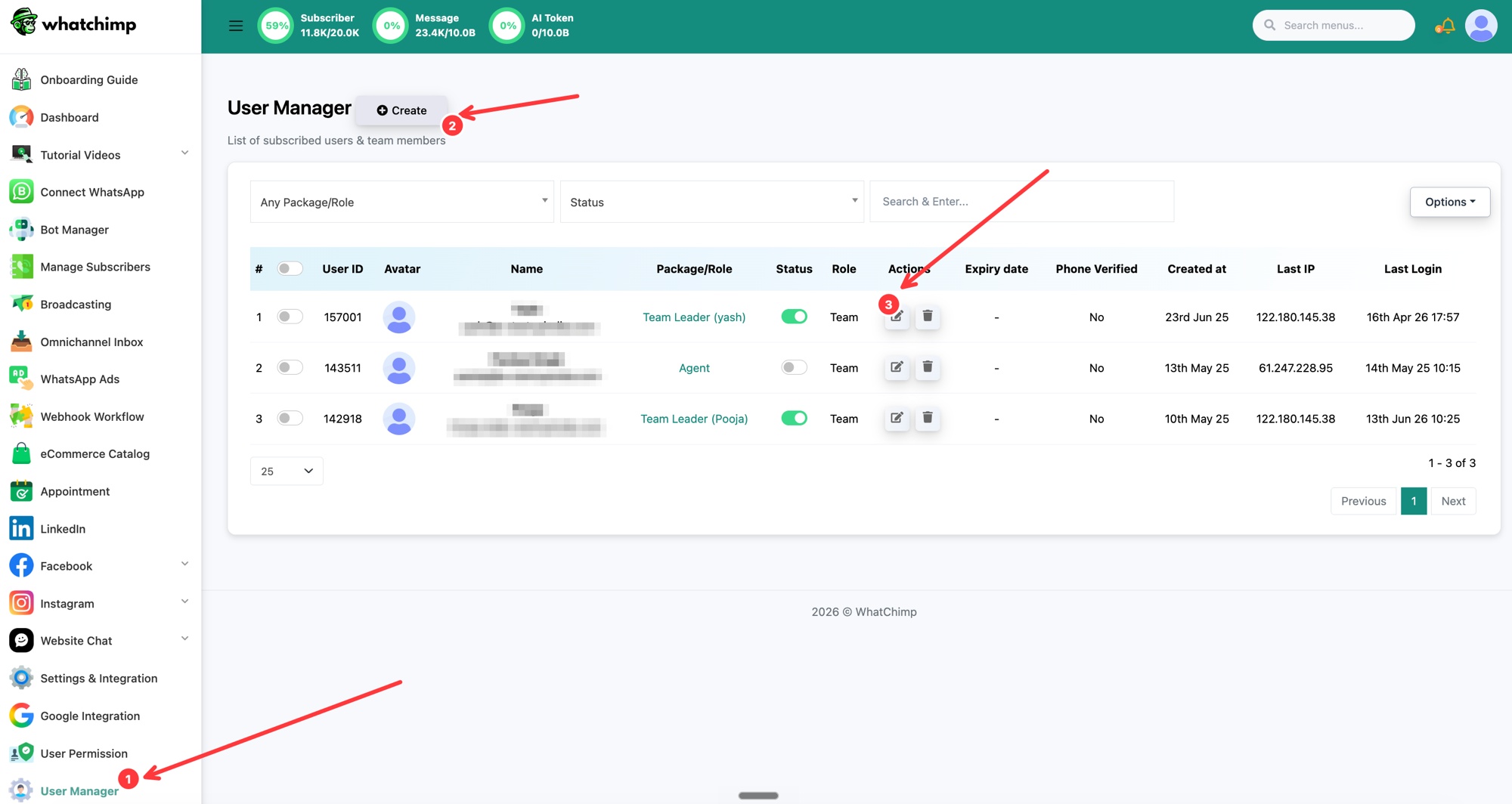 User Manager lists your team members; Create or edit one to set their team
- Fill in the member's details: Full Name, Email, and WhatsApp Mobile Number.
- In Team Role, choose the team you created in Step 1. This is what places the agent in that team.
- Optionally set their Allowed WhatsApp Bots, Allowed Meta Bots, and Allowed Webchat Bots. The Allow Only Assigned Chat in Livechat toggle controls whether the agent sees only their assigned chats or all chats: see Control Which Chats Each Agent Can See.
- Click Update.
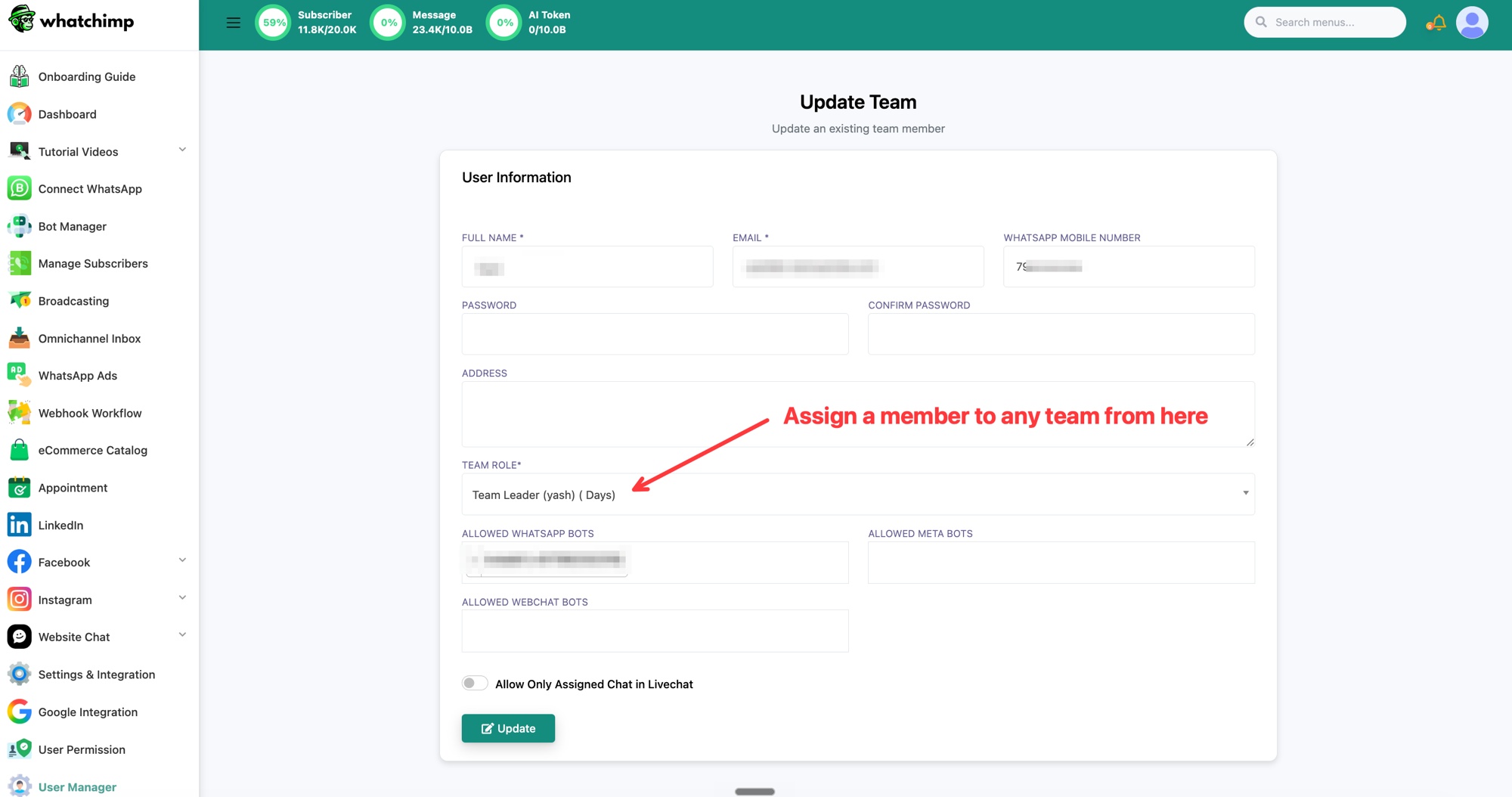 Set the Team Role to assign a member to a team
Repeat for every agent who should be in the team. To run a round robin, a team needs at least two agents.
Step 3: Have your agents set availability
Round robin only assigns chats to agents who are marked available. Each agent controls this themselves from their profile. Share this with your team: How Agents Set Their Availability.