Control Which Chats Each Agent Can See
Decide whether an agent sees only the chats assigned to them, or can switch between their chats and all chats. Set per agent with the Allow Only Assigned Chat toggle.
Updated 21 June 2026
When you round robin chats to a team, you can also control what each agent sees in the Omnichannel Inbox: only the chats assigned to them, or every chat. This is set per agent with a single toggle.
The Allow Only Assigned Chat toggle
Open the agent in User Manager (the same form where you set their Team Role) and find Allow Only Assigned Chat in Livechat.
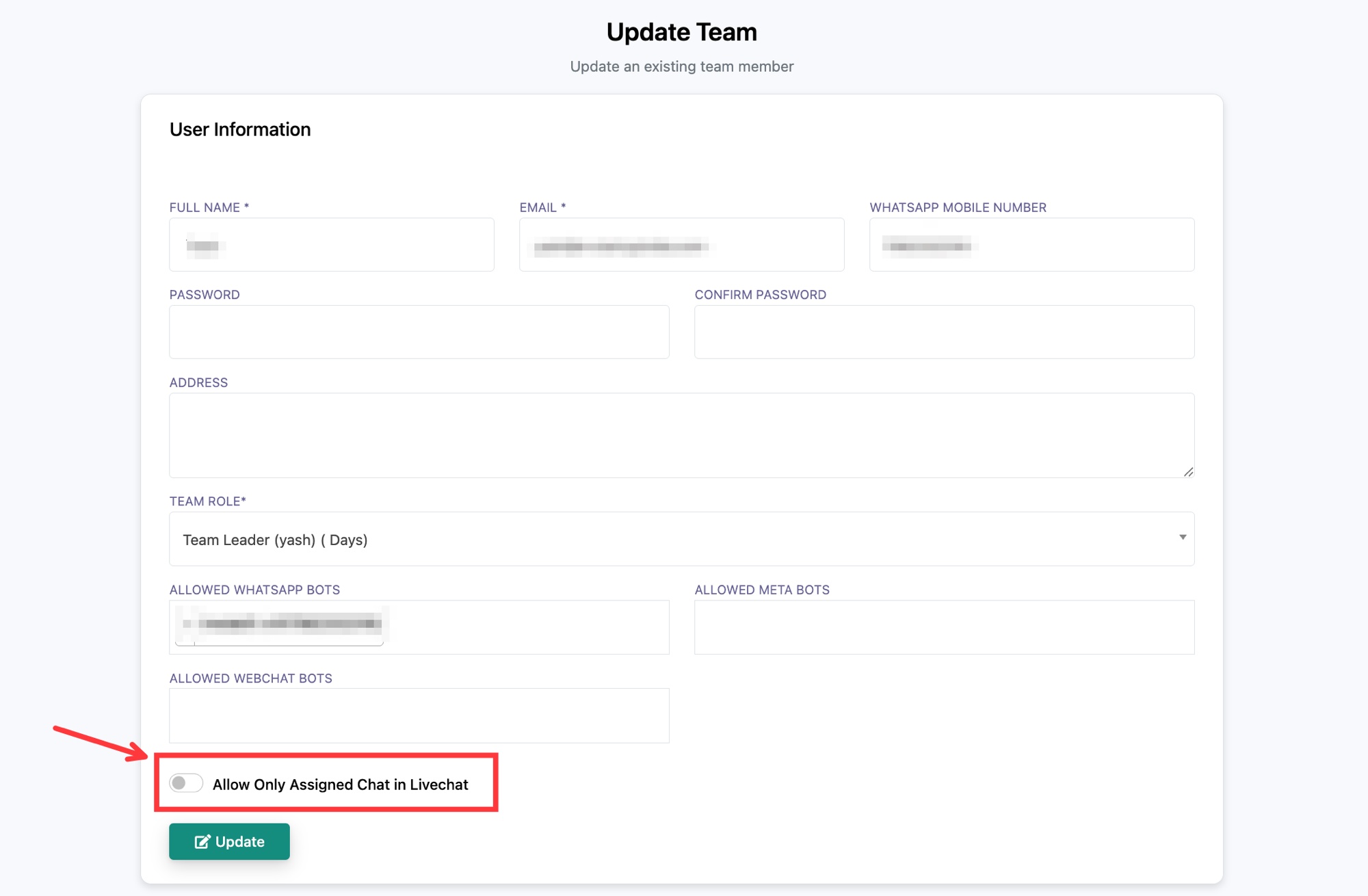 Allow Only Assigned Chat in Livechat is set per agent on their User Manager form
- Toggle on: the agent sees only the chats assigned to them. They cannot browse other conversations. Use this when agents should stay in their own lane, for example junior or outsourced agents, or when chat privacy matters.
- Toggle off: the agent can switch between two views in the Omnichannel Inbox, Only Assigned Chats and All Chats.
Only Assigned Chats and All Chats
When the toggle is off, the agent opens the Omnichannel Inbox and switches between two views using the icons in the left rail:
- Only Assigned Chats: only the conversations assigned to them, including everything round robin has handed them.
- All Chats: every conversation in the inbox, so they can pick up anything when needed.
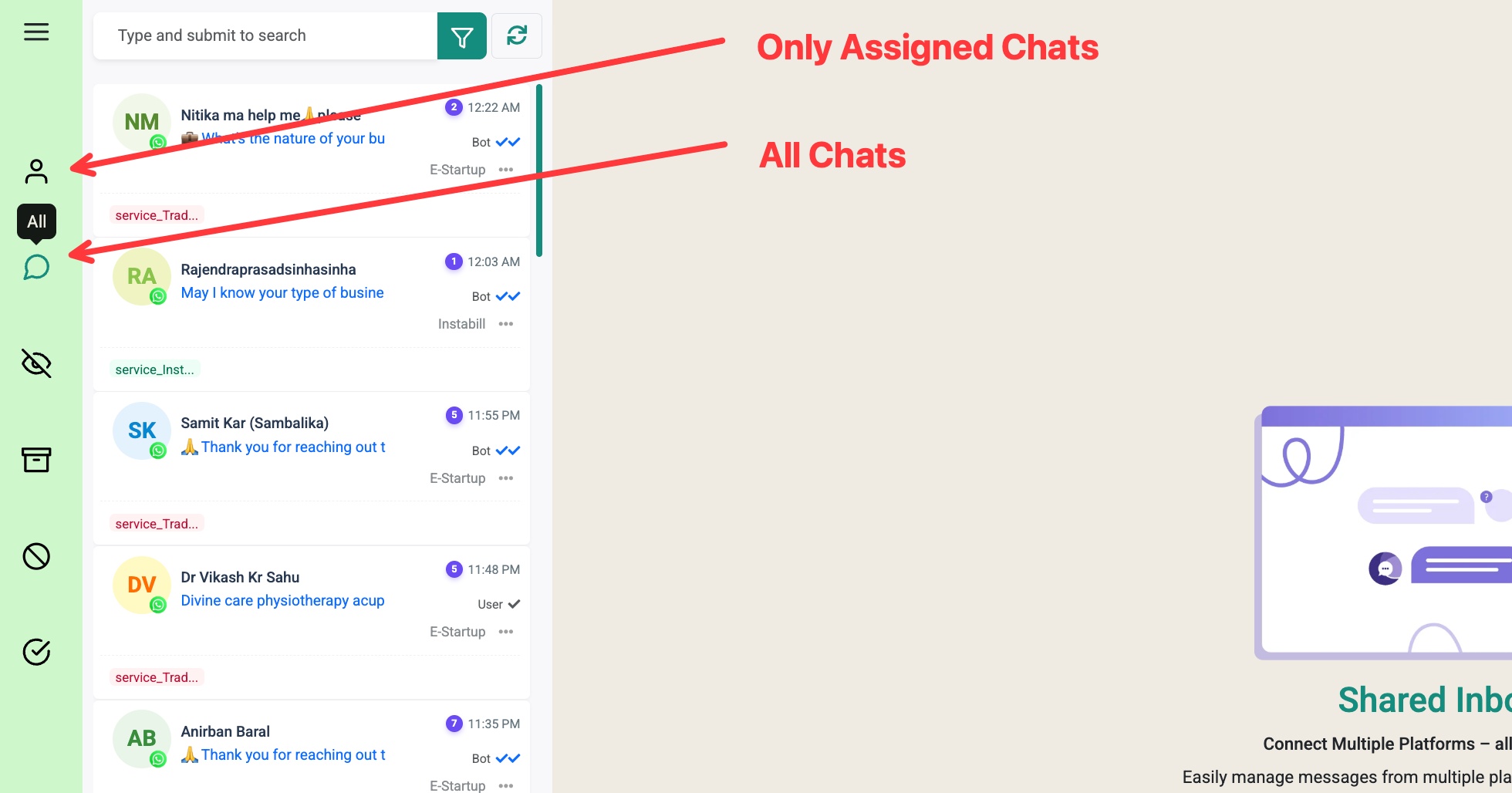 Switch between Only Assigned Chats and All Chats from the inbox left rail
Which should you choose?
- Turn it on for a strict round robin where each agent only handles their own assigned chats.
- Leave it off when agents should also be able to see and help with the whole queue, with their assigned chats one click away under Only Assigned Chats.