Round Robin Chat Assignment: Auto-Assign Chats to Your Team
Automatically share incoming WhatsApp chats across your team so every customer reaches an available agent. Set up your team once, then pick how chats get handed over.
Updated 21 June 2026
Round robin automatically shares your incoming WhatsApp chats across a team, so every customer reaches an available agent and no single person is overloaded. When a chat is handed to a team, WhatChimp checks who is available and rotates it to the next free agent.
This page is your map. There are only two parts: set up your team once, then pick when chats get handed over. Follow it top to bottom and you will have round robin running.
The whole picture
- Set up your team, once. Create a team, add your agents, and have them mark themselves available.
- Pick a trigger. Choose the moment a chat is handed to the team: on any message, on a keyword, or on a button tap.
The setup is shared, so once it is done you can add as many triggers as you like.
Part 1: Set up your team (do this once)
1. Create a team and add your agents. A "team" in WhatChimp is a User Permission role (for example "Sales Team" or "Support Agent"), and your agents are the members in it.
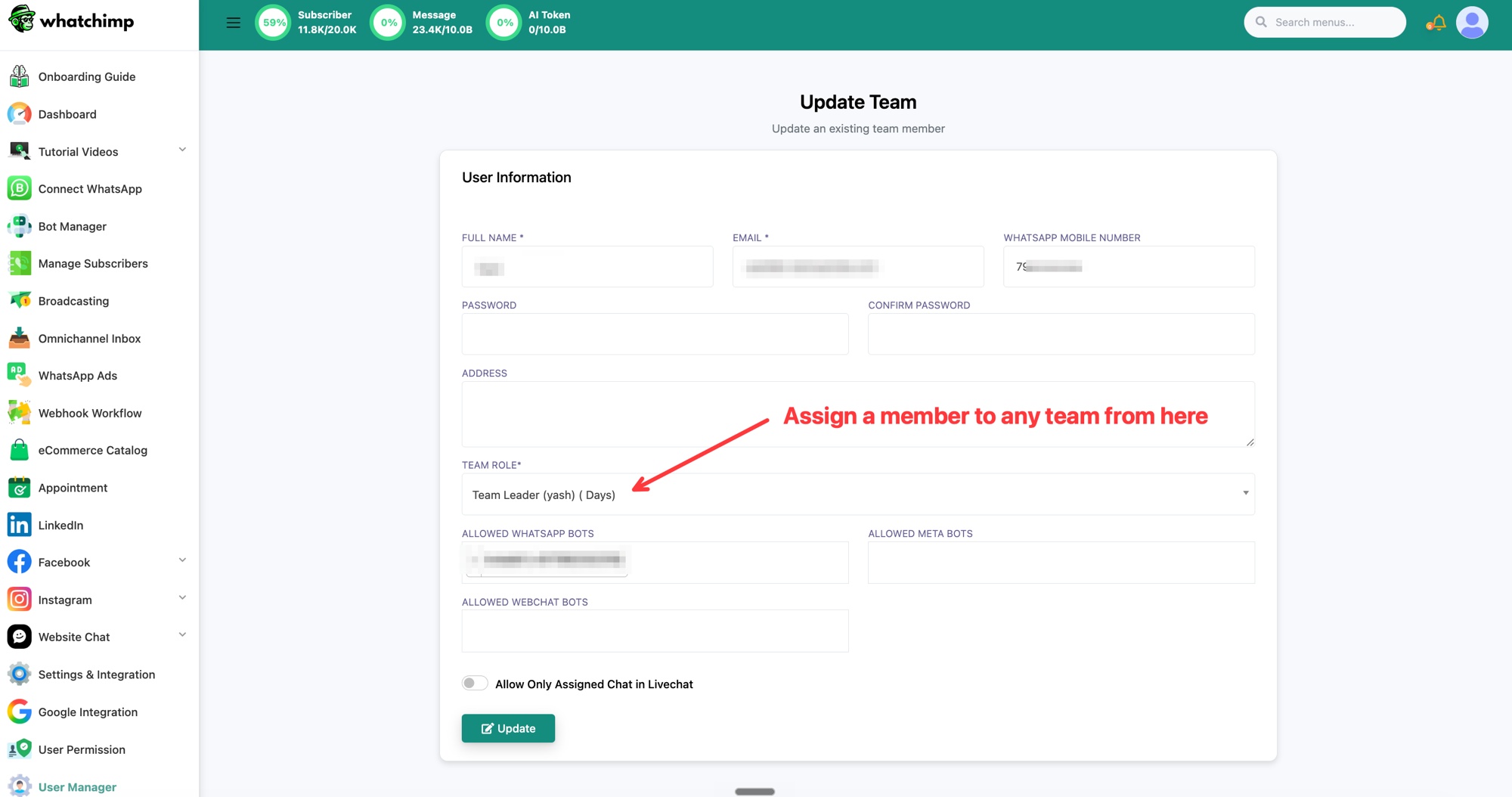 Add an agent to a team by setting their Team Role
Full steps: Create a Team and Add Your Agents
2. Have your agents set their availability. Round robin only ever assigns a chat to an agent who is marked available, so each agent turns this on from their profile.
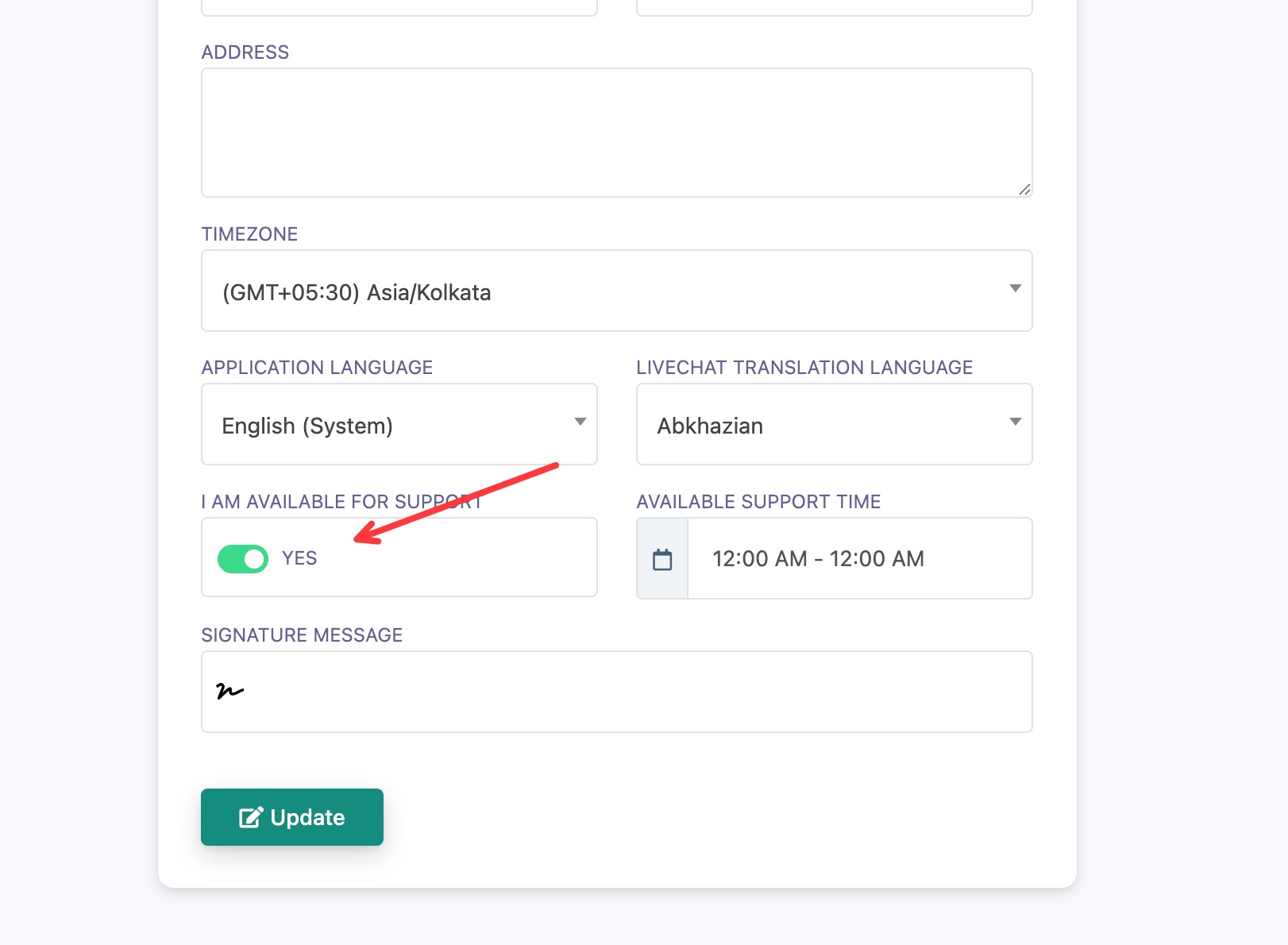 Agents mark themselves available to receive chats
Full steps: How Agents Set Their Availability
3. Optional: decide what each agent sees. Each agent can be limited to only their assigned chats, or allowed to browse the whole inbox.
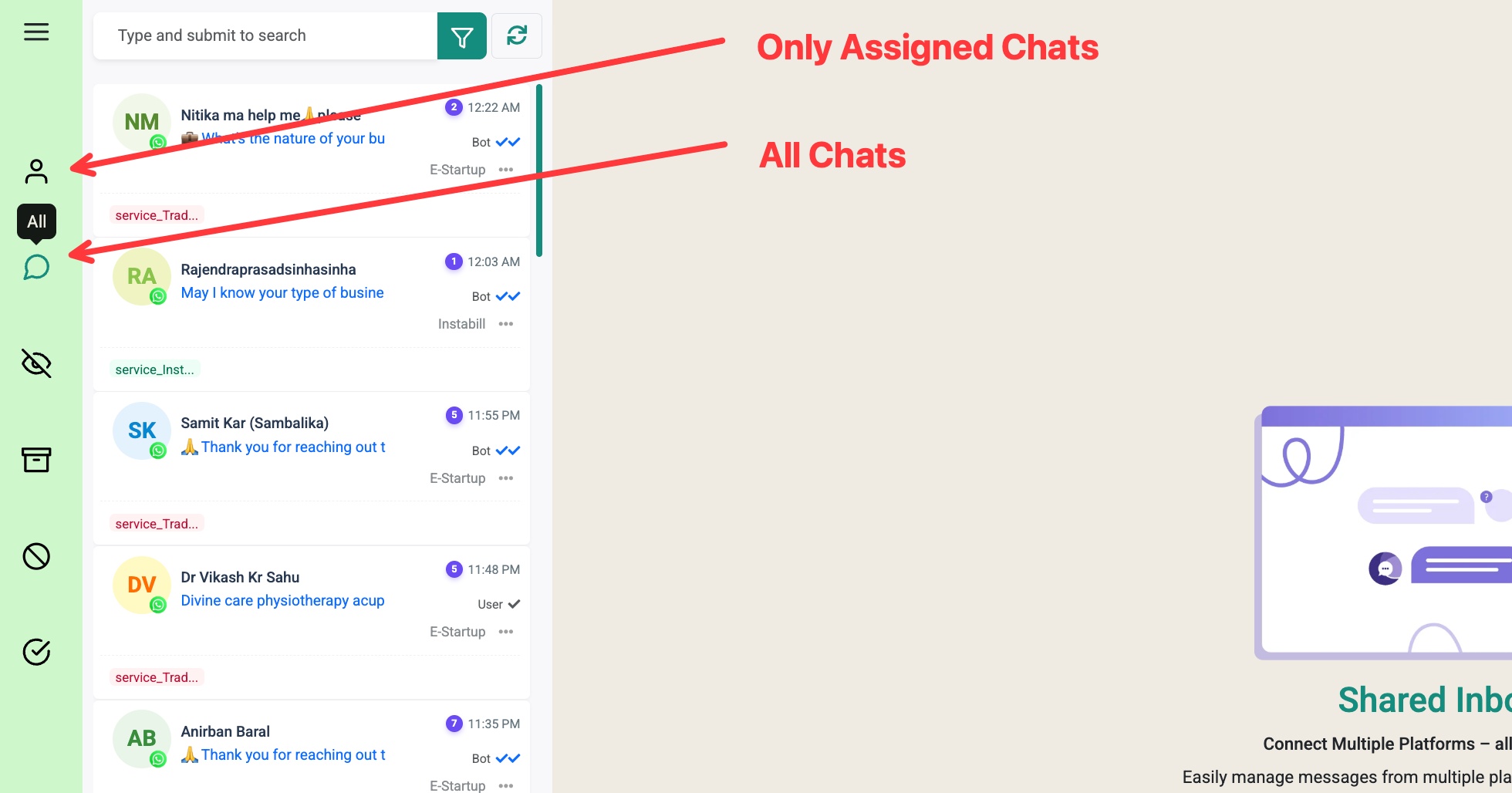 Choose whether agents see only assigned chats or all chats
Full steps: Control Which Chats Each Agent Can See
Part 2: Pick your trigger
The trigger is the moment a chat gets handed to your team. Pick the one that matches how your customers reach you. Each links to a short, screenshot-by-screenshot guide.
- On any message (No Match Reply): assign every incoming message to a team. Best for a general support or sales number. See Round Robin on Any Message.
- On a keyword: route by intent, for example "sales" to your Sales team and "support" to your Support team. See Round Robin on a Keyword.
- On a button tap: show a menu and let customers pick their own department. See Round Robin on a Button Click.
The one step every trigger shares
Whichever trigger you choose, the assignment itself is always the same single step inside the flow's Automation Actions: set Assign Conversation to a group and choose your Team Role. The "group" is your team, and assigning to a group is what makes it round robin.
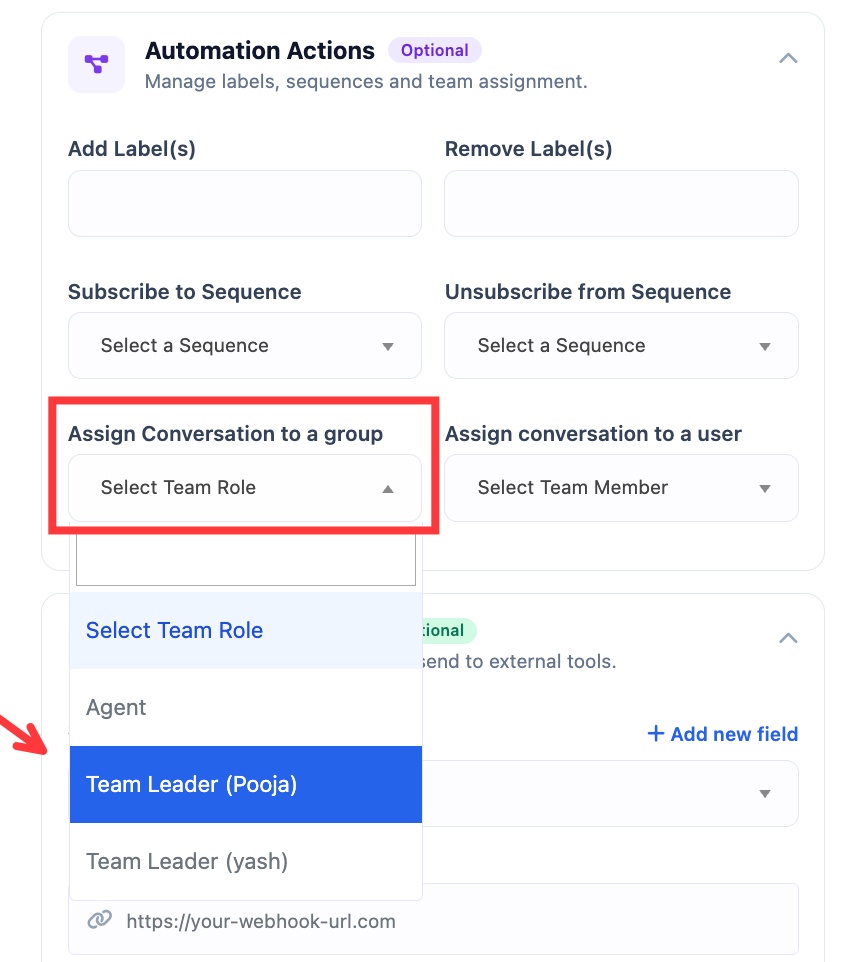 Assign Conversation to a group rotates the chat across the team
To send a chat to one specific person instead of rotating, use Assign conversation to a user.
Where to start
- New to this? Start with Create a Team and Add Your Agents, then How Agents Set Their Availability.
- Team already set up? Go straight to your trigger: any message, a keyword, or a button tap.