Manage Orders & Payment Settings
Handle catalog orders, configure payment gateways, and export to Google Sheets
Updated 9 February 2026
Video: https://www.youtube.com/watch?v=hc5-SIQSaDM
When customers order products through your WhatsApp catalog, WhatChimp tracks every order in the Catalog Orders dashboard. This guide covers how to manage orders, configure payment gateways, and export order data.
Catalog Orders Dashboard
Go to eCommerce Catalog in WhatChimp. The Catalog Orders tab shows all incoming orders.
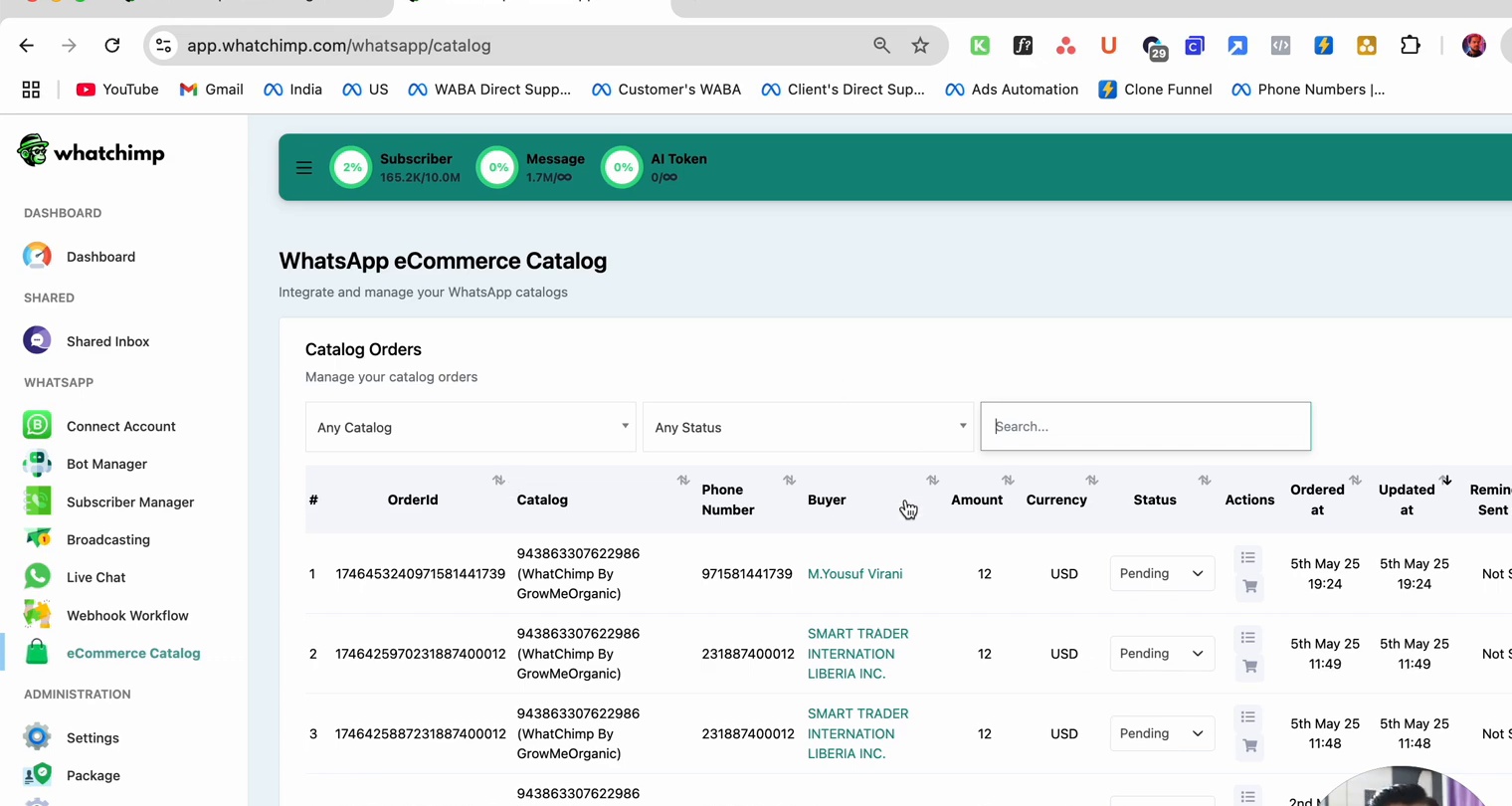
Each order shows:
| Column | Description |
|---|---|
| Ordered | Order number |
| Catalog | Which catalog the order came from |
| Phone | Customer's WhatsApp number |
| Name | Customer name |
| Amount | Order total |
| Currency | Payment currency |
| Status | Current order status |
| Ordered at | When the order was placed |
Use the Any Catalog and Any Status dropdowns to filter orders.
Order Statuses
Orders move through these stages:
| Status | Meaning |
|---|---|
| Pending | Order received, not yet confirmed |
| Confirmed | Order confirmed by your team |
| Shipped | Order has been dispatched |
| Delivered | Order successfully delivered |
Catalog Settings
On the Catalog tab, each connected catalog has a Settings dropdown with configuration options.
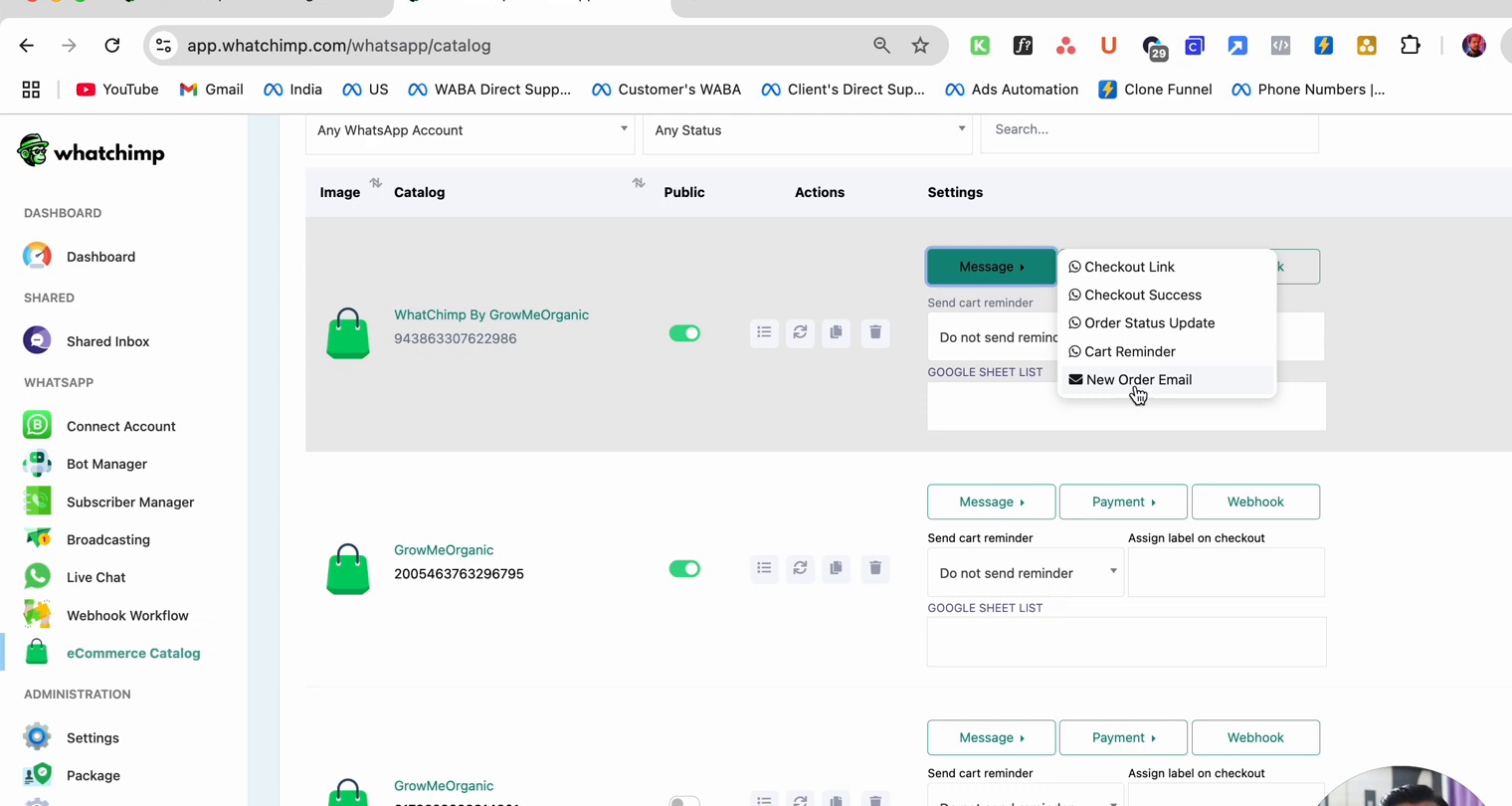
Available settings include:
- Checkout Link — Custom checkout page URL
- Checkout Confirmation — Message sent when an order is placed
- Checkout Status Update — Notify customers when order status changes
- Cart Reminder — Send a reminder to customers who abandoned their cart
- Mark Stock Email — Get notified when stock runs low
Payment Settings
Go to Settings > Payment to configure your payment gateways.
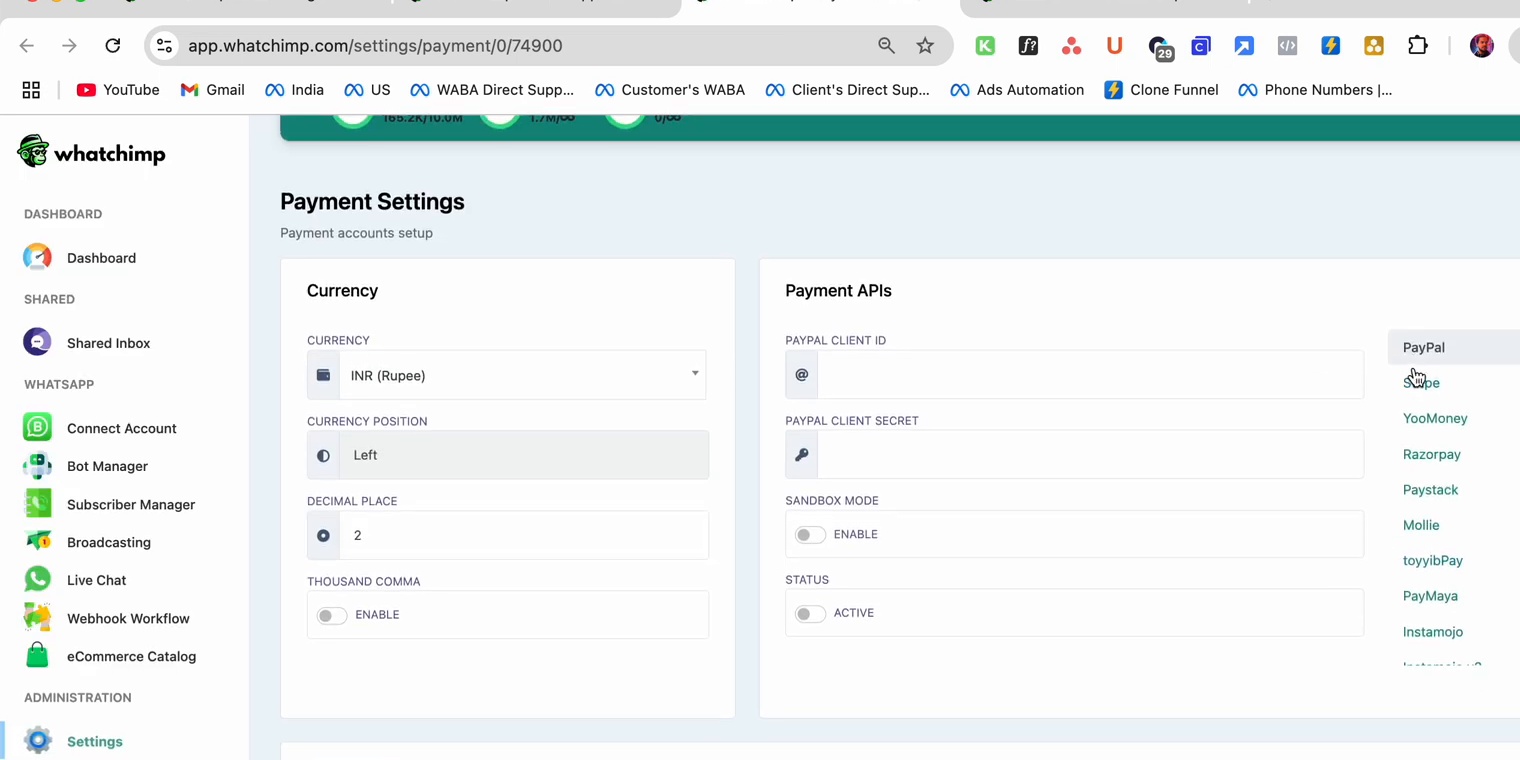
Currency
Set your default currency, currency position (left/right), decimal places, and thousand comma formatting.
Payment Gateways
WhatChimp supports multiple payment providers:
| Gateway | Type |
|---|---|
| PayPal | Online payment |
| Stripe | Online payment |
| Razorpay | Online payment |
| Flutterwave | Online payment |
| Paystack | Online payment |
| Mollie | Online payment |
| toyyibPay | Online payment |
| PayMaya | Online payment |
| Instamojo | Online payment |
| YooMoney | Online payment |
| Cash on Delivery | Manual payment |
Enter your API credentials for each gateway you want to enable, then click Save.
Google Sheet Integration
Each catalog can export orders to a Google Sheet for external tracking. On the Catalog tab, you'll see a Google Sheet List field for each connected catalog.
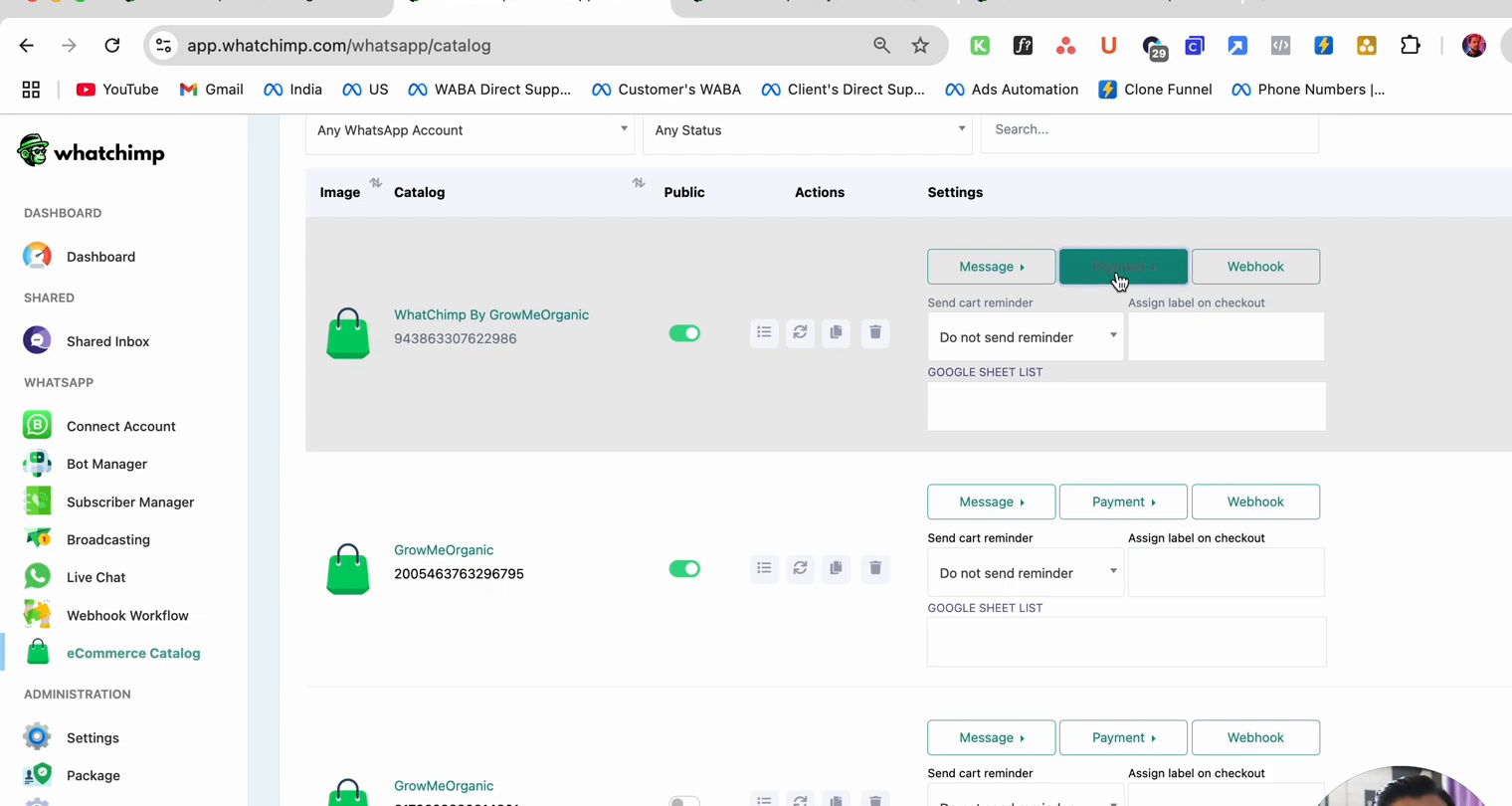
Configure these per-catalog options:
- Send cart reminder — Auto-remind customers about abandoned carts
- Assign label on checkout — Automatically tag customers who place orders
- Google Sheet List — Link a Google Sheet to export order data
Next Steps
- Catalog Settings & Sync — Manage catalog sync, public/private settings, and webhooks
- Webhook for WhatsApp Catalog — Get notified via webhook when customers submit orders
- Catalog & Orders via WhatChimp API — Manage catalogs and orders programmatically