Create a Product Catalog in Meta
Step-by-step guide to creating a product catalog in Meta Commerce Manager
Updated 9 February 2026
Video: https://www.youtube.com/watch?v=6DxL6xskm9Q
WhatsApp requires product catalogs to be created inside Meta. This guide walks you through creating a catalog in Meta Commerce Manager and adding your products.
Step 1: Open Meta Business Suite Catalogs
- Go to business.facebook.com
- Navigate to Settings > Data Sources > Catalogs
- You'll see a list of any existing catalogs
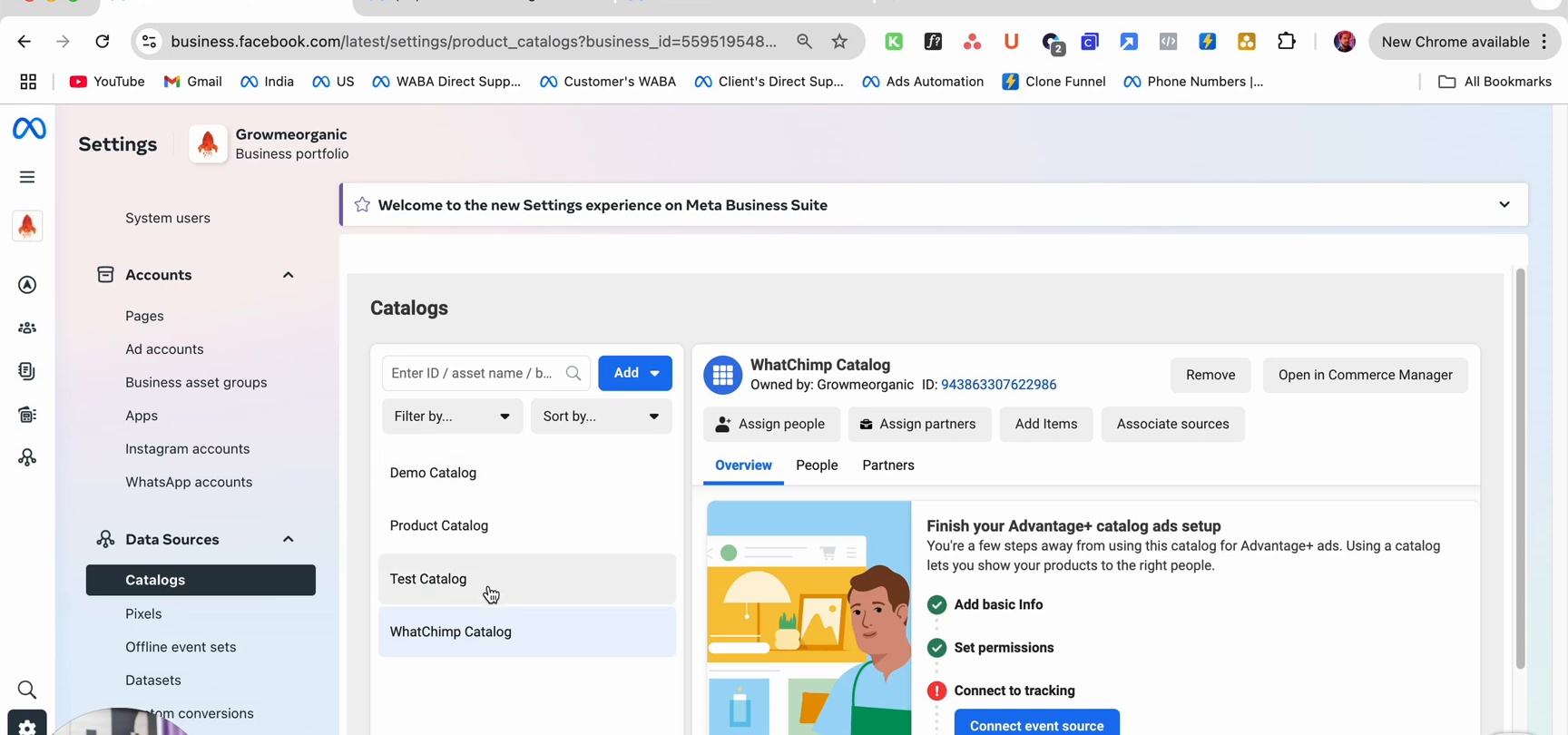
Click Create Catalog (or Add if you don't have one yet) to get started.
Step 2: Choose Catalog Type
Select Online products for selling products on WhatsApp.
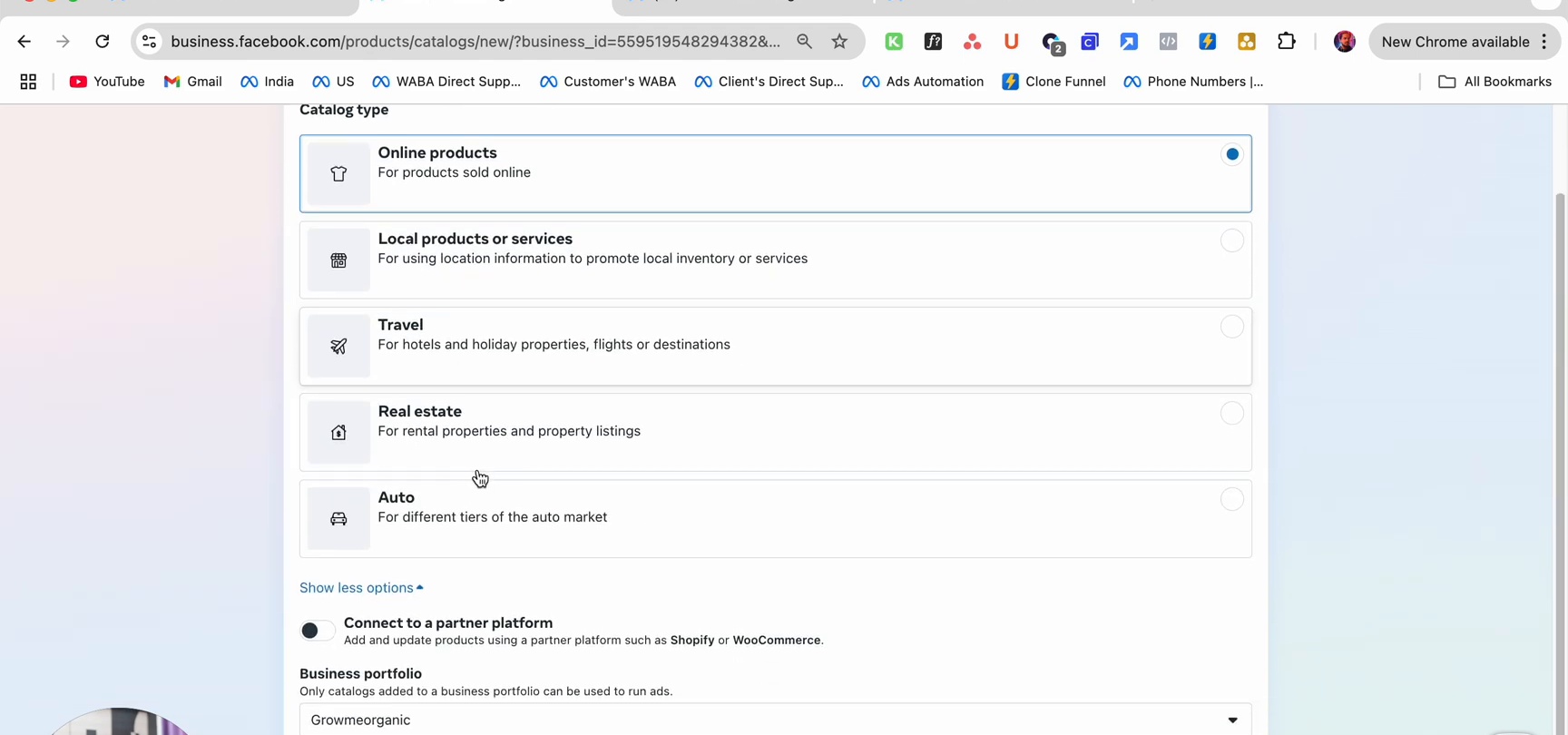
The available types are:
| Type | Use Case |
|---|---|
| Online products | Products sold online (use this for WhatsApp) |
| Local products or services | Physical stores with location-based inventory |
| Travel | Hotels, flights, destinations |
| Real estate | Rental and property listings |
| Auto | Vehicle listings |
Partner platforms: If you use Shopify or WooCommerce, select Connect to a partner platform instead. Your products will sync automatically from your store.
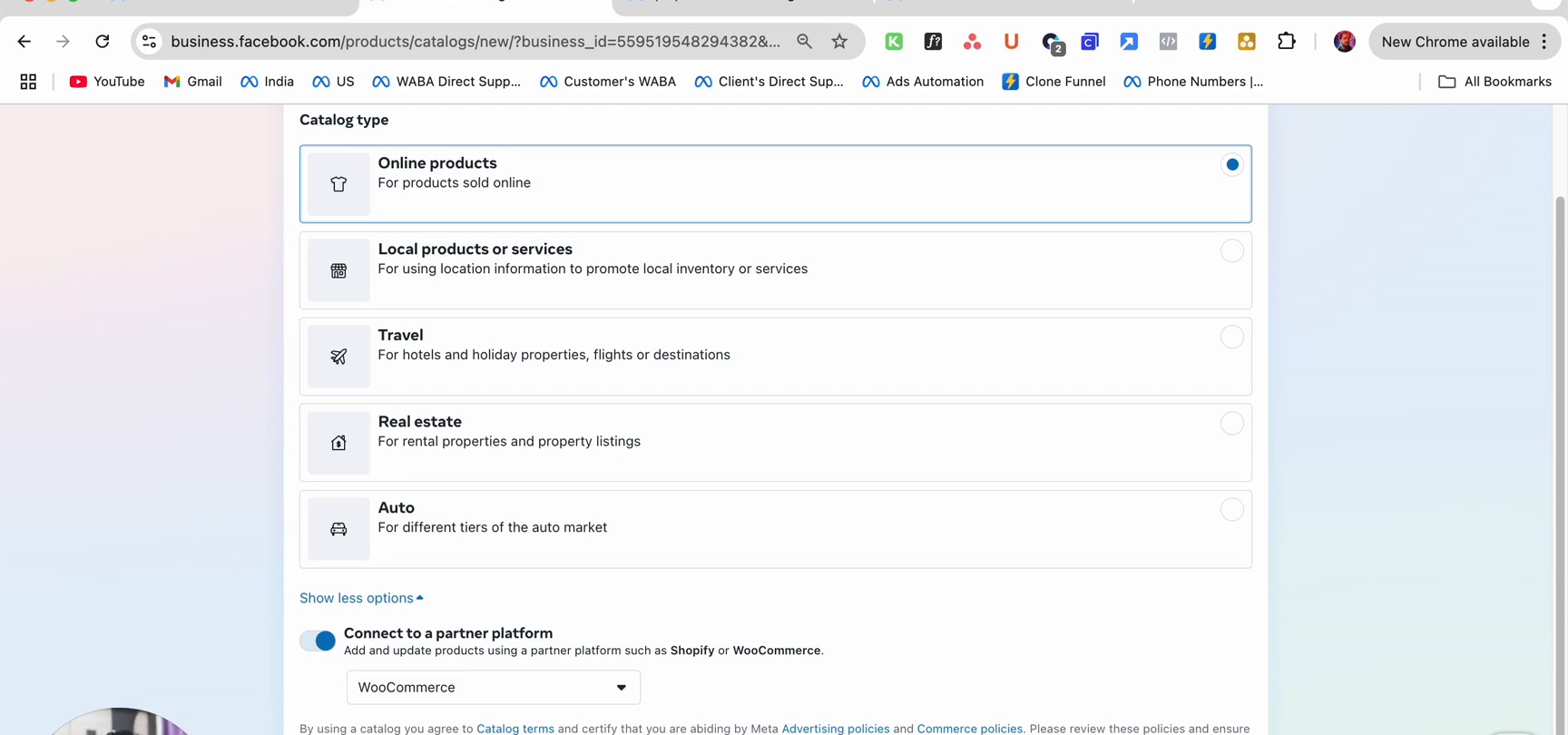
Step 3: Name Your Catalog
Enter a name for your catalog and select your Business portfolio. Then click Create catalog.
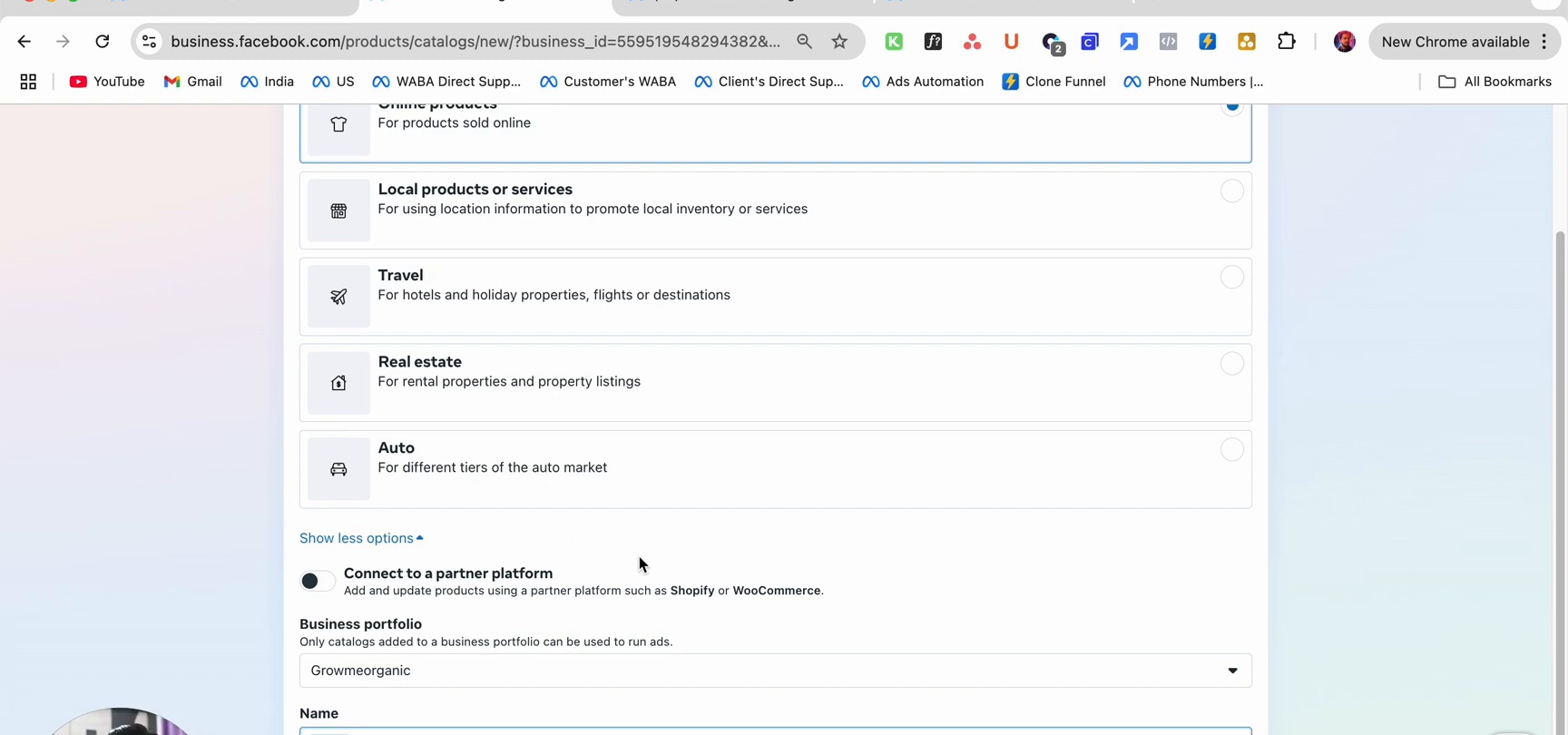
Step 4: Add Products
After creating the catalog, you'll be prompted to add products. There are three methods:
Method 1: Upload a CSV or Spreadsheet
Download the template from Meta, fill in your product details (name, description, price, image URL, etc.), and upload it.
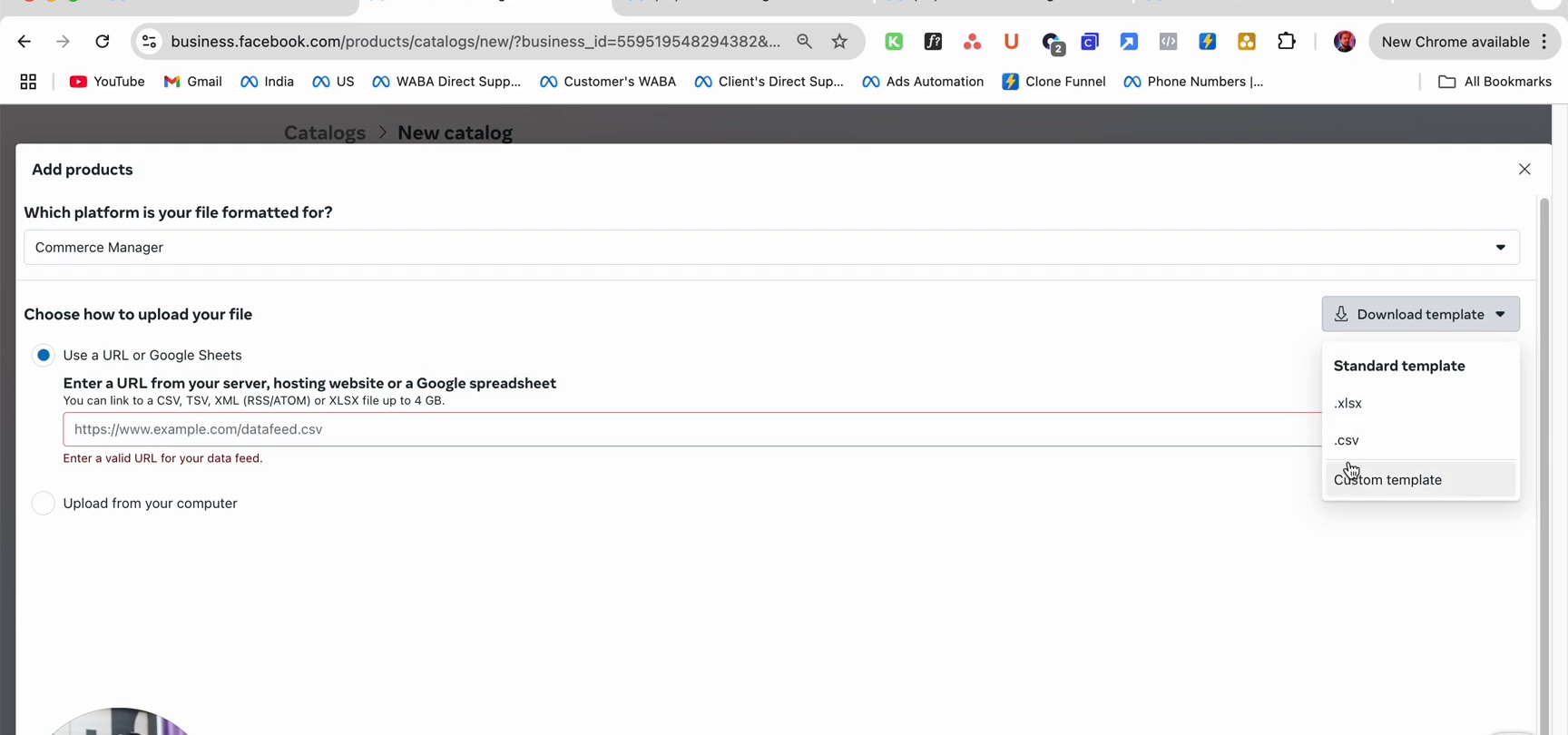
You can upload from:
- A file on your computer (CSV, TSV, XML)
- A URL to your product feed
- A Google Spreadsheet link
Method 2: Add Products Manually
In Commerce Manager, go to Catalog > Items and click Add products > Manual. Fill in each product's details one by one.
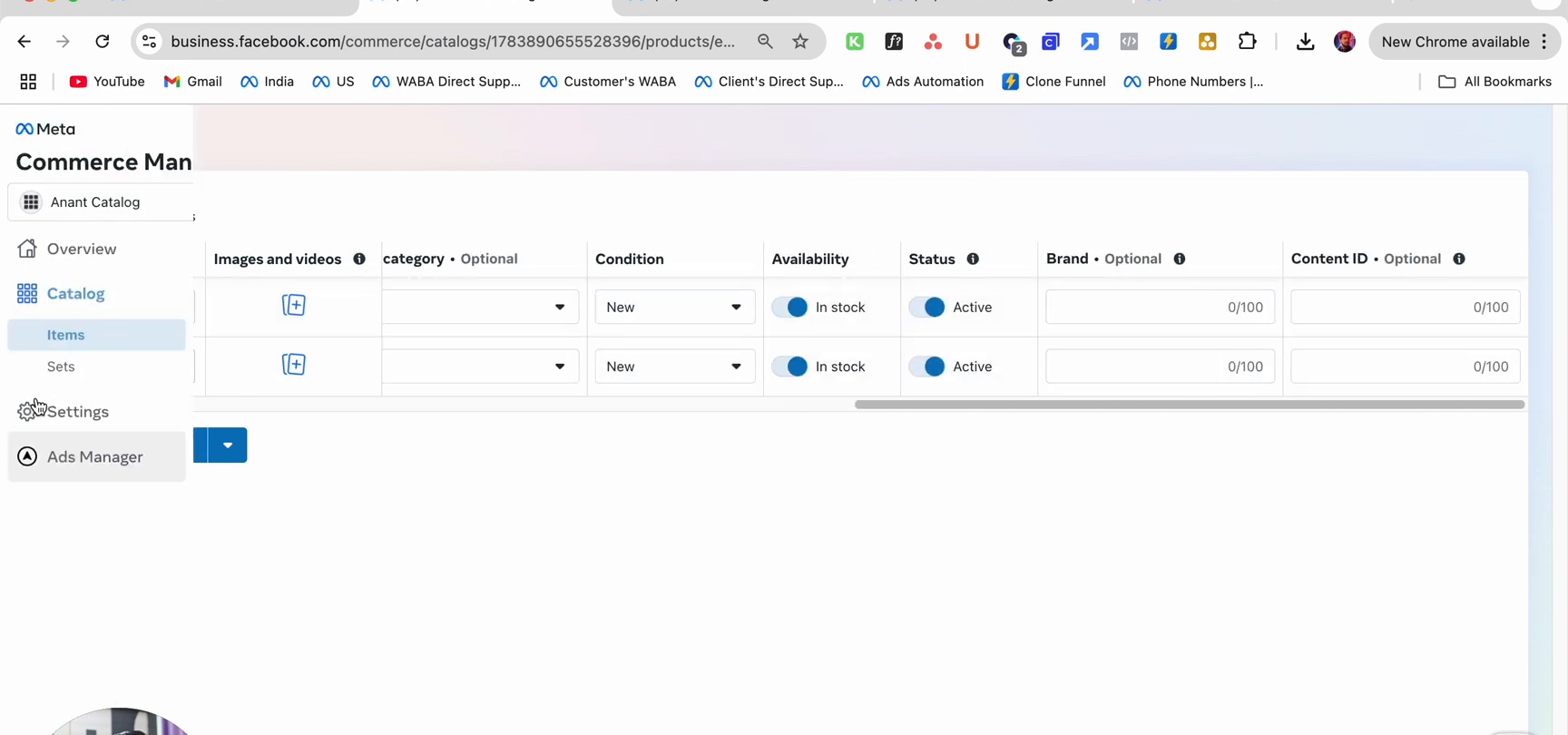
Method 3: Connect a Partner Platform
If you selected Shopify or WooCommerce during catalog creation, your products will sync automatically from your online store. Any changes you make in your store will be reflected in the catalog.
Managing Your Products
Once products are added, you can manage them in Commerce Manager > Catalog > Items.
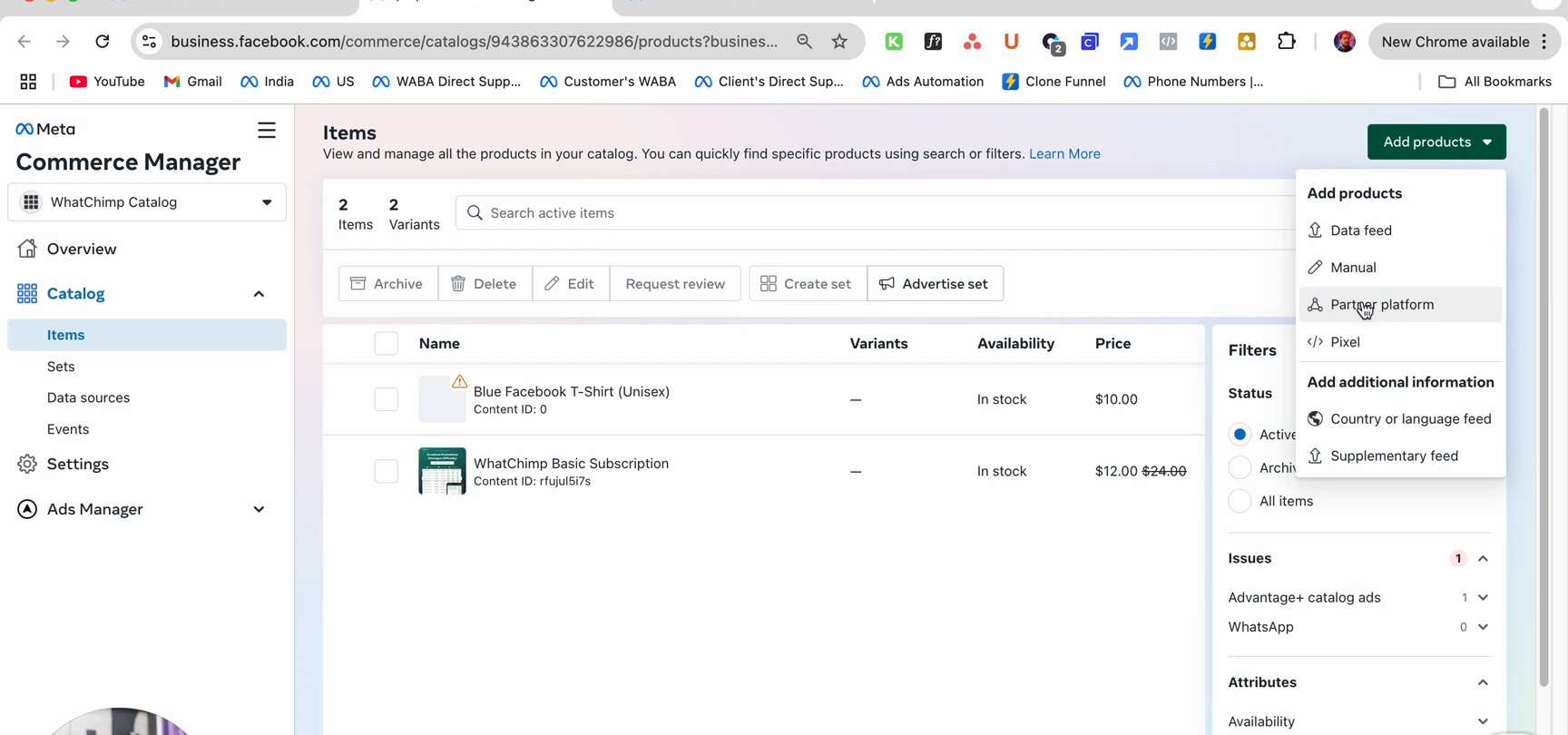
Click any product to view its details, edit information, manage variants, or check its status.
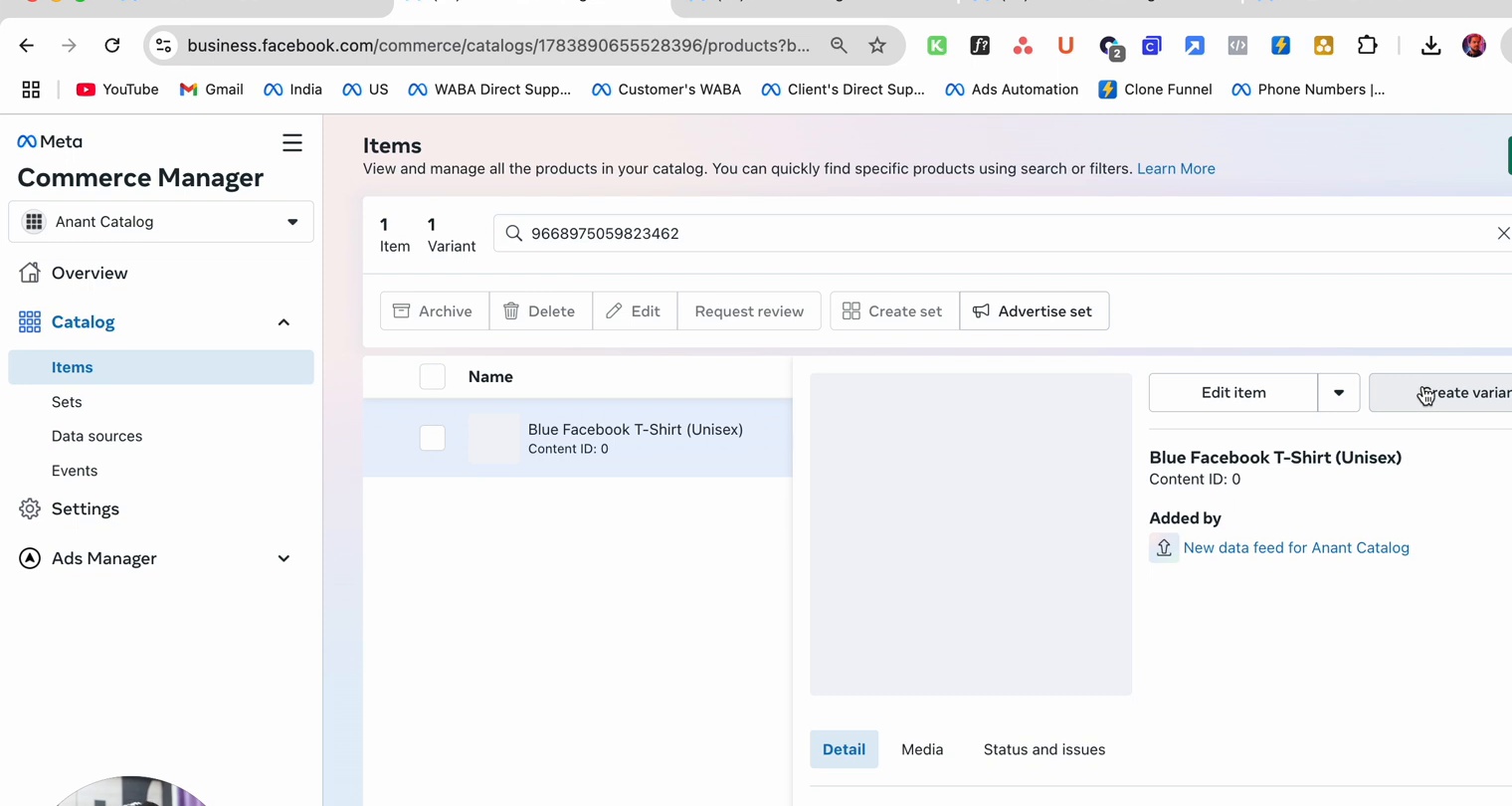
From the Items page you can:
- Edit product details (name, price, description, images)
- Archive or Delete products
- Create sets to group products into categories
- Request review if a product was rejected
Next Steps
- Connect Your Catalog with WhatsApp — Link this catalog to your WhatsApp number through WhatChimp