Catalog Settings & Sync
Manage catalog sync, visibility, messaging, and webhook settings in WhatChimp
Updated 10 February 2026
The eCommerce Catalog page in WhatChimp is where you manage all your connected catalogs — sync products, toggle visibility, configure messaging, and set up webhooks.
Catalog Manager Overview
Go to eCommerce Catalog in the left sidebar to see all connected catalogs.
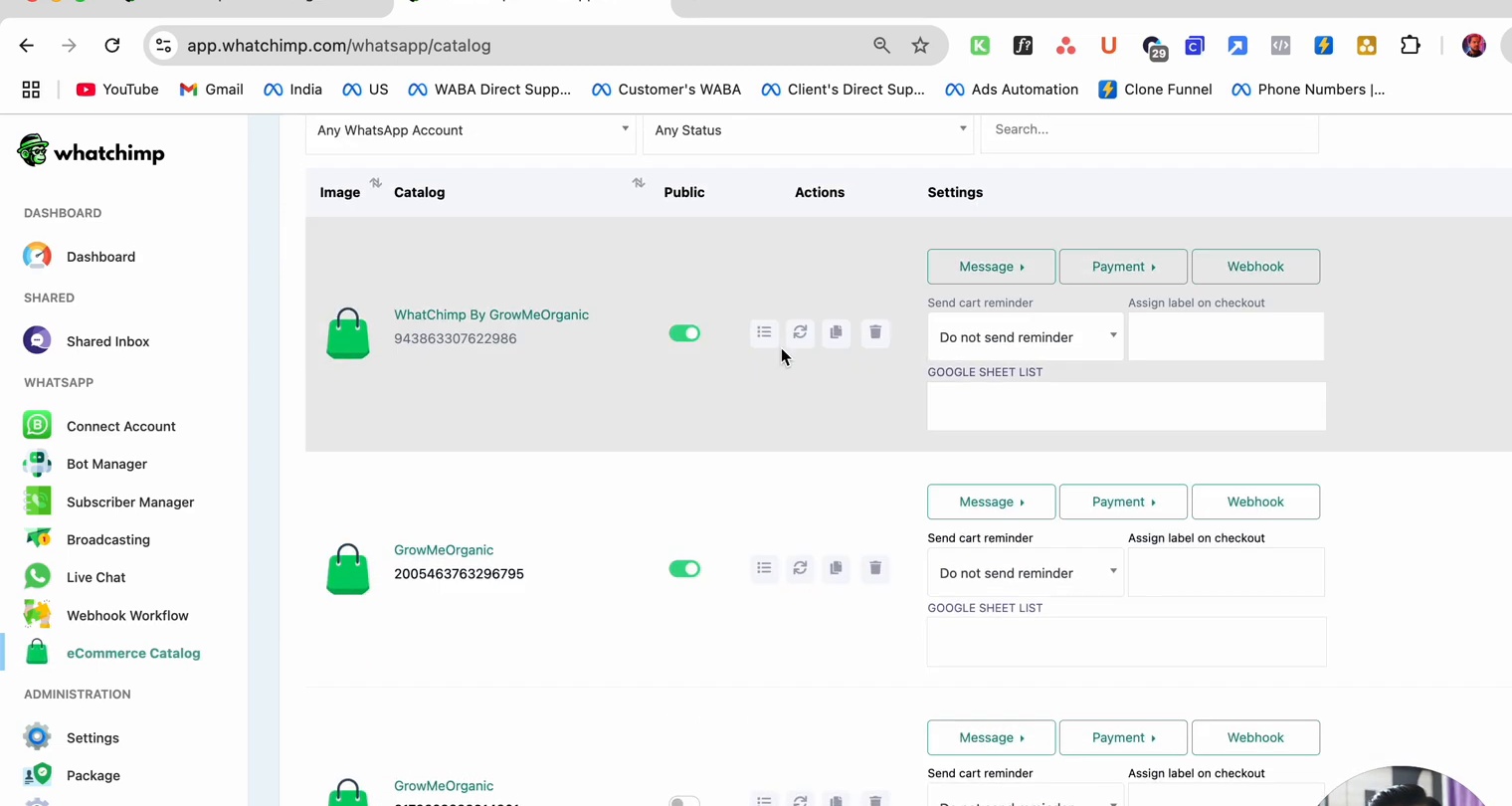
Each catalog row shows:
| Column | Description |
|---|---|
| Image | Catalog icon |
| Catalog | Catalog name and ID |
| Public | Toggle to make the catalog visible to customers |
| Actions | Quick action buttons (view products, edit, copy, delete) |
| Settings | Message, Payment, and Webhook configuration tabs |
Public/Private Toggle
The green toggle in the Public column controls whether customers can browse this catalog. Turn it off to hide a catalog while you're setting it up or making changes.
Syncing Products
When you add or update products in Meta Commerce Manager, you need to sync them in WhatChimp to pull in the latest changes.
- Click on a catalog name to open the Catalog Products modal
- Click the green Sync Product button
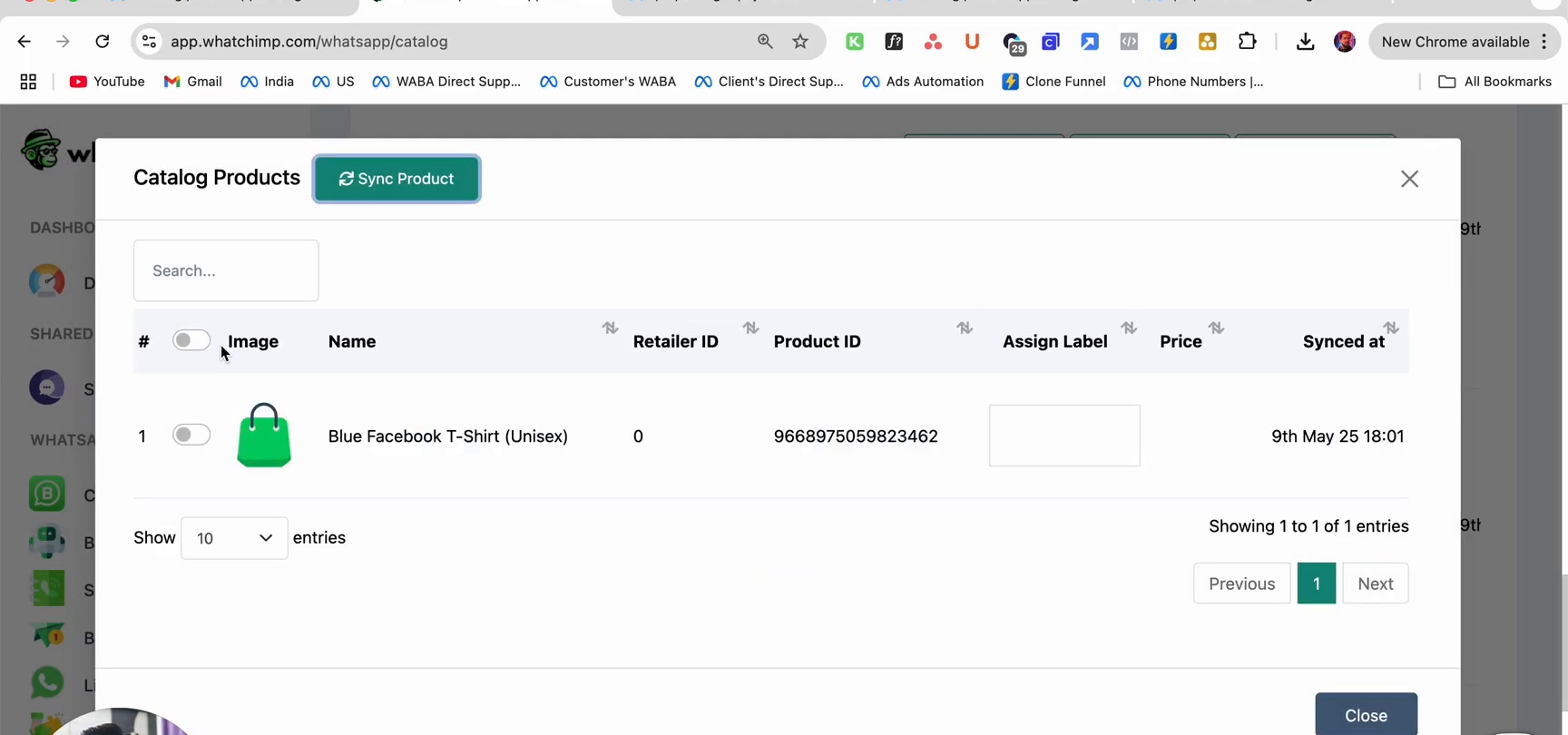
The product list will update with the latest data from Meta, including images, names, product IDs, prices, and labels.
When to resync:
- After adding new products in Meta Commerce Manager
- After editing product details (price, description, images)
- After removing products from your catalog
- If a customer reports seeing outdated product information
Per-Catalog Settings
Each catalog has three settings tabs: Message, Payment, and Webhook.
Message Settings
Configure automated messages for this catalog:
- Send cart reminder — Automatically remind customers who abandoned their cart
- Assign label on checkout — Tag customers with a label when they place an order
Payment Settings
Click the Payment dropdown to access payment configuration.
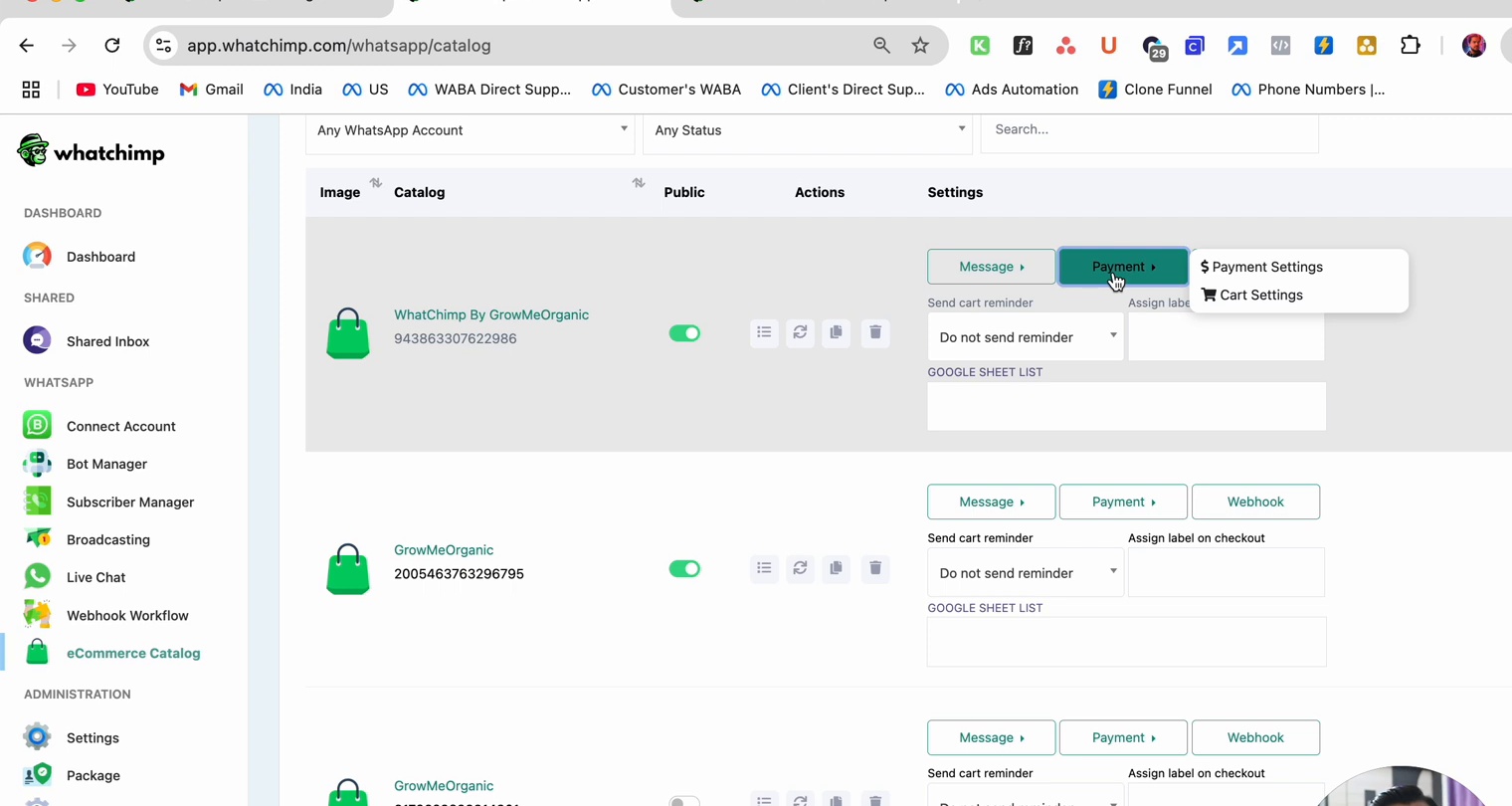
Options include:
- Payment Settings — Configure payment gateways (PayPal, Stripe, Razorpay, etc.)
- Cart Settings — Customize the cart experience and checkout flow
Webhook Settings
Click the Webhook tab to set up notifications for order events. Webhooks notify your external systems when:
- A customer places an order
- An order status changes
- A cart is abandoned
For detailed webhook configuration, see Webhook for WhatsApp Catalog.
Catalog Actions
The action buttons in each catalog row let you:
- View products — Open the Catalog Products modal to see and sync items
- Edit — Modify catalog settings
- Copy catalog ID — Copy the ID for use in bot flows or API calls
- Delete — Remove a catalog connection (does not delete products from Meta)
Google Sheet Export
Each catalog has a Google Sheet List field where you can link a Google Sheet. When linked, order data is automatically exported to the spreadsheet for external tracking and reporting.
Related
- Manage Orders & Payment Settings — View and manage incoming orders
- Catalog & Orders via WhatChimp API — Manage catalogs programmatically
- Webhook for WhatsApp Catalog — Set up webhook notifications for order events