Connect Your Catalog with WhatsApp
Link your Meta product catalog to your WhatsApp number through WhatChimp
Updated 9 February 2026
Video: https://www.youtube.com/watch?v=aejLOa0Oy3c
After creating your catalog in Meta, you need to connect it to your WhatsApp number. This involves two parts: giving WhatChimp permission to access your catalog, then linking the catalog to your WhatsApp number in Meta.
No data loss: Reconnecting your WhatsApp account with catalog permission does not delete your existing chats, contacts, or bot flows.
Part 1: Connect with Catalog Permission in WhatChimp
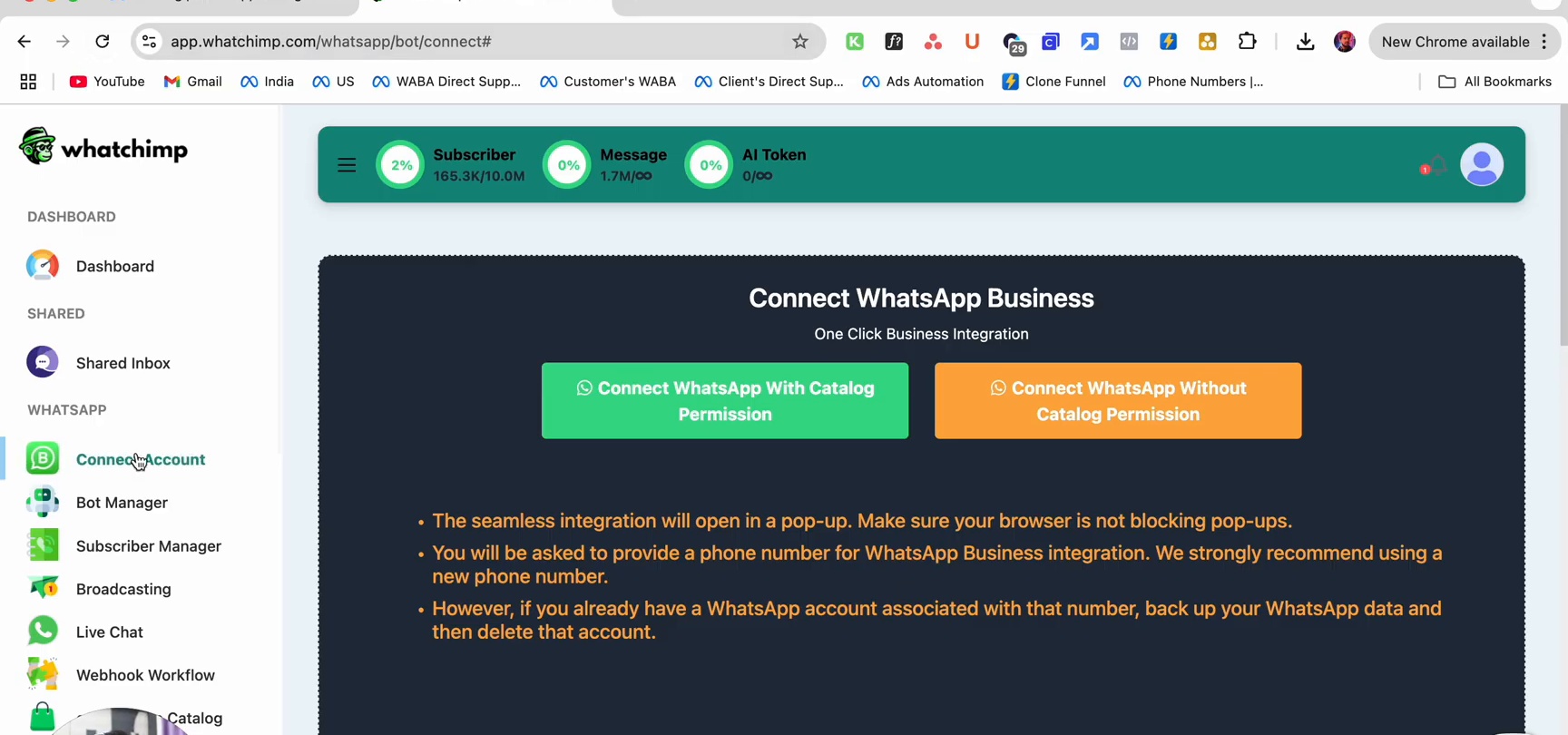
- In WhatChimp, go to Connect Account
- On the Connect WhatsApp Business page, click Connect WhatsApp With Catalog Permission
- A Facebook Login popup will open. Select your Business portfolio and the same WhatsApp number you're already using
- On the catalog selection screen, check the catalogs you want WhatChimp to access, then click Continue
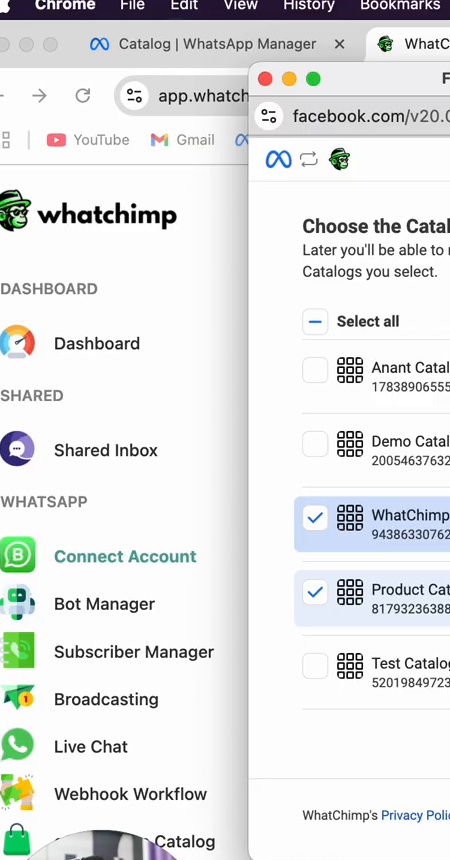
- Complete the connection flow. Your WhatsApp account is now reconnected with catalog access enabled.
Part 2: Connect Catalog in Meta WhatsApp Manager
- Go to business.facebook.com and open WhatsApp Manager
- In the left sidebar, click Catalog
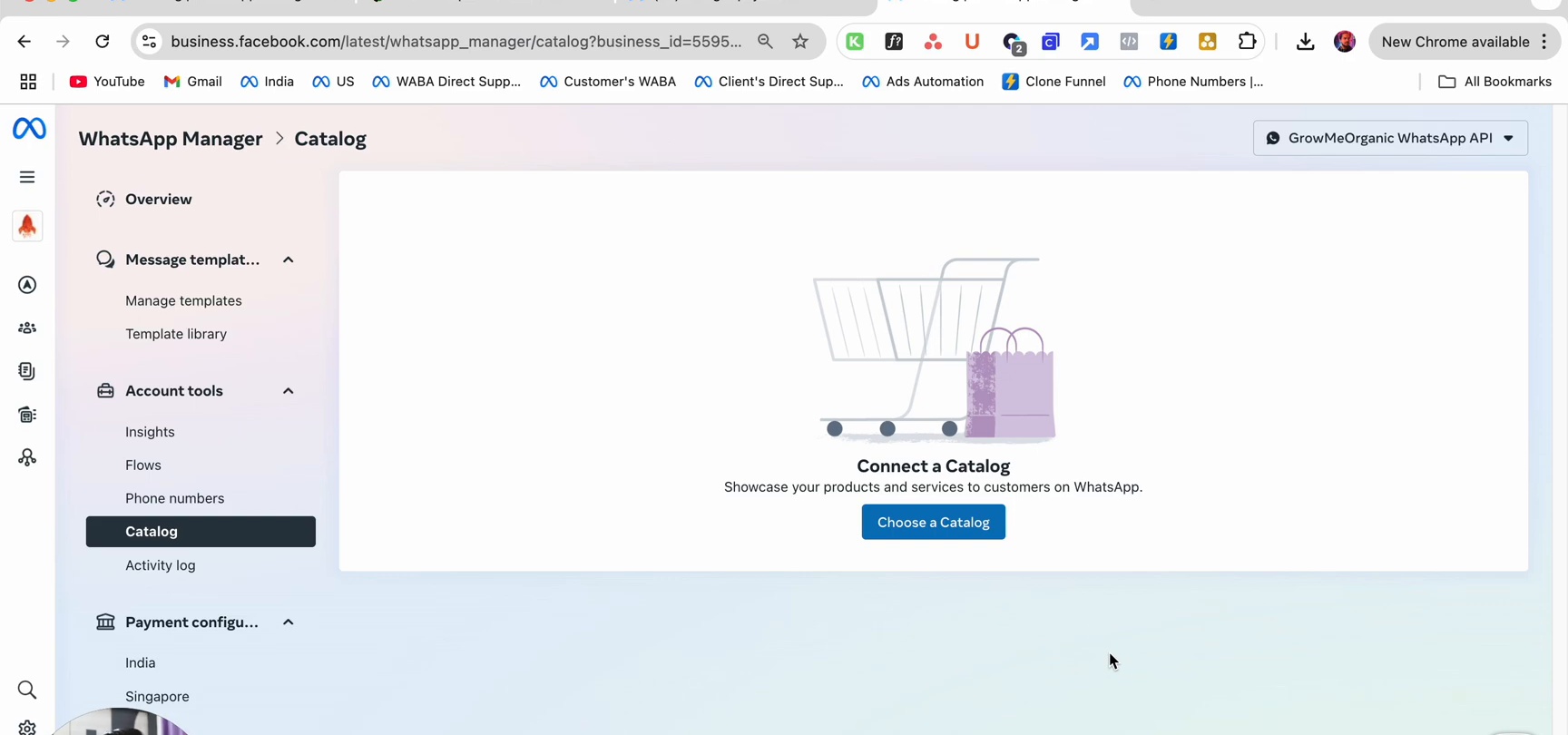
- Click Choose a Catalog
- In the dialog, select your catalog from the dropdown and click Connect Catalog
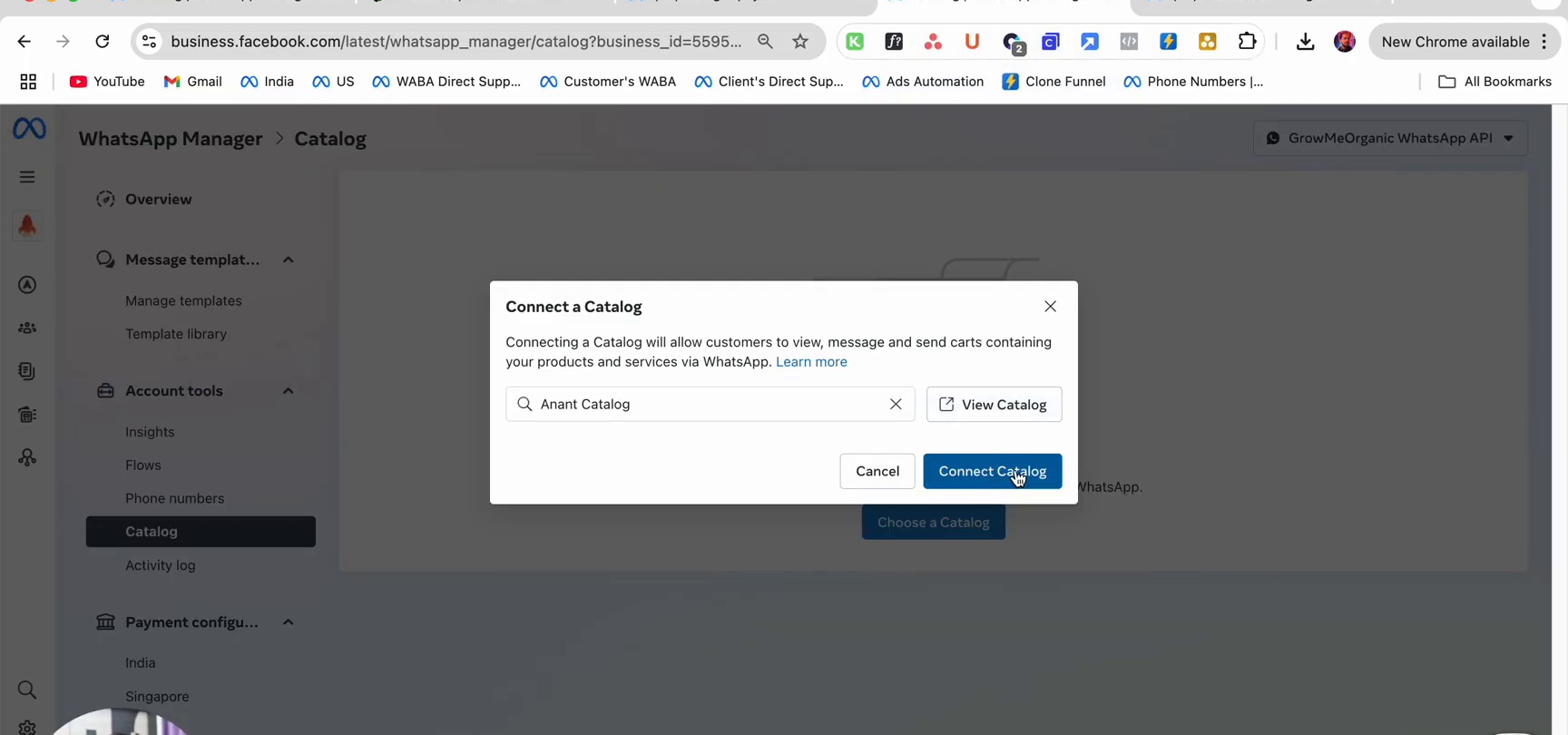
Your catalog is now linked to your WhatsApp number in Meta.
Part 3: Sync Products in WhatChimp
- In WhatChimp, go to eCommerce Catalog (in the left sidebar)
- You'll see your connected catalogs listed with their settings
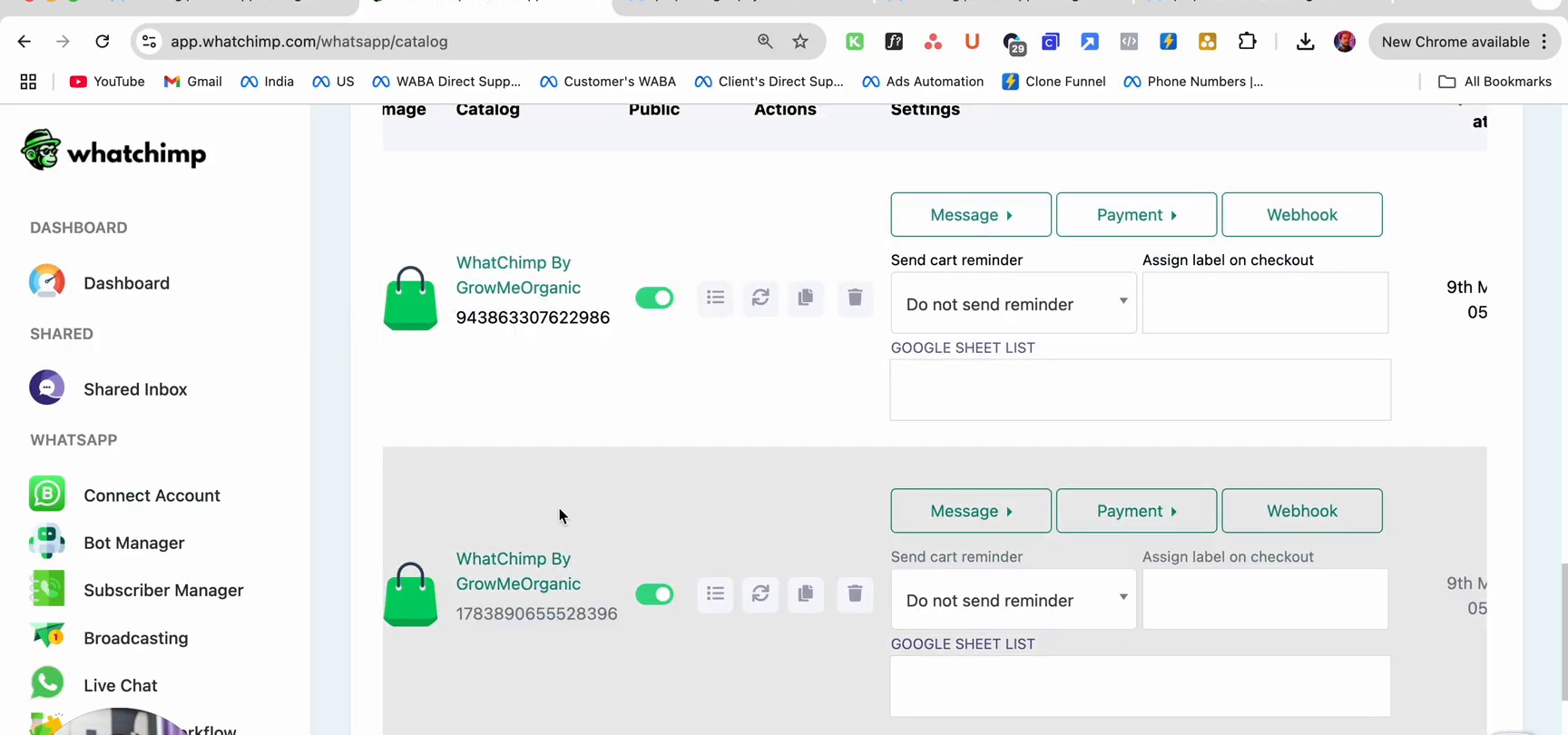
- Click on a catalog to open the Catalog Products modal
- Click Sync Product to pull the latest products from Meta into WhatChimp
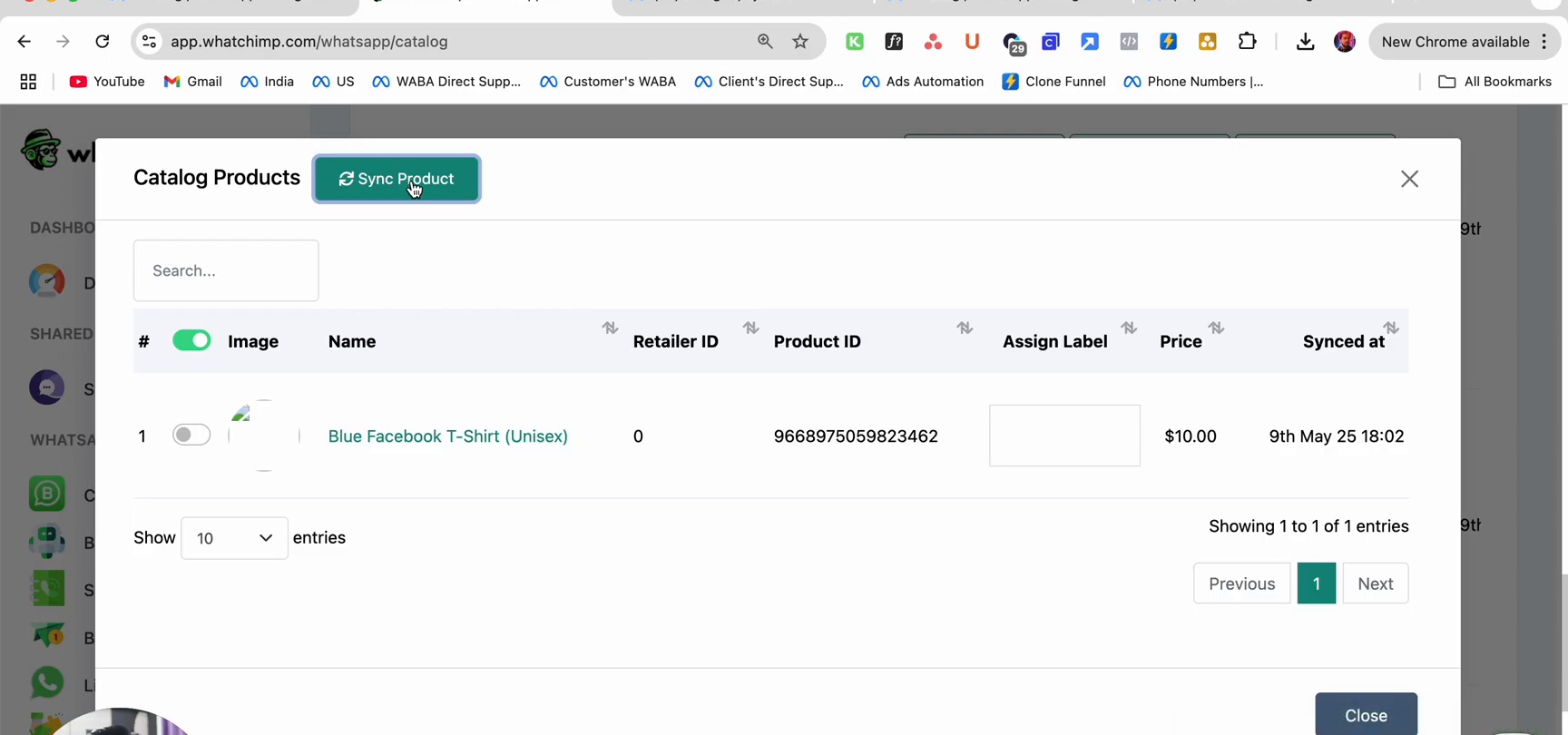
After syncing, you'll see all your products listed with their images, names, product IDs, prices, and sync timestamps.
Next Steps
- Showcase Products in a Chatbot — Build a chatbot that displays your catalog to customers
- Catalog Settings & Sync — Configure payment settings, cart reminders, and webhooks