Webhook on Button Click
Fire a webhook when a customer clicks a specific button in your chatbot flow
Updated 10 February 2026
You can fire a webhook when a customer clicks a specific button in your chatbot. This lets you track button interactions, trigger actions in external systems, or sync data the moment a user makes a choice.
How to Set It Up
In your bot flow, click on any Button component to open its settings. Scroll down to find the Send data to Webhook URL field.
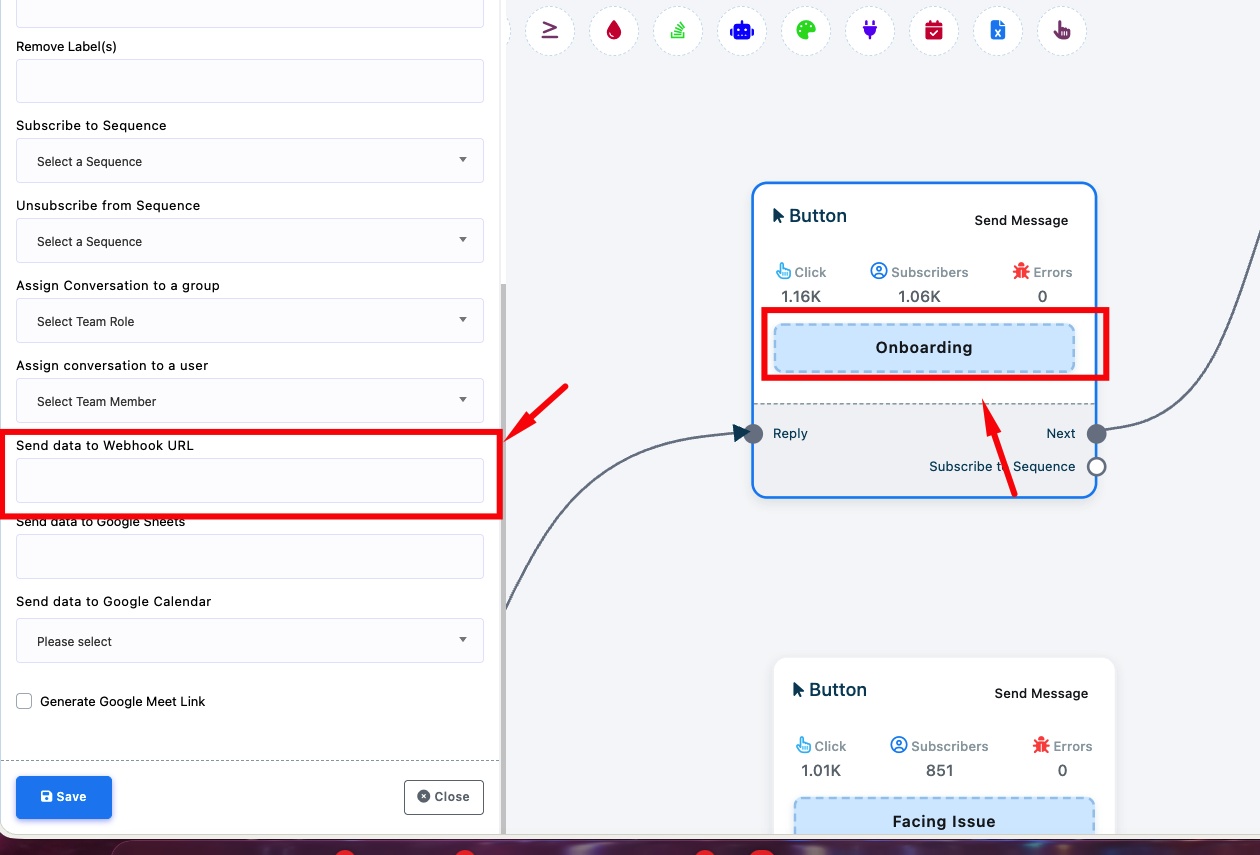
Send data to Webhook URL — Paste your webhook endpoint URL. Every time a customer clicks this button, WhatChimp will POST the subscriber's data to your URL.
Each button in your flow can have its own webhook URL, so you can trigger different actions based on which button the customer clicks. For example:
- "Onboarding" button → fires webhook to your onboarding system
- "Facing Issue" button → fires webhook to your support ticketing system
Tip: You can also send data to Google Sheets or Google Calendar from the same button settings.
Related Articles
How to Add Clickable CTA Buttons — Full guide on adding buttons to your chatbot
Webhook on Keyword Trigger — Fire webhooks when specific keywords are matched