Webhook Workflow Reporting
Delivery stats monitor karein, errors track karein, aur webhook workflow performance troubleshoot karein
Updated 10 February 2026
Webhook workflow Dashboard har workflow ke liye delivery aur performance stats dikhata hai. Iska use karein yeh monitor karne ke liye ki aapke messages successfully bheje ja rahe hain aur kisi bhi issue ko troubleshoot karne ke liye.
Reports dekhein
Settings & Integration → WhatsApp Webhook (in-bound) Workflow par jaayein. Har workflow row real-time stats dikhati hai. Detailed breakdown dekhne ke liye Workflow Report par click karein.
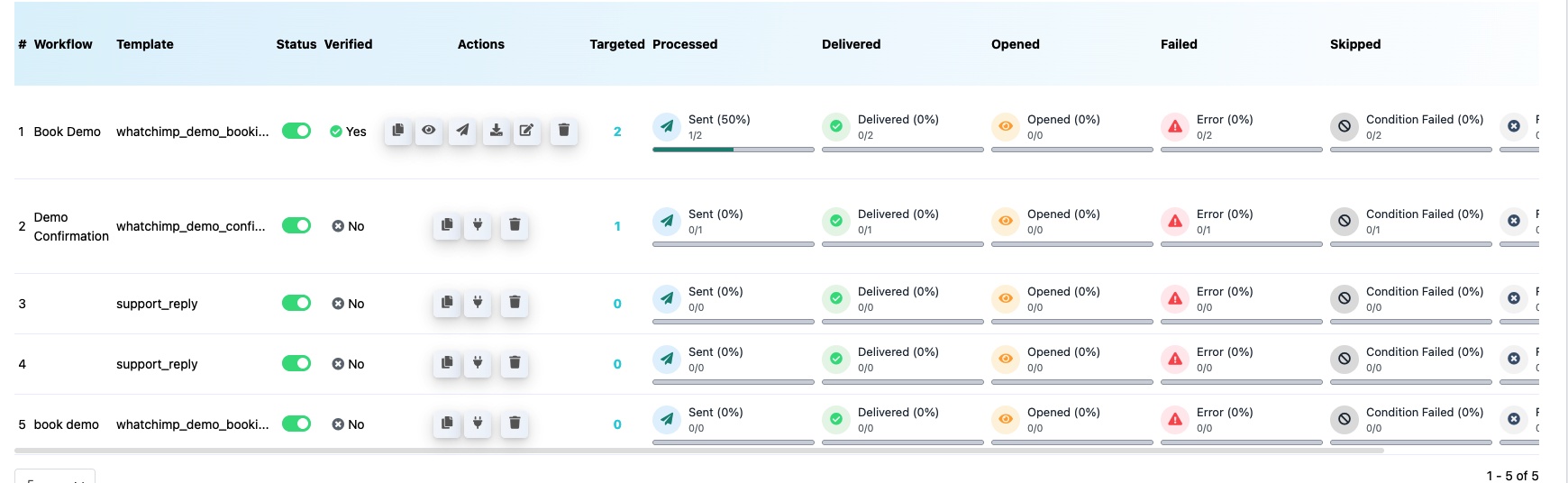
Har column ka matlab kya hai
- Targeted — Total webhook calls received
- Processed — Messages jo process aur send karne ki koshish ki gayi
- Delivered — Messages jo successfully recipient ke WhatsApp par deliver ho gaye
- Opened — Messages jo recipient ne kholi (templates ke liye jo read receipts support karte hain)
- Failed / Error — Messages jo send nahi ho paaye. Reason dekhne ke liye error indicator par hover karein
- Skipped — Messages jo skip ho gaye kyunki condition rule meet nahi hua
- Condition Failed — Webhook calls jahan conditional rules ne message bhejne se roka
Common issues troubleshoot karna
High error rate — Check karein ki aapka WhatsApp number active hai, aapka Message Template approved hai, aur webhook mapping mein phone number field sahi hai.
Messages skipped ya condition failed — Workflow ki automation settings mein apne conditional rules review karein. Ensure karein ki webhook data expected format aur values se match karta hai.
0% delivery rate — Verify karein ki callback URL aapke third-party app mein correctly set hai aur ek test webhook successfully capture hua hai.
Related Articles
Create a Webhook Workflow — Full setup guide
Webhook Automation Settings — Delays, conditions aur post-webhook actions
Why Your Messages Aren't Sending — General message delivery troubleshooting