Cómo Solicitar la Palomita Verde de WhatsApp
Obtén la insignia de verificación de Cuenta Comercial Oficial
Updated 10 February 2026
The WhatsApp green tick (now a blue badge after Meta's 2024 unification across WhatsApp, Facebook, and Instagram) marks your business as an Official Business Account (OBA). Instead of customers seeing just your phone number, they see your verified business name with a badge next to it — across all chats, groups, and WhatsApp search.
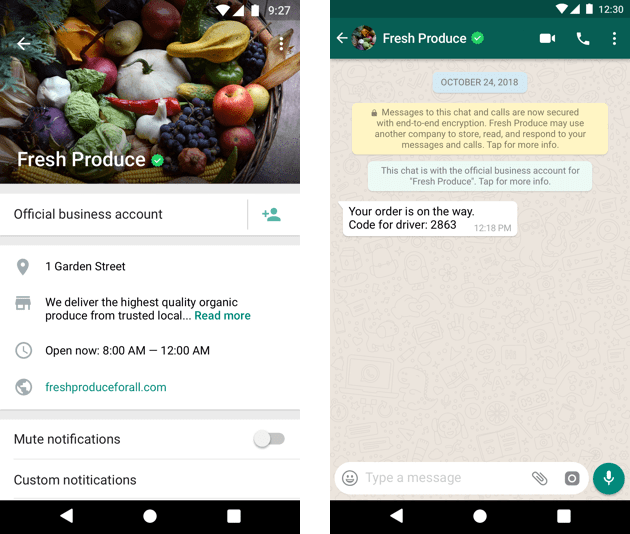
This is purely a trust signal — it doesn't unlock any extra features. But for businesses that depend on customer trust (especially in industries like finance, healthcare, e-commerce, and real estate), it makes a real difference in message open rates and engagement.
Importante: The green tick is not easy to get. Meta approves only a small percentage of applications. The biggest barrier isn't technical — it's proving your brand is publicly notable with organic media coverage.
Requirements
Before you can apply, you must meet all of these:
WhatsApp Business API access — The green tick is only available to businesses using the WhatsApp Business API (through WhatChimp or another BSP). The free WhatsApp Business App cannot get verified. See How to Connect Your Phone Number.
Meta Business verified — Your Meta Business Portfolio must be verified. This is separate from the green tick itself — it's a prerequisite. See How to Verify Your Meta Business Manager.
Display name approved — Your display name must be compliant with WhatsApp's guidelines and must match your legal business registration exactly — same spelling, capitalization, and punctuation. This is the most common reason applications get rejected.
Two-step verification enabled — Must be turned on for your phone number in WhatsApp Manager under Phone numbers → Settings → Two-step verification.
Brand notability (the hard part) — Meta requires evidence that your business is known to a broad public audience. You need 3-5 organic press articles from established media outlets.
What Counts as Notability Evidence
Accepted:
- Editorial articles in established publications (Forbes, TechCrunch, industry trade magazines, national news)
- Wikipedia entry for your company
- TV or radio coverage (editorial, not paid spots)
- Industry-specific trade publication features
Not accepted:
- Paid advertorials or sponsored content
- Your own press releases
- Social media follower counts
- Blog posts on your own website
- Paid PR placements
Reality check: This is where most applications fail. If your business doesn't have genuine press coverage from recognized publications, your application will likely be rejected. Focus on building organic media presence before applying.
How to Apply
Step 1: Go to WhatsApp Manager
Log in to your WhatsApp Manager and navigate to Account tools → Phone numbers.

Step 2: Open Phone Number Settings
Find the phone number you want to verify and click the Settings icon next to it.

Step 3: Go to Profile
In the settings panel, click the Profile tab.

Step 4: Request Verification
Click Request Verification and fill out the application form. You'll need to provide:
- Your business name (must match legal registration exactly)
- Links to 3-5 press articles proving brand notability
- Any additional supporting evidence
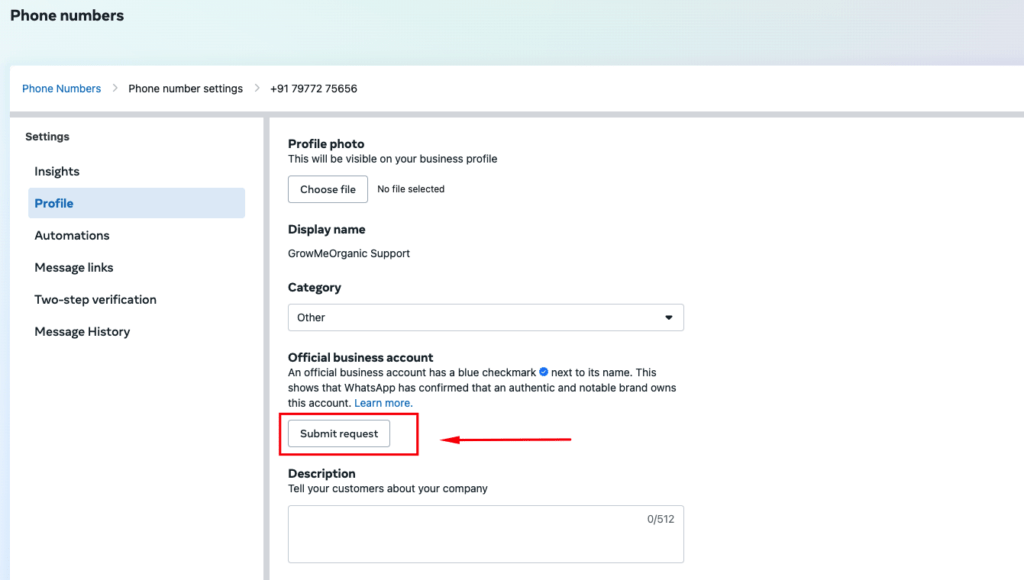
Submit the form and wait for Meta's review.
What Happens After Submission
Review time: Typically 2-4 business days. Complex cases can take up to 30 days.
Check status: Go to the Direct Support tab in your Meta Business Manager to track your application.
If approved: Your badge will appear immediately across all chats. Once verified, you cannot change your display name without reapplying — so make sure it's exactly what you want before submitting.
If rejected: You can reapply after 30 days. Meta will provide a reason for rejection. Use the waiting period to address the specific issue.
Consejos to Improve Your Chances
Get genuine press coverage first — This is the single most important factor. Secure 3-5 editorial articles in recognized publications before applying. Start months in advance if needed.
Match your display name exactly — Character for character with your legal business registration. "Acme" will be rejected if your registration says "Acme Corporation Inc."
Ensure consistency everywhere — Your business name, address, and details should match across Meta Business Portfolio, your website, and your registration documents.
Build account history — Use your WhatsApp number actively for several weeks before applying. A new number with no history has a lower chance of approval.
Maintain high quality rating — A green (High) quality rating on your phone number shows Meta you're a responsible sender.
Run Click-to-WhatsApp ads — Active use of Meta's ad products demonstrates platform engagement and can strengthen your application.
Business Account vs Official Business Account
| Business Account | Official Business Account (OBA) | |
|---|---|---|
| What customers see | Your phone number | Your business name + blue badge |
| Searchable by name | No | Yes — customers can find you in WhatsApp search |
| How you get it | Automatic when you connect to the API | Must apply and be approved by Meta |
| Requirements | API access | API access + verification + brand notability |
| Cost | Free | Free to apply (standard messaging costs apply) |
Every business on the WhatsApp API starts as a regular Business Account. The OBA with the blue badge is an upgrade you apply for once you meet the requirements.
Related Articles
How to Connect Your Phone Number with WhatChimp — Set up your WhatsApp API access
How to Verify Your Meta Business Manager — Complete business verification (required before applying)
WhatsApp Messaging Limits — Understand messaging tiers and quality ratings
Business Manager, WhatsApp Accounts, and Phone Numbers Explained — How the Meta hierarchy works