What is Incoming Webhook Workflow
Connect third-party apps to WhatChimp and send WhatsApp messages automatically when events happen — no Zapier or Pabbly needed
Updated 10 February 2026
Incoming Webhook Workflow lets you connect third-party apps to WhatChimp without tools like Zapier or Pabbly. When an event happens in another app — a new booking, a form submission, a payment — it sends a webhook to WhatChimp, which automatically sends a WhatsApp message using that data.
Video: https://www.youtube.com/watch?v=vdNPfF6At3E
How It Works
An event happens in your app (e.g., someone books a meeting in Cal.com) → The app sends a webhook to WhatChimp (a JSON payload with booking details) → WhatChimp maps the data to a message template (name, date, link) → The customer receives a WhatsApp message automatically.
No code required. You just configure the mapping between the webhook data and your message template variables.
When to Use It
- A customer books an appointment and you want to send a WhatsApp confirmation
- An order is placed in your CRM and you want to notify the customer
- A form is submitted and you want to send a follow-up message
- Any third-party app that supports outgoing webhooks
The Dashboard
Go to Settings & Integration → WhatsApp Webhook (in-bound) Workflow. This is where you create and manage all your webhook workflows.
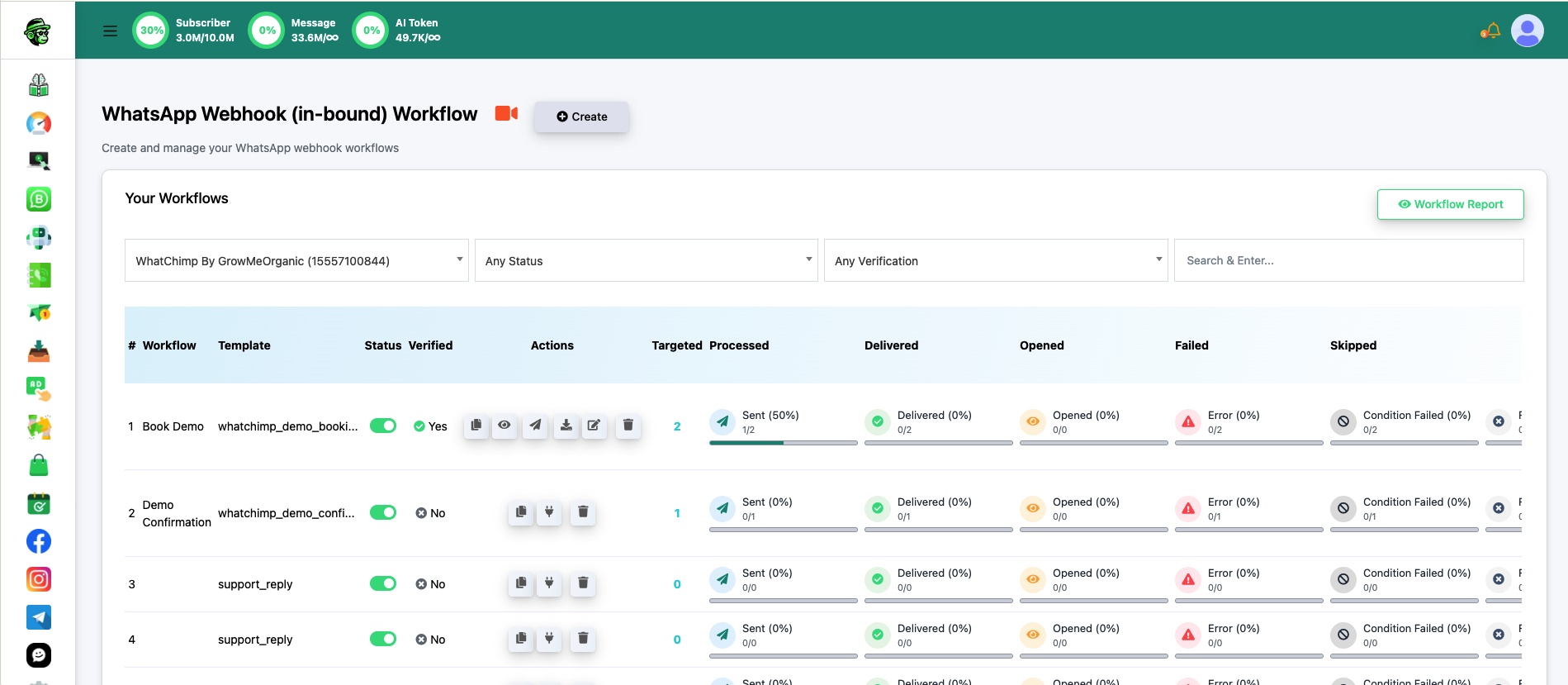
Each workflow shows its linked template, status, verification state, and delivery stats (targeted, processed, delivered, opened, failed, skipped).
Related Articles
Create a Webhook Workflow — Step-by-step setup guide
Webhook Automation Settings — Add delays, conditions, and post-webhook actions
Webhook Workflow Reporting — Monitor delivery and performance