Webhook Workflow Reporting
Monitor delivery stats, track errors, and troubleshoot webhook workflow performance
Updated 10 February 2026
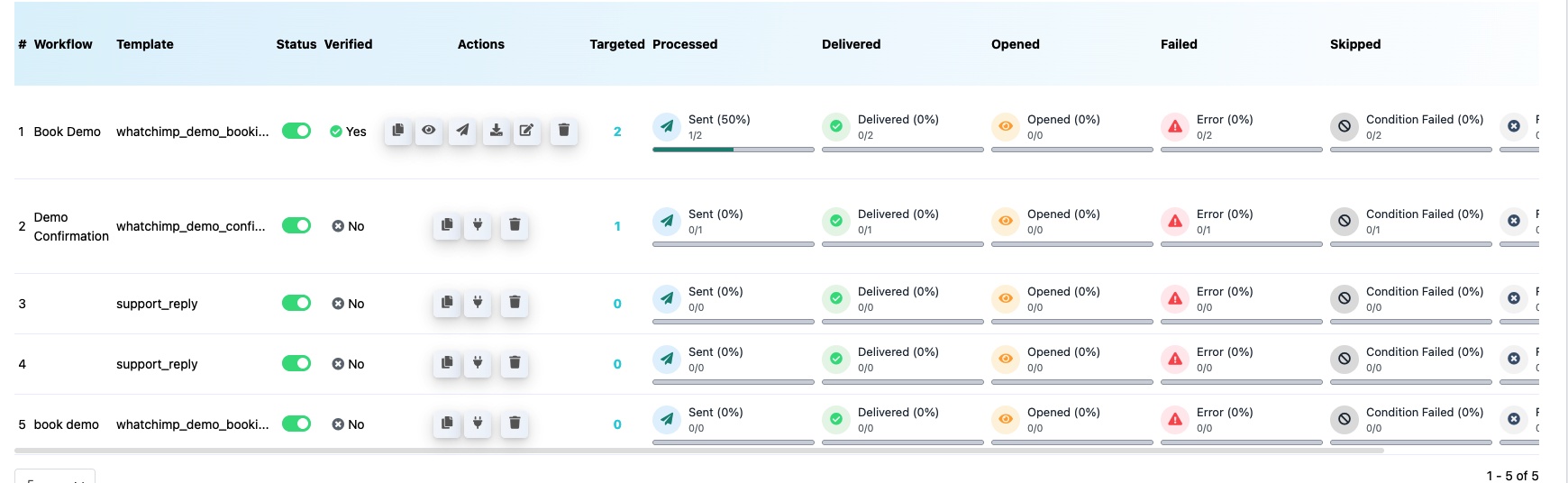
The webhook workflow dashboard shows delivery and performance stats for each workflow. Use this to monitor whether your messages are being sent successfully and troubleshoot any issues.
Viewing Reports
Go to Settings & Integration → WhatsApp Webhook (in-bound) Workflow. Each workflow row displays real-time stats. Click Workflow Report to see a detailed breakdown.
What Each Column Means
- Targeted — Total number of webhook calls received
- Processed — Number of messages that were processed and attempted for sending
- Delivered — Messages successfully delivered to the recipient's WhatsApp
- Opened — Messages the recipient opened (for templates that support read receipts)
- Failed / Error — Messages that failed to send. Hover over the error indicator to see the reason
- Skipped — Messages skipped because a condition rule was not met
- Condition Failed — Webhook calls where conditional rules prevented the message from being sent
Troubleshooting Common Issues
High error rate — Check that your WhatsApp number is active, your message template is approved, and the phone number field in the webhook mapping is correct.
Messages skipped or condition failed — Review your conditional rules in the workflow's automation settings. Make sure the webhook data matches the expected format and values.
0% delivery rate — Verify the callback URL is correctly set in your third-party app and that a test webhook has been captured successfully.
Related Articles
Create a Webhook Workflow — Full setup guide
Webhook Automation Settings — Delays, conditions, and post-webhook actions
Why Your Messages Aren't Sending — General message delivery troubleshooting