How to Set Up SMS Marketing: A Complete Beginner's Guide
Step-by-step guide to setting up SMS marketing in WhatChimp, from connecting an SMS provider to sending and tracking your first campaign.
Updated 25 June 2026
SMS marketing is a simple way to reach your customers directly on their phones, whether you are sending offers, reminders, or order updates. This guide walks you through setting up SMS marketing in WhatChimp, from connecting an SMS provider to sending your first campaign and tracking the results.
Prerequisites
Before you start, make sure you have:
- A WhatChimp account with access to the SMS features.
- An account with an SMS provider (such as Twilio, Plivo, Nexmo/Vonage, Clickatell, or Africastalking).
- Your provider's Auth ID, Auth Token, and a Sender/From number or ID. You will find these in your SMS provider's dashboard.
Step 1: Open the SMS Integration Settings
- Log in to your WhatChimp dashboard.
- Open Settings & Integration from the left sidebar.
- Click SMS Integration.
This opens the SMS settings page, where you manage your SMS profiles.
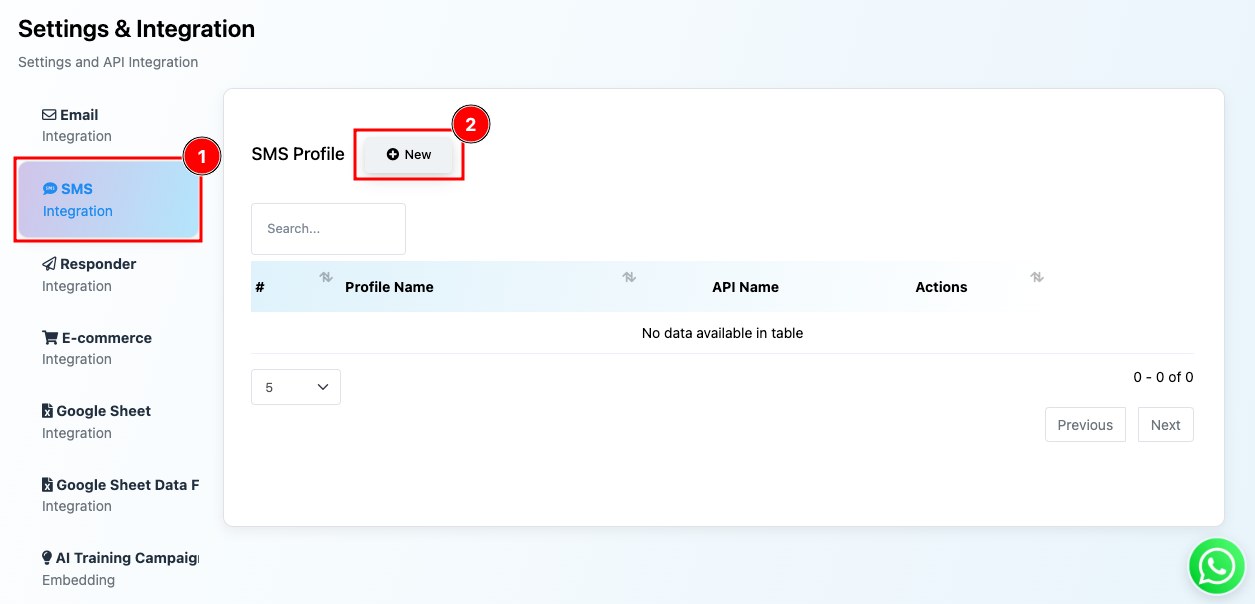 Open SMS Integration, then click New to add a profile
Step 2: Create an SMS Profile
An SMS profile stores the connection details for your SMS provider. To create one:
- On the SMS settings page, click New.
- Enter a Profile Name you will recognize later.
- Choose your API Name, the SMS provider you are using (for example Twilio, Plivo, or Nexmo/Vonage).
- Enter your Auth ID, Auth Token, and Sender/From details. These come from your SMS provider's website and are what let WhatChimp send messages through your account.
- Click Save.
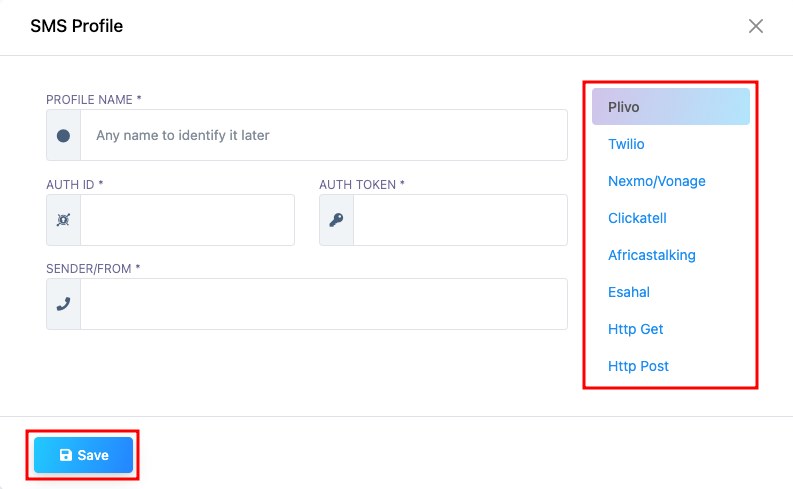 Pick your SMS provider and enter your Auth ID, Auth Token, and Sender details
Step 3: Create an SMS Broadcasting Campaign
Now you can build a campaign and choose who receives it.
- Go to Broadcasting in the sidebar.
- Click Create to start a new campaign.
- Choose the bot account that holds the subscribers you want to message.
- Enter a Campaign Name so you can identify this broadcast later.
- Select the SMS API, the SMS profile you created in Step 2.
- (Optional) Set a Message Delay in seconds between each message. This helps you stay within your provider's rate limits.
- Write your message, then click Create Campaign.
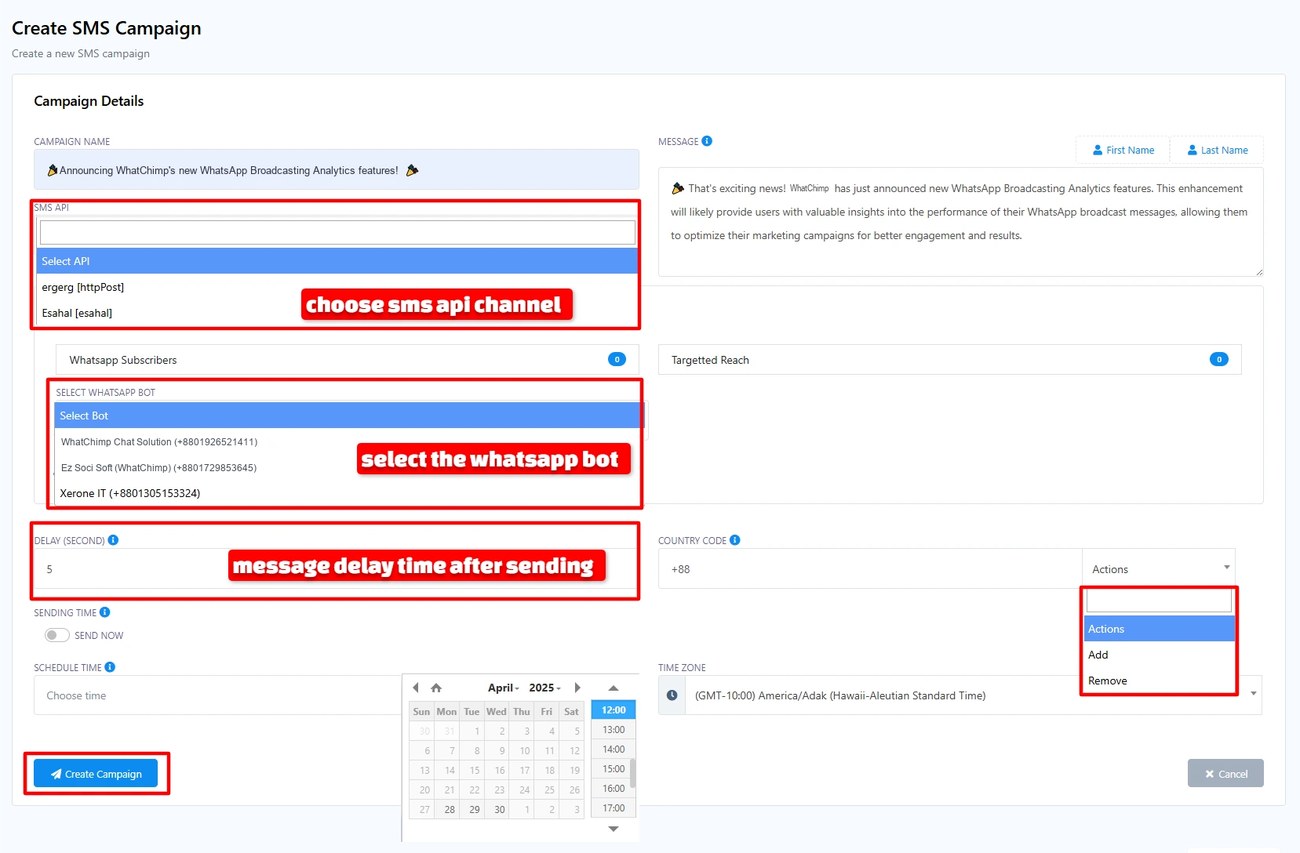 Choose your SMS API channel, select the bot account, and set a message delay
Step 4: Finalize and Launch the Campaign
Before sending, set the final details:
- Targeted Reach: choose the audience that will receive the message.
- Sending Time: send immediately or schedule it for later.
- Country Code: make sure the country code for your contacts' phone numbers is correct (for example, +88 for Bangladesh).
When everything looks right, click Create Campaign to launch your SMS campaign.
Step 5: Monitor and Analyze Your Campaign
Once your campaign is live, you can track how it performs. WhatChimp's campaign reporting gives you a clear view of each broadcast.
In the SMS Broadcasting section, you will see a list of your ongoing and completed campaigns. Each row has an Actions column where you can view the report (the eye icon) or delete the campaign (the trash icon).
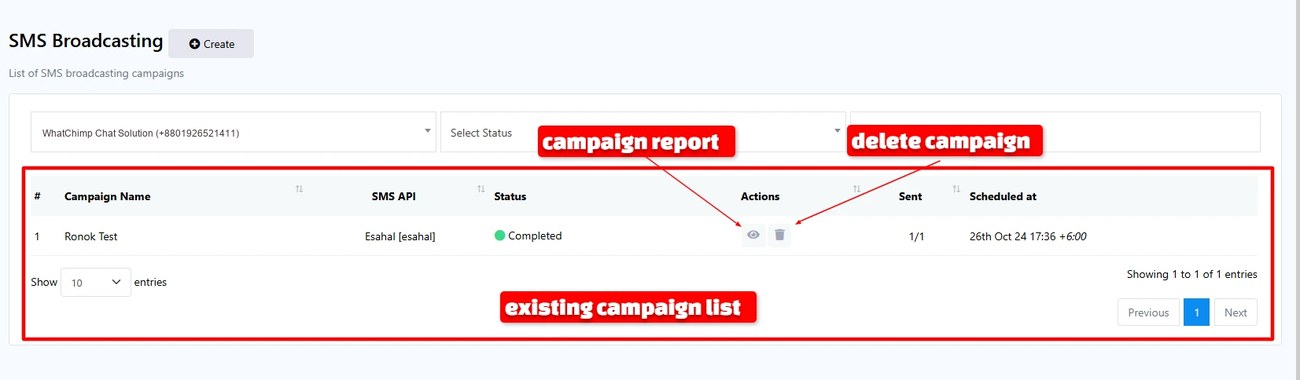 Open a campaign report with the eye icon, or remove a campaign with the trash icon
Click the eye icon to open the campaign report. At the top you will see:
- Status: whether the campaign is completed or still in progress.
- Targeted: how many subscribers were part of the broadcast.
- SMS API: the profile used to send the messages.
- Sent: how many messages were sent, with the delivery percentage.
Below that, the report lists each message:
- Chat ID: a unique identifier for each message sent.
- Name: the subscriber who received the SMS, if available.
- Sent at: the time the message was sent.
- Response: any response data for the message, such as delivery confirmation.
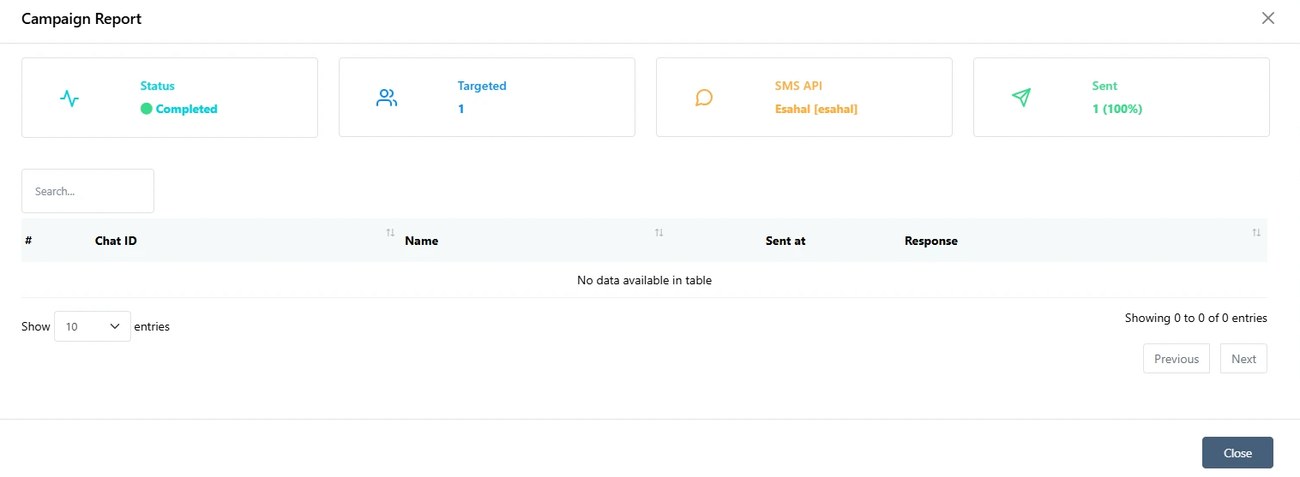 The campaign report shows status, targeted reach, SMS API, and delivery rate
Checking these reports regularly helps you see what is working and improve your next campaign.
FAQs
What do I need before I can set up SMS marketing in WhatChimp?
You need a WhatChimp account with SMS access and an account with an SMS provider (such as Twilio, Plivo, or Nexmo/Vonage). From your provider you will need an Auth ID, Auth Token, and a Sender/From number or ID.
Where do I find my Auth ID and Auth Token?
These come from your SMS provider's dashboard, not from WhatChimp. Sign in to your provider's website to copy them, then paste them into your SMS profile.
Can I schedule an SMS campaign for later?
Yes. When you finalize the campaign, choose a Sending Time. You can send right away or set a date and time for the broadcast.
Why is the country code important?
SMS needs the full international number to deliver. If the country code is missing or wrong, messages may fail. Set the correct code for your contacts (for example, +88 for Bangladesh).
How do I know if my messages were delivered?
Open the campaign report from the Actions column in SMS Broadcasting. The Sent count and delivery percentage show how many messages went out, and the per-message rows show the status for each recipient.