How to Send Broadcast Messages in WhatChimp
Step-by-step guide to importing contacts, creating templates, and sending broadcast campaigns
Updated 22 September 2026
This guide walks you through the full broadcasting workflow in WhatChimp, from importing your contacts to launching your campaign. The process is the same whether you send a text-only message or a message with an image or video.
Video: https://www.youtube.com/watch?v=7XoNzsGyAOY
Before You Start
Make sure you have:
- Your WhatsApp Business API number connected to WhatChimp
- A clean contact list (a spreadsheet with names and phone numbers)
- An approved message template (or you'll create one in Step 3)
Step 1: Prepare Your Contact List
Start with a spreadsheet that has at least a phone number column, plus any other details you want to keep, such as name or company.
Format phone numbers correctly. Include the country code without the + sign, for example 919876543210 for India or 447911123456 for the UK. Wrong phone formats are the most common cause of failed broadcasts.
Save as CSV. Download the spreadsheet as a CSV file with UTF-8 encoding. In Google Sheets, go to File > Download > Comma-separated values (.csv). You can also import straight from Google Sheets without downloading a file (see Step 2).
Step 2: Import Your Subscribers
Go to Sidebar > Manage Subscribers. Click Export/Import, then Import from CSV.
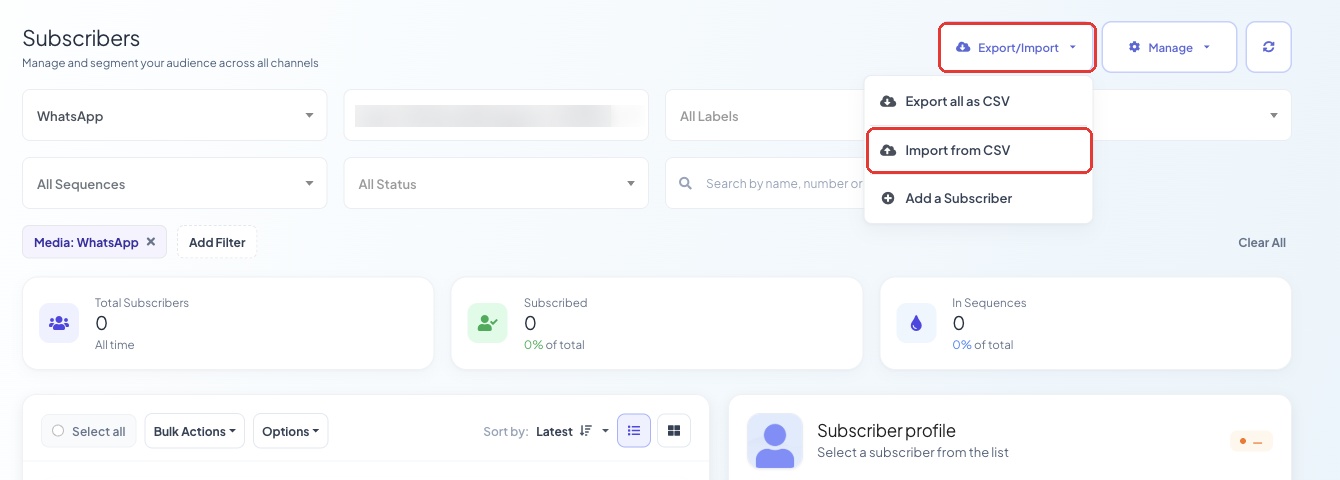 Open Export/Import and choose Import from CSV
In the Import Subscribers window:
- Select Label (optional): add a label such as "February Campaign" so you can target this group later.
- Select List (optional): add the contacts to a subscriber list.
- Select Bot: choose the WhatsApp number these contacts belong to.
- Then Upload your CSV file, or import from Google Sheet or Google Contacts. Click Sample CSV if you want a file in the right format to start from.
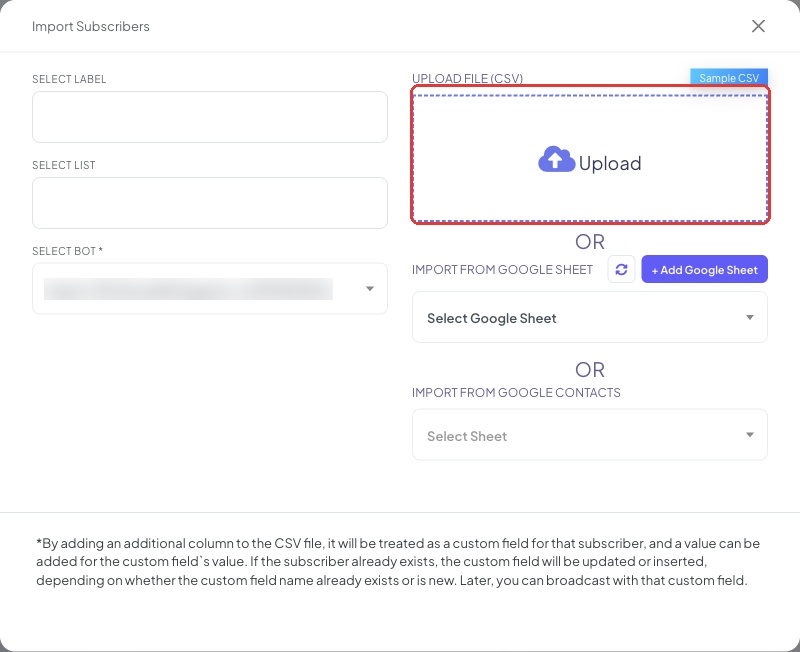 Choose a label, list and bot, then upload your file
Your contacts are imported as soon as the upload finishes. Any extra column in your CSV becomes a custom field for that subscriber, so you can use it later to personalize your broadcast.
Step 3: Create a Message Template
You need an approved template to message people outside the 24-hour window. If you already have one, skip to Step 4.
Go to Sidebar > Bot Manager, select your WhatsApp number, then open Automation > Message Templates and click Create.
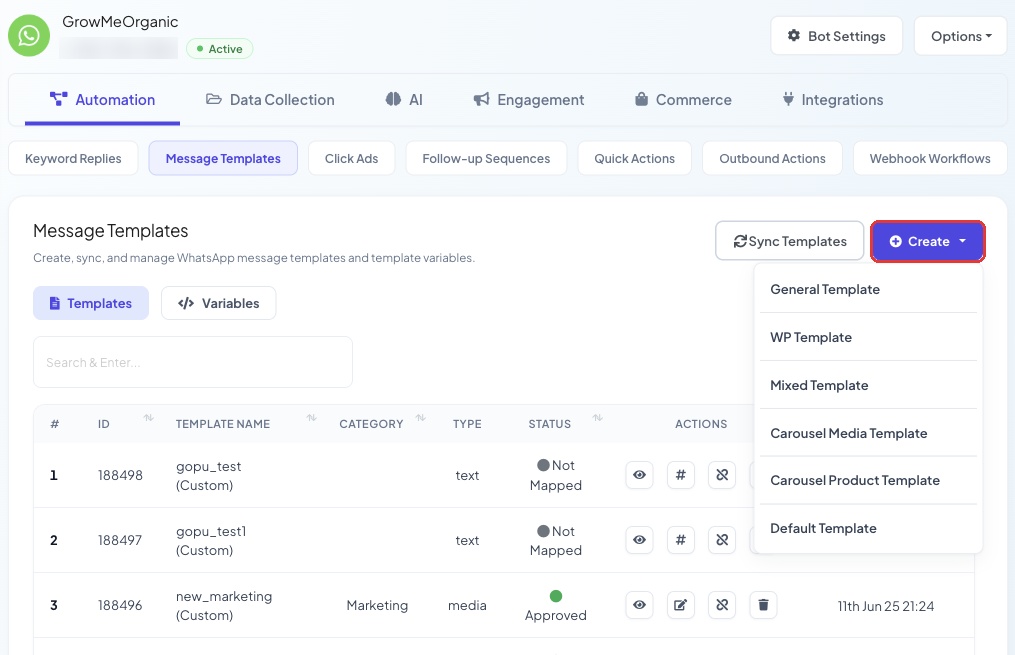 Click Create and pick a template type
Pick the template type:
- General Template: a text message with optional buttons.
- Mixed Template: a message with an image, video or document header, plus body text and buttons.
Fill in the template:
- Template Name: lowercase letters and underscores, for example
february_sale_promo. - Locale: the language of the message.
- Template Category: Marketing for promotions, Utility for order and account updates, Auth/OTP for verification codes.
- Message Body: your message. Use Custom Fields, Variables or Name to personalize it, and AI Re-write to polish the wording.
- Footer Text and Buttons (optional).
The phone preview on the right shows how the message will look.
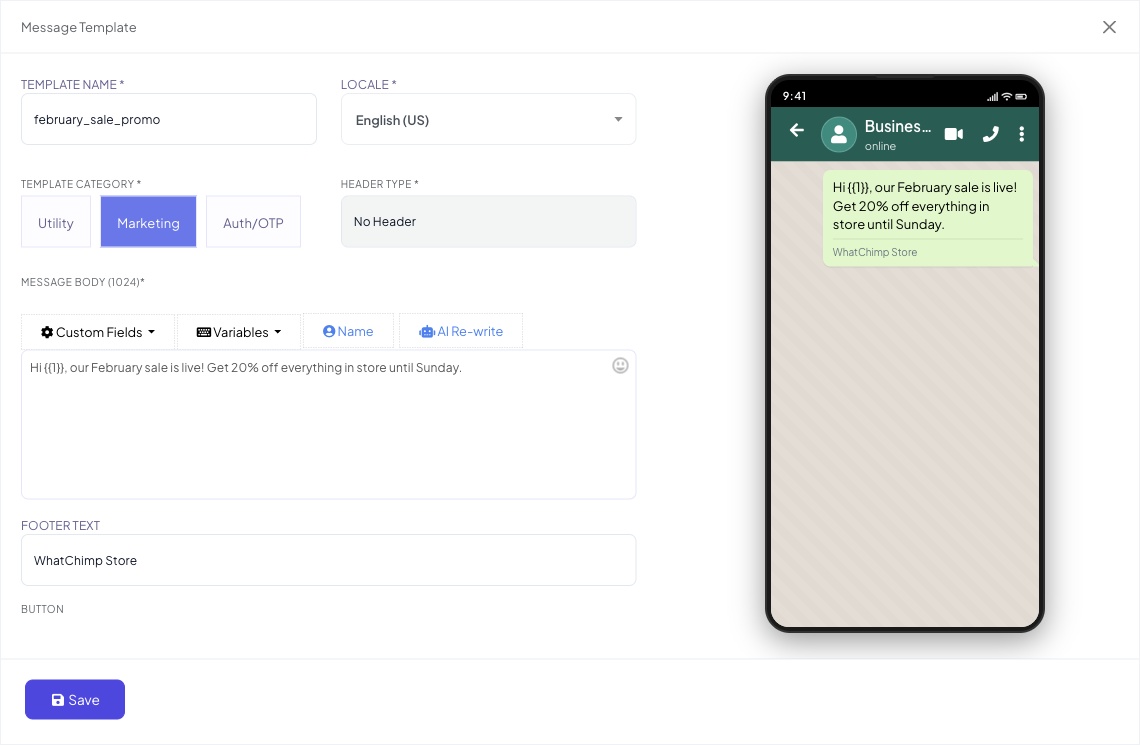 The preview updates as you type
For Image or Video Templates
Choose Mixed Template and set Header Type to Image, Video or Document. You add the actual file when you send the broadcast.
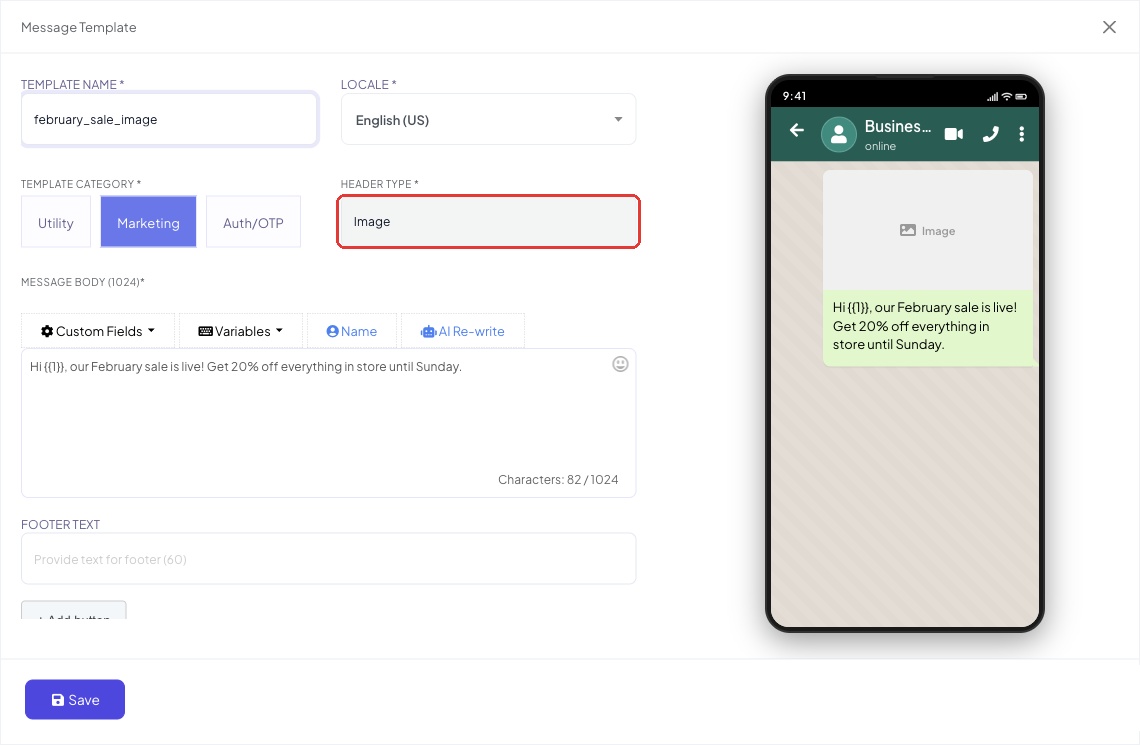 Set the header type to Image, Video or Document
Media file requirements:
| Type | Formats | Max Size |
|---|---|---|
| Image | JPG, PNG, WEBP | 5 MB |
| Video | MP4 (H.264 codec) | 16 MB |
Click Save to submit the template to Meta. Review usually takes a few minutes and can take up to 24 hours. You can see the status in the Message Templates list.
For a detailed guide, see Creating a WhatsApp Message Template.
Step 4: Create a Broadcast Campaign
Go to Sidebar > Broadcasting. This opens the Broadcast Center, where you can see your campaigns and their results. Make sure the WhatsApp tab is selected, then click Create Campaign.
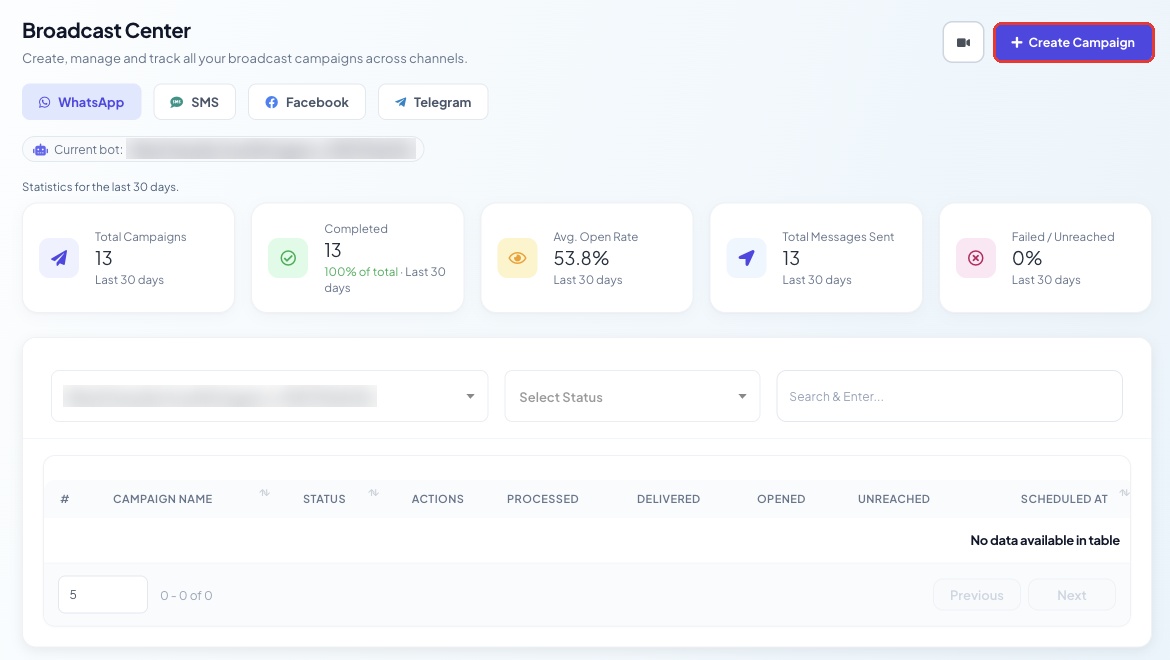 Click Create Campaign
The campaign opens in the Flow Builder with the Configure Action Button panel, and Actions is already set to Broadcasting.
- Campaign name: something you'll recognize later, like "February Sale - New Leads".
- Broadcast type: choose Anytime to send an approved template to anyone (use this for most broadcasts), or 24 hours to send a free-form message to people who messaged you in the last 24 hours.
- Select template: pick your approved template.
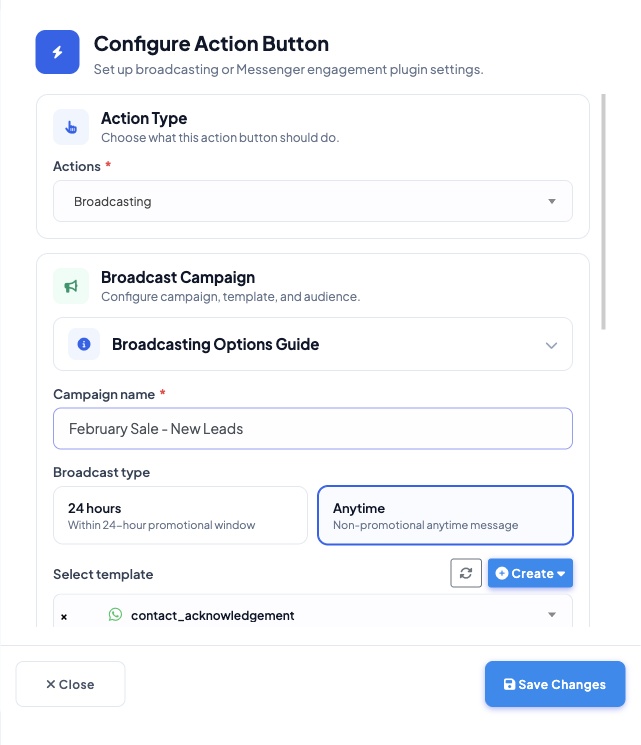 Anytime is the right choice for most broadcasts
Step 5: Choose Your Audience
Scroll down in the panel to pick who receives the message:
- Include label ids and Exclude label ids: for example, include "New Leads" and exclude "Already Purchased".
- Include Subscriber Lists and Exclude Subscriber Lists.
- Country of the subscriber.
- Custom Field and Custom field contains value: target people by any custom field.
- Use recently added subscribers: target contacts added within a date range.
You can also Assign label after broadcast, which tags everyone who received the campaign.
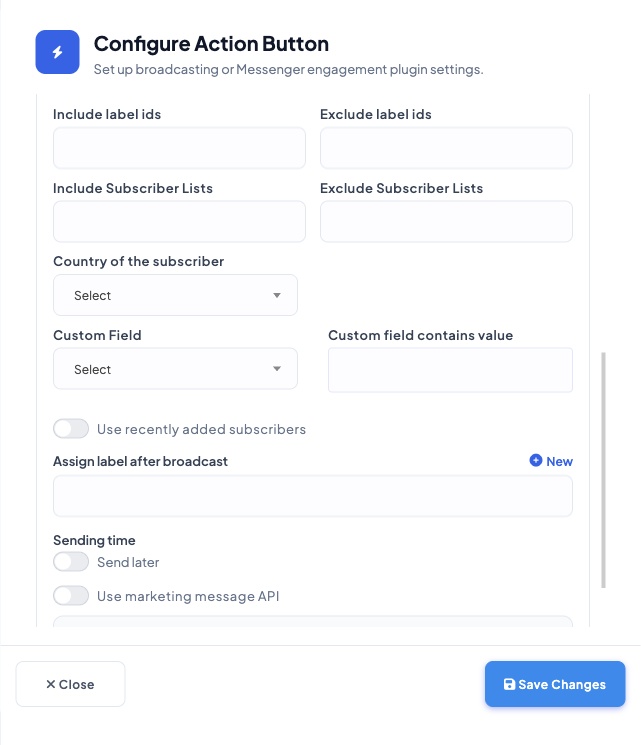 Combine labels, lists, country and custom fields
Step 6: Schedule and Launch
Under Sending time, leave Send later off to send right away, or turn it on and set the Schedule time and Time zone. Pick the time zone of your audience.
At the bottom of the panel, check Targeted subscribers (how many people will get the message) against your Daily WhatsApp Business Account (WABA) conversation limit before you launch.
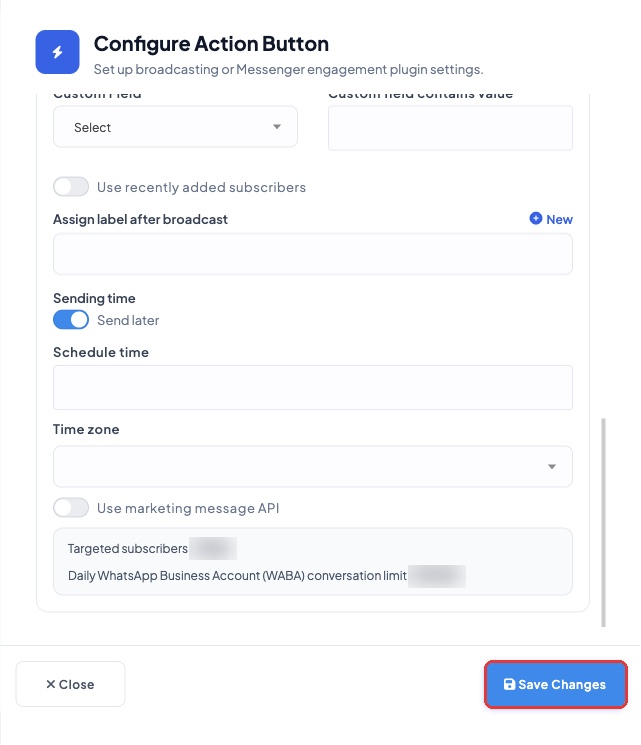 Check the targeted subscriber count before launching
Click Save Changes in the panel, then click Save at the top right of the Flow Builder to launch the campaign.
 Save sits at the top right, above the canvas
Important: a broadcast cannot be stopped. The moment you click Save, the campaign starts sending. It cannot be paused or cancelled after that, because WhatsApp does not allow a running campaign to be stopped. Check your template, your audience and your targeted subscriber count before you save.
Your campaign then appears in the Broadcast Center, where you can follow its status and results.
Tips for Successful Broadcasts
Start small. For your first broadcast, send to 100 to 200 contacts. Check your quality rating after a few hours before sending to more people.
Don't broadcast to cold lists. People who never opted in are more likely to block you, which lowers your quality rating and can reduce your messaging limits.
Time it right. Send during business hours in your audience's time zone. Messages sent at odd hours get more blocks.
Monitor your results. Check the Broadcast Center after sending. Look at delivery rates, read rates and failures. If blocks are high, stop and review your targeting before the next send.
Know your limits. Your messaging tier sets how many unique people you can reach per day. Check your tier in WhatsApp Manager. See WhatsApp Messaging Limits for details.
Frequently Asked Questions
What if my template is rejected? Read the rejection reason in Message Templates, fix the issue, and submit it again. See Why Templates Get Rejected and How to Fix Them.
Can I send messages without a template? Only to people who messaged you in the last 24 hours, using the 24 hours broadcast type. To reach anyone at any time, you need an approved template.
Can I stop or pause a campaign after I start it? No. Once the campaign is saved, it sends. WhatsApp does not allow a running campaign to be paused or cancelled, so check everything before you save. If you need more time to review, turn on Send later and schedule it.
Can I include images or videos? Yes. Create a Mixed Template with an Image or Video header, then add the file when you set up the campaign. Images must be JPG, PNG or WEBP under 5 MB. Videos must be MP4 under 16 MB.
How many contacts can I broadcast to? It depends on your messaging tier. See WhatsApp Messaging Limits.
Can I personalize messages with each contact's name or data? Yes. Add custom fields or variables to your template. WhatChimp fills them in from each subscriber's profile. See Broadcasting with Personalized Variable Data.
Related Articles
- Broadcasting with Personalized Variable Data: send personalized broadcasts using custom fields
- Creating a WhatsApp Message Template: detailed template guide
- WhatsApp Messaging Limits: your daily sending limits
- Understanding WhatsApp Quality Rating: keep your quality rating high
- Why Templates Get Rejected and How to Fix Them: fix approval issues