WhatsApp Business API Ban Ka Appeal Kaise Karein Aur Apna Number Wapas Kaise Payein
WhatsApp Business API ban ka Meta Business Support Home mein appeal kaise karein, review mein kya likhein, aur kab WhatChimp ke through escalate karein.
Updated 9 July 2026
Video: https://www.youtube.com/watch?v=TS_DrT1RtdM
Agar aapka WhatsApp Business API number disable ya ban ho gaya hai aur aapko lagta hai ki ban galat hua hai, toh aap Meta se review karne ke liye keh sakte hain. Yeh guide aapko Meta Business Manager ke teen steps se guide karta hai, review mein kya likhein, Meta kitna time leta hai reply karne mein, aur agar appeal fail ho jaaye toh kya karein.
Yeh Guide Kiske Liye Hai
Yeh guide sirf un numbers ke liye hai jo official WhatsApp Business API ke through connected hain (yahi channel WhatChimp use karta hai). Agar aap apne phone par WhatsApp Business App use kar rahe the, koi unofficial ya modified WhatsApp client, ya koi doosra provider, toh neeche diye gaye steps aapke setup par apply nahi honge.
Step 1: Meta Mein Phone Numbers Page Kholein
Directly Meta ke WhatsApp Manager phone numbers page par jayein:
https://business.facebook.com/wa/manage/phone-numbers/
Meta aapke current Business Portfolio ki phone numbers list kholega. Agar aapke paas ek se zyada portfolio hain, toh top right par account switcher use karein aur woh portfolio select karein jismein banned number hai. Agar aapka number list mein nahi dikh raha, toh aap galat portfolio par hain.
Step 2: Business Support Home Kholein
Ek baar aapko banned number mil jaaye, Meta list ke upar ek red Account Disabled banner dikhata hai. Banner batata hai ki account kis policy ke against flag hua hai (Commerce Policy, Terms of Service, aur is jaisi).
Us banner mein View details in Business Support Home par click karein. Yeh link aapko us page par le jaata hai jahan Meta aapko review request karne deta hai.
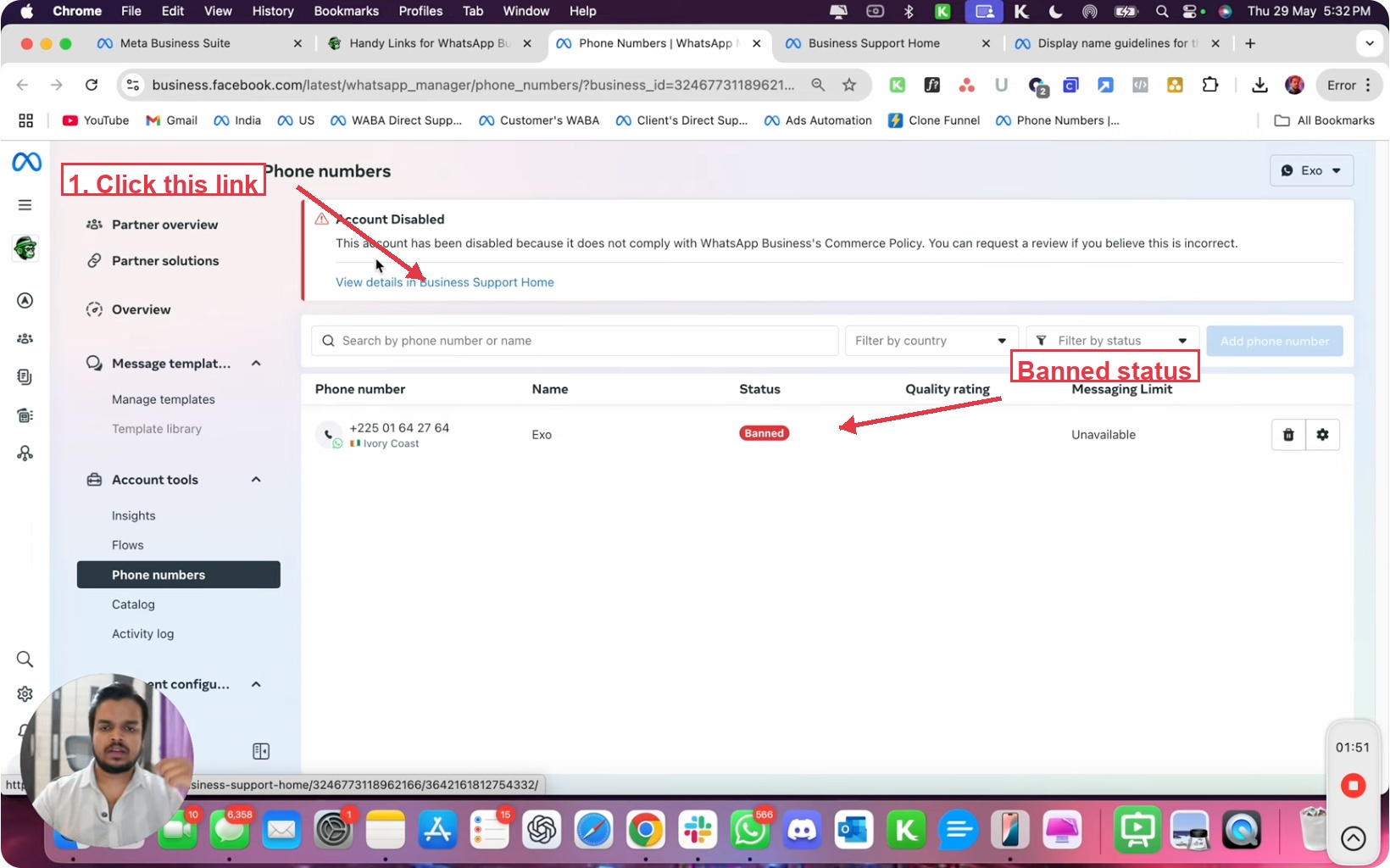 Business Support Home kholne ke liye View details in Business Support Home par click karein
Step 3: Request Review Par Click Karein Aur Apna Case Likhein
Business Support Home page account details, Meta se exact disable reason, aur right side par ek What you can do card dikhata hai jismein ek Request review button hota hai.
Request review par click karein. Submit karne se pehle 10 se 15 minutes ka time lein aur thoughtful, honest explanation likhein. Kya include karna hai woh next section mein hai.
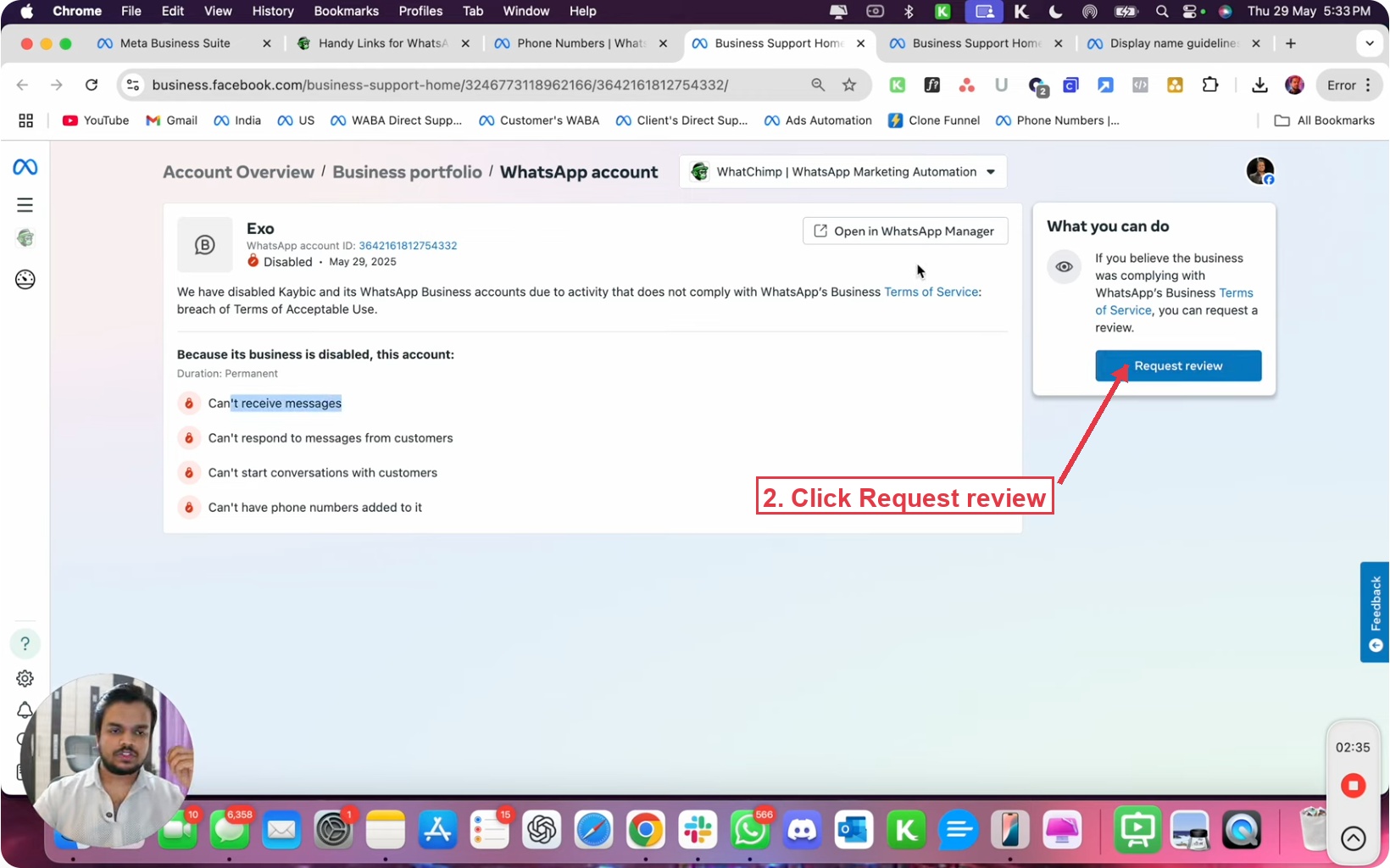 Request review button Meta review form kholta hai
Review Request Mein Kya Likhein
Meta reviewers har din bahut saari appeals padhte hain. Ek rushed one-line reply almost kabhi nahi jeetta. Ek clear, specific, evidence-based reply aksar jeetta hai. In char cheezon ko apne shabdon mein cover karein.
- Aapka business kya karta hai. Ek do lines apne product, apne customers ke baare mein, aur WhatsApp aapke customer service ya notifications mein kaise fit hota hai.
- Aap consent kaise collect karte hain. Yeh dikhayein ki aapke customers ne actively opt-in kiya hai WhatsApp messages receive karne ke liye (form fill, checkout consent, in-person signup, previous conversation, aur is jaisi). Vague statements jaise "our customers agreed" weak hain. Specific ones jaise "customers checkout page par checkbox ke through opt-in karte hain aur order confirmation email mein dubara confirm karte hain" strong hain.
- Aap kis type ke messages bhejte hain. Utility aur Service messages (order confirmations, appointment reminders, support replies) par focus karein aur apne marketing volume ke baare mein honest rahein. Meta dekhna chahta hai ki aap ek real business chala rahe hain, koi bulk marketing operation nahi.
- Aapko kyun lagta hai ki ban galat hai. Agar aapne Meta ki cited policy violate nahi ki, toh directly kahein aur reasons de dein. Agar reports mein spike aaya tha, toh explain karein kya wajah thi aur aapne kya change kiya hai.
Tone professional aur factual rakhein. Argue, threaten, ya Meta ke baare mein complain na karein. Apne company ka marketing copy paste na karein. Reviewers clear, honest business context par emotional appeals se zyada respond karte hain.
Submit Karne Ke Baad Kya Hota Hai
Meta usually 24 se 48 hours mein respond karta hai. Answer Business Support Home mein aur Business Manager ke notifications area mein aata hai. Teen possible outcomes hain.
Approved. Aapka number reinstate ho jaata hai aur aap sending resume kar sakte hain. Messaging limit aur quality rating usually ek lower state par reset ho jaate hain, isliye number ko dheere dheere warm karein. Safe warmup aur scaling rules ke liye WhatsApp Account Ban: Kya Hai, Kyun Hota Hai, Aur Safe Kaise Rahein dekhein.
Rejected. Ban reh jaata hai. Meta ka diya hua reason padhein, phir decide karein WhatChimp ke through escalate karna hai (next section) ya ek naya Business Portfolio fresh number ke saath start karna hai.
48 hours ke baad koi response nahi. Ek aur business day wait karein, phir neeche diye WhatChimp escalation path use karein.
Agar Appeal Reject Ho Jaaye: WhatChimp Escalation Path
Ek Verified Meta Business Solution Provider hone ke naate, WhatChimp ke paas Meta ke saath direct escalation channel hai jo individual businesses ko available nahi hai. Agar aap WhatChimp customer hain aur aapne pehle self-appeal submit kar diya tha aur woh reject ho gaya, ya Meta ne 48 hours mein reply nahi kiya, toh hum aapki taraf se apne BSP support channel ke through case raise kar sakte hain.
- help.whatchimp.com par jayein aur ek support ticket raise karein.
- Ticket mein humein apna Business Portfolio ID, disabled WhatsApp Account ID, Meta appeal submit karne ki date, disable page par Meta ne jo reason cite kiya tha, aur Meta ne jo reply diya tha (agar diya tha) batayein.
- Humari team WABA Direct Support ke through case escalate karti hai aur jaisa jaisa response aata hai aapko update karti hai.
Yeh escalation path sirf WhatChimp customers ke liye available hai. Hum apne BSP-level access se Meta tak seedhe pahunchte hain, aur woh access humare platform ke accounts se tied hai.
Agar Kuch Bhi Kaam Na Kare
Agar self-appeal aur WhatChimp escalation dono reject ho jaayein, toh realistic path hai ek naya Business Portfolio aur clean phone number ke saath fresh start karna, aur warmup aur safety rules strictly follow karna taaki same cheez dubara na ho. Ek naye number ko safely setup karne ke poore playbook ke liye WhatsApp Account Ban: Kya Hai, Kyun Hota Hai, Aur Safe Kaise Rahein dekhein.
Tips
- Ban notice hote hi appeal submit karein. Jitna zyada wait karenge, ban ko error argue karna utna hi mushkil ho jaayega.
- Review request mein specific rahein. Names, dates, opt-in flow details, aur message categories general statements se zyada weight rakhte hain.
- Kisi bhi linked number se koi marketing messages na bhejein jab tak outcome na aa jaaye. Review pending hone ke dauran nayi activity aapke case ko nuksan kar sakti hai.
- Submit karne se pehle apne review request text ki copy save karein. Agar case WhatChimp ke through escalate hota hai, toh hum wohi maangenge.
- Meta Business Manager ke liye Handy Links. Agar aapko apne Business Portfolio ke doosre areas mein navigate karna hai (Security Center, WhatsApp Manager, Payment Method, Connected Phone Numbers), toh whatchimp.com/links par jayein. Yeh account management ke liye har Meta page ke direct links ek jagah collect karta hai.