Enviar Notificações de Pedidos do Shopify para WhatsApp via Webhook Workflow
Guia: Enviar Notificações de Pedidos do Shopify para WhatsApp via Webhook Workflow
Updated 7 February 2026
This guide will help you integrate Shopify order notifications with WhatsApp using WhatChimp's Webhook Workflow. When a customer places an order, they will receive a WhatsApp notification with order details.
Create a WhatsApp Message Template in WhatChimp
- Log in to WhatChimp and go to Bot Manager.
- Click on Message Template.
- Use three variables in the template:
- ProductList
- TotalPrice
- EstimatedDeliveryDate
- Save the template
📌 **Read the blog for detailed steps on creating a message template: How to Create a Message Template for WhatsApp in WhatChimp**
Set Up a Webhook Workflow
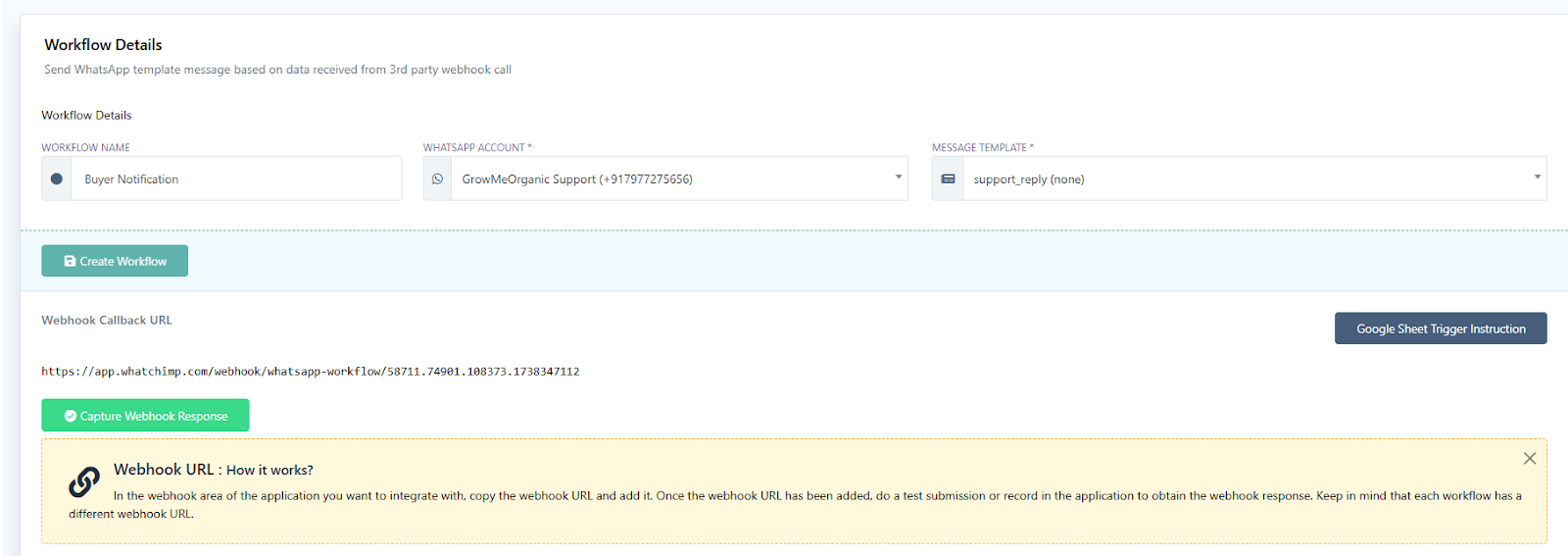
- Go to Webhook Workflow in WhatChimp.
- Click Create Workflow.
- Provide a name for the workflow.
- Select the WhatsApp account from which the message will be sent.
- Choose the message template you created earlier.
- Click Create Workflow to generate a Webhook URL.
- Copy the Webhook URL to use in your Shopify settings

Integrate Webhook with Shopify
- Log in to your Shopify Admin Dashboard.
- Go to Settings → Notifications.
- In the Webhook Section, click Create Webhook.

- Fill out the webhook form:
- Event: Select Order Creation.
- Format: Keep as JSON.
- URL: Paste the Webhook URL from WhatChimp.
- Click Save.
Configure Webhook Response Mapping
- Go back to WhatChimp → Webhook Workflow.
- Click Capture Webhook Response.

- In Shopify, click Send Test Notification.
- Wait for the Webhook Response to appear in WhatChimp.
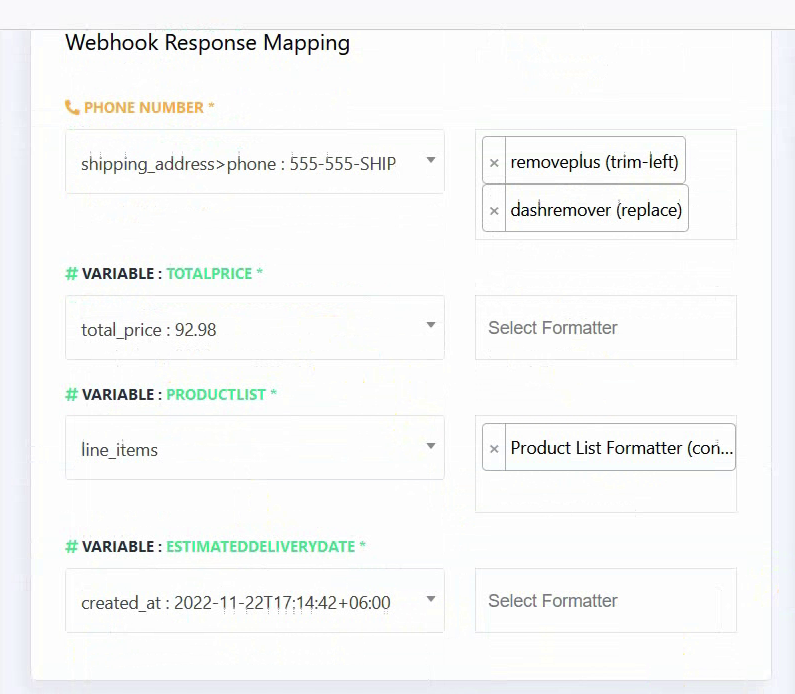
- Map the response fields:
- Phone Number → shipping_address > phone number
- Total Price → total_price
- Product List → line_items
- Estimated Delivery Date → created_at
- Click Save Workflow.
Test & Verify the Setup
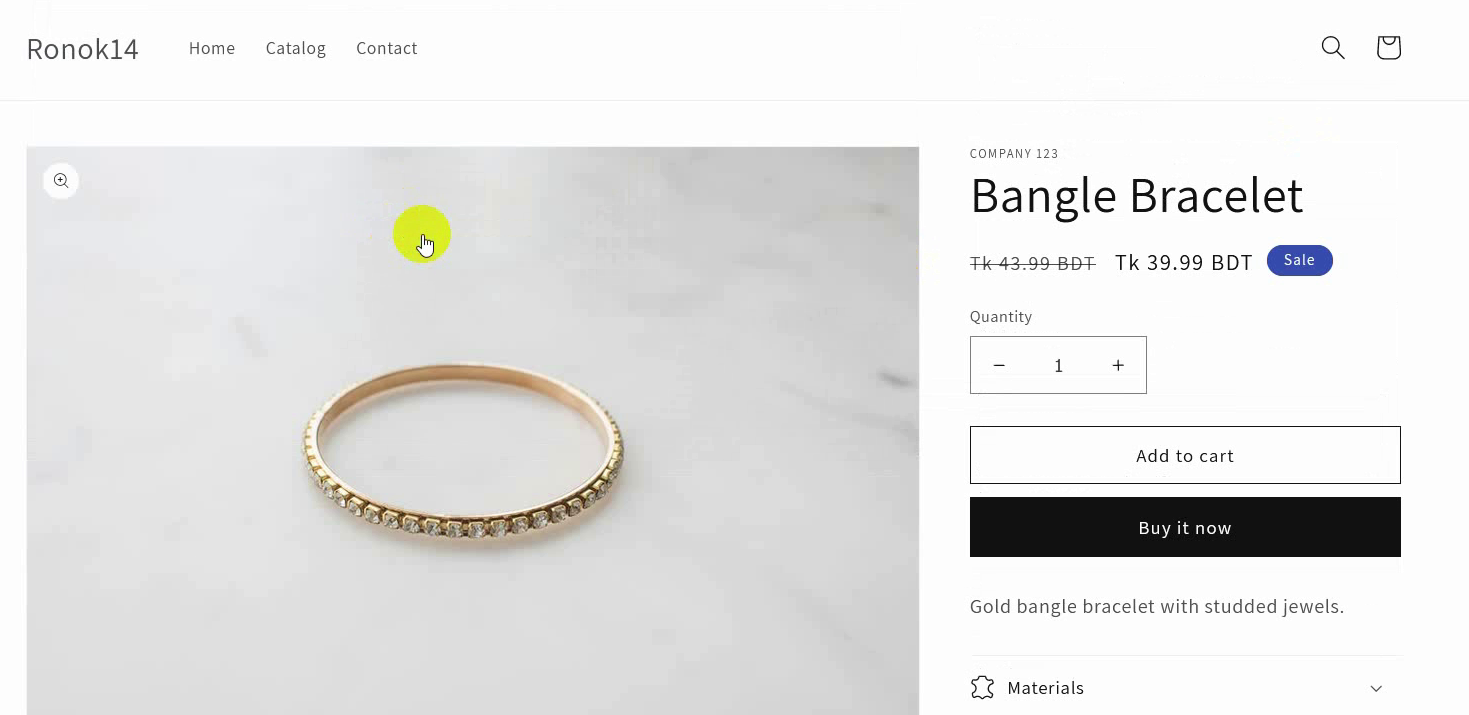
- Place a test order in Shopify.
- Go to WhatChimp Reports and check the order status:
- Initially, the status will be Pending.
- After processing, it will change to Completed.

- Check your WhatsApp account—you should receive the order notification.

FAQs
What happens if the Webhook doesn't capture the response?
- Ensure the Webhook URL is correctly added to Shopify.
- Click Send Test Notification again in Shopify.
- Refresh WhatChimp Webhook Workflow and check for responses.
Can I modify the WhatsApp message template?
- Yes, you can edit the message content and variables in WhatChimp.
What if the notification isn't sent to WhatsApp?
- Confirm that the WhatsApp account is linked to WhatChimp.
- Check if the Webhook Workflow is active.
Can I add other Shopify events like Order Fulfillment?
- Yes! You can create additional webhooks for different events.
Do I need a paid WhatsApp API for this?
- Yes, WhatChimp requires a WhatsApp Business API to send messages.